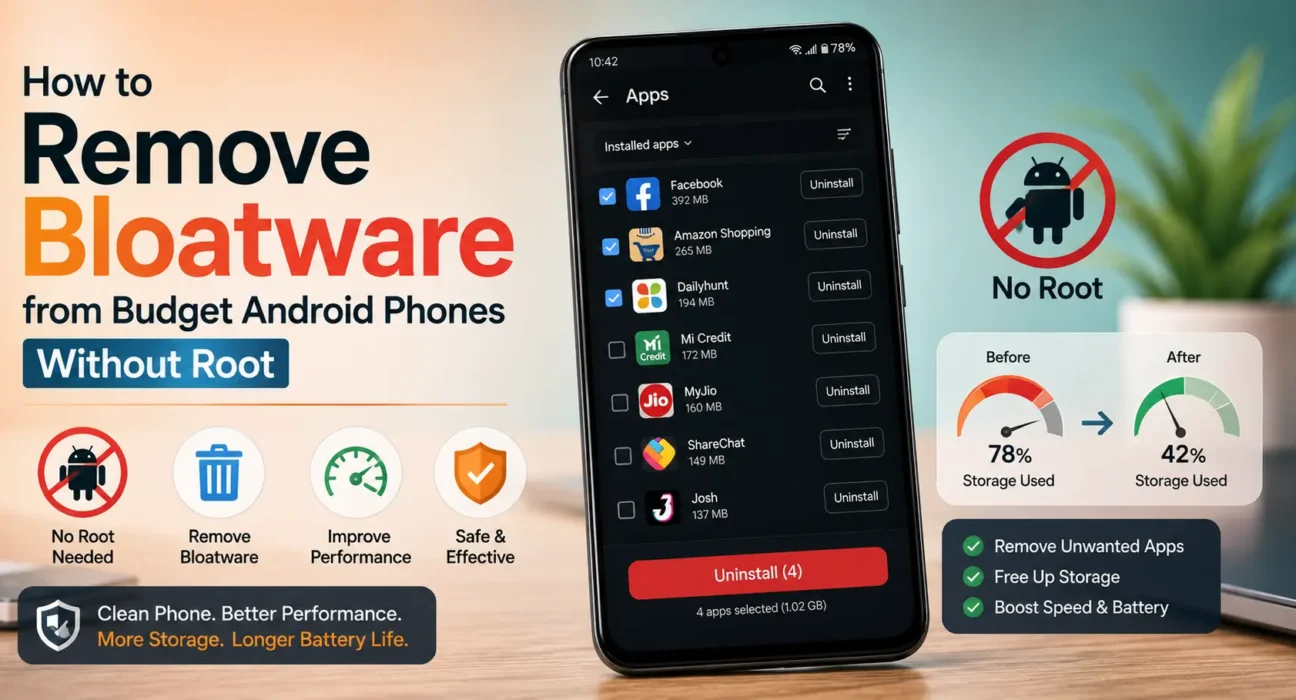
Budget Android phones almost always ship with extra apps you never asked for — carrier utilities, manufacturer games, and duplicate system software. Knowing how to remove bloatware budget android no root setups require isn’t just about tidying up your app drawer; it directly impacts daily performance. On low-RAM hardware, these pre-installed applications run background services that consume memory and drain battery life. The good news: you can easily clean up your device without risking your warranty or rooting.
Why Bloatware Matters More on Budget Phones
A flagship phone with 12GB of RAM and 512GB of storage barely notices extra background tasks. However, on a budget device with 4GB to 8GB of RAM, every active background process competes for limited resources. If you have noticed your phone lagging or stuttering, unwanted pre-installed software is often a primary cause.
Step 1: Disable Instead of Uninstall (Built-in Option)
Many pre-installed system apps cannot be uninstalled through standard menus, but disabling them stops background activity completely.
- Go to Settings > Apps > See all apps on your Android device.
- Select the app you want to remove.
- Tap Disable if available. This stops the app from running and hides it from your launcher.
- If only Force Stop appears, move to ADB commands below to fully remove it for your user profile.
Step 2: Uninstall Normal Pre-Installed Apps
Not all pre-loaded apps are system-protected. Carrier bloatware and sponsored games often uninstall like regular Play Store downloads.
- Press and hold the target app icon.
- Select Uninstall.
- If the option is unavailable, refer to Google Support for device-specific application permission settings or proceed to Step 3.
Step 3: Use ADB Commands to Remove Bloatware Budget Android No Root
For stubborn system apps that offer no disable option, Android Debug Bridge (ADB) allows complete user-level removal without rooting or unlocking the bootloader.
- Enable Developer Options (Settings > About Phone > tap Build Number 7 times) and turn on USB Debugging.
- Download the official ADB platform tools from Google Developer Console on your PC.
- Connect your phone via USB cable and open a terminal in the platform-tools folder.
- Run
adb shell pm uninstall --user 0 <package_name>replacing<package_name>with the specific application ID.
This command is officially supported by Android development tools. It removes the software for your primary user profile without deleting core system partitions, making it completely safe and reversible via factory reset.

Step 4: Clear Residual Cache and System Data
Once unwanted apps are removed or disabled, go to Settings > Storage to clear leftover temporary files. Pairing bloatware removal with routine maintenance keeps performance optimal — explore our detailed guide on freeing up system storage on budget Android phones to maximize available space.
What Not to Do
- Avoid “Cleaner” Apps: Third-party Play Store cleaners often consume more RAM and battery than the bloatware they claim to remove.
- Verify Package Names First: Do not remove system components with generic names without checking their function, as disabling vital services like SIM toolkits can interrupt basic features.
- Avoid Rooting: Rooting voids warranties and disables security features like banking app attestation; the ADB method accomplishes the exact same performance outcome safely.
FAQ
How to remove bloatware budget android no root safely?
The safest method is using built-in Disable buttons in Settings, followed by official ADB command line tools for stubborn carrier apps.
Is removing bloatware without root permanent?
Disabling or using ADB removes apps for your active user profile. Performing a factory reset will restore factory default software.
Will removing pre-installed apps speed up my budget phone?
Yes. Removing apps frees up system RAM and stops background CPU cycles, directly improving responsiveness on budget hardware.
Can ADB damage my device?
Using pm uninstall --user 0 only removes apps for user 0 (your main account). It does not alter system firmware, making it safe and non-destructive.
How much RAM do I need on budget Android phones?
Check our comprehensive analysis on 4GB vs 6GB vs 8GB RAM in Budget Android Phones to see how memory management impacts app performance.
Final Takeaway
Learning how to remove bloatware budget android no root techniques require is one of the most effective ways to boost performance and free up storage on affordable hardware. Start with standard app disabling, uninstall removable utilities, and utilize ADB for restricted system apps. For more system optimization strategies, review our Ultimate Buyer’s Guide to Budget Android Phones in 2026.
Related Guides: How to Fix Lag and Stutter on Budget Android Phones · How to Free Up System Storage on Budget Android Phones · 4GB vs 6GB vs 8GB RAM in Budget Android Phones