How to Fix Android Apps That Keep Crashing and Freezing
Last updated: October 2026 · Category: Android Fixes · 8 min read
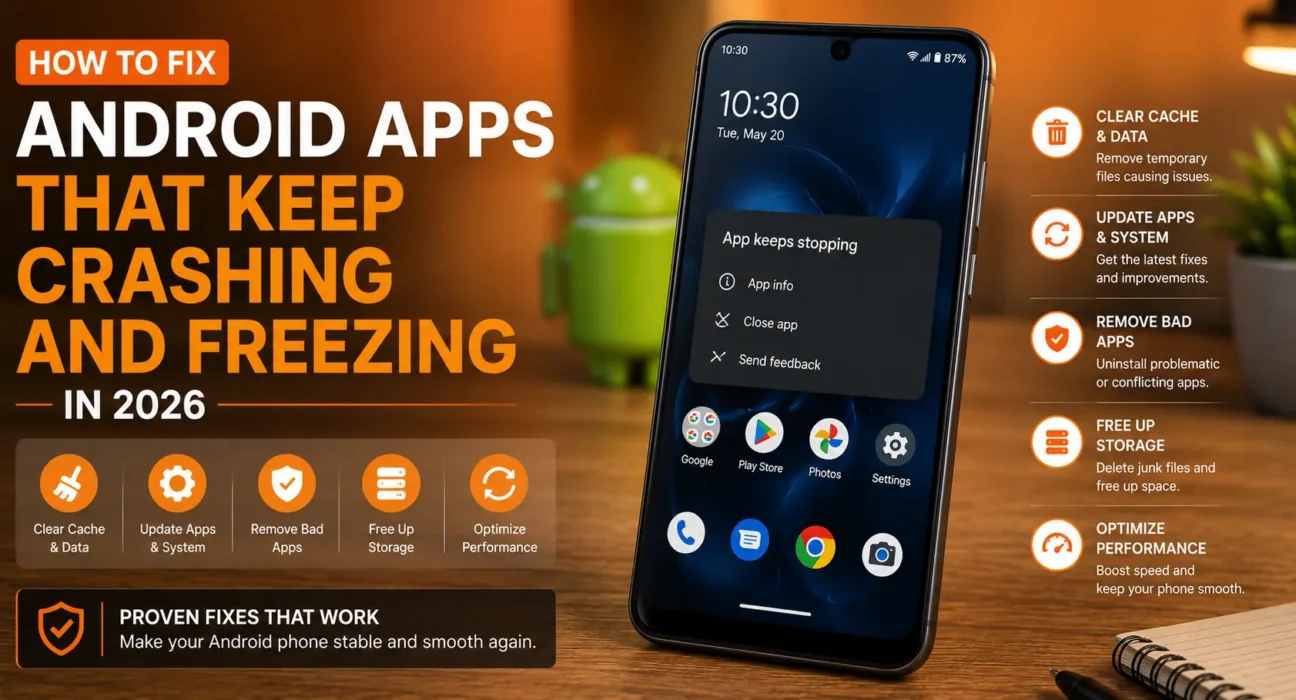
If you are looking for how to fix android apps that keep crashing and freezing, you are dealing with one of the most common smartphone complaints. Apps that crash back to your home screen or freeze mid-use almost always trace back to a small set of causes: corrupted cache, an outdated system component, or a background process interfering with the app. This guide walks through the standard first-response fixes that resolve most crashing and freezing issues, and links out to more specific guides if your case needs a deeper fix.
Quick Summary: Causes and Fixes
| Symptom | Likely Cause | Fix |
|---|---|---|
| One specific app crashes repeatedly | Corrupted app cache or outdated app version | Clear cache, update the app |
| Apps that use in-app browsers/links crash | Outdated Android System WebView | Update WebView from the Play Store |
| Apps freeze then close with no error | Battery optimization force-closing background apps | Adjust battery settings for that app |
| “App keeps stopping” popup appears | Corrupted data or missing permission | See our dedicated fix guide |
| Multiple unrelated apps crash together | Google Play Services malfunctioning | See our Google Play Services fix |
How to Fix Android Apps That Keep Crashing and Freezing: 5 Proven Steps
Clear the App’s Cache (Not Data)
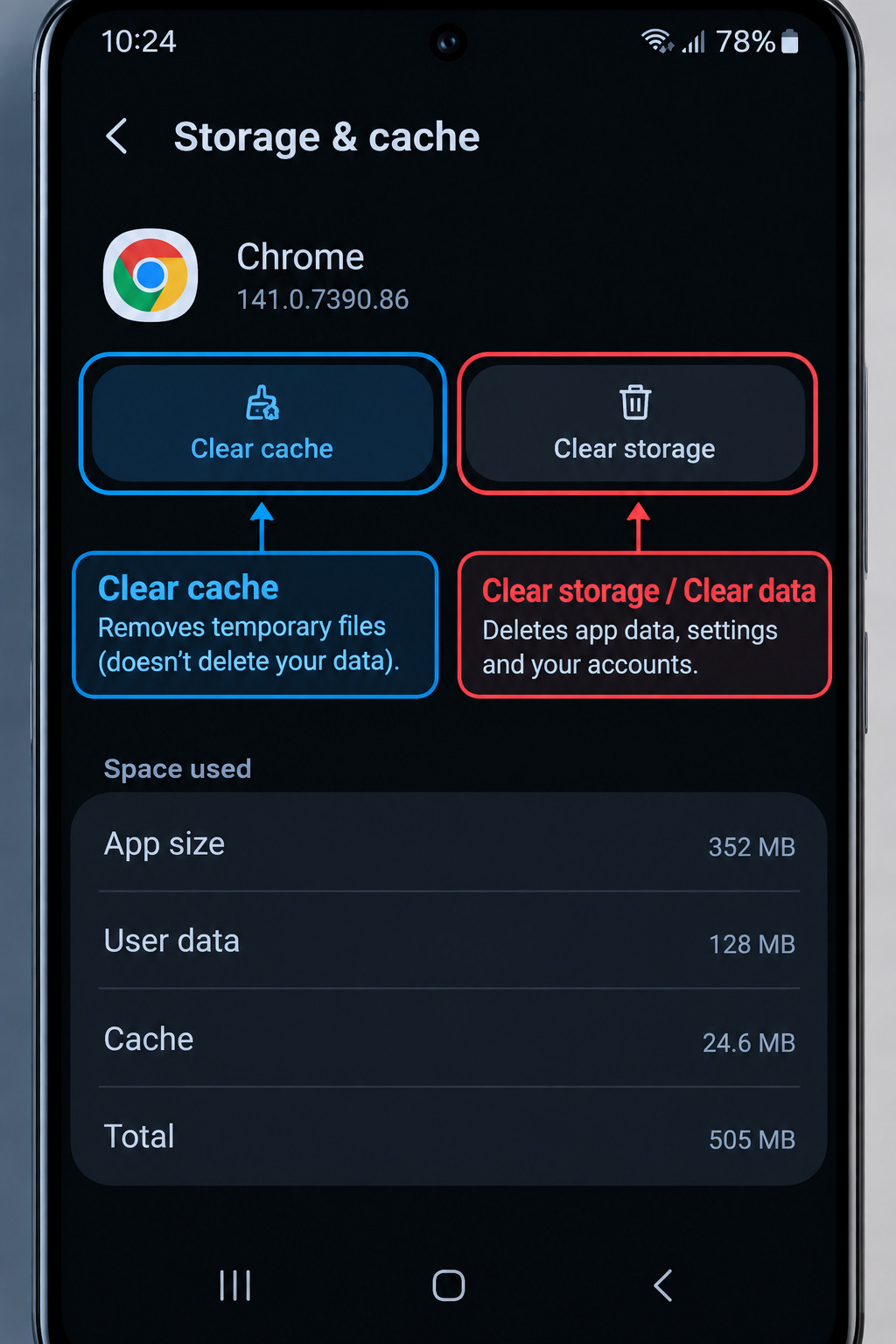
Cache corruption is the single most common cause of a specific app crashing repeatedly. Go to Settings > Apps > See all apps > [App Name] > Storage & cache, and tap Clear cache.
Why This Works
Cache files are meant to help an app load faster by storing temporary data locally, but if a cache file becomes corrupted — often after an interrupted download or unexpected shutdown — the app can crash every time it tries to read that specific file. Clearing it forces the app to rebuild that cache from scratch.
Update Android System WebView
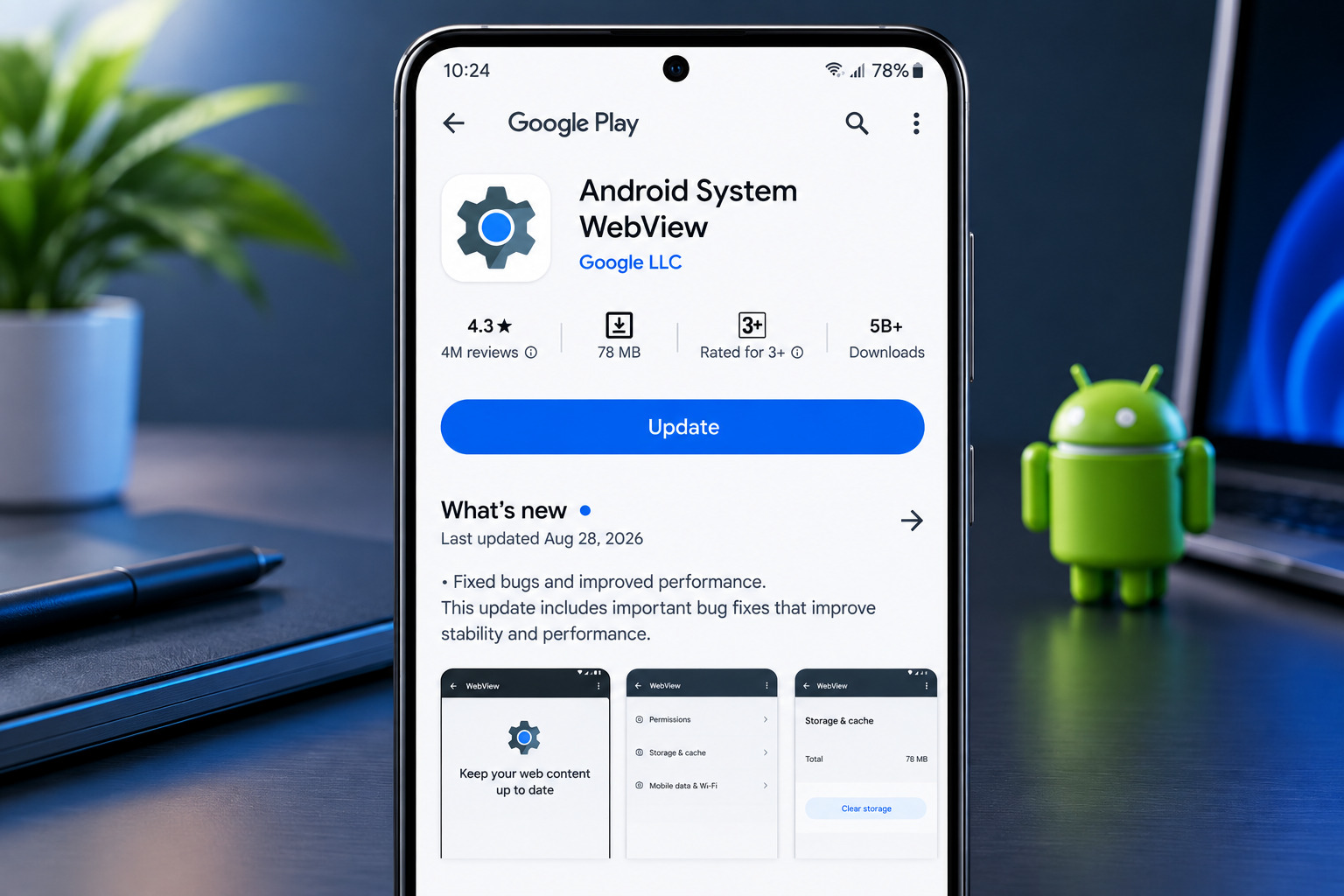
If the apps crashing are ones with built-in browsers or link previews (banking apps, social media apps, messaging apps), an outdated WebView component is a common cause. Open the Play Store, search Android System WebView, and check for a pending update. Our full guide on Android System WebView crashes covers this in more depth if updating alone doesn’t fix it.
Force Stop and Reopen the App
Go to Settings > Apps > [App Name], tap Force stop, then reopen the app normally. This clears out any stuck background process without deleting any data, unlike clearing app data entirely.
Check for Pending App or System Updates
Go to the Play Store > Manage apps & device to check for pending app updates, and separately check Settings > System > System Update for a pending Android update. Developers frequently patch crash-causing bugs in routine updates.
Restart Your Phone
A simple restart clears out accumulated background processes and temporary system state that can contribute to freezing across multiple apps at once, not just a single problematic one.
When It’s a Deeper Issue
If you still need to know how to fix android apps that keep crashing and freezing after trying the steps above, the cause is likely more specific than general cache corruption:
Frequently Asked Questions (FAQ)
Why do my Android apps keep crashing all of a sudden?
The most common causes are corrupted app cache, an outdated Android System WebView component, or a recent update that introduced a bug — clearing cache and checking for updates resolves most cases.
Does clearing cache delete my app data or login?
No. Clearing cache only removes temporary files; your login sessions, saved data, and settings remain intact. Clearing data (a separate option) does reset the app completely.
Will a factory reset fix apps that keep crashing?
It’s rarely necessary — the vast majority of crashing issues are resolved by clearing cache, updating WebView, or force-stopping the specific app, all of which are far less disruptive than a full reset.
Final Takeaway
Knowing how to fix android apps that keep crashing and freezing comes down to addressing corrupted cache, an outdated WebView component, or background process conflicts — not replacing a fundamentally broken phone. Work through the 5 steps above in order, and use our targeted troubleshooting guides for specific popups or persistent battery saver issues.