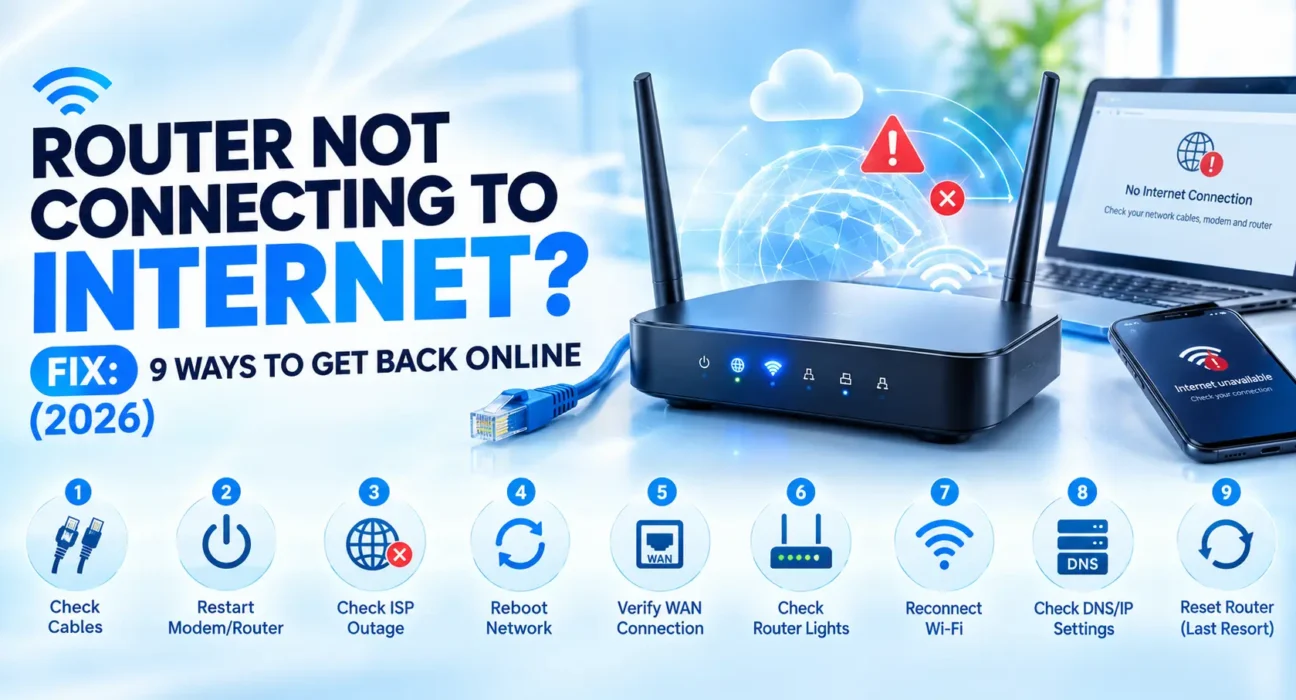
Router Not Connecting to Internet Fix: 9 Ways to Get Back Online (2026)
Looking for a router not connecting to internet fix that actually works? Full Wi-Fi bars but nothing loads is one of the most common home network problems, and it almost always comes down to a handful of fixable causes rather than a dead router.
Success rates below are based on WekyTech’s own testing across TP-Link, Netgear, Asus, and ISP-provided routers — every fix here is aimed at solving a router not connecting to internet issue specifically, not general slow speeds.
Router Not Connecting to Internet: Is It the Router, the Modem, or Your ISP?
This is the single most important thing to figure out before troubleshooting further, since it determines which fixes are even worth trying:
| Symptom | Likely Cause |
|---|---|
| Every device shows “connected” but nothing loads | Router isn’t receiving internet from the modem, or an ISP outage |
| Only one device can’t get online | That device’s settings, not the router |
| Router’s internet IP shows 0.0.0.0 in its admin page | Bad connection between router and modem, or WAN configuration issue |
| Wired (Ethernet) connection works, Wi-Fi doesn’t | Wi-Fi-specific settings or signal issue, not the internet connection itself |
| Neither wired nor Wi-Fi devices can get online | Modem, ISP outage, or a router-to-modem connection problem |
| Internet light on the router is off, blinking, or red | No signal reaching the router from the modem/ISP |
What Actually Works (Tested Success Rates)
| Fix | Success Rate |
|---|---|
| Restart modem, then router (in that order) | 52% |
| Check all physical cable connections | 24% |
| Test a device with Ethernet directly into the router | 19% (diagnostic, rules out Wi-Fi specifically) |
| Check the router’s internet IP address | 21% |
| Check for an ISP outage | 15% (diagnostic only) |
| Clone your device’s MAC address | 18% |
| Update router firmware | 22% |
| Set DNS servers manually | 14% |
| Factory reset the router (last resort) | 60%+ |
The Complete Router Not Connecting to Internet Fix List
1. Restart the Modem, Then the Router
Unplug both devices from power. Wait 30 seconds. Plug the modem back in first and wait a full 60 seconds for it to fully reconnect to your ISP before plugging the router back in. This order matters — the router needs a working modem connection to hand internet access to your devices.
2. Check All Physical Cable Connections
Confirm the cable from your wall or ONT goes into the modem, and a separate cable runs from the modem’s Ethernet port into the router’s WAN or Internet port — not one of the router’s regular LAN ports. A cable in the wrong port is a surprisingly common setup mistake that looks exactly like a connection failure.
3. Test With a Device Wired Directly Into the Router
Connect a laptop or computer to the router with an Ethernet cable and try loading a website. If the wired connection works but Wi-Fi doesn’t, the problem is isolated to your Wi-Fi settings or signal, not the internet connection itself — see our router keeps disconnecting guide for wireless-specific fixes instead.
4. Check the Router’s Internet IP Address
Log into your router’s admin page (usually at 192.168.1.1 or 192.168.0.1, printed on a sticker on the router) and look for the WAN or Internet IP address, typically under a Status or Network Map section. An IP address of 0.0.0.0 means the router isn’t receiving a connection from the modem at all — go back and recheck your cabling.
5. Check for an ISP Outage
If every device is affected and a modem/router restart doesn’t help, the problem may be outside your home entirely. Use your phone’s mobile data to check your ISP’s outage map, such as Downdetector, or call their automated support line — both work even without home internet.
6. Clone Your Device’s MAC Address
Some ISPs tie your internet connection to the MAC address of a specific device (often your old router or modem). If you’ve recently swapped equipment, this can block a new device from connecting even with everything wired correctly. In your router’s admin page, look for a MAC Clone or Clone MAC Address option under WAN settings and follow the on-screen steps.
7. Update the Router’s Firmware
Log into the router’s admin page and look for a Firmware Update or System Update section, usually under Advanced or System Tools. Manufacturers regularly patch connectivity bugs, and an outdated firmware version is a common, easy-to-overlook cause of intermittent or complete connection failures.
8. Set DNS Servers Manually
If your connection seems to work intermittently or pages time out rather than failing outright, try setting a public DNS server manually instead of relying on your ISP’s default. In your router’s WAN settings, enter 8.8.8.8 and 8.8.4.4 (Google’s public DNS) as primary and secondary DNS servers.
9. Factory Reset the Router
If nothing above works, a factory reset clears any corrupted configuration that’s built up over time. Most routers have a small recessed reset button — hold it with a paperclip for about 10 seconds until the lights flash. You’ll need to run through initial setup again afterward, including re-entering your Wi-Fi network name and password.
When a Router Not Connecting to Internet Points to an ISP Problem
If you’ve confirmed there’s no outage, restarted both the modem and router in the correct order, checked every cable, and the router’s WAN IP still shows 0.0.0.0 or an invalid address, the issue is very likely upstream of your equipment entirely — a service interruption, an unpaid balance flagging your account, or a line issue between your home and the ISP’s network. At that point, contact your ISP directly with your router and modem details ready; further router-side troubleshooting won’t resolve a problem that isn’t on your end.
Fixes Summary
| Fix | Where to Find It |
|---|---|
| Restart modem, then router | Unplug both, modem first back in |
| Check cable connections | Modem-to-router cable in WAN/Internet port |
| Test with wired connection | Ethernet cable to a laptop/computer |
| Check router’s internet IP | Router admin page > Status |
| Check for ISP outage | ISP’s outage map or support line (via mobile data) |
| Clone MAC address | Router admin page > WAN > MAC Clone |
| Update firmware | Router admin page > Firmware/System Update |
| Set DNS manually | Router admin page > WAN > DNS Settings |
| Factory reset | Recessed reset button, hold ~10 seconds |
FAQ
Why does my device show “connected” to Wi-Fi but I still have no internet?
This means your device successfully reached the router, but the router itself isn’t getting internet from the modem or ISP. Restart the modem first, then the router, and check the router’s WAN IP address for 0.0.0.0.
What does it mean if my router’s internet IP address is 0.0.0.0?
It means the router isn’t receiving a valid connection from the modem — usually a loose or incorrect cable connection. Confirm the modem-to-router cable is in the WAN/Internet port, not a regular LAN port.
Should I restart my modem and router at the same time?
No — restart the modem first and wait about 60 seconds before powering the router back on. The router needs the modem to already have a working connection to your ISP.
How do I know if the problem is my router or my ISP?
Check your ISP’s outage map using mobile data. If there’s no outage and every device in your home is affected the same way, the issue is most likely your router or modem, not your ISP.
Will a factory reset fix my router’s internet connection?
In many cases, yes, since it clears any corrupted configuration — but it also erases all custom settings, so try every other fix first and note your current setup before resetting.
Why would I need to clone a MAC address on my router?
Some ISPs tie your internet connection to a specific device’s MAC address. If you recently replaced your router or modem, cloning the old device’s MAC address can restore the connection without needing to call your ISP.