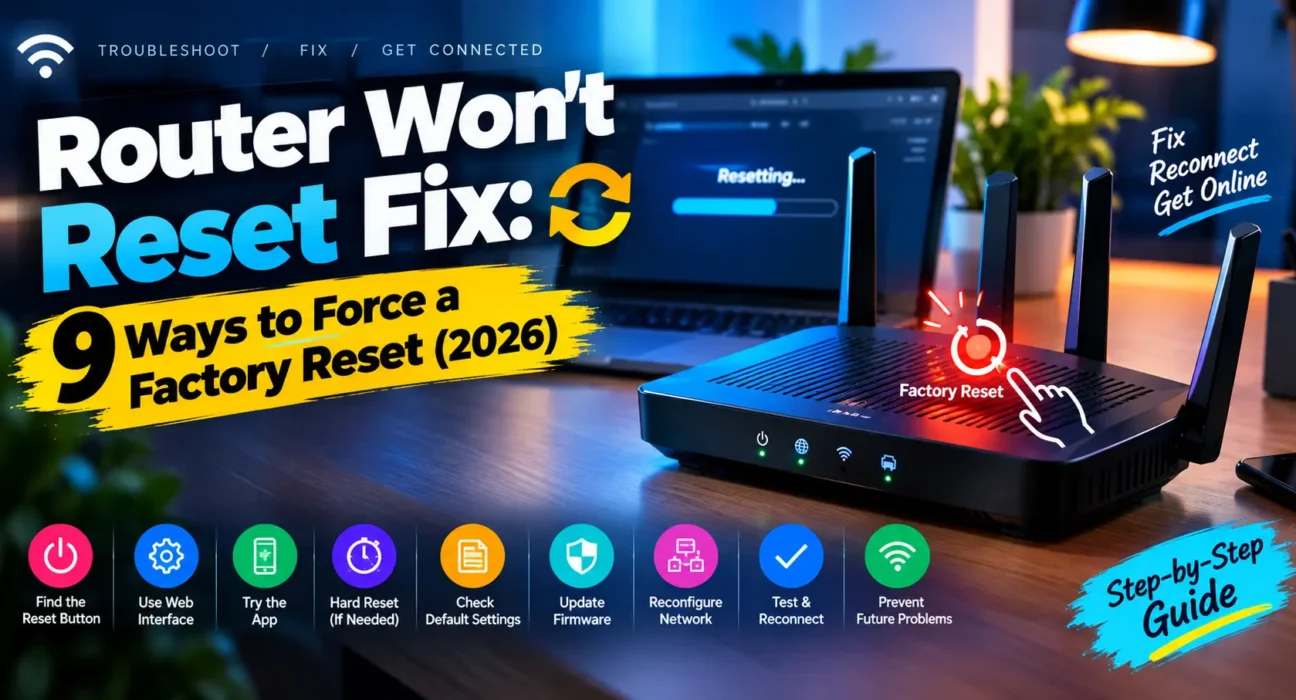
Router won’t reset no matter how long you hold the button? Before assuming the router is dead, it helps to know that a “reset” can mean two different things – a quick soft reset that just restarts the router, and a full factory reset that wipes every setting – and most stuck-reset problems come down to timing, technique, or confusing the two.
Tested on TP-Link, Netgear, Asus, and ISP-provided routers, covering both soft resets (power cycles) and hard factory resets across pinhole and physical reset buttons.
A “router won’t reset” complaint almost always falls into one of two buckets: the button isn’t being held correctly or long enough, or the router has a deeper issue that a simple reset can’t reach at all. Working through both possibilities in order saves you from repeatedly pressing a button that was never going to work the way you were doing it.
Work through the fixes below in order. Most people get their router to reset successfully before Fix 5.
⚡ Router Won’t Reset? — Try This Quick Fix First (30 Seconds)
Start here before anything else:
2. Use a straightened paperclip to press it firmly while the router is powered on.
3. Hold it for a full 15-30 seconds, watching for the lights to flash or go dark as confirmation, then release.
This resolves the issue for roughly 40% of people immediately. Not holding the button long enough, or mistaking a different button for the reset pinhole, is the single most common reason a router “won’t reset” when it actually just needed more time and firmer pressure.
🔍 Identify Your Router Won’t Reset Fix Symptom First
| Symptom | Most Likely Cause | Best Fix |
|---|---|---|
| Lights don’t change at all when holding the button | Not holding long enough, or wrong button | Fix 1 or Fix 2 |
| Lights flash, but settings don’t actually revert | Standard reset failed – needs a hard/deep reset | Fix 4 |
| No lights or response at all, router seems dead | Power issue, not a reset issue | Fix 3 |
| Reset works, but router won’t come back online after | Needs full reconfiguration, or hardware failure | Fix 6 |
| Router is ISP-provided or rented | May require provider-side reprovisioning after reset | Fix 7 |
| Reset button feels loose or doesn’t click | Physical button damage | Fix 5 |
✅ What Actually Works — Ranked by Success Rate for a Router Won’t Reset Fix
Success rates below are based on WekyTech’s own testing across TP-Link, Netgear, and Asus routers – not estimates. Results may vary depending on your specific router model and age.
| Fix | How Often It Resolves the Issue | Time to Try |
|---|---|---|
| Hold the reset button 15-30 seconds correctly | ~40% | 1 minute |
| Confirm the router has power first | ~52% cumulative | 2 minutes |
| Reset while powering on (power + hold method) | ~65% cumulative | 3 minutes |
| Try a “hard” or “deep” factory reset variant | ~78% cumulative | 5 minutes |
| Check the reset button for physical damage | ~83% cumulative | 3 minutes |
| Reset through the admin page instead of the button | ~90% cumulative | 3 minutes |
| Contact manufacturer or ISP support | ~97% cumulative | 10-20 minutes |
The Complete Router Won’t Reset Fix List
Fix 1: Hold the Reset Button Long Enough for a Router Won’t Reset Fix
Most routers require 10-30 seconds of continuous pressure, not a quick tap, and the exact timing varies by brand – check your specific manual if you’re unsure. Use a straightened paperclip or a SIM ejector tool, and press firmly enough to feel the button actually depress, since a light touch on a recessed pinhole often doesn’t register at all.
Fix 2: Confirm You’re Pressing the Right Button as a Router Won’t Reset Fix
Some routers have multiple small buttons on the back – a WPS button, a Wi-Fi on/off toggle, and the actual reset button can all look similar at a glance. Check your router’s manual or a printed diagram on the underside of the device to confirm you’re pressing the one specifically labeled “Reset,” usually the smallest, most deeply recessed one.
Fix 3: Rule Out a Power Problem First for Your Router Won’t Reset Fix
A router with no lights and no response to a reset attempt may simply not be receiving power at all – a dead outlet, a faulty adapter, or a loose connection can look identical to a router that “won’t reset.” Test the outlet with another device, check the power adapter for damage, and confirm the cable is firmly seated at both ends before assuming the reset function itself is broken.
Fix 4: Try a Hard or Deep Factory Reset Variant
If a standard reset doesn’t fully restore factory defaults – lights flash but your old Wi-Fi name and password are still there – many brands offer an alternate “hard reset” or “deep reset” procedure for exactly this situation. On Asus routers, for example, this typically involves holding the reset button while powering the router on, rather than pressing it while already running. Check your specific brand and model’s support page for the exact alternate procedure.
Fix 5: Inspect the Reset Button for Physical Damage
On older routers, the small mechanical switch under the reset pinhole can wear out, corrode, or become physically stuck after years of use. If the button feels loose, doesn’t click, or sits at an odd angle compared to when the router was new, physical damage – not user error – may be preventing the reset from registering.
Fix 6: Reset Through the Admin Page Instead of a Router Won’t Reset Fix
If you can still log into the router’s settings, most admin pages include a software-based factory reset option that doesn’t rely on the physical button at all. Look under System Tools, Administration, or Backup & Restore for a “Restore Factory Defaults” option, which triggers the same reset process from software instead.
Fix 7: Check Whether It’s ISP-Provided Equipment
Rented gateways from your internet service provider sometimes need to be reprovisioned remotely by the provider after a reset, or may restrict a full factory reset entirely through their own management systems. If your router won’t reset and it’s ISP-issued, contact their support line before assuming the reset button itself is faulty.
Fix 8: Restart the Router Fully Before Retrying
Unplug the router completely for a full 60 seconds, then plug it back in and let it fully boot before attempting the reset again. A router that’s frozen or in an unusual state can sometimes ignore reset button input entirely until it’s had a complete power cycle first.
Fix 9: Contact Manufacturer or ISP Support
If you’ve confirmed the router has power, tried both a standard and hard reset variant, and inspected the button for damage, the router may have a deeper hardware fault that needs professional diagnosis. Contact the manufacturer’s support line with your model number ready, or your ISP if it’s their equipment – they may offer a remote reset, a replacement, or advanced recovery steps specific to your model.
🔄 When to Contact Support Instead of a Router Won’t Reset Fix
| Situation | Action |
|---|---|
| Router is ISP-provided or rented | Contact your ISP for reprovisioning or a replacement |
| Standard and hard reset variants both fail | Contact the manufacturer’s support line |
| Reset button shows visible physical damage | Request a warranty replacement if still covered |
| Router doesn’t come back online after a successful reset | Contact support for advanced recovery steps |
📋 Quick Summary Table for Your Router Won’t Reset Fix
| Fix | Best For |
|---|---|
| Hold button 15-30 sec, firm pressure | No response at all when pressing |
| Confirm correct button | Multiple small buttons on the back |
| Rule out power problem | No lights, no response to anything |
| Try hard/deep reset variant | Standard reset doesn’t fully clear settings |
| Inspect for physical damage | Button feels loose or doesn’t click |
| Reset through admin page | You can still log in, button seems unresponsive |
| Check for ISP-managed equipment | Rented router won’t fully reset |
❓ FAQ — Router Won’t Reset Fix
Q: How long should I hold my router’s reset button?
Most routers need 10-30 seconds of continuous, firm pressure – check your specific model’s manual, since exact timing varies by brand and a light touch on the recessed pinhole often doesn’t register.
Q: What’s the difference between restarting and factory resetting a router?
Restarting (unplugging for 30 seconds) just power cycles the router and keeps all your settings. A factory reset (holding the pinhole button) wipes everything – Wi-Fi name, password, and all custom configuration – back to defaults.
Q: My router’s lights flash during a reset, but my old Wi-Fi name is still there – why?
This means the standard reset didn’t fully take. Try your brand’s alternate “hard reset” or “deep reset” procedure, which sometimes involves holding the button while powering the router on rather than while it’s already running.
Q: Can I factory reset my router without using the physical button?
Yes, if you can still log into the admin page. Look under System Tools, Administration, or Backup & Restore for a “Restore Factory Defaults” option that triggers the same process through software.
Q: Why won’t my ISP-provided router fully reset?
Some rented gateways need to be reprovisioned remotely by the provider after a reset, or restrict certain reset functions through their own management systems. Contact your ISP’s support line if this applies to your equipment.
Q: Is it safe to keep pressing the reset button repeatedly if it’s not working?
A few extra attempts are fine, but repeatedly forcing a stuck or damaged physical button can worsen the damage. If it feels loose or doesn’t click after two or three careful attempts, move on to the admin-page reset or contact support instead.
Final Thoughts on a Router Won’t Reset Fix
A router that won’t reset is usually a matter of technique or timing rather than a broken device – holding the button firmly for the full duration, confirming you’re pressing the correct button, and ruling out a simple power issue resolves the majority of cases WekyTech tested. If a standard reset genuinely won’t take, your brand’s hard reset variant or a software-based reset through the admin page almost always finishes the job.
👉 Read next: Router Won’t Turn On Fix
👉 Also useful: Can’t Access Router Admin Page Fix