Category: iPhone Fixes | Updated: August 2026 | Reading time: 9 min
Why Trust This Guide
This guide is based on Apple’s official troubleshooting recommendations and the most common Wi-Fi configuration issues reported after iOS updates. Fixes are organized in the order Apple’s own support documentation generally recommends — starting with the simplest checks before moving to deeper resets. We review and update this article whenever Apple changes its guidance or ships a new iOS version. Last reviewed: August 2026.
⚡ iPhone Won’t Connect to Wi-Fi After iOS Update? Quick Fix (Try This First)
Before anything else, try this 30-second sequence. It’s the fastest thing to try and often clears up the problem on its own:
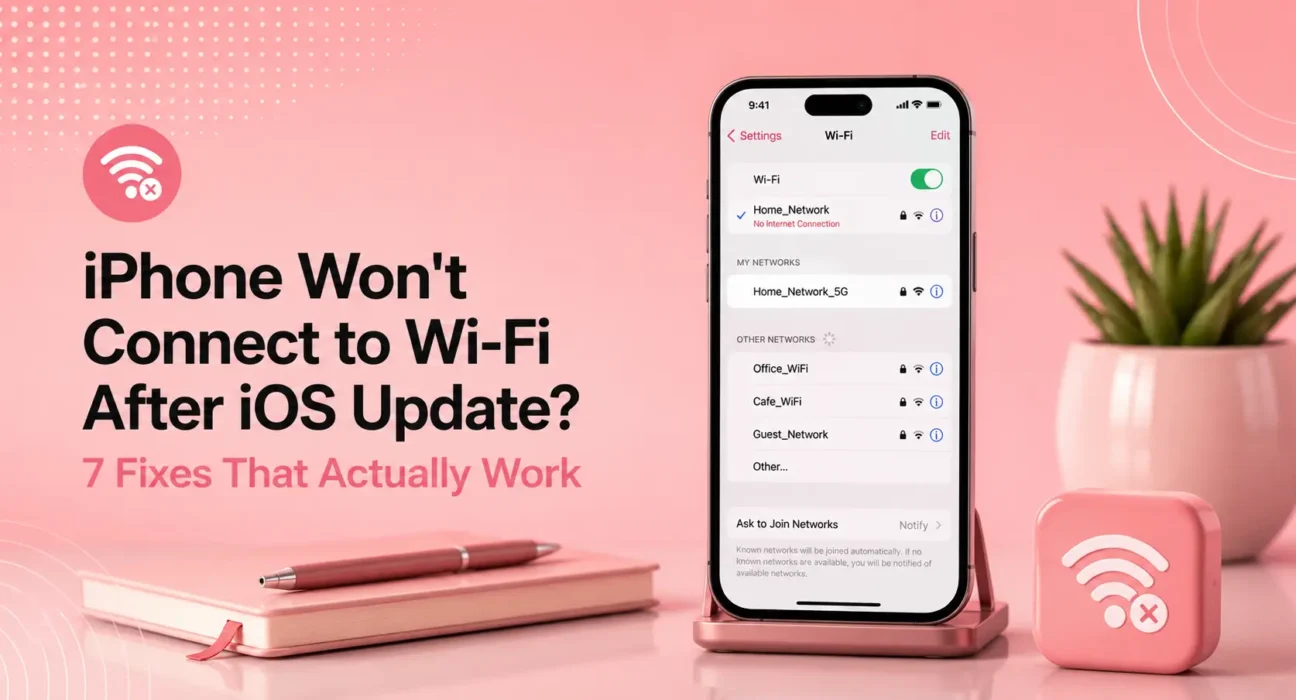
- Settings → Wi-Fi → tap the (i) next to your network → Forget This Network.
- Restart your iPhone (hold Side + either Volume button, slide to power off).
- Unplug your router for 10 seconds, plug it back in, wait 60 seconds.
- Reconnect to Wi-Fi and re-enter your password.
If you’re back online, you’re done. If not, keep reading — the next step is figuring out whether the problem is your iPhone or your router.
🔍 Router Check: Is the Problem on Your iPhone or Your Router?
Before trying deeper fixes, run this quick check. Apple’s own troubleshooting steps start here too — it saves you from resetting settings that were never the problem:
- Try your iPhone on another network. Connect it to a different Wi-Fi network or a personal hotspot. If it connects fine there, your iPhone is likely fine and the issue is specific to your original router or network.
- Try another device on your network. Connect a laptop, tablet, or another phone to the same Wi-Fi. If it also fails, the problem is your router, not your iPhone.
- Check how many devices are connected. Many home routers cap out around 30–50 simultaneous connections, and smart-home devices quietly eat into this limit.
- Log into the router admin panel and check for a pending firmware update — a common cause after any iOS release.
- If you’re on a mesh system (Eero, Orbi, Google Nest Wifi), confirm your iPhone is connecting to a nearby node and not stuck trying to reach one out of range.
- If your router broadcasts 5GHz and 2.4GHz as separate network names, try connecting to each one individually.
If only your iPhone struggles while other devices and networks work fine, move on to the fixes below. If every device struggles on your network, focus on restarting the router and checking for a firmware update first.
🔧 7 Fixes, Explained in Detail
1. Restart Both Devices (Not Just Your iPhone)
iOS updates sometimes leave the Wi-Fi radio in a half-initialized state, and your router’s DHCP table can also get confused if your phone dropped off mid-update. Restarting only the iPhone doesn’t always resolve it — restarting both devices in sequence (phone first, then router) covers more cases.
Do this: Power off the iPhone completely, then unplug the router. Wait 10 seconds. Plug the router back in and give it a full 60 seconds to fully boot before turning the iPhone back on.
2. Forget the Network and Rejoin From Scratch
iOS update migrations can occasionally carry over an outdated or corrupted Wi-Fi profile. This shows up as “Unable to Join Network” even with the correct password.
Do this: Settings → Wi-Fi → tap the (i) icon → Forget This Network → confirm. Then rejoin manually and type the password fresh rather than using autofill.
3. Reset Network Settings
If the Router Check above pointed to your iPhone rather than your router, this is the next recommended step. It wipes saved Wi-Fi passwords, Bluetooth pairings, VPN configs, and cellular APN settings, then rebuilds them from scratch — clearing out anything an update may have left in a broken state.
Do this: Settings → General → Transfer or Reset iPhone → Reset → Reset Network Settings. Your phone will restart. You’ll need to re-enter Wi-Fi passwords afterward.
4. Update Your Router’s Firmware
New iOS versions occasionally ship updated Wi-Fi protocol handling (particularly around WPA3 and 802.11ax/Wi-Fi 6) that older router firmware doesn’t fully support. Apple recommends keeping router firmware current as part of standard Wi-Fi troubleshooting.
Do this: Log into your router’s admin panel (usually 192.168.1.1 or 192.168.0.1) and look for a Firmware Update or System Update option.
5. Adjust Private Wi-Fi Address Settings (If Needed)
Apple’s Private Wi-Fi Address feature is designed to protect your privacy, and Apple generally recommends leaving it on for networks that support it. In recent iOS versions, this setting offers three modes — Off, Fixed, and Rotating — rather than a simple on/off toggle. Only change it if your router specifically has trouble recognizing your iPhone after each reconnect.
Do this: Settings → Wi-Fi → tap the (i) next to your network → under Private Wi-Fi Address, try switching to Fixed instead of Rotating. Only turn it Off for that network as a last-resort compatibility test.
6. Check Date, Time, and VPN Profiles
Wi-Fi networks that use certificate-based authentication (common on work, school, or hotel networks) can fail to connect if your iPhone’s clock is off, since certificates are time-sensitive. A leftover VPN or MDM profile can also interfere with the connection. Apple recommends removing VPN or security software as part of its own troubleshooting steps when this is suspected.
Do this: Settings → General → Date & Time → enable Set Automatically. Then check Settings → General → VPN & Device Management for any profiles you don’t recognize or no longer need.
7. Reset All Settings — Last Resort
If nothing above has worked, this is the most thorough step before contacting support. Reset All Settings goes further than a network reset — it also resets keyboard dictionaries, display settings, and privacy permissions — but keeps your data and apps intact.
Do this: Back up your iPhone (iCloud or a computer) first, since it’s good practice before any full reset. Then: Settings → General → Transfer or Reset iPhone → Reset → Reset All Settings.
If the problem continues even after this, it’s worth contacting Apple Support directly — at that point the cause may be specific to your device or account and is best diagnosed with their tools.
📋 Summary Table: Which Fix to Try First
| # | Fix | Best For |
|---|---|---|
| 1 | Restart iPhone and Router | First attempt, unknown cause |
| 2 | Forget This Network & Rejoin | “Unable to Join Network” errors |
| 3 | Reset Network Settings | Router Check points to the iPhone |
| 4 | Update Router Firmware | Router Check points to the router |
| 5 | Adjust Private Wi-Fi Address | Router won’t recognize the device |
| 6 | Check Date & Time / VPN Profiles | Work, school, or hotel networks |
| 7 | Reset All Settings | Nothing else has worked |
Still stuck after Reset All Settings? Contact Apple Support — the issue may need device-specific diagnostics.
❓ Frequently Asked Questions
Why did my iPhone lose Wi-Fi right after updating iOS?
iOS updates rebuild core system frameworks, including the network stack. If the update process is interrupted, or if it carries over an outdated Wi-Fi profile, the phone can fail to reconnect automatically even though everything else works normally.
Does Reset Network Settings delete my photos or apps?
No. It only resets Wi-Fi passwords, Bluetooth pairings, VPN settings, and cellular settings. Photos, apps, messages, and other data are untouched.
My iPhone connects to Wi-Fi but has no internet. Is that the same issue?
It’s related but not identical — that’s usually a DNS or DHCP problem rather than a connection problem. Try forgetting the network and rejoining first; if that doesn’t help, restart the router, since this is very often router-side.
Will this happen again with the next iOS update?
It’s possible, though keeping your router firmware current makes it less likely. Apple recommends keeping both your iPhone and router updated to reduce compatibility issues.
Should I contact Apple Support or my ISP?
If the Router Check above showed the issue is specific to your iPhone, Apple Support is the right next step, especially after Reset All Settings hasn’t helped. If every device on your network is affected, it’s a router or ISP issue, and your ISP or router manufacturer’s support is the better path.
Is this a hardware problem with my iPhone’s Wi-Fi antenna?
It’s uncommon, and usually comes with other symptoms too, such as Wi-Fi failing before any update, or the Wi-Fi toggle being greyed out entirely. If Reset All Settings doesn’t resolve it, Apple Support can run hardware diagnostics to check.
Can old VPN or work profiles cause this after an update?
Yes. Corporate MDM profiles and VPN configurations can sometimes interfere with network requests after an update. Check Settings → General → VPN & Device Management if you use a work or school-managed device.
🔗 Related Guides
Continue troubleshooting with these related articles from our iPhone Fixes and Wi-Fi & Internet clusters:
- iPhone Says “No Internet Connection” But Wi-Fi Is Connected — Full Fix
- How to Reset Network Settings on iPhone Without Losing Data
- Router Won’t Assign IP Address: 6 Fixes for Any Device
- iPhone Overheating While Charging: Causes and Fixes
- WPA3 vs WPA2: Which Wi-Fi Security Should You Use in 2026
- How to Find Your Router’s IP Address on Any Device
Also read: The Complete iPhone Troubleshooting Guide 2026
Read next: iPhone WiFi Keeps Disconnecting — 7 Fixes
Also useful: Best Phone Plans in the US and Canada 2026
✍️ About the Author
[Raouf Osman] covers consumer networking and mobile device troubleshooting, drawing on Apple’s official support documentation, router manufacturer guidance, and reader-reported issues. [He/She/They] reviews and updates each guide as Apple’s recommendations change. [Author Name] holds a [relevant certification, e.g., CompTIA Network+] and has been cited by [publication names, if applicable].
Have a fix that isn’t listed here, or a different iPhone Wi-Fi symptom? Let us know in the comments — we review reader-submitted fixes and update this guide regularly.