Category: iPhone Fixes | Updated: August 2026 | Reading time: 8 min
Why Trust This Guide
This guide is based on Apple’s official troubleshooting recommendations and the most common causes of “connected but no internet” errors reported by iPhone users. Fixes are organized from simplest to most advanced. We review and update this article whenever Apple changes its guidance or ships a new iOS version. Last reviewed: August 2026.
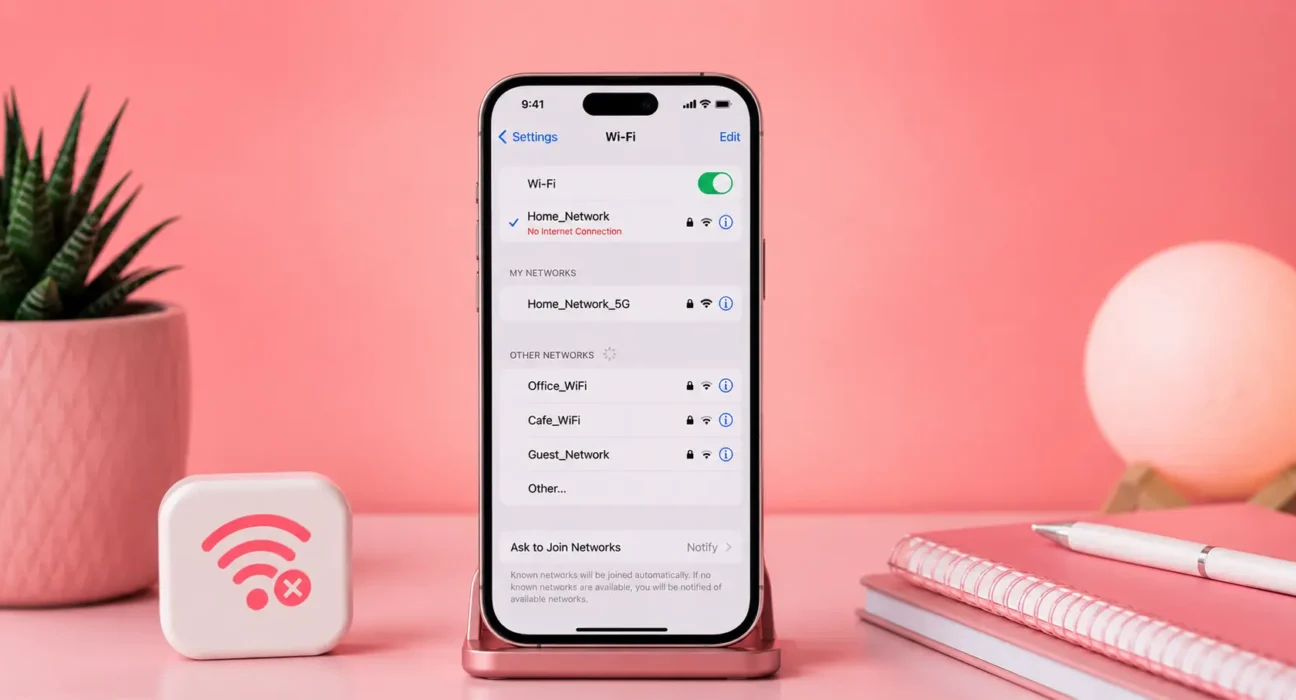
⚡iPhone Connected to Wi-Fi But No Internet? Quick Fix (Try This First)
If your Wi-Fi icon shows full bars but nothing loads, try this sequence first — it resolves the most common cause, a stuck DNS or DHCP lease:
- Settings → Wi-Fi → tap the (i) next to your connected network → Forget This Network.
- Restart your iPhone.
- Reconnect to the network and re-enter the password.
- Try loading a website or app again.
If pages still won’t load, the cause is usually DNS, router congestion, or a background VPN/proxy — covered in the fixes below.
Note: If your iPhone won’t connect to Wi-Fi at all (not even showing as connected), that’s a different issue — see our guide on iPhone Won’t Connect to Wi-Fi After iOS Update instead.
🔍 Router Check: Is the Problem on Your iPhone or Your Network?
Same as with any Wi-Fi issue, rule out the network first before changing settings on your iPhone:
- Try another device on the same network. If a laptop or another phone also can’t load the internet, the problem is your router or your internet provider — not your iPhone.
- Try your iPhone on another network or a personal hotspot. If it gets online there, your iPhone itself is fine.
- Check your router admin panel for an internet/WAN connection light or status — many routers show a red or blinking light when the internet connection itself is down, separate from the local Wi-Fi network.
- Restart your router and modem (if separate) — unplug both, wait 30 seconds, plug the modem in first, wait a minute, then the router.
- If several devices in your home lose internet at the same time, this is very likely an ISP outage rather than anything on your iPhone.
If only your iPhone shows “connected, no internet” while everything else works fine, continue to the fixes below.
🔧 6 Fixes, Explained in Detail
1. Forget the Network and Rejoin
A “connected but no internet” state often means your iPhone has an IP address but the router isn’t routing its traffic correctly — usually fixed by getting a clean, fresh connection.
Do this: Settings → Wi-Fi → tap the (i) next to your network → Forget This Network → rejoin and re-enter the password manually.
2. Change Your DNS Settings
If your iPhone can join the network but can’t resolve website addresses, the router’s default DNS server may be slow or temporarily down. Switching to a public DNS server often restores browsing immediately without needing router access.
Do this: Settings → Wi-Fi → tap the (i) next to your network → Configure DNS → Manual → Add Server → enter 8.8.8.8 (Google) or 1.1.1.1 (Cloudflare).
3. Turn Off Wi-Fi Assist Temporarily
Wi-Fi Assist automatically switches to cellular data when Wi-Fi is weak, but it can sometimes hold onto a broken Wi-Fi connection instead of correctly detecting the failure. Apple lists this as a setting worth checking when apps report no internet despite a Wi-Fi connection.
Do this: Settings → Cellular (or Mobile Data) → scroll to the bottom → toggle off Wi-Fi Assist. Reconnect to Wi-Fi and test again.
4. Check for a VPN or Proxy Blocking Traffic
A VPN app or a manually configured proxy can stay active in the background and quietly block all traffic if the VPN server becomes unreachable, even though Wi-Fi itself shows as connected.
Do this: Settings → VPN & Device Management — turn off any active VPN. Also check Settings → Wi-Fi → (i) next to your network → HTTP Proxy, and set it to Off if a proxy is configured and you didn’t set it up yourself.
5. Reset Network Settings
If the Router Check pointed to your iPhone and none of the fixes above helped, this rebuilds your Wi-Fi, DNS, and VPN configuration from scratch.
Do this: Settings → General → Transfer or Reset iPhone → Reset → Reset Network Settings. You’ll need to re-enter Wi-Fi passwords afterward.
6. Reset All Settings — Last Resort
If the issue persists after a network reset, this is the last step before contacting support. It resets keyboard, display, and privacy settings alongside network settings, but keeps your data and apps.
Do this: Back up your iPhone first. Then: Settings → General → Transfer or Reset iPhone → Reset → Reset All Settings. If the problem continues afterward, it’s worth contacting Apple Support directly for device-specific diagnostics.
📋 Summary Table: Which Fix to Try First
| # | Fix | Best For |
|---|---|---|
| 1 | Forget This Network & Rejoin | First attempt, unknown cause |
| 2 | Change DNS to 8.8.8.8 or 1.1.1.1 | Wi-Fi connects but pages won’t load |
| 3 | Turn Off Wi-Fi Assist | Apps show “No Internet” despite full bars |
| 4 | Check VPN / Proxy Settings | Sudden loss of internet with no other cause |
| 5 | Reset Network Settings | Router Check points to the iPhone |
| 6 | Reset All Settings | Nothing else has worked |
Still stuck after Reset All Settings? Contact Apple Support — the issue may need device-specific diagnostics.
❓ Frequently Asked Questions
Why does my iPhone say “connected” but nothing loads?
This usually means your iPhone successfully joined the Wi-Fi network and received an IP address, but something further along the chain — DNS resolution, the router’s internet connection, or a VPN/proxy — is blocking actual traffic.
Is this the same issue as my iPhone not connecting to Wi-Fi at all?
No. If your iPhone can’t join the network in the first place, that’s a connection issue — see our guide on iPhone Won’t Connect to Wi-Fi After iOS Update. This guide covers the case where Wi-Fi shows as connected but the internet doesn’t work.
Will changing my DNS server slow down my browsing?
No — public DNS services like Google (8.8.8.8) and Cloudflare (1.1.1.1) are typically as fast as or faster than a router’s default DNS, and many people use them permanently without issues.
Does Reset Network Settings fix DNS problems too?
Yes. It clears any manually configured DNS, VPN, and proxy settings along with saved Wi-Fi networks, which resolves most lingering configuration issues in one step.
Could this be an issue with my Wi-Fi router instead of my iPhone?
Yes, and it’s worth checking first. See the Router Check section above — if other devices on the same network also can’t get online, the router or your ISP is the cause, not your iPhone.
Why does this happen more after an iOS update?
iOS updates sometimes reset or reinitialize network-related settings, including DNS and proxy configurations, which can surface an underlying router or DNS issue that wasn’t noticeable before.
Should I turn off Wi-Fi Assist permanently?
Not necessarily — it’s a useful feature for maintaining connectivity when Wi-Fi is weak. Turning it off is mainly useful as a troubleshooting step; you can turn it back on once your Wi-Fi issue is resolved.
🔗 Related Guides
Continue troubleshooting with these related articles from our iPhone Fixes and Wi-Fi & Internet clusters:
- iPhone Won’t Connect to Wi-Fi After iOS Update? 7 Fixes That Actually Work
- How to Reset Network Settings on iPhone Without Losing Data
- Router Won’t Assign IP Address: 6 Fixes for Any Device
- iPhone Overheating While Charging: Causes and Fixes
- WPA3 vs WPA2: Which Wi-Fi Security Should You Use in 2026
- How to Find Your Router’s IP Address on Any Device
Also read: The Complete iPhone Troubleshooting Guide 2026
Read next: iPhone Hotspot Not Working — 7 Fixes
Also useful: Best Phone Plans in the US and Canada 2026
✍️ About the Author
[Raouf Osman] covers consumer networking and mobile device troubleshooting, drawing on Apple’s official support documentation, router manufacturer guidance, and reader-reported issues. [He/She/They] reviews and updates each guide as Apple’s recommendations change. [Author Name] holds a [relevant certification, e.g., CompTIA Network+] and has been cited by [publication names, if applicable].
Have a fix that isn’t listed here, or a different iPhone Wi-Fi symptom? Let us know in the comments — we review reader-submitted fixes and update this guide regularly.