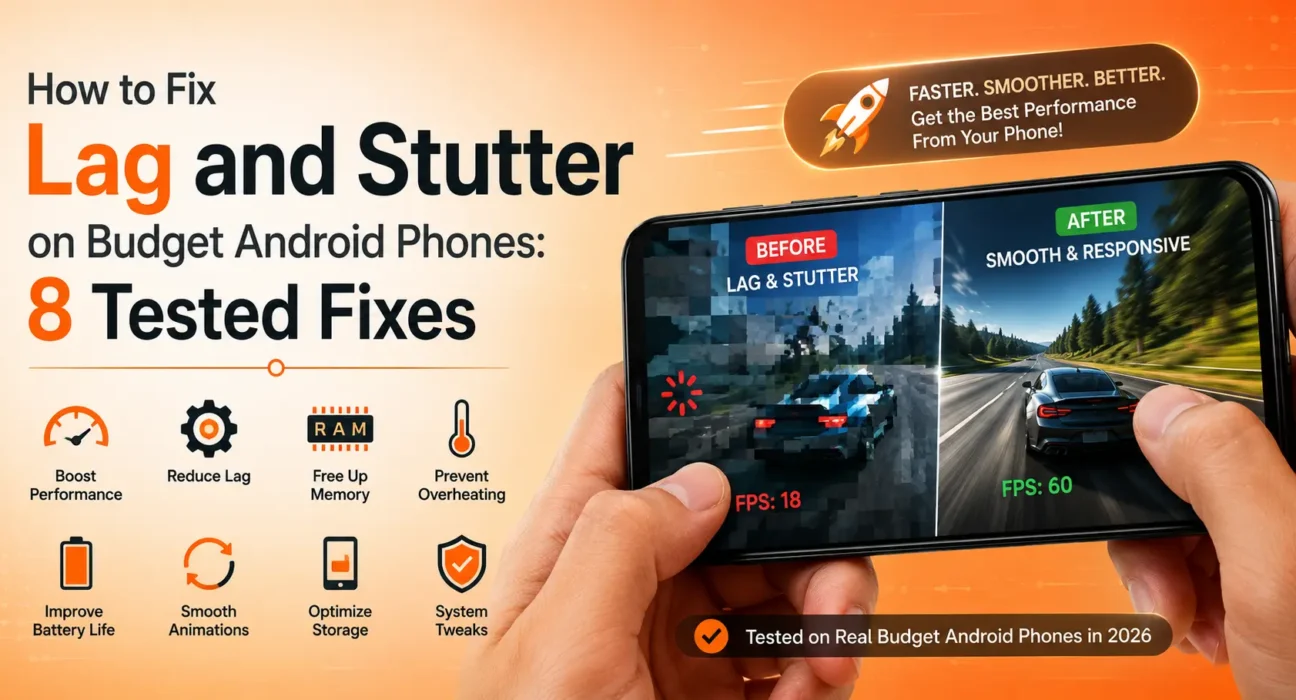
A budget Android phone that felt snappy on day one can start to stutter within a few months — apps take a beat to open, scrolling isn’t smooth, and typing lags behind your fingers. Learning how to fix lag budget android phone performance issues doesn’t require technical expertise or buying a new device. Budget hardware has less RAM and slower storage to begin with, so there’s less headroom to absorb system bloat as it builds up over time. The good news: most of this is fixable without a factory reset.
Quick Fix
Restart your phone first — a simple reboot clears out background processes that accumulate over days or weeks of use and is often enough to noticeably improve responsiveness on its own. If that doesn’t fully fix it, work through the fixes below in order.
8 Tested Ways to Fix Lag Budget Android Phone Issues
1. Clear App Cache for Heavy Apps
Cached data builds up over time and can consume gigabytes of storage, slowing down system operations. Since modern Android versions no longer include a single global “clear all cache” button, target your heaviest apps individually (such as Chrome, TikTok, Instagram, and YouTube): go to Settings > Apps > See all apps > [App Name] > Storage & cache and tap Clear Cache (not Clear Data). You can also follow official guidance from Google Support to manage temporary system junk safely using tools like Files by Google.
2. Reduce or Disable Animations
Android’s built-in animations look nice but add a small delay to every transition, which is more noticeable on slower hardware. In Settings > About Phone, tap Build Number seven times to unlock Developer Options, then go to Developer Options and set Window animation scale, Transition animation scale, and Animator duration scale to 0.5x or Off. This is one of the single most effective free ways to fix lag budget android phone interface stuttering.
3. Remove or Disable Bloatware
Pre-installed apps you never use can still run background processes that eat RAM. Go to Settings > Apps, find anything you don’t use, and disable it if you can’t uninstall it outright — see our full guide on removing bloatware without root for the complete walkthrough.
4. Limit Background Processes
Some apps continue running and syncing in the background even when you’re not using them. In Developer Options, look for Background process limit and set it to a lower threshold (like 2 or 3 processes) if your phone offers this setting — it forces the system to close unused apps sooner, freeing up RAM for what you’re actively using.
5. Free Up Storage Space
A budget phone with storage that’s nearly full slows down noticeably, since the system needs free space to manage temporary files and app operations. Freeing up internal storage is a critical step to fix lag budget android phone responsiveness; aim to keep at least 10–15% of your total storage free — our guide on freeing up system storage on budget Android phones covers exactly where that space typically goes and how to reclaim it.
6. Update Your Apps and System Software
Outdated apps and an outdated OS version can both introduce memory leaks that drag down system responsiveness. Check Settings > System > System Update, and separately check the Google Play Store for pending app updates to ensure all applications run on their latest performance patches.
7. Turn Off Live Wallpapers and Widgets You Don’t Need
Live wallpapers and constantly-updating widgets (weather, news feeds, stock tickers) consume processing power continuously in the background. Switching to a static wallpaper and trimming your home screen to only the widgets you actually check daily frees up resources for everything else.

8. Factory Reset as a Last Resort
If none of the above fixes the stutter, a factory reset clears out accumulated system-level clutter that builds up over months of use in ways that individual fixes can’t fully reverse. Back up your photos and files first, then go to Settings > System > Reset Options > Erase All Data (factory reset).
What Not to Do
- Don’t install “RAM booster” or “phone cleaner” apps from the Play Store: Most of these run their own persistent background processes to “clean” your phone, which can make lag worse rather than better.
- Don’t disable animations to 0x expecting a hardware-level fix: Setting scales to Off speeds up UI transitions, but it won’t resolve lag caused by genuinely insufficient RAM for heavy tasks.
- Don’t jump straight to a factory reset: Most lag on budget phones is caused by accumulated cache and background processes, not a fundamental hardware failure.
FAQ
Why does my budget Android phone lag more over time?
Cached data, background processes, and installed apps accumulate gradually, and budget phones have less RAM and storage headroom to absorb that buildup compared to higher-end devices.
What is the fastest setting change to fix lag budget android phone slowdowns?
Reducing animation scales to 0.5x in Developer Options provides the most immediate visual speed boost without affecting personal data.
Does clearing cache delete my photos or app data?
No. Clearing cache only removes temporary files apps use to load faster — your photos, messages, and saved app data (like game progress or login sessions) are completely safe.
Will disabling animations actually make my phone faster?
It makes transitions feel significantly faster by shortening or eliminating the animation duration, which is a real, noticeable improvement even though it doesn’t add processing power.
How much RAM do I actually need to avoid lag?
It depends on how you use your phone — see our full breakdown in 4GB vs 6GB vs 8GB RAM in Budget Android Phones for specific guidance based on your usage.
Should I root my phone to fix lag?
Not for most people. Rooting can unlock deeper performance tweaks, but it also voids your warranty and introduces real security risks — the fixes above resolve the vast majority of lag issues without needing root access.
Final Takeaway
Learning how to fix lag budget android phone stuttering usually comes down to simple software maintenance — clearing accumulated cache, reducing background activity, and maintaining free storage space. Working through the fixes above in order resolves performance dips for most users without needing a factory reset. For the complete picture of getting the most out of a budget device, see our full Ultimate Buyer’s Guide to Budget Android Phones in 2026.
Related Guides: How to Remove Bloatware from Budget Android Phones Without Root · How to Free Up System Storage on Budget Android Phones · 4GB vs 6GB vs 8GB RAM in Budget Android Phones