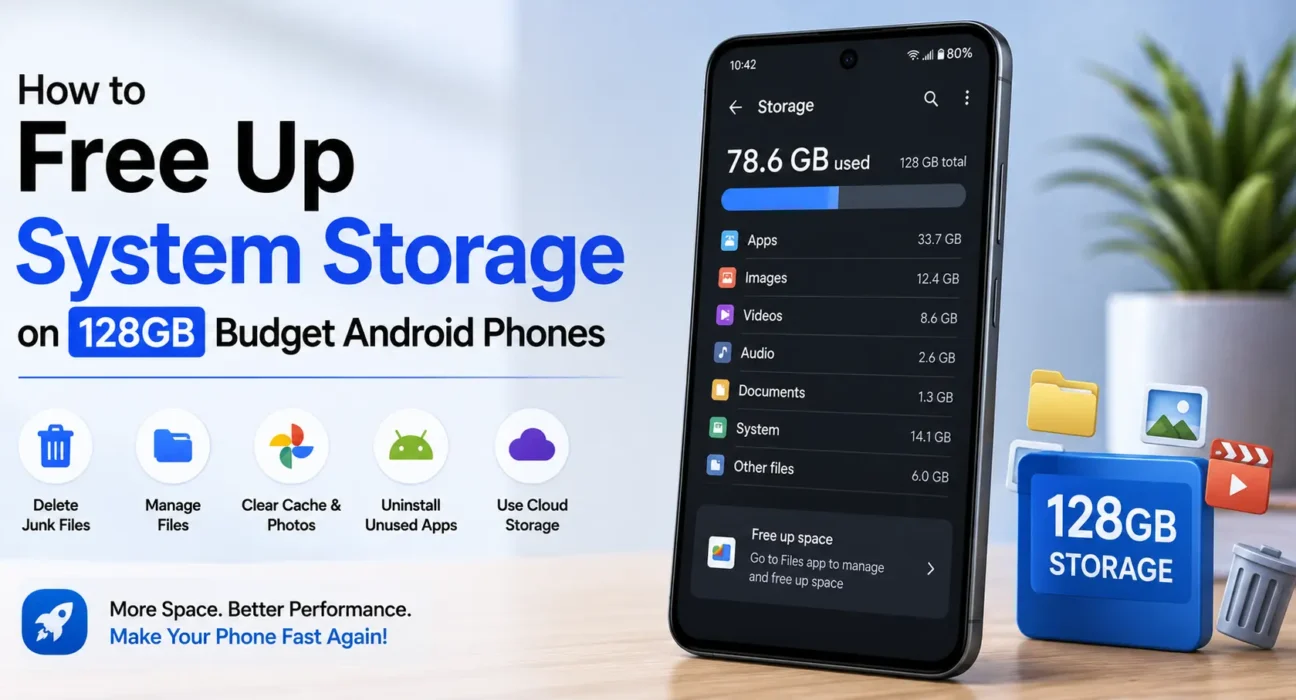
You check your storage settings expecting apps and photos to be the biggest space users, and instead you find a mysterious “System” category eating 15 to 30GB that you cannot directly delete. On a budget device with 128GB or less, that unavailable block represents a massive percentage of your total capacity. Learning how to free up system storage android OS partitions reserve isn’t as complex as it looks once you understand what resides in that category.
What “System” Storage Actually Is
The System partition on Android includes the core operating system, essential system frameworks, A/B update partitions, temporary system logs, and cached resources. Additionally, many modern budget phones enable “Virtual RAM” or “RAM Expansion” by default, which reserves 2GB to 8GB of internal storage as swap space—showing up directly under System or Other storage.
7 Steps to Free Up System Storage Android Devices Reserve
1. Clear Heavy App Caches and Temporary Junk
Modern Android versions no longer feature a global “Clear All Cache” button in System Settings. To free up system storage android cache bloat causes, you must target heavy apps individually (Chrome, TikTok, Instagram, and games): go to Settings > Apps > See all apps > [App Name] > Storage & cache and tap Clear Cache.
2. Disable Virtual RAM / Memory Extension
If your 128GB budget phone uses “RAM Expansion” (Virtual RAM), it reserves 2GB, 4GB, or 8GB of your physical storage permanently for swap space. Go to Settings > System / Special Features > RAM Expansion (or Memory Extension) and turn it off or lower the value. After a quick reboot, that reserved capacity immediately returns to your usable system storage.
3. Use Files by Google for Junk Cleanup
Instead of risky third-party utilities, use official tools. Download or open Files by Google from Play Store and use its Clean tab. It safely identifies hidden temporary system logs, duplicate files, and leftover installers with official backing from Google Support.
4. Move Media to Cloud or MicroSD Storage
Photos and high-resolution video quickly saturate internal memory. Back up your media library to Google Photos or transfer files to an external memory card if your hardware supports it. Check our detailed guide on expanding storage with microSD on budget Android phones to set up external storage properly.
5. Remove Unwanted Pre-Installed Apps
Pre-installed bloatware creates persistent background caches and system updates that inflate storage usage over time. Review our step-by-step tutorial on removing bloatware without root to eliminate protected carrier apps safely.
6. Clean Your Downloads and Residual Files
Browsers and messaging apps deposit installer APKs, PDFs, and media in your Downloads directory. Open your file manager, sort the Downloads folder by file size, and delete unneeded files. Then check the Files app for “Leftover files” from uninstalled applications.

7. Reboot Your Phone to Release Unlinked Space
After deleting files and clearing cache, perform a full system restart. Android often retains unlinked temporary blocks in memory until the next reboot cycle. Restarting forces the storage controller to recalculate and release newly freed blocks.
What Not to Do
- Avoid Third-Party Cleaners: Do not download “RAM Cleaners” or “Speed Boosters” from the Play Store; they inject persistent background ads and consume more resources than they save.
- Do Not Touch Root System Folders: Never delete files directly inside system directories using third-party root explorers unless you know their exact function, as removing system binaries causes bootloops.
- Do Not Confuse Cache with App Data: Clearing app cache removes temporary assets safely; it will not delete your photos, personal documents, or login accounts.
FAQ
Why does “System” take up so much space on my 128GB phone?
System storage includes the Android OS image, system caches, update reserve space, and any allocated Virtual RAM (Memory Extension) swap files.
What is the fastest way to free up system storage android devices report as full?
Disabling Virtual RAM/RAM Extension and clearing cache for heavy social media apps provides the most immediate reduction in system category size.
Will clearing cache delete my personal files?
No. Cache consists strictly of temporary web assets and pre-loaded images. Your saved messages, photos, and personal account data remain untouched.
How much free space should I maintain on a 128GB budget phone?
Keep at least 10–15% (around 13GB–19GB) free to ensure smooth system updates, storage wear leveling, and optimal app performance. Check our guide on fixing lag on budget Android phones for more performance tips.
Final Takeaway
Knowing how to free up system storage android hardware reserves allows you to reclaim valuable gigabytes on a 128GB budget phone without deleting your personal photos or apps. By turning off Virtual RAM, clearing heavy app caches, and removing pre-installed bloatware, you restore headroom and keep your device responsive. For complete setup strategies, see our Ultimate Buyer’s Guide to Budget Android Phones in 2026.
Related Guides: How to Remove Bloatware from Budget Android Phones Without Root · How to Fix Lag and Stutter on Budget Android Phones · How to Safely Expand Storage Using MicroSD on Budget Android Phones