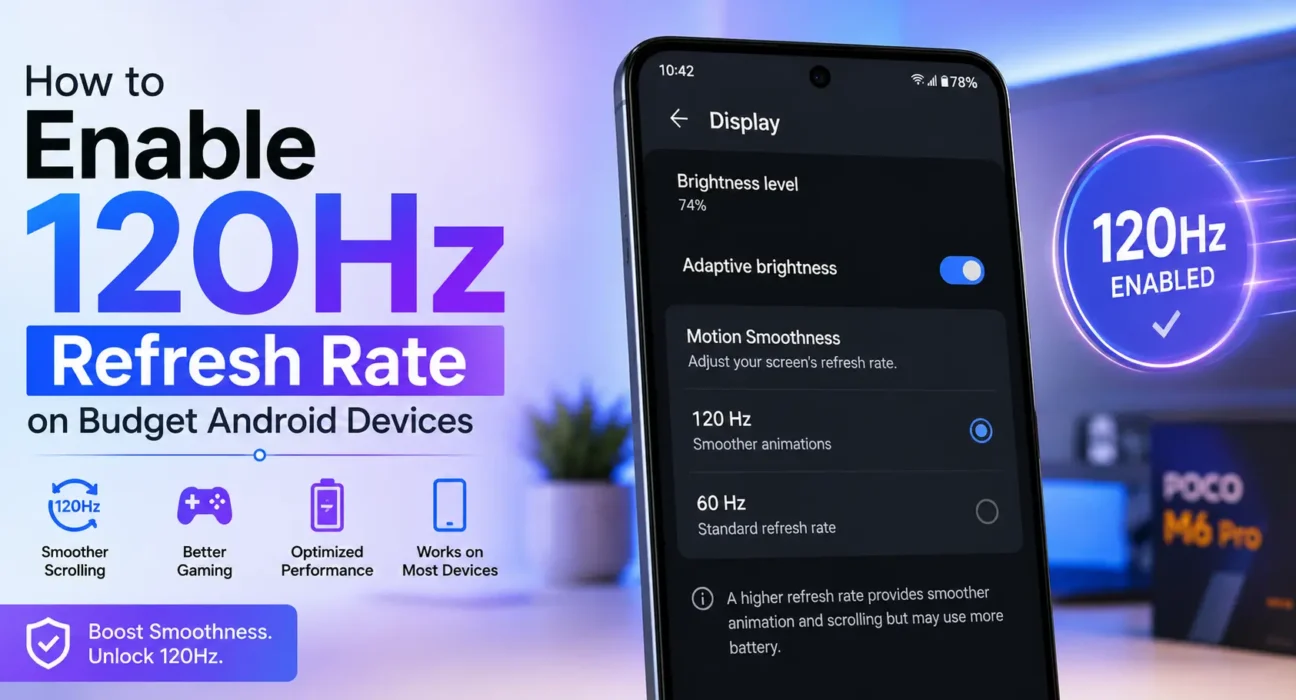
You bought a phone specifically because it advertised a 120Hz display, but scrolling still feels sluggish like standard 60Hz. This is a common issue on budget devices, and it’s rarely a hardware defect. In most cases, factory software configures display profiles conservatively out of the box to preserve battery life. Learning how to properly enable 120hz android settings require guarantees you get the ultra-smooth motion you paid for.
Step 1: Access Screen Refresh Rate Settings
Menu paths vary slightly depending on your device’s manufacturer skin (Samsung One UI, Xiaomi HyperOS, or Realme UI).
- Open Settings on your Android device.
- Tap Display (or Display & Brightness).
- Select Motion Smoothness (Samsung), Refresh Rate (Xiaomi/Poco), or Screen Refresh Rate (Realme/Motorola).
- Choose 120Hz, High, or Adaptive.
If you do not see a 120Hz toggle, check Google Support or your manufacturer’s specifications to confirm if high refresh rates are restricted to specific system apps rather than operating system-wide.
Step 2: Understand Adaptive vs. Locked High Refresh Rates
Budget phones handle high refresh rates using two main software implementations:
- Adaptive / Auto-Select: Dynamically scales between 60Hz, 90Hz, and 120Hz based on screen content. While this conserves battery, software delays can cause micro-stutters when scrolling through media feeds.
- High / 120Hz Mode: Forces the panel to refresh at 120Hz across compatible interfaces. Choosing this mode provides maximum fluidity at the cost of higher power draw.
Step 3: Verify Real-Time Refresh Rate using Developer Options
To confirm your enable 120hz android settings adjustment actually took effect, use Android’s native hardware overlay:
- Go to Settings > About Phone and tap Build Number 7 times to unlock Developer Options.
- Navigate to Settings > System > Developer Options.
- Scroll down and enable Show refresh rate.
- A live FPS counter will appear in the top-left corner showing real-time panel frequency.

Why 120Hz Keeps Dropping to 60Hz on Budget Phones
If your developer counter drops back down to 60Hz unexpectedly, one of these system triggers is at play:
- Thermal Throttling: Budget processors (like Helio G99 or Snapdragon 680 series) generate heat quickly. When internal CPU/GPU temperatures rise, system kernel rules automatically force the screen down to 60Hz to prevent overheating.
- Battery Saver Activation: Engaging power-saving modes instantly disables high-refresh modes across all Android skins.
- App-Level Locks: Media players (YouTube, Netflix) and older games cap rendering at 30Hz or 60Hz by design; forcing 120Hz on video content yields no visual benefit.
- Low Battery Thresholds: Many budget UI skins quietly revert to 60Hz once battery levels drop below 20%, regardless of display preferences.
Does 120Hz Impact Battery Life?
Yes. Display panels refreshing at 120Hz consume roughly 15% to 25% more power per hour than at 60Hz. On budget devices with modest processor efficiency, this trade-off is more noticeable. If high drain occurs, review our guide on fixing fast battery drain on budget Android phones to compensate for display power consumption.
What Not to Do
- Avoid Third-Party Refresh Unlock Apps: Do not install unauthorized APKs claiming to “lock 120Hz permanently” without root; they often run heavy background scripts that destabilize display drivers.
- Do Not Override Thermal Limits: Avoid using modified system scripts to disable thermal management, as overheating damages budget lithium batteries.
- Do Not Leave Power Saver On: Expecting 120Hz while Battery Saver mode is active is impossible, as system power policies prioritize battery life over screen refresh speed.
FAQ
How do I enable 120hz android settings on budget phones safely?
Navigate to Settings > Display > Refresh Rate, select High or 120Hz, and verify the change using the Show refresh rate toggle in Developer Options.
Why does my phone drop from 120Hz to 60Hz automatically?
Your device drops to 60Hz due to thermal throttling during gaming, battery saver activation, low battery levels, or opening video apps locked to 60 FPS.
Is 120Hz supported in all games?
No. Mobile games must explicitly add software support for 120 FPS. If a game’s engine is capped at 60 FPS, your display will run at 60Hz.
Will keeping 120Hz enabled damage my display screen?
No. Displays are engineered to operate at their rated specifications. Running 120Hz increases battery consumption, but causes zero physical damage to the panel.
How does RAM affect 120Hz performance on budget devices?
Higher refresh rates demand faster GPU frame rendering. Review our analysis on 4GB vs 6GB vs 8GB RAM in Budget Android Phones to see how memory capacity impacts system fluidity.
Final Takeaway
Knowing how to properly enable 120hz android settings ensures you get the smooth visual experience your budget device’s hardware supports. Use Developer Options to confirm live frame rates, keep thermal throttling in mind during heavy tasks, and disable battery saver when full fluidity is required. For complete optimization tips, read our Ultimate Buyer’s Guide to Budget Android Phones in 2026.
Related Guides: Best Budget Android Phones with 120Hz Displays Under $300 · How to Fix Fast Battery Drain on Budget Android Phones · How to Fix Lag and Stutter on Budget Android Phones