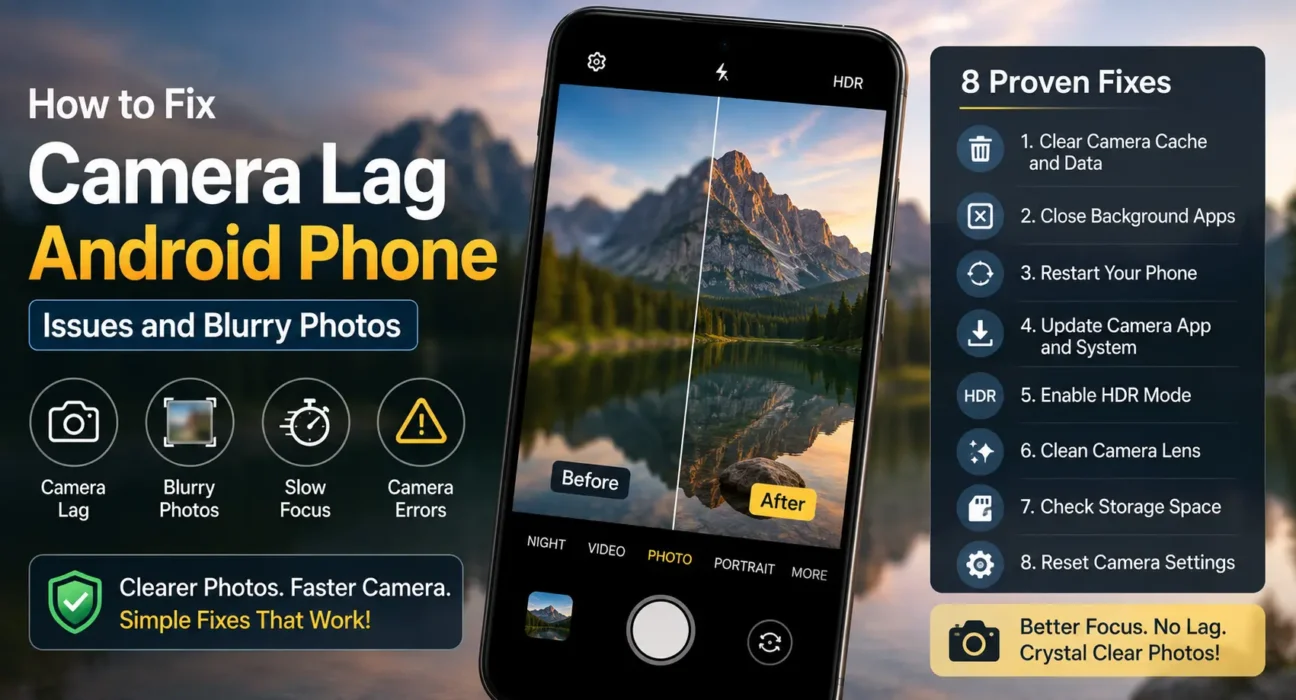
Tapping the shutter button only to watch your subject move before the shot actually captures is a frustrating experience. Experiencing shutter delay, frame drop during video recording, or consistently soft images is common on affordable hardware. Learning how to fix camera lag android phone models display requires understanding how entry-level Image Signal Processors (ISPs), limited system RAM, and camera app software settings interact under load.
Why Camera Lag and Blurry Shots Happen on Budget Phones
Camera lag on budget devices stems from hardware and software bottlenecks:
- Image Signal Processor (ISP) Limits: Budget chipsets (like Snapdragon 4/6 series or MediaTek Helio G-series) feature lower ISP throughput. Processing multi-frame HDR exposures or AI scene adjustments takes longer, causing noticeable shutter lag.
- Small Sensor Physical Constraints: Compact camera sensors capture less ambient light. In dim environments, the camera app automatically lowers the shutter speed to allow more light in, which amplifies hand tremor blur.
- Storage Write Buffer Delays: Saving photos directly to slow eMMC 5.1 internal flash or a low-speed MicroSD card delays image buffering between consecutive shots.
8 Proven Methods to Fix Camera Lag Android Phone Problems
1. Change Photo Storage Location to Internal Storage
Saving high-resolution photos or video clips directly to an external MicroSD card creates severe camera lag. MicroSD write speeds are significantly slower than internal storage buffers. Go to Camera Settings and switch the storage path from SD Card to Internal Storage.
2. Clear Camera App Cache and Free Up System Memory
Accumulated temporary cache slows down camera launch times and image rendering. Navigate to Settings > Apps > Camera > Storage & cache on your Android system and select Clear Cache. Additionally, close heavy background apps before opening the camera; our guide on how much RAM budget phones need explains how background app retention starves camera processing resources.
3. Disable Auto HDR, AI Scene Detection, and Motion Photos
Multi-frame processing features like Auto HDR, Night Mode, and AI Scene Enhancement capture 3 to 10 exposures in rapid succession and fuse them together. Disabling these options in Camera Settings speeds up shutter responsiveness dramatically when capturing moving targets.
4. Clean the Camera Lens and Use Tap-to-Focus
Fingerprint oil and pocket lint on the rear glass lens cause hazy, out-of-focus photos. Wipe the camera module with a soft microfiber cloth before taking photos. Always tap your intended subject directly on the viewfinder preview screen to force auto-focus and exposure lock.

5. Hold the Phone Steady After Tapping the Shutter
Budget cameras often lack physical Optical Image Stabilization (OIS), relying instead on Electronic Image Stabilization (EIS) or Zero Shutter Lag (ZSL) software buffers. Keep your hands still for a half-second after pressing the shutter button to allow the sensor processing pipeline to finish frame capture.
6. Use Pro/Manual Mode in Low-Light Conditions
In low-light scenarios, Auto mode defaults to slow shutter speeds (e.g., 1/4 second), causing motion blur. Switch to Pro / Manual Mode inside your camera app and manually set a faster shutter speed (e.g., 1/60 or 1/120 second). Increase the ISO slightly to balance image brightness.
7. Avoid Using Digital Zoom
Budget devices lack dedicated optical telephoto lenses. Pinching to zoom applies digital cropping, which scales up image noise, exaggerates micro-jitters, and softens fine details. Walk physically closer to your subject rather than using digital magnification.
8. Update Camera System Apps and Firmware
Camera drivers and image processing algorithms receive optimization updates via system firmware releases. Check Settings > System > System Update or visit Google Support for advice on installing official camera app patches.
What Not to Do
- Avoid Installing Unauthorized Camera APKs: Do not install unverified third-party camera apps claiming “fake optical zoom” or “unlocked 4K 60FPS” without checking compatibility, as unoptimized software crashes hardware drivers.
- Do Not Leave Night Mode Enabled During Daylight: Keeping Night Mode active in bright environments forces unnecessarily long processing delays between shots.
- Do Not Clean Lenses with Harsh Chemicals: Avoid using rubbing alcohol or glass cleaners directly on the camera glass, as chemical solvents strip protective anti-reflective coatings.
FAQ
Why does my budget android phone camera lag when I tap the shutter button?
Shutter lag occurs when your phone’s processor spends extra time processing multi-frame HDR assets, AI scene data, or writing large photo files to slow storage memory.
How do I fix camera lag android phone devices experience during low-light shooting?
Switching to Pro Mode to lock shutter speed, disabling Auto HDR, cleaning the camera lens glass, and ensuring photos save to internal storage will eliminate the majority of lag.
Does a full internal storage drive cause camera lag?
Yes. When your phone’s internal storage drops below 10% capacity, the system struggles to create temporary swap files for the camera buffer, leading to app freezes and delayed image saving.
Will a factory reset resolve camera lag?
If shutter lag is caused by corrupted system cache or background software conflicts, resetting your system software back to factory defaults restores original camera app responsiveness.
Final Takeaway
Learning how to fix camera lag android phone hardware experiences requires reducing unnecessary software processing overhead. Disabling Auto HDR, switching photo save paths to internal storage, clearing app cache, and tapping to lock focus before shooting will immediately improve image clarity and shutter speed. For complete device optimization advice, explore our Ultimate Buyer’s Guide to Budget Android Phones in 2026.
Related Guides: 4GB vs 6GB vs 8GB RAM in Budget Android Phones · How to Fix Lag and Stutter on Budget Android Phones · Best Budget Android Camera Phones Under $300