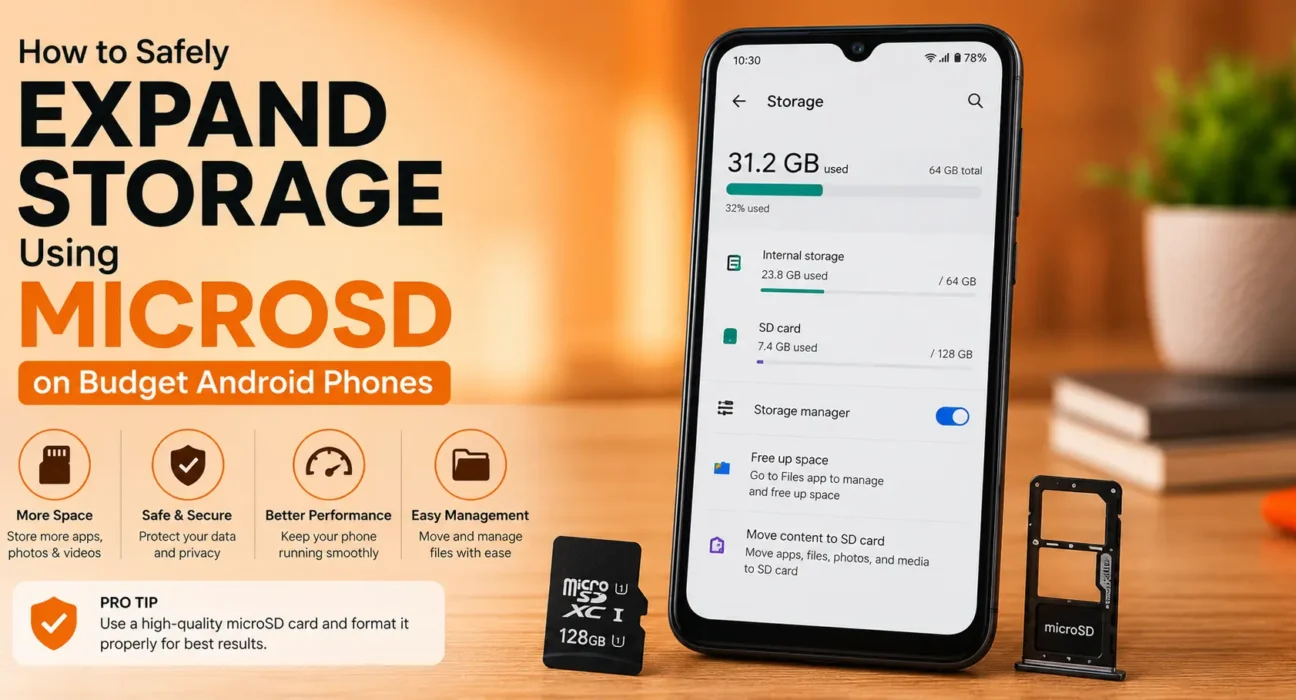
Many budget Android smartphones ship with 64GB or 128GB of internal flash storage. With modern Android operating system updates, high-resolution camera sensors, and expanding app caches, that space fills up quickly. If your device features an expansion slot, learning how to expand phone storage microsd cards correctly is the most cost-effective way to reclaim room.
However, understanding how to use microsd card android setups requires knowing the fundamental differences between Portable Storage and Adoptable Storage. This adoptable storage microsd android guide covers exact setup procedures, manufacturer limitations, card speed ratings, and essential data safety tips.
Adoptable Storage Explained: Portable vs. Adoptable Storage
When you insert a card into an Android phone, the system prompts you to format it. Understanding adoptable storage explained helps you make the right choice between the two supported modes:
| Feature | Portable Storage (External) | Adoptable Storage (Internal) |
|---|---|---|
| Primary Use | Media (Photos, Videos, Downloads, Offline Music) | Apps, App Data, System Storage Extension |
| File System | FAT32 / exFAT | Encrypted ext4 / f2fs |
| Portability | Ejectable; readable on PCs and other devices | Encrypted to device; unreadable on other devices |
| OEM Support | Supported on all Android phones with SD slots | Disabled by Samsung, Xiaomi, Realme, and others |
| Performance Impact | Zero impact on system or app execution speed | Can cause severe lag if using a slow card |
- Portable Storage: The card acts like an external flash drive. Photos, videos, documents, and offline media (Spotify/Netflix downloads) reside on the card. You can safely remove it anytime to transfer files to a PC.
- Adoptable Storage (Format SD Card as Internal Storage): Introduced in Android 6.0, this feature formats and encrypts the microSD card to act as a seamless extension of internal storage. Apps and app data can install directly onto the card. However, the card becomes locked to that specific device; removing it breaks installed apps.
Does Your Phone Support Adoptable Storage?
Before attempting to format sd card as internal storage, note that major Android manufacturers—including Samsung (One UI), Xiaomi (MIUI/HyperOS), Realme, and Oppo—have intentionally disabled Adoptable Storage in their official software.
These OEMs disable the feature because running modern apps off slow microSD flash controllers degrades phone performance and increases data corruption risks. Stock Android devices (such as Motorola, Nokia, or Pixel/Android One hardware) may still expose the option in settings.
If your manufacturer removed the menu toggle, Portable Storage remains the safest and most reliable method to free up internal space.
How to Set Up Portable Storage (Recommended for Most Users)
- Insert your card into the SIM/microSD tray.
- Tap the system notification that reads Tap to set up.
- Select Use as portable storage. (If no prompt appears, navigate to Settings > Storage > SD Card > Format as portable).
- Open your Camera app settings and change the default storage path to SD Card.
- In apps like WhatsApp, Telegram, YouTube, or Spotify, set the download destination to external storage.
How to Set Up Adoptable Storage (Supported Stock Android Devices)
If your device running stock Android supports internal formatting:
- Back up all data existing on the microSD card.
- Go to Settings > Storage.
- Select your SD Card, tap the three-dot menu icon in the top corner, and select Storage settings.
- Tap Format as internal storage.
- Tap Erase & Format. Android will benchmark the card speed. If the card is too slow, Android will display a performance warning.
- Choose whether to move content immediately or later, then tap Done.

Buying the Best MicroSD Card for Android Phone Performance
Using a cheap or outdated card for expanded storage leads to slow file transfers, app crashes, and corrupted gallery media. To select the best microsd card for android phone expansion, verify these speed class symbols printed on the card face:
- Application Performance Class (A1 or A2): Look for an A1 or A2 logo. These cards are engineered specifically for high random Read/Write IOPS (Input/Output Operations Per Second), which is vital for running apps or loading media thumbnails.
- UHS Speed Class (U1 or U3): Choose U3 (Minimum 30MB/s sequential write speed) over U1 (10MB/s) to ensure smooth 4K video recording and fast file transfers.
- Video Speed Class (V30): Guarantees a sustained 30MB/s write speed, preventing dropped frames during high-bitrate video recording.
For high-capacity cards (64GB to 512GB), ensure the card is an SDXC format. Always purchase cards from authorized retailers to avoid counterfeit flash memory. Official memory standards can be verified via the SD Association.
What Not to Do
- Do Not Pull Out an Adoptable Storage Card: Never eject an internal-formatted card while the phone is powered on. Doing so immediately crashes running apps and can corrupt system data.
- Do Not Use Non-A1/A2 Cards for App Storage: Standard Class 10 cards lack random IOPS performance; running apps from them causes system-wide UI freezing and application crashes.
- Do Not Rely on ADB Workarounds for Incompatible ROMs: Forcing Adoptable Storage via ADB shell commands (
sm set-force-adoptable true) on unsupported Samsung or Xiaomi ROMs frequently leads to boot loops, invisible storage partitions, and system update failures.
FAQ
Why did Samsung and Xiaomi remove Adoptable Storage?
Manufacturers removed the feature because user complaints arose when cheap, slow microSD cards caused severe phone lag, app launch failures, and total data loss upon card degradation.
Can I move installed apps to an SD card on modern Android?
Most modern apps use Android’s Scoped Storage framework, which requires installation on fast internal storage (UFS/eMMC). You can only move media, downloads, and specific offline data unless Adoptable Storage is natively active.
What happens if my Adoptable Storage card corrupts?
Because the card is encrypted with a unique key stored in the phone’s system partition, corrupted cards usually result in lost app data. Regular cloud or external backups are essential.
What is the difference between A1 and A2 microSD cards?
A1 cards deliver 1,500 Read / 500 Write minimum IOPS. A2 cards deliver 4,000 Read / 2,000 Write IOPS, but require host device controller support to reach full speeds. Both provide excellent performance for mobile storage.
Final Takeaway
Following this adoptable storage microsd android guide ensures you expand your device capacity without sacrificing reliability. For 95% of budget phone owners, configuring your card as Portable Storage and routing camera photos, offline videos, and large media files to the card is the ideal solution. If you need further performance optimization, consult our guide on how to free up system storage on Android or read our complete Ultimate Buyer’s Guide to Budget Android Phones in 2026.
Related Guides: How to Free Up System Storage on Budget Android Phones · How to Remove Bloatware from Budget Android Phones Without Root · 4GB vs 6GB vs 8GB RAM in Budget Android Phones