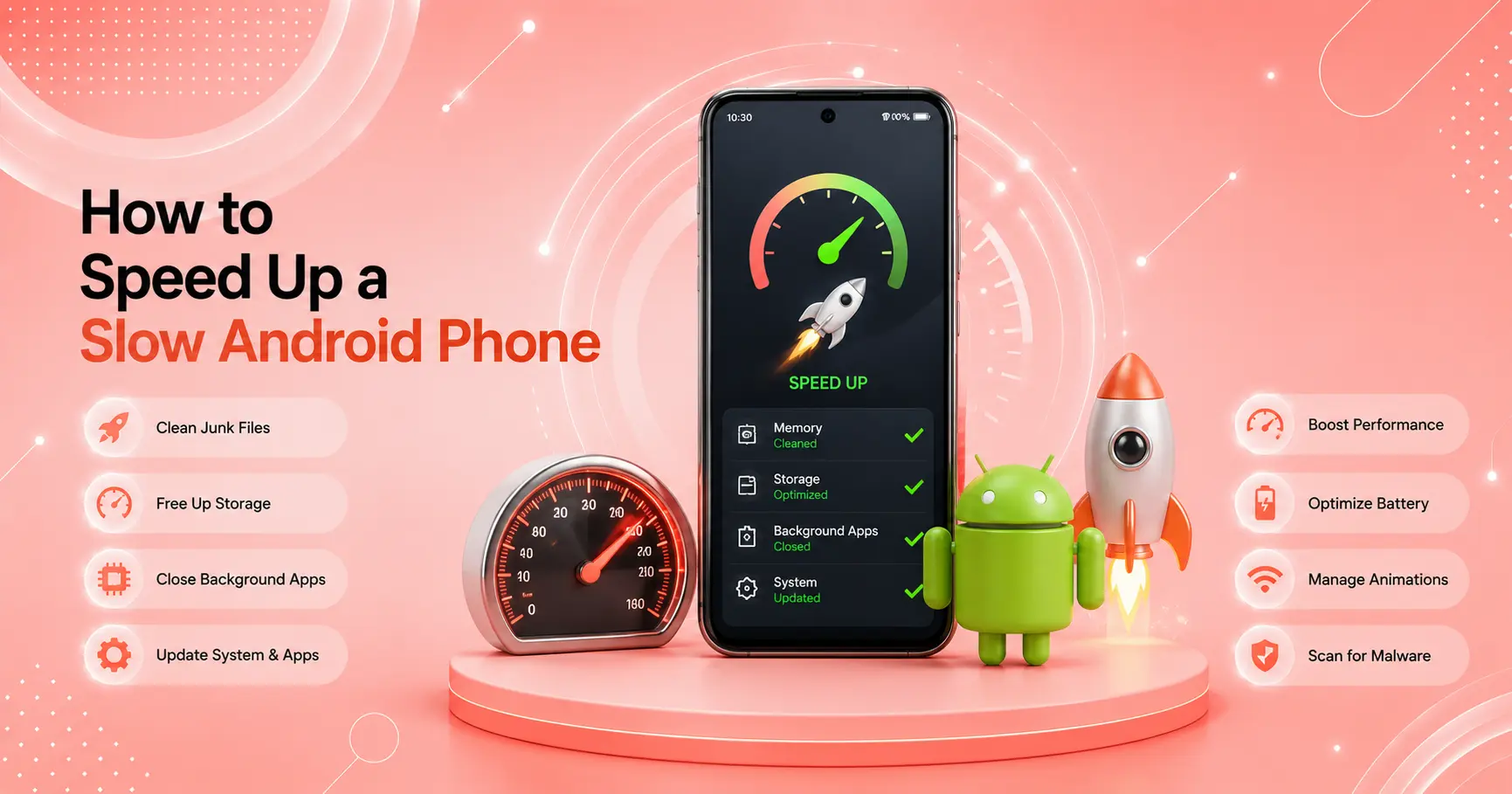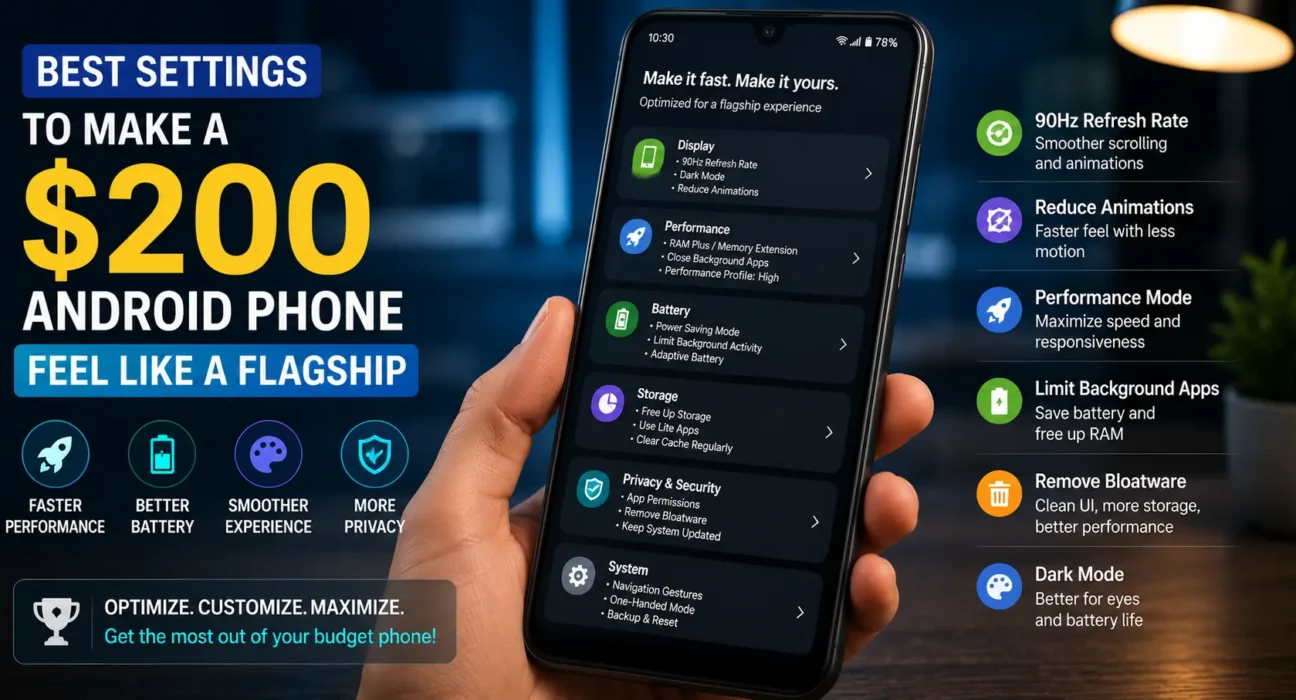
You cannot add more physical RAM or swap the processor in a budget smartphone after buying it, but applying the correct make budget android phone faster settings changes how responsive the device feels every day. Much of what makes a $1,000 flagship feel instantaneous comes down to perceived speed: shorter transition animations, zero background storage swapping, and streamlined UI rendering.
If you want to speed up budget android phone free without voiding your warranty or installing questionable third-party software, here are the 8 best settings to optimize budget phone performance, ranked by their immediate impact.
Why Budget Phones Feel Slow (And How Settings Help)
Budget phones use cost-effective hardware, such as entry-level processors and slower eMMC 5.1 or UFS 2.2 storage chips. When software developers design heavy system interfaces, these entry-level chips struggle under the weight of unnecessary UI animations and background services.
By tweaking built-in system toggles and adjusting developer options for speed, you eliminate hardware bottlenecks, free up processor cycles, and make a $200 phone feel substantially closer to a flagship.
8 Best Settings to Make Budget Android Phone Faster
1. Reduce Android Animation Speed Settings (Single Biggest Impact)
System animations add visual flair when opening apps or switching screens, but they artificially slow down your device. Shortening these durations delivers an instant boost in perceived speed.
- Go to Settings > About Phone and tap Build Number 7 times until you see the message “You are now a developer.”
- Navigate back to Settings > System > Developer Options.
- Scroll down to the Drawing section and locate three specific android animation speed settings:
- Window animation scale: Set to 0.5x (or Off).
- Transition animation scale: Set to 0.5x (or Off).
- Animator duration scale: Set to 0.5x (or Off).
Setting these to 0.5x cuts transition times in half, making app launches and system navigation feel immediate.
2. Disable Virtual RAM / RAM Expansion (RAM Plus)
Most modern budget phones ship with a feature called “Virtual RAM,” “RAM Plus,” or “Memory Extension.” While advertised as a memory boost, Virtual RAM uses slow internal storage as swap space. On budget devices, compressing and decompressing data into internal storage creates severe CPU overhead, causing stutters and lag.
- Go to Settings > Memory (or search for RAM Plus / Memory Extension in the settings search bar).
- Toggle the feature Off (or set it to the minimum value) and restart your device.
Disabling Virtual RAM stops storage swapping and keeps operations locked strictly inside your device’s faster physical RAM modules. For a deeper breakdown of memory requirements, read our guide on 4GB vs 6GB vs 8GB RAM in budget Android phones.
3. Set App Battery Optimization to Restricted (Background Control)
While Developer Options contains a “Background process limit” toggle, Android automatically resets this setting back to standard every time you reboot your phone. For a permanent fix to stop runaway background tasks:
- Open Settings > Apps > See All Apps.
- Tap resource-heavy apps that do not require instant background notifications (e.g., shopping apps, casual games).
- Tap Battery (or App Battery Usage) and change the setting from Optimized to Restricted.
This prevents non-essential apps from consuming background CPU cycles and RAM.
4. Switch to a Lightweight Launcher
Stock manufacturer launchers (like Samsung One UI Core or Xiaomi MIUI/HyperOS Lite) often include background news feeds, widget engines, and heavy launcher graphics. Installing a clean, lightweight launcher—such as Nova Launcher or Niagara Launcher—reduces home screen RAM usage and eliminates delay when returning to the home screen.
5. Remove Bloatware Draining Background Resources
Pre-installed carrier software and manufacturer bloatware run background services that drain CPU power. Disabling or uninstalling these applications stops their background daemons entirely. For stubborn system apps that offer no disable toggle, check out our tutorial on how to remove bloatware from budget Android phones without root.
6. Turn Off Glance & Dynamic Lock Screen Feeds
Many entry-level phones come pre-configured with lock screen story services (such as Glance or Dynamic Lock Screen). These services continuously fetch news, ads, and high-resolution wallpapers in the background.
- Navigate to Settings > Wallpaper & Style > Lock Screen Services.
- Set the option to None to save background memory and data bandwidth.
7. Disable Background Location, Wi-Fi & Bluetooth Scanning
Background scanning features continuously poll surrounding hardware signals to assist location services, causing background micro-stutters during heavy app usage.
- Go to Settings > Location > Location Services.
- Toggle off Wi-Fi Scanning and Bluetooth Scanning.
8. Maintain at Least 15% Free Internal Storage
Flash storage (eMMC and UFS) requires empty blocks to perform garbage collection and write operations efficiently. When internal storage drops below 15% capacity, read/write speeds plummet, slowing down the entire OS. Use official tools like Files by Google or review our guide on how to free up system storage on Android to keep storage clean.
Best Developer Options for Speed: Summary Table
Here is a quick reference table for adjusting the best settings for cheap android phone performance within Developer Options:
| Setting Name | Default Value | Recommended Value for Speed | Why It Works |
|---|---|---|---|
| Window Animation Scale | 1x | 0.5x or Off | Cuts UI window pop-up animation times in half. |
| Transition Animation Scale | 1x | 0.5x or Off | Accelerates switching between screens and menus. |
| Animator Duration Scale | 1x | 0.5x or Off | Speeds up overall UI state transitions. |
| Logger Buffer Sizes | 256K | 64K or Off | Reduces CPU logging overhead on low-end processors. |
| Wi-Fi Non-Persistent MAC | Enabled | Device MAC (per network) | Prevents Wi-Fi dropouts during DHCP renewals. |
What Not to Do
- Do Not Enable “Force GPU Rendering”: This setting was deprecated and removed in modern Android versions (Android 10+), as hardware acceleration is now enabled system-wide by default.
- Do Not Rely on Third-Party “RAM Cleaner” Apps: Auto-killer apps force background apps to shut down, only for Android to immediately restart them. This constant loop consumes more battery and CPU power than leaving RAM alone.
- Do Not Set Animation Scales to 0x Without Testing: While turning animations completely off makes app switching instantaneous, it can occasionally cause visual stutter in specific social media video players. Setting it to 0.5x provides the ideal balance of speed and smoothness.
FAQ
Do these make budget android phone faster settings actually boost hardware performance?
Reducing animations improves perceived responsiveness, while disabling Virtual RAM and restricting background apps directly reduces CPU overhead and frees up physical memory.
Is it safe to adjust developer options for speed on budget Android phones?
Yes. Adjusting animation scales, logger buffers, and background optimization settings within Developer Options is completely safe, reversible, and does not void your device warranty.
Why does Virtual RAM make cheap phones slower?
Virtual RAM uses internal flash storage as swap memory. Flash storage is significantly slower than physical LPDDR RAM, and the CPU overhead required to compress and decompress data slows down budget processors.
How much free storage space should I keep to prevent lag?
Always keep at least 15% to 20% of your internal storage free so the operating system has room for temporary app caches and flash memory garbage collection.
Final Takeaway
To optimize budget phone performance, you do not need root access or dangerous software tweaks. Start by cutting your android animation speed settings down to 0.5x, turning off Virtual RAM/RAM Plus, and restricting non-essential background app activity. These simple adjustments eliminate software bottlenecks and allow your affordable smartphone to perform at its maximum potential.
For more ways to get the absolute most out of your hardware, check out our detailed guide on how to fix lag and stutter on budget Android phones or read our complete Ultimate Buyer’s Guide to Budget Android Phones in 2026.
Related Guides: How to Fix Lag and Stutter on Budget Android Phones · How to Remove Bloatware from Budget Android Phones Without Root · 4GB vs 6GB vs 8GB RAM in Budget Android Phones