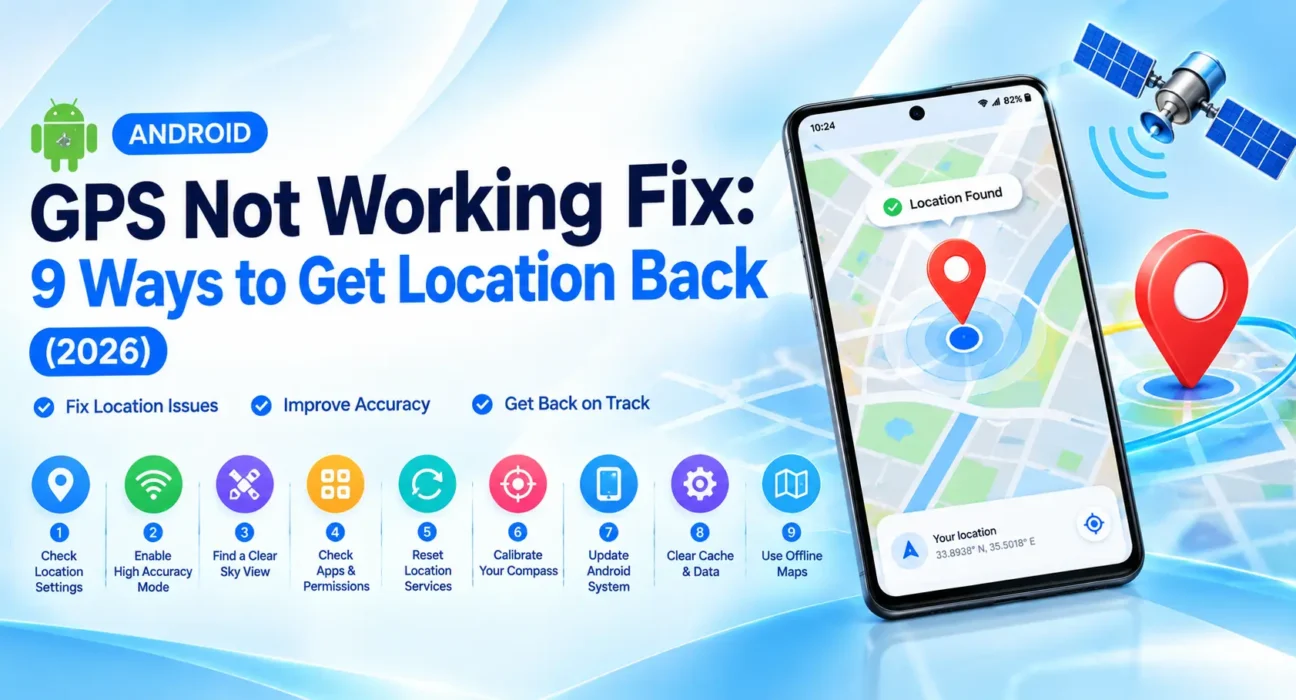
Android GPS Not Working Fix: 9 Ways to Get Location Back (2026)
Looking for an Android GPS not working fix that actually works? Whether Google Maps can’t find you, your location jumps around, or one specific app can’t detect where you are, most GPS problems are software-related and clear up in a minute or two – true hardware faults are rare.
Success rates below are based on WekyTech’s own testing across Samsung Galaxy, Google Pixel, and Motorola phones running current Android versions.
Is It One App, Every App, or a Weak Signal?
Start by narrowing down the scope of the problem – this single check tells you which fixes are actually worth trying:
| Symptom | Likely Cause |
|---|---|
| Only one app (like Instagram) can’t find your location | That app’s location permission is blocked |
| Every app fails to get a location | Google Location Accuracy is off, or GPS is disabled entirely |
| Location works but shows the wrong place | Stale cached location data, or weak signal indoors |
| Takes several minutes to lock on, or never locks | Weak GPS signal, or incorrect date/time settings |
| Worked fine, then stopped after an update | Reset location permissions, or outdated Google Play services |
| Never works even outdoors with a clear sky, after every fix | Rare – likely a hardware GPS antenna fault |
What Actually Works (Tested Success Rates)
| Fix | Success Rate |
|---|---|
| Toggle Location off and on | 32% |
| Check the app’s location permission | 29% |
| Enable Google Location Accuracy | 26% |
| Remove app from battery optimization | 21% |
| Toggle Airplane Mode | 18% |
| Clear the navigation app’s cache | 24% |
| Fix date and time settings | 16% |
| Update Google Maps and Google Play services | 22% |
| Restart the phone | 28% |
The Complete Android GPS Not Working Fix List
1. Toggle Location Off and On
Swipe down your notification shade, long-press the Location shortcut to jump straight into settings, then toggle Location off, wait a few seconds, and turn it back on. This restarts the GPS connection and resolves many one-off glitches immediately.
2. Check the App’s Location Permission
Since Android 11, apps request location access in more granular ways, and it’s easy for a permission to end up more restricted than an app needs. Go to Settings > Apps > [App Name] > Permissions > Location and set it to Allow all the time for navigation or ride-share apps, or at minimum Allow only while using the app.
3. Enable Google Location Accuracy
This feature uses Wi-Fi, mobile networks, and Bluetooth alongside GPS satellites to lock onto your location faster and more reliably, especially indoors where GPS alone struggles. Go to Settings > Location > Location Services > Google Location Accuracy and turn it on.
4. Remove the App From Battery Optimization
Aggressive battery management can throttle or pause background location updates, causing GPS to lag or stop working once an app isn’t actively open. Go to Settings > Battery > [App Name] > Unrestricted for apps where accurate, live location genuinely matters.
5. Toggle Airplane Mode
Turn on Airplane Mode, wait about 15 seconds, then turn it off. This resets your phone’s radios entirely – GPS, Wi-Fi, and cellular – and can clear a stuck connection state faster than restarting the whole phone.
6. Clear the Navigation App’s Cache
Apps like Google Maps cache location data locally for faster loading, and a corrupted cache can cause GPS to show a stale or wrong location. Go to Settings > Apps > Google Maps > Storage > Clear cache. This doesn’t delete saved places or your account data.
7. Fix Date and Time Settings
Go to Settings > General Management > Date and Time (or Settings > System > Date & Time) and confirm “Automatic date and time” is on. GPS satellites rely on precise timing to calculate your position, and an incorrect system clock can prevent your phone from locking onto a location at all.
8. Update Google Maps and Google Play Services
This matters most if your location broke right after a system update. Open the Play Store and update Google Maps and any other navigation apps, and check for a Google Play services update as well if one is offered.
9. Restart the Phone
A full restart clears temporary system-level glitches affecting the GPS radio that a simple toggle sometimes can’t reach. Test your location again once it boots back up, ideally outdoors with a clear view of the sky for the most reliable first fix.
When It’s a Weak Signal, Not a Software Problem
GPS relies on a direct line of sight to satellites, so being indoors, in a basement, in a parking garage, or surrounded by tall buildings can genuinely delay or prevent a location lock regardless of settings. Outdoors with a clear sky, a first fix usually takes a few seconds to a minute, and gets faster on repeat attempts as the phone caches satellite data. If location still fails to lock outdoors after every fix above, or if the phone was recently dropped or exposed to water, that points toward a hardware GPS antenna fault rather than anything fixable through settings.
Fixes Summary
| Fix | Where to Find It |
|---|---|
| Toggle Location off/on | Notification shade > Location shortcut |
| Check app’s location permission | Settings > Apps > [App] > Permissions > Location |
| Enable Google Location Accuracy | Settings > Location > Location Services |
| Remove from battery optimization | Settings > Battery > [App] > Unrestricted |
| Toggle Airplane Mode | Quick Settings |
| Clear navigation app cache | Settings > Apps > [App] > Storage |
| Fix date and time | Settings > System > Date & Time |
| Update Maps and Play services | Play Store |
| Restart the phone | Power menu |
FAQ
Why can’t Google Maps find my location on Android?
The most common causes are a blocked location permission, Google Location Accuracy being turned off, or a weak GPS signal indoors – check the app’s permission first, then enable Location Accuracy.
Why does my location show the wrong place?
This is usually stale cached location data. Clear the navigation app’s cache under Settings > Apps > [App] > Storage, and give the phone a clear view of the sky if possible for a fresh GPS lock.
Does battery saver affect GPS accuracy?
Yes. Battery optimization can throttle or pause background location updates. Set important apps like navigation or ride-share to Unrestricted under Settings > Battery.
How long should GPS take to lock onto my location?
Outdoors with a clear sky, a first fix typically takes a few seconds to a minute, and faster on repeat attempts. Indoors, in basements, or in dense urban areas, it can take significantly longer or fail entirely.
Can an incorrect date and time really break GPS?
Yes. GPS satellites rely on precise timing calculations to determine your position, so an incorrect system clock can prevent your phone from locking onto a location at all.
How do I know if my GPS problem is hardware, not software?
If location still fails to lock outdoors with a clear sky after trying every fix above, or the phone was recently dropped or exposed to water, the GPS antenna itself may be damaged and needs professional inspection.