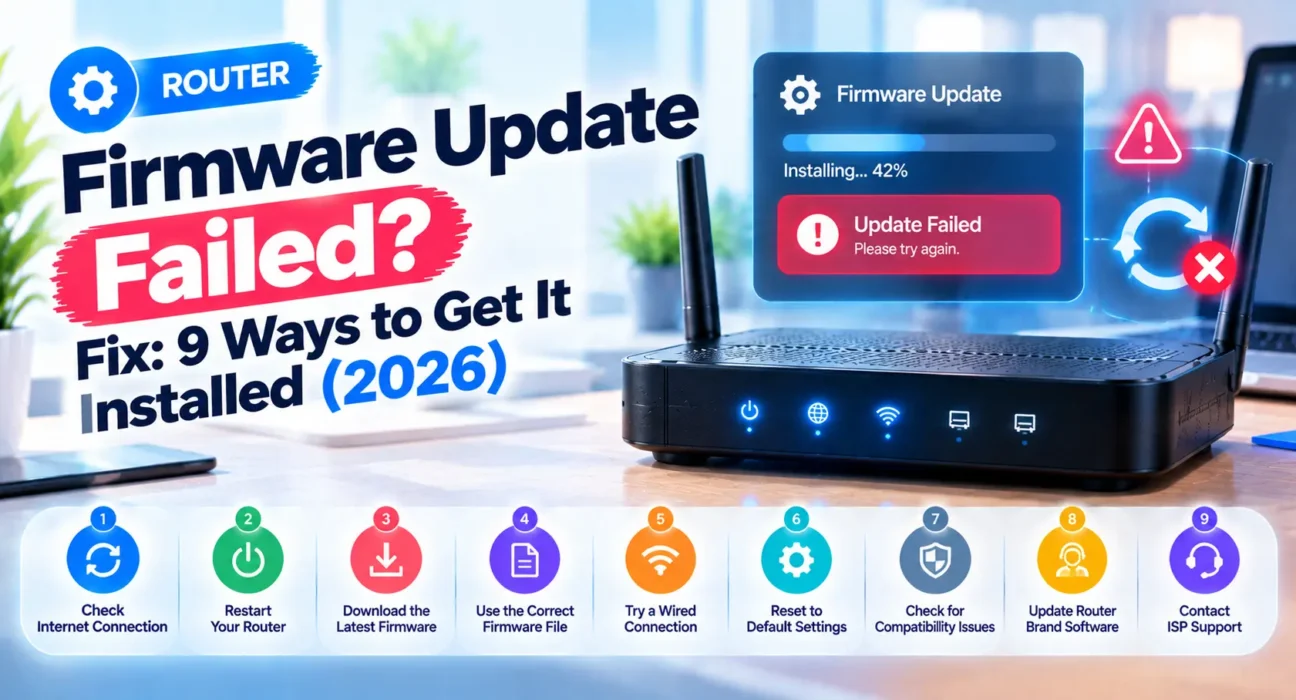
The progress bar stalls, an error pops up, or the update just quietly fails without telling you why. A router firmware update failed message is stressful mostly because people worry they’ve bricked the thing – but in the vast majority of cases, it’s a wrong file, a shaky connection, or a browser hiccup, not a dead router.
Tested on TP-Link, Netgear, and Asus routers, covering both online (cloud) firmware updates and manual local file uploads across Chrome, Firefox, and Edge.
Before you try anything else, figure out whether the router is actually unresponsive right now or just showing an error message with everything otherwise still working. If it’s still online and you can reach the admin page, you’re in good shape – most of what follows is a quick fix. If the lights are frozen or it won’t respond at all, skip down to the Rescue Mode section, because that’s a different situation entirely.
Work through the fixes below in order. Most people get the update to finish before Fix 5.
⚡ Router Firmware Update Failed? — Try This Quick Fix First (2 Minutes)
Start here before anything else:
2. Close every other tab and app that might be using bandwidth during the update.
3. Try the update again from the wired connection.
This resolves the issue for roughly 35% of people immediately. Wireless connections drop out or slow down at exactly the wrong moment more often than you’d think, and a firmware update interrupted mid-transfer is one of the most common ways these things fail in the first place.
🔍 Identify Your Symptom First
| Symptom | Most Likely Cause | Best Fix |
|---|---|---|
| Update fails but router still works normally | Connection issue, wrong file, or browser problem | Fix 1, 2, or 3 |
| Progress bar stuck for over 10 minutes | Update still processing, or silently failed | Fix 4 |
| “Invalid firmware file” or similar error | Wrong model, hardware version, or region file | Fix 2 |
| Router unresponsive, no lights or blinking pattern | Failed update left the router in a bad state | Fix 7 |
| Online/cloud update won’t even start | DNS issue, or device doesn’t support cloud updates | Fix 5 |
| Update completes, but router acts strange afterward | Corrupted install – needs a clean reset | Fix 6 |
✅ What Actually Works — Ranked by Success Rate
Success rates below are based on WekyTech’s own testing across TP-Link, Netgear, and Asus routers – not estimates. Results may vary depending on your specific model and update method.
| Fix | How Often It Resolves the Issue | Time to Try |
|---|---|---|
| Connect via Ethernet, close other apps | ~35% | 3 minutes |
| Verify and re-download the correct firmware file | ~54% cumulative | 10 minutes |
| Switch browsers or disable extensions | ~63% cumulative | 5 minutes |
| Wait it out, then retry after a full reboot | ~72% cumulative | 10 minutes |
| Set DNS to 8.8.8.8 for online updates | ~79% cumulative | 3 minutes |
| Factory reset after a completed update | ~86% cumulative | 10 minutes |
| Use Rescue Mode / TFTP recovery | ~93% cumulative (unresponsive routers) | 20-30 minutes |
| Contact manufacturer support | ~98% cumulative | Varies |
The Complete Router Firmware Update Failed Fix List
Fix 1: Use a Wired Connection and Close Other Apps
Plug your computer directly into one of the router’s LAN ports with an Ethernet cable, and switch off Wi-Fi on that device so nothing accidentally routes over wireless mid-update. Close streaming apps, downloads, and anything else eating bandwidth. A stable, uninterrupted connection is genuinely the single biggest factor in whether a firmware update finishes cleanly.
Fix 2: Verify You Have the Correct Firmware File
If you’re doing a manual update, double-check that the file you downloaded matches your router’s exact model number, hardware version, and regional version – US firmware on a router meant for the EU market (or vice versa) will fail every time, and this mismatch is more common than people expect. After downloading, make sure the file is fully extracted to a .bin file rather than left zipped, since routers can’t read a compressed folder directly.

Fix 3: Switch Browsers or Disable Extensions
Router admin pages are notoriously picky about browsers, and ad blockers or privacy extensions occasionally interfere with the file upload process during a manual update. If you were using Chrome, try Firefox or Edge instead, or temporarily disable extensions and try again.
Fix 4: Wait It Out Before Assuming It Failed
Firmware updates can look stuck when they’re actually still writing to the router’s memory in the background – interrupting one at that point causes far more damage than patience would have. If the progress bar hasn’t moved in five minutes, give it a few more before doing anything. Once you’re confident it’s genuinely failed (not just slow), let the router fully reboot on its own before you try again.
Fix 5: Set DNS to a Public Server for Online Updates
Online (cloud-based) updates depend on your router successfully reaching the manufacturer’s update servers, and a flaky ISP DNS server can quietly block that connection. In the router’s WAN settings, manually set the DNS server to 8.8.8.8 (Google) or 1.1.1.1 (Cloudflare), save, and try the online update again. For complete steps on altering server assignments, refer to our guide on router DNS not working fixes.
Fix 6: Factory Reset After a Completed but Glitchy Update
Sometimes an update technically finishes, but the router starts acting oddly afterward – settings not saving, features missing, random disconnects. Many manufacturers, including Asus, actually recommend a factory reset right after any firmware update just to clear out old configuration data that might conflict with the new version. Hold the reset button for about 5-10 seconds once the update has finished. If the pinhole button fails to respond, read our guide on how to fix a router that won’t reset.
Fix 7: Use Rescue Mode for an Unresponsive Router
If the router genuinely won’t respond at all after a failed update – no lights, no admin page, nothing – most brands have a dedicated recovery tool for exactly this situation. If your unit completely lost power or lights during the attempt, see our troubleshooting manual on what to do when your router won’t turn on. On Asus routers, this tool is called Firmware Restoration and is available from the support page for your specific model. Download the utility, connect your computer directly to the router via Ethernet, and follow the tool’s recovery steps, which reflash the firmware at a lower level than a normal update.

Fix 8: Try TFTP Recovery as a Deeper Fallback
Some router brands support TFTP (a simple file transfer method) as a last-resort recovery path when even the manufacturer’s dedicated tool doesn’t work. This typically involves setting a static IP on your computer, holding the reset button while powering the router on, and using TFTP software to push the firmware file directly. It’s more technical than the other fixes here, so check your specific brand’s support documentation for exact steps before attempting it.
Fix 9: Contact Manufacturer Support
If Rescue Mode and TFTP recovery both come up empty, or you’re not comfortable attempting them yourself, contact the manufacturer directly with your model number and a description of what happened. Many brands will walk you through advanced recovery over the phone, and if the router’s still under warranty, a failed update that bricks the device is typically covered for replacement.
🔄 When to Contact Support Instead
| Situation | Action |
|---|---|
| Router completely unresponsive after Rescue Mode/TFTP attempts | Contact manufacturer support for advanced recovery |
| Router is ISP-provided equipment | Contact your ISP – they may manage firmware remotely |
| Router is still under warranty and won’t recover | Request a warranty replacement |
| You’re not comfortable attempting Rescue Mode/TFTP yourself | Contact support rather than risking further damage |
📋 Quick Summary Table
| Fix | Best For |
|---|---|
| Wired connection, close other apps | General update failure, router still responsive |
| Verify correct firmware file | “Invalid file” or similar error |
| Switch browsers/extensions | Manual update won’t upload |
| Wait, then reboot and retry | Progress bar appears stuck |
| Set DNS to public server | Online/cloud update won’t start |
| Factory reset | Update finished but router acts odd |
| Rescue Mode | Router unresponsive after failed update |
| TFTP recovery | Rescue Mode/dedicated tool unavailable |
❓ FAQ — Router Firmware Update Failed
Q: Did I brick my router if the firmware update failed?
Probably not. Most failed updates leave the router fully functional on its previous firmware version. A genuinely bricked router – completely unresponsive with no lights – is much less common and usually recoverable through Rescue Mode or TFTP.
Q: Why did my router say “invalid firmware file”?
This almost always means the file doesn’t match your router’s exact model number, hardware version, or regional version. Double-check all three against your router’s label before downloading again.
Q: Should I use Wi-Fi or Ethernet for a firmware update?
Always use a wired Ethernet connection. Wi-Fi is more prone to dropouts and interference, and an interruption mid-update is one of the most common causes of a failed installation.
Q: What is Rescue Mode and when do I need it?
It’s a manufacturer-specific recovery tool for routers that have become completely unresponsive after a failed update. It reflashes the firmware at a lower level than a normal update – check your brand’s support page for the exact tool and steps.
Q: Should I factory reset my router after every firmware update?
Some manufacturers, including Asus, specifically recommend it to clear out old configuration data that might conflict with the new firmware version – it’s not strictly required, but it can prevent odd post-update behavior.
Q: Can a bad internet connection cause a firmware update to fail?
Yes, especially for online/cloud-based updates, which need a stable connection to the manufacturer’s servers throughout the process. A weak or unstable connection is one of the most common causes of failure.
Final Thoughts
A failed firmware update feels alarming in the moment, but it’s rarely as bad as it looks – a wired connection, the correct file, and a little patience resolve most cases before you ever need a recovery tool. If the router truly goes unresponsive, Rescue Mode or TFTP recovery brings the vast majority of routers back, and manufacturer support is there for the rest.