Looking to speed up 5G home internet on a T-Mobile, Verizon, or AT&T gateway? Unlike a wired connection, physical obstructions matter enormously here – the gateway is essentially talking to a cell tower, and small placement changes can mean the difference between 80 Mbps and 300 Mbps on the exact same plan.
Tested on T-Mobile, Verizon, and AT&T 5G home internet gateways, covering both placement-based fixes and provider-app diagnostics.
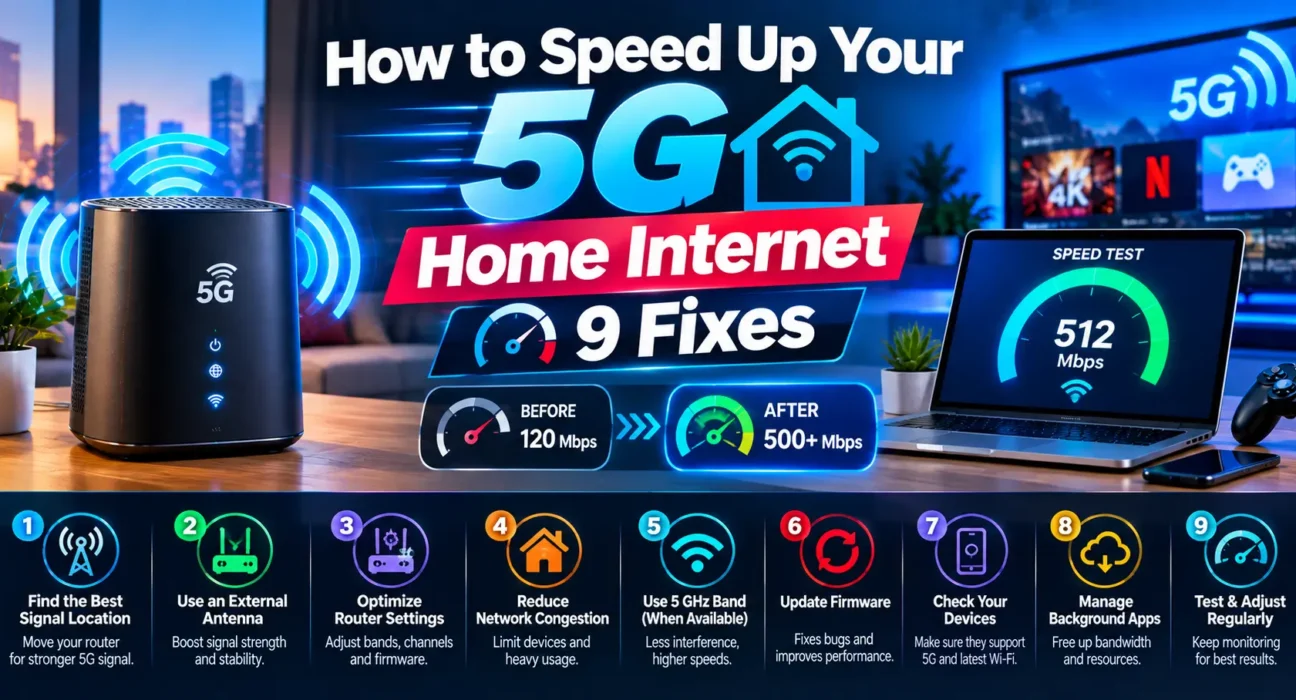
The 9 Fixes That Actually Speed Up 5G Home Internet
1. Reposition the Gateway – This Matters More Than You’d Think
Because the gateway is receiving a wireless signal from a cell tower rather than a wired connection, physical placement has an outsized effect on speed. Move it near a window, ideally facing the direction of your provider’s nearest tower, and elevate it rather than leaving it on the floor. Avoid basements, closets, and rooms with thick exterior walls – all of them meaningfully weaken the incoming signal before it even reaches your gateway.
2. Use Your Provider’s Placement Tool
T-Mobile, Verizon, and AT&T all offer an app-based placement assistant that reads live signal strength as you move the gateway around your home. T-Mobile’s is in the T-Life app; Verizon’s is in the My Verizon app; AT&T’s optimization guidance is available through its support site. These tools take the guesswork out of finding your best spot, and most people find a noticeably stronger signal within a few feet of where they originally placed the gateway.
3. Move the Gateway Away From Interference Sources
Bluetooth devices, fluorescent lights, microwave ovens, baby monitors, and other electronics can all interfere with the wireless signal your gateway depends on. Keep it several feet away from these sources, and away from large metal objects or appliances, which block signal more than most people expect.
4. Connect Your Most Important Devices via Ethernet
If your gateway has an Ethernet port, plugging in a desktop computer, gaming console, or streaming box directly bypasses Wi-Fi entirely for that device, giving it the fastest and most stable connection the gateway can offer. This is especially worth doing for whatever device matters most in your household – a work computer or a console you game on regularly.
5. Understand Wi-Fi Range Limits Inside Your Home
Even with strong incoming 5G signal, your home’s internal Wi-Fi has its own range limits. As a rough guide, devices within about 15 feet of the gateway get the best experience for gaming and 4K streaming; devices 20-25 feet away often see reduced speeds for the same activities. If your dead zone is a room that’s simply too far from the gateway, no amount of external signal optimization will fix that – you need to address the internal Wi-Fi range instead.
6. Add a Router in Bridge Mode for Whole-Home Coverage
If your gateway’s Wi-Fi signal doesn’t reach every room well, and it supports bridge or passthrough mode, connect a separate, higher-quality Wi-Fi 6 router to it. This lets you keep the 5G gateway purely for receiving the incoming signal while a dedicated router – often with better antennas and mesh capability – handles distributing Wi-Fi throughout your home.
7. Manage Bandwidth With QoS Settings
If you’re sharing the connection across many devices, disconnect anything not actively in use, and check whether your gateway supports Quality of Service (QoS) settings. QoS lets you prioritize bandwidth for what matters most – a video call or a game – over background activity like automatic cloud backups or software updates running on other devices.
8. Restart the Gateway and Check for Firmware Updates
A simple restart clears temporary congestion-related slowdowns and resets the gateway’s connection to the tower. While you’re at it, check your provider’s app for a pending firmware update – carriers regularly push updates that specifically improve gateway performance and stability.
9. Check for Network Congestion or Tower-Side Issues
If speeds are slow both near and far from the gateway, and you’ve already optimized placement, the bottleneck is likely on the network side rather than anything in your home – peak-hour congestion at the local tower, or an outage affecting your area. Check your provider’s app for a known issue in your area, and if speeds are consistently poor at specific times of day (commonly evenings), that pattern itself points to tower congestion rather than a setup problem you can fix from your end.
How to Tell Where the Problem Actually Is
| Test Result | What It Means | Fix to Try |
|---|---|---|
| Fast near the gateway, slow in other rooms | Internal Wi-Fi coverage issue | Fixes 4, 5, or 6 |
| Slow everywhere, including next to the gateway | Weak incoming 5G signal or tower congestion | Fixes 1, 2, 3, or 9 |
| Consistently slow at the same time each day | Peak-hour network congestion | Fix 9 (network-side, limited fix options) |
| Fine on wired devices, slow on Wi-Fi only | Internal Wi-Fi settings or interference | Fixes 3 or 6 |
❓ FAQ — Speeding Up 5G Home Internet
Q: Why does gateway placement matter so much for 5G home internet?
Because the gateway receives its signal wirelessly from a cell tower rather than through a cable, physical obstructions like walls, floors, and interference from nearby electronics have a much bigger impact on speed than they would with a wired connection.
Q: Should I put my 5G gateway near a window?
Yes, generally. A window – ideally facing the direction of your provider’s nearest cell tower – gives the incoming signal the fewest obstructions to pass through before reaching the gateway.
Q: Can I use my own router with 5G home internet?
Often, yes, if your gateway supports bridge or passthrough mode. This lets a separate router handle Wi-Fi distribution while the gateway focuses purely on receiving the cellular signal.
Q: Why is my 5G home internet slow only in the evening?
This pattern usually points to network congestion at your local cell tower during peak usage hours, rather than a problem with your setup – it’s largely outside your control, though checking your provider’s app for known area issues is worth doing.
Q: How far can I be from my 5G gateway and still get good Wi-Fi speed?
As a rough guide, within about 15 feet is ideal for gaming and 4K streaming; 20-25 feet away often sees reduced speeds for the same activities, depending on walls and interference in between.
Q: Does restarting my 5G gateway actually help?
Yes, for temporary slowdowns. A restart clears minor congestion-related issues and resets the connection to the tower – it’s a quick, low-effort step worth trying before more involved fixes.
Final Thoughts
Speeding up 5G home internet almost always starts with placement – it has a bigger impact here than on any wired connection, and it costs nothing to test a few different spots with your provider’s app before assuming you need new equipment. Work through the fixes in order, use the diagnostic test to figure out whether it’s an internal Wi-Fi issue or a signal issue from the tower, and most households see a real, measurable improvement within the first few steps.
👉 Read next: Verizon 5G Home Internet Review
👉 Also useful: 5G Home Internet vs. Cable