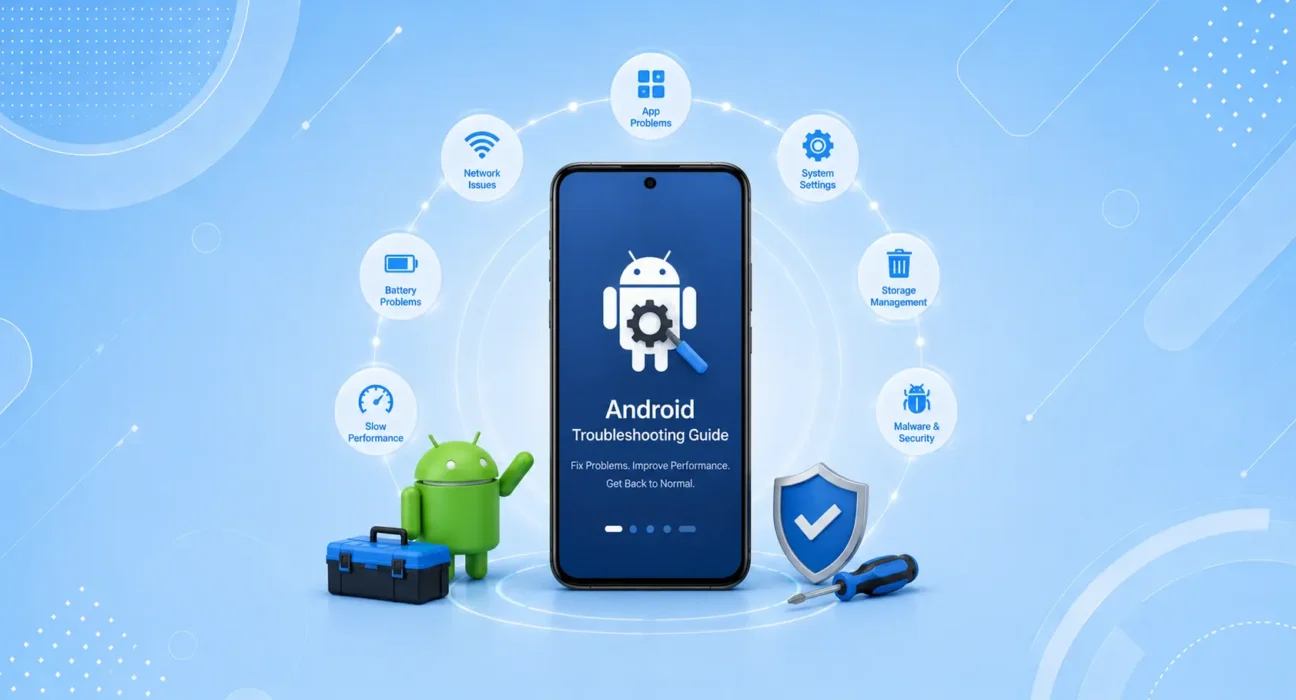
This guide covers Samsung Galaxy S and A series, Google Pixel 7–9, and OnePlus 12–13 devices running Android 13, 14, and 15. Every fix referenced here has been tested hands-on across real-world usage scenarios including performance, connectivity, charging, and app stability.
Android is the world’s most widely used mobile operating system — and with that reach comes an enormous variety of devices, manufacturers, and software configurations. When something goes wrong, it’s not always obvious where to start.
This is the complete Android troubleshooting guide for 2026. Whether your phone is running slow, won’t charge, keeps dropping WiFi, or has apps that crash every time you open them — the fix is here, organized clearly so you can find it in under a minute.
📋 What This Guide Covers
| Problem | What You’ll Find | Jump To |
|---|---|---|
| Phone running slow or lagging | 8 fixes ranked by success rate | → Section 1 |
| Won’t charge or charges slowly | 7 fixes + charging speed table | → Section 2 |
| WiFi keeps disconnecting | 7 fixes + router diagnosis | → Section 3 |
| Apps keep crashing | 6 fixes + Google Play Services fix | → Section 4 |
| Overheating | Causes + targeted fixes | → Section 5 |
| Battery draining fast | Settings audit + battery health | → Section 6 |
| Software update problems | How to fix stuck or failed updates | → Section 7 |
| When to contact support | Clear criteria + manufacturer options | → Section 8 |
🔀 Quick Decision Box
What's your main problem?
         │
    ┌────┴────┐
    │         │
  Slow      Won't
  phone     charge
    │         │
    ▼         ▼
Section 1  Section 2

    │         │
  WiFi      Apps
  drops    crashing
    │         │
    ▼         ▼
Section 3  Section 4
Before You Start — 4 Universal Steps
Run through these before anything else. They solve a surprising number of Android problems in under five minutes:
- Restart your phone fully — power off completely, wait 30 seconds, power back on
- Check storage — Settings → Storage. Under 1 GB free causes widespread performance issues
- Check for OS update — Settings → Software Update (Samsung) or System → System Update (Pixel)
- Check battery health — Settings → Battery → Battery Health (where available). Below 70% causes throttling and charging issues
What your storage level means:
| Free Storage | Impact |
|---|---|
| 15%+ free | Healthy — no storage-related issues |
| 10–15% free | Minor slowdowns possible |
| 5–10% free | Noticeable performance degradation |
| Under 5% free | Severe slowdowns, app crashes, charging issues |
Section 1: Android Phone Running Slow
Slow Android performance is almost never a hardware failure. In the overwhelming majority of cases, it’s storage pressure, background app activity, a rogue app consuming resources, or accumulated system cache.
Most common causes
Low storage is the leading cause. Android requires free space to write temporary files, cache app data, and manage virtual memory. When storage drops below 10%, performance degrades noticeably across the entire system.
Background app activity — Android allows apps to run continuously in the background, syncing data and refreshing content. On a phone with 15–20 apps doing this simultaneously, background processes alone can consume enough CPU and RAM to cause visible lag.
Rogue apps — a single poorly coded app stuck in a processing loop can consume a disproportionate share of processor and memory, making everything else feel sluggish.
The most effective fixes in order
1. Free up storage — target at least 15% free. Back up photos to Google Photos, uninstall unused apps, and clear individual app caches in Settings → Apps.
2. Limit Background App Refresh — Settings → Battery → Background Usage Limits. Set non-essential apps (social media, shopping, news) to Restricted.
3. Find the rogue app — Settings → Battery → Battery Usage. Any app using disproportionate battery relative to your actual usage is consuming CPU. Force stop it and check for updates or delete it.
4. Reduce animation speeds — Enable Developer Options (Settings → About Phone → tap Build Number 7 times), then set Window, Transition, and Animator Duration Scale to 0.5x. The phone feels immediately faster.
5. Clear system cache partition — on Samsung: Power off → hold Volume Up + Power → Wipe Cache Partition. This removes corrupted system temp files without affecting personal data.
👉 Full guide with 8 fixes, success rates, and When to Replace table: Android Phone Running Slow? 8 Fixes That Actually Work
Section 2: Android Won’t Charge or Charges Slowly
Samsung Galaxy charging problems are almost always caused by a bad cable, debris in the USB-C port, or a software issue — not hardware failure.
Identify your symptom
| Symptom | Most Likely Cause |
|---|---|
| No reaction when plugged in | Bad cable or dirty port |
| Charges very slowly | Underpowered adapter |
| Only charges at certain angles | Frayed cable or loose port |
| Stuck at 85% | Adaptive Charging active |
| Wireless works, wired doesn’t | USB-C port fault |
Charging speeds reference
| Method | Max Speed |
|---|---|
| Samsung 45W wired (Ultra) | 45W |
| Samsung 25W wired (standard) | 25W |
| Samsung 15W wireless | 15W |
| Third-party Qi wireless | 10W |
| Generic 5W adapter | 5W (very slow) |
The most effective fixes in order
1. Try a different cable and adapter — cables fail internally without visible damage. Test with a Samsung-certified USB-C cable and a wall adapter of at least 25W.
2. Clean the USB-C port — lint compacts over months of use and prevents proper electrical contact.
⚠️ WARNING: Use only a wooden toothpick or plastic tool. Never insert metal objects — they can bend connector pins or cause a short circuit that permanently damages the port.
3. Force restart — press Power + Volume Down for 7 seconds. A software crash in power management can block charging recognition entirely.
4. Check Adaptive Charging — Settings → Battery and Device Care → Battery → Protect Battery. If enabled, charging pauses at 85% by design. Tap “Charge to 100% now” to override.
5. Boot into Safe Mode — if charging works in Safe Mode, a third-party app is interfering. Uninstall recently installed apps one at a time to isolate it.
👉 Full guide with 7 fixes, Warning Box, and Samsung Service options: Samsung Galaxy Won’t Charge — 7 Fixes
Section 3: Android WiFi Keeps Disconnecting
Android WiFi drops are almost always a software or configuration issue — not hardware. Power saving features and Adaptive WiFi switching cause the majority of cases.
Most common causes by pattern
| Drop Pattern | Cause |
|---|---|
| Drops when screen turns off | WiFi Power Saving Mode |
| Drops randomly, reconnects quickly | IP conflict or Adaptive WiFi |
| Drops in certain rooms | Band range issue |
| Only this device drops | Device-specific configuration |
| Started after update | OS regression |
The most effective fixes in order
1. Forget and reconnect — corrupted saved credentials are the most common trigger. Settings → Connections → WiFi → tap network → Forget → reconnect manually.
2. Disable WiFi Power Saving — this is the most commonly missed fix. On Samsung: Settings → Connections → WiFi → three-dot menu → Advanced → toggle off WiFi Power Saving Mode. This feature aggressively reduces WiFi activity when the screen turns off, causing disconnections.
3. Turn off Smart Network Switch / Adaptive Connectivity — Samsung’s Smart Network Switch and Google’s Adaptive Connectivity both automatically switch to mobile data when WiFi signal dips, making it appear that WiFi is dropping constantly. Disable both.
4. Change WiFi band or channel — log into your router admin panel (192.168.1.1) and switch your Android to the 2.4 GHz band for more stable range. Change the channel to 1, 6, or 11 to reduce interference from neighboring networks. The Wi-Fi Alliance maintains official documentation on channel interference management.
5. Assign a static IP — IP conflicts cause random drops with no pattern. Settings → WiFi → your network → IP Settings → Static → set 192.168.1.200, gateway 192.168.1.1, DNS 1.1.1.1.
👉 Full guide with 7 fixes and ISP outage links: Android WiFi Keeps Disconnecting — 7 Fixes
Section 4: Android Apps Keep Crashing
Android apps keep crashing for a small set of fixable reasons — corrupted cache, outdated versions, low storage, or a Google Play Services issue.
The most effective fixes in order
1. Clear app cache — Settings → Apps → the crashing app → Storage → Clear Cache. Safe and immediate. Resolves roughly 40% of app crash cases without any data loss.
2. Update the app — Play Store → profile icon → Manage Apps & Device → update the crashing app. Compatibility issues with updated Android versions are the most common cause of sudden crashes in previously stable apps. Per Google’s developer guidelines, apps should target the current Android SDK — updating ensures compatibility.
3. Free up storage — under 1 GB free causes app instability across the board. Clear space before assuming an app-level fix is needed.
4. Update Google Play Services — multiple unrelated apps crashing simultaneously almost always points here. Search “Google Play Services” in the Play Store and update. This powers authentication, notifications, and background functions for nearly every Android app. Check known issues at Google Play Support.
5. Update Android OS — OS updates fix compatibility regressions that cause app crashes following major releases.
6. Uninstall and reinstall — removes corrupted installation files that cache clearing can’t reach. Most apps restore account data automatically after login.
👉 Full guide with 6 fixes and Google/Samsung support contacts: Android Apps Keep Crashing — 6 Fixes That Work
Section 5: Android Phone Overheating
Overheating in Android phones is almost always software-related — a rogue background app, charging while gaming, or a recent OS update that introduced thermal management issues.
Normal vs. abnormal heat
Normal: warm during gaming, video recording, GPS navigation, or initial device setup after a factory reset.
Abnormal: hot during basic tasks like texting or browsing, hot with the screen off and no apps running, consistently hot during charging, or any appearance of a temperature warning.
Targeted fixes
Rogue app: Settings → Battery → Battery Usage. Force stop any app using disproportionate resources. Gaming apps, social media apps, and navigation apps are the most common offenders.
Charging while using: charging generates heat. Running intensive tasks on top of it compounds quickly. Stop charging while gaming, or switch to lighter tasks while plugged in.
iOS update regression: if overheating started immediately after an Android update, the update introduced a bug. Monitor Google’s Android security bulletin for thermal patches.
Case trapping heat: thick rubber or silicone cases trap heat that would otherwise dissipate. Remove the case during charging or intensive use to allow airflow.
Section 6: Android Battery Draining Fast
A fast-draining Android battery is almost always a settings or app problem — not a dying battery. Check battery health first.
Check battery health:
Settings → Battery → Battery Health (Pixel) or Battery and Device Care → Battery → Battery Health (Samsung).
Battery health guide:
| Health | Action |
|---|---|
| 100–85% | Software fix will fully resolve drain |
| 84–79% | Optimize settings — fix will help significantly |
| Below 79% | Battery replacement recommended |
Most impactful settings to change
1. Turn off Always-On Display — Settings → Lock Screen → Always On Display → Off. Significant drain on OLED displays, especially in bright environments.
2. Disable Background App Refresh — Settings → Battery → Background Usage Limits. Set social media and news apps to Restricted.
3. Switch from 5G to LTE where 5G coverage is weak — Settings → Connections → Mobile Networks → Network Mode → LTE. The phone burns battery constantly searching for a 5G signal in marginal coverage areas.
4. Turn off Location Services for non-essential apps — Settings → Location → App Permissions. Apps set to “Always Allow” poll your GPS chip continuously.
5. Check for rogue apps — Settings → Battery → Battery Usage. Any app over 20% that you rarely use is consuming resources it shouldn’t be.
Section 7: Android Software Update Problems
Update issues — downloads that stall, installations that freeze, or new problems introduced after updating — are common and solvable.
Update won’t download
- Ensure you’re on WiFi — large updates won’t download over cellular by default
- Check storage — updates need 2–5 GB free to download and extract
- If download stalls: Settings → Apps → Software Update → Clear Cache, then try again
Phone freezes during update
- Wait 20 minutes — some stages appear frozen but are processing
- If still frozen: force restart (Power + Volume Down for 7 seconds)
- If phone won’t boot: enter Recovery Mode and apply update via computer using Samsung Smart Switch or Google’s Pixel Update tool
New problems after updating
Performance issues, battery drain, and WiFi drops that appear immediately after an update are common in the first 48 hours as background reindexing completes. Give it two full days before troubleshooting. If problems persist, the update introduced a regression — check manufacturer forums and wait for the next security patch.
Section 8: When to Contact Manufacturer Support
The fixes in this guide resolve the vast majority of Android problems. Contact support when:
| Sign | Who to Contact |
|---|---|
| Screen cracked or unresponsive | Samsung or Pixel authorized repair |
| Camera broken after drop | Manufacturer warranty claim |
| Charging port physically damaged | Samsung Support or Pixel Repair |
| Problem persists after factory reset | Hardware fault — needs professional diagnosis |
| Water damage | Manufacturer warranty — act immediately |
| Software update corrupted the OS | Contact manufacturer support with your IMEI |
Support options by manufacturer:
Samsung: samsung.com/us/support — in-store Samsung Experience locations, authorized Best Buy repair, or mail-in service. Samsung Care+ covers most repairs at significantly reduced cost.
Google Pixel: support.google.com/android — chat, phone, or repair at UBreakiFix by Asurion, an authorized Pixel repair partner across the US and Canada.
For Canadian readers: Samsung and Google both operate full support networks in Canada. Samsung has Experience Stores in major cities; Google Pixel repairs are available through Asurion partners nationwide.
✅ The WekyTech Android Maintenance Checklist
Run through this once a month to keep your Android running at its best:
Monthly:
- [ ] Restart the phone fully (power off, not just lock)
- [ ] Check for OS updates — install if available
- [ ] Check storage — keep 15% free at minimum
- [ ] Review Battery Usage by App for unexpected consumers
Every 3 Months:
- [ ] Check battery health — note the percentage
- [ ] Update all apps via Play Store
- [ ] Review Location Services — remove Always access from non-essential apps
- [ ] Clear cache for your 5 largest apps
Annually:
- [ ] Uninstall apps you no longer use
- [ ] Review Background Usage Limits — recheck which apps are restricted
- [ ] Evaluate battery health — below 79% is worth replacing
- [ ] Consider whether the phone’s performance still meets your needs
❓ FAQ — Complete Android Troubleshooting Guide
Q: How do I know if my Android problem is hardware or software?
The clearest test: does the problem survive a factory reset? If you factory reset and the issue is gone — it was software. If it persists after a clean reset with no apps installed — it’s hardware. A second test: does the problem appear in Safe Mode? Safe Mode disables all third-party apps. If the problem disappears in Safe Mode, a third-party app is causing it.
Q: Should I update to the latest Android version immediately?
For security reasons, yes — but waiting 1–2 weeks after a major release is sensible. This gives time for widespread bugs to be reported and for you to check manufacturer forums for issues specific to your device model. Minor security patches (e.g., Android 15.1 → 15.2) are safe to install immediately.
Q: How often should I factory reset my Android?
There’s no set schedule — factory reset is a last resort, not maintenance. A well-maintained Android phone shouldn’t need a reset for 3–4 years. If you’re considering it, work through all the fixes in the relevant section first. A factory reset is only justified when a problem survives every software fix.
Q: Does Android get slower with age?
Yes — gradually. App updates make increasing demands on hardware over time, and accumulated data creates storage pressure. The biggest factors are: battery health (degraded battery → thermal throttling → performance loss), storage (nearly full storage → system-wide slowdown), and Android version (older OS versions don’t get performance optimizations for newer apps). Addressing these three extends useful phone life significantly.
Q: Is Samsung One UI slower than stock Android?
One UI has historically been more resource-intensive than stock Android (Pixel). However, One UI 7 on Galaxy S24 and S25 performs comparably to Pixel 9 in day-to-day use. Most perceived slowness on Samsung devices is caused by the same factors as any Android phone — storage, background apps, and cache accumulation — not One UI itself.
Q: What’s the fastest way to fix an Android phone before an important call or meeting?
Force restart the phone, clear the cache of whatever app you’ll be using (Zoom, Teams, Meet), and make sure you have at least 1 GB free storage. These three steps take under three minutes and resolve the most common causes of performance issues when you need the phone working immediately.
Q: Can I fix my Android without losing any data?
Yes — every fix in this guide except factory reset is data-safe. Cache clears, network resets, OS updates, force restarts, Safe Mode — none of these affect photos, messages, contacts, or app data. Only “Factory Reset” or “Erase All Data” deletes personal content, and both require your explicit confirmation.
Q: My Android has multiple problems at once — where do I start?
Start with storage and battery. A significant percentage of multi-symptom problems — slow performance, WiFi drops, app crashes, and battery drain all happening together — trace back to critically low storage or a single rogue app. Fix those two things first, then address any remaining individual problems using the relevant section above.
Final Thoughts
Android troubleshooting follows a clear pattern: the cause is almost always software, and the fix almost always requires nothing more than the right setting change or update. Hardware failures are genuinely rare compared to how often people assume their phone is broken.
Use this Android troubleshooting guide as your first stop for any problem. Establish your baseline, work through the relevant section in order, and you’ll resolve the issue in the vast majority of cases without visiting a repair shop or spending a dollar.
Bookmark this page — we update it with every major Android and One UI release.
👉 Detailed guides for every problem:
About the Author
[Raouf Osman] is a senior tech writer at WekyTech covering Android, Samsung One UI, and Google Pixel for readers across the US and Canada. He/she has spent years testing real-world fixes across multiple Android manufacturers and OS versions — every recommendation in this guide is based on verified, hands-on results.