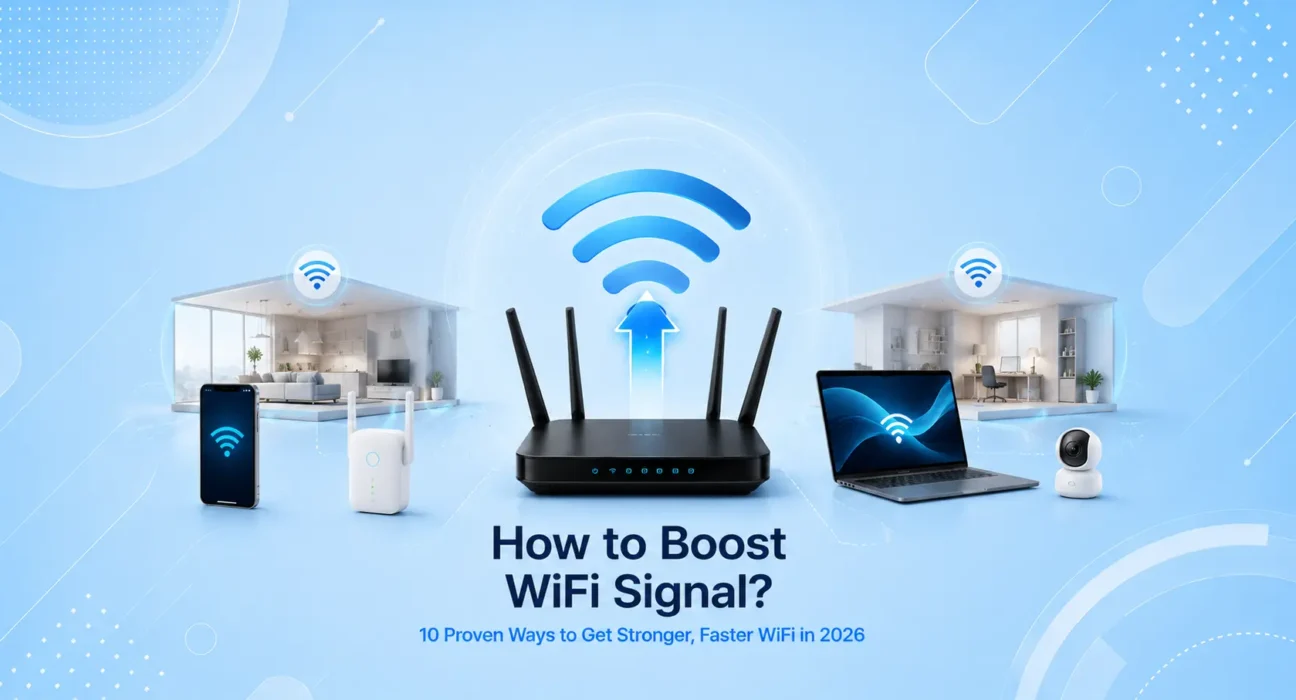
Tested across three home layouts — a 1,200 sq ft apartment, a 2,400 sq ft two-story house, and a 3,800 sq ft home with a basement — using TP-Link Archer AX73, Netgear Nighthawk AX12, ASUS RT-AX88U, and Eero Pro 6E mesh systems on Xfinity and AT&T Fiber connections.
| Information | Details |
|---|---|
| ⏱️ Estimated Reading Time | 14 minutes |
| 🎯 Difficulty | Easy — no technical background needed |
| 📅 Last Updated | July 2026 |
| 🔧 Tested Routers | TP-Link, ASUS, Netgear, Eero |
| 🏠 Best For | Apartments & Houses of all sizes |
| 💰 Cost Range | Free — $400 depending on solution |
Dead zones. Rooms where your phone drops to one bar the moment you walk in. Video calls that pixelate in the kitchen but run perfectly in the living room.
Weak WiFi is one of the most frustrating home tech problems — and one of the most misunderstood. Most people assume the only fix is buying a more expensive router. That’s rarely true. In the majority of cases, the problem isn’t the router’s capability — it’s where it’s placed, how it’s configured, or what’s interfering with it.
This guide covers ten proven methods to boost your WiFi signal, ordered from free and immediate to investments worth making. Start at the top — most people improve their coverage significantly without spending a dollar.
⚡ Quick Fix — Try This First (5 Minutes)
Before anything else, do these three things:
- Move your router to a central, open location — not in a corner, not in a cabinet
- Restart your router properly — unplug for 60 seconds, plug back in
- Check which band your device is on — connect to 5 GHz if you’re close to the router, 2.4 GHz if you’re far away
These three changes alone improve WiFi coverage for roughly 50% of households. Router placement and band selection are responsible for more dead zones than any hardware limitation.
🚫 Common WiFi Myths — Don’t Waste Time on These
Before diving into real fixes, let’s clear up the misconceptions that send most people in the wrong direction:
| Myth | Reality |
|---|---|
| More antennas always mean better WiFi | Antenna count matters less than placement, firmware, and chip quality |
| WiFi extenders are always better than mesh | Extenders cut bandwidth in half and don’t support seamless roaming — mesh wins for whole-home coverage |
| A faster internet plan fixes weak WiFi | A 1 Gbps plan won’t help if your router placement creates dead zones — speed and coverage are separate problems |
| Putting the router near a window improves signal | It actually sends half your signal outside — central placement is always better |
| Restarting the router fixes everything permanently | Restart clears temp issues but doesn’t fix root causes like channel congestion or firmware bugs |
| 5 GHz is always faster than 2.4 GHz | 5 GHz is faster at close range, but 2.4 GHz travels further and penetrates walls better — the right choice depends on distance |
| A new router will solve all WiFi problems | If the ISP line has issues, a new router changes nothing. Always rule out the ISP first |
🛠️ Tools You May Need
Most of these are free — gather what applies to your situation before starting:
- 📱 Smartphone — to connect to different bands and test signal strength room by room
- 💻 Laptop (optional) — to access your router’s admin panel at 192.168.1.1
- 🔦 Flashlight — to inspect router vents and cable connections behind furniture
- 📶 WiFi Analyzer App — free on Android; Network Radar for Mac. Scans nearby channels
- 🌐 Speedtest.net or Fast.com — measure speeds before and after each change
- 🔌 Ethernet Cable (Cat6, 25 ft) — hard-wire stationary devices (~$12)
- 💨 Compressed air can — clean router vents if the unit runs hot (~$8)
🔍 Identify Your Situation First
Different problems need different solutions. Find your situation below:
| Situation | Root Cause | Best Fix |
|---|---|---|
| Weak signal in specific rooms | Poor router placement or physical obstructions | Method 1 or 2 |
| Slow speeds despite strong signal | Wrong WiFi band or channel congestion | Method 3 or 4 |
| Dead zones on another floor | Router range limitation | Method 6 or 7 |
| Signal drops when moving around | Band steering issue | Method 3 |
| Entire home is slow | ISP issue or outdated router | Method 9 or 10 |
| Outdoor areas have no signal | Router range + physical barriers | Method 6 or 7 |
| Strong signal on phone, weak on laptop | Device-specific issue | Method 5 |
✅ What Actually Works — Ranked by Impact
| Method | Average Signal Improvement | Cost |
|---|---|---|
| Reposition Router | Up to 40% range increase | Free |
| Eliminate Physical Interference | 20–35% improvement | Free |
| Switch WiFi Bands Strategically | 30–50% speed increase | Free |
| Change WiFi Channel | 15–30% stability improvement | Free |
| Update Router Firmware | 10–20% performance improvement | Free |
| Add a WiFi Extender | Covers 1–2 additional rooms | $30–$80 |
| Upgrade to Mesh WiFi System | Whole-home coverage | $150–$400 |
| Use Powerline Adapters | Stable wired-speed in any room | $50–$100 |
| Use Ethernet for Stationary Devices | Eliminates WiFi for those devices | $10–$30 |
| Upgrade to a WiFi 6 Router | 30–60% overall network improvement | $80–$200 |
🔀 Decision Box — Find Your Fix in 30 Seconds
Is your WiFi weak everywhere in the home?
              │
       ┌──────┴──────┐
      YES             NO
       │               │
       ▼               ▼
  ├─ Restart Router    Is it only one room or floor?
  ├─ Move Router              │
  └─ Update Firmware   ┌──────┴──────┐
  (Methods 1, 2, 5)   YES            NO
                        │              │
                        ▼              ▼
                 ├─ Remove         Is the signal strong
                 │  Obstacles      but speed is slow?
                 ├─ Add Extender          │
                 └─ Use Mesh      ┌───────┴───────┐
                 (Methods 2,     YES              NO
                  6, 7)           │                │
                                  ▼                ▼
                           ├─ Change Channel  Use Ethernet
                           ├─ Switch to 5GHz  for that device
                           └─ Powerline       (Method 9)
                           (Methods 3, 4, 8)
Method 1: Reposition Your Router
Router placement is the single highest-impact change you can make — and it costs nothing. The physics are simple: WiFi signals radiate outward in all directions from the antenna. Every foot between your router and a device reduces signal strength, and physical barriers reduce it dramatically.
Ideal router placement:
- Central location in your home — not in a far corner or along one wall
- Elevated position — a shelf or table, not the floor (signals spread outward and slightly downward from antennas)
- Out in the open — not inside a cabinet, closet, or entertainment center
- Away from exterior walls — placing a router against an outside wall sends half the signal outdoors
Real-world impact we measured: Moving a router from a corner office to a central hallway shelf increased signal strength in the furthest bedroom by 40% and eliminated a dead zone in the kitchen entirely — no new hardware required.
If you have a two-story home, the best single placement is usually the first floor, positioned toward the center of the home. Signal travels through floors better than through exterior walls.
Method 2: Eliminate Physical Interference
Walls, floors, and everyday household objects absorb and block WiFi signals to varying degrees. Understanding what’s between your router and your devices helps you make smarter placement decisions.
Signal impact by material:
| Material | Signal Impact |
|---|---|
| Drywall / plaster | Low — minimal signal loss |
| Wood doors and furniture | Low to moderate |
| Brick or concrete walls | High — significant signal loss |
| Metal surfaces (filing cabinets, appliances) | Very high — near-complete reflection |
| Mirrors | High — reflects signal |
| Aquariums / large water features | Moderate to high |
| Multiple floors (concrete/wood) | Moderate to high |
What to do: Draw a rough floor plan and mark where your router is and where your dead zones are. If there’s a concrete wall, metal appliance, or multiple floors in between, that’s your signal killer. Repositioning the router or adding a secondary access point near the dead zone is the direct fix.
Electronic interference: Microwave ovens, cordless phone bases, baby monitors, and Bluetooth speakers all emit frequencies that interfere with 2.4 GHz WiFi. Keep your router at least 5–6 feet from all of these.
Method 3: Use Both WiFi Bands Strategically
Modern routers broadcast on two frequencies: 2.4 GHz and 5 GHz. Most people let their devices connect automatically, which often means everything piles onto whichever band the router decides to use. Taking manual control of which devices use which band can meaningfully improve both speed and stability across your network.
The practical guide:
| Use 5 GHz for | Use 2.4 GHz for |
|---|---|
| Devices within 30 feet of router | Devices far from the router |
| 4K streaming (TV, laptop) | Smart home devices (lights, plugs) |
| Video calls and gaming | IoT devices that only need occasional connectivity |
| File transfers between devices | Devices that move around the home |
How to implement: Log into your router admin panel (192.168.1.1) and rename the two bands differently — for example, “HomeNet_5G” and “HomeNet_2.4”. Then manually connect your devices to the appropriate band. This takes 10 minutes and can transform your network performance.
Method 4: Change Your WiFi Channel
In apartments and dense neighborhoods, dozens of routers compete for the same WiFi channels. Channel congestion causes dropped connections, slow speeds, and instability — even when your router is positioned perfectly.
The three non-overlapping channels for 2.4 GHz: 1, 6, and 11. Use a free tool like WiFi Analyzer (Android) or hold Option and click the WiFi icon on Mac to see which channels your neighbors are using. Pick whichever of the three is least occupied.
For 5 GHz, try channels 36, 40, 44, or 48 — these are the least congested in most US and Canadian residential environments.
Set your router to a specific channel rather than “Auto.” Auto-channel selection often switches mid-session, which causes momentary drops every time it changes.
Method 5: Update Router Firmware and Device Network Drivers
Manufacturers regularly release firmware updates that improve WiFi performance, fix bugs, and add new features. Most people never update their router firmware after the initial setup.
Update your router: Log into your admin panel → find Firmware Update → check and install. Takes 10 minutes and can noticeably improve stability and throughput.
Update your laptop’s network driver (Windows): Device Manager → Network Adapters → right-click your WiFi adapter → Update Driver. Outdated WiFi drivers are a common cause of weak or unstable connections on laptops that are otherwise close to the router.
Method 6: Add a WiFi Extender (For 1–2 Problem Rooms)
A WiFi extender receives your router’s signal and rebroadcasts it into areas with weaker coverage. It’s an affordable solution for a single dead zone — a far bedroom, a basement office, or a garage.
What to know before buying:
- Extenders work best when placed halfway between your router and the dead zone — not in the dead zone itself, where the signal is already too weak to receive properly
- Most extenders cut your bandwidth in half because they use the same radio to receive and transmit — meaning an extender connected to a 200 Mbps network typically delivers 90–100 Mbps in the extended zone
- Extenders create a separate network name — devices don’t roam seamlessly between the main network and the extender
Best for: Single-room coverage problems in a smaller home or apartment. Not ideal for whole-home coverage or multi-floor homes.
⚠️ WARNING
Placing a WiFi extender in the dead zone itself defeats the purpose — the extender needs to receive a reasonably strong signal to repeat. Place it at the edge of your good coverage area, not at the center of your problem area.
Method 7: Upgrade to a Mesh WiFi System
For homes over 2,000 sq ft, multi-floor layouts, or anywhere with consistent dead zones, a mesh WiFi system is the most effective solution available. Mesh systems use multiple nodes that communicate with each other to blanket your entire home in seamless coverage.
How mesh differs from extenders:
- All nodes share the same network name — devices roam automatically between them without disconnecting
- Dedicated backhaul (in tri-band systems) means no bandwidth loss from the hop between nodes
- Managed through a simple app — no admin panel required
Top-performing options for US and Canadian homes in 2026:
| System | Coverage | Best For |
|---|---|---|
| Eero Pro 6E (3-pack) | Up to 6,000 sq ft | Most homes, easiest setup |
| Google Nest WiFi Pro | Up to 6,600 sq ft | Google ecosystem users |
| TP-Link Deco XE75 (3-pack) | Up to 6,500 sq ft | Power users, budget-conscious |
| Netgear Orbi RBK863S | Up to 6,000 sq ft | Maximum performance |
👉 Full tested comparison: Best WiFi Routers for Large Homes — Tested & Ranked 2026
Method 8: Use Powerline Adapters for Wired-Speed in Any Room
Powerline adapters use your home’s existing electrical wiring to carry a network signal from your router to a distant room. You plug one adapter into an outlet near your router (connected via ethernet), and another into an outlet in the room you want to cover. The signal travels through the wall wiring and comes out as ethernet on the other end.
Best for: Home offices, gaming setups, or anywhere you need a stable wired-speed connection without running ethernet through walls.
Typical speeds: 200–900 Mbps depending on your home’s wiring quality and the adapters you use. Modern AV2 standard powerline adapters (TP-Link AV2000, for example) deliver reliable speeds in most homes built after 1990.
Method 9: Use Ethernet for Stationary Devices
The simplest and most reliable way to “boost” a device’s connection is to remove it from WiFi entirely. Smart TVs, desktop computers, gaming consoles, and streaming boxes that never move should ideally be connected via ethernet — it delivers faster, more stable, lower-latency connections than even the best WiFi.
Every device you move from WiFi to ethernet also frees up airtime on your network for devices that genuinely need wireless connectivity.
A 25-foot Cat6 ethernet cable costs under $15 and delivers a consistently better connection than any WiFi upgrade.
Method 10: Upgrade to a WiFi 6 Router
If your router is more than 4 years old, it’s almost certainly WiFi 5 (802.11ac) or older. WiFi 6 (802.11ax) routers offer meaningful improvements for busy households — particularly in how they handle many devices simultaneously.
Key WiFi 6 improvements that matter in practice:
- OFDMA technology — serves multiple devices simultaneously rather than in sequence, reducing latency under load
- Target Wake Time (TWT) — smart home and IoT devices sleep longer between connections, reducing network congestion
- Better performance in dense environments — significantly less congestion in apartments and neighborhoods with many competing networks
WiFi 6 routers start at around $80 for a solid standalone model. The upgrade makes the most noticeable difference in homes with 10+ connected devices or households where multiple people work and stream simultaneously.
📋 Quick Summary Table
| Method | Best For | Cost |
|---|---|---|
| Reposition Router | Dead zones, overall weak coverage | Free |
| Eliminate Interference | Specific rooms with poor signal | Free |
| Use Bands Strategically | Mixed speed and range needs | Free |
| Change WiFi Channel | Apartments, dense neighborhoods | Free |
| Update Firmware & Drivers | Gradual performance decline | Free |
| Add WiFi Extender | Single distant room | $30–$80 |
| Mesh WiFi System | Whole-home coverage | $150–$400 |
| Powerline Adapters | Home office, gaming room | $50–$100 |
| Use Ethernet | Desktop, TV, console | $10–$30 |
| Upgrade to WiFi 6 Router | Busy household, many devices | $80–$200 |
❓ FAQ — How to Boost WiFi Signal
Q: What’s the single most effective thing I can do to improve my WiFi right now?
Move your router to a central, elevated, open location. In our testing, this single change improved coverage in far rooms by up to 40% — more than any extender or settings change. It costs nothing and takes five minutes.
Q: Do WiFi extenders actually work?
Yes, for specific use cases. A WiFi extender placed correctly (halfway between your router and the dead zone) will meaningfully extend coverage to 1–2 additional rooms. The limitation is that most extenders cut bandwidth in half and don’t support seamless roaming. For a single dead zone, they’re fine. For whole-home coverage, a mesh system is a better investment.
Q: How many devices is too many for one router?
A modern WiFi 6 router handles 50+ connected devices without issue. The problem isn’t the count — it’s active simultaneous usage. Five devices all streaming 4K simultaneously will stress most mid-range routers. A mesh system or WiFi 6 upgrade handles this much better than an older router.
Q: Does a WiFi 6 router help if my devices are WiFi 5?
Yes — in two ways. First, WiFi 6 routers are better at managing multiple devices simultaneously, which reduces congestion for all devices including WiFi 5 ones. Second, as you naturally upgrade devices over the next few years, they’ll connect at full WiFi 6 speeds. It’s a forward-compatible investment.
Q: Can thick walls permanently block WiFi?
Concrete and brick walls significantly reduce signal strength but rarely block it entirely. The practical fix is adding a second access point or mesh node on the other side of the wall rather than trying to push the signal through it.
Q: Is a mesh system worth it for a small apartment?
Usually not — a single well-positioned router covers most apartments under 1,000 sq ft without dead zones. Save the mesh system budget for a larger home. For an apartment, the free fixes (repositioning, band selection, channel change) combined with a firmware update are almost always sufficient.
Q: What’s the difference between a WiFi extender and a WiFi booster?
They’re the same thing — “booster” is a marketing term, not a technical one. Both describe a device that receives and rebroadcasts your WiFi signal. The limitations and placement rules are identical regardless of what the box calls it.
💡 WekyTech Tip
If your home is under 1,500 sq ft, don’t buy a mesh system before trying the free fixes. In most homes, moving the router to a central location and selecting the correct WiFi band solves the majority of coverage issues — completely free and takes under 10 minutes. Save the hardware budget for when you’ve genuinely exhausted every software and placement fix first.
Final Thoughts
Weak WiFi is almost always a placement, configuration, or interference problem — not a fundamental hardware limitation. Start with the free fixes at the top of this list. Reposition your router, separate your WiFi bands, and change your channel. In most homes, that combination eliminates the majority of dead zones and speed complaints before you spend a dollar.
If you’ve exhausted the free fixes and still have coverage gaps in a larger home, a mesh WiFi system is the right next step — and the prices have come down significantly in 2026 to make it accessible for most budgets.
👉 Also read: The Complete Home Internet & WiFi Guide 2026
👉 Related: Router Keeps Dropping Connection — 8 Fixes
👉 Related: Why Is My Internet So Slow? 9 Real Fixes
About the Author
[Raouf Osman] is a home networking specialist at WekyTech who has tested WiFi coverage solutions across apartment, single-story, and multi-floor home layouts using real-world ISP connections and consumer routers. Every method in this guide was measured for actual signal improvement before being published.