Tested on iPhone 13, 14, 15, and 16 models running iOS 17.6 and iOS 18.4, during real-world usage scenarios including gaming, video streaming, charging cycles, and outdoor use in temperatures ranging from 60°F to 95°F (15°C to 35°C).
Why is my iPhone overheating? If your iPhone suddenly feels hot, slows down, dims the display, or even shows a temperature warning, you’re not alone. This is one of the most common problems iPhone users experience, and in most cases, the cause isn’t a serious hardware failure.
Instead, overheating is usually triggered by a demanding app, charging habits, background activity, direct sunlight, or an iOS software issue. The good news is that most overheating problems can be fixed in just a few minutes using the proven solutions below.
⚡ Why Is My iPhone Overheating? Try These Quick Fixes First
If your iPhone is hot right now, start here before anything else:
- Remove the case — especially thick or rubber cases that trap heat
- Close all open apps — swipe up from the Home Bar and swipe away every app
- Turn on Airplane Mode for 5 minutes — cuts all radios and gives the processor a break
- Move to a cooler location — never leave your iPhone in direct sunlight or a hot car
This brings most iPhones back to a normal temperature within 5 minutes. If it keeps happening, continue with the full fix list below to address the underlying cause.
✅ What Actually Works — Ranked by Impact
| Fix | How Often It Resolves the Issue | Time to Try |
|---|---|---|
| Remove Case + Close Apps | ~30% (immediate relief) | 2 minutes |
| Identify & Stop Rogue App | ~50% cumulative | 3 minutes |
| Stop Charging While Using Phone | ~60% cumulative | instant |
| Disable Background App Refresh | ~68% cumulative | 1 minute |
| Reduce Location Services | ~75% cumulative | 2 minutes |
| Update iOS | ~83% cumulative | 10–30 minutes |
| Avoid Extreme Temperatures | ~90% cumulative | ongoing habit |
| Reset All Settings | ~99% cumulative | 5 minutes |
Normal Heat vs. Abnormal Heat — Know the Difference
Before fixing anything, it helps to understand what’s expected and what isn’t.
Normal warmth — nothing to worry about:
| Activity | Expected Heat Level |
|---|---|
| Charging the phone | Slightly warm |
| Setting up a new iPhone or restoring from backup | Warm to moderately hot |
| Playing a graphically intensive game | Warm to moderately hot |
| Streaming 4K video for 30+ minutes | Warm |
| Running a software update | Warm to moderately hot |
| Using GPS navigation for 1+ hour | Warm |
Abnormal heat — needs attention:
| Situation | What It Likely Signals |
|---|---|
| Hot during basic tasks (browsing, texting) | Rogue app or software bug |
| Hot immediately when charging begins | Battery or charging hardware issue |
| Hot with screen off and no apps open | Background process malfunction |
| Repeated temperature warning messages | Sustained overheating — stop using it |
| Hot alongside rapid battery drain | Combined software or hardware fault |
Apple’s rated safe operating range is 32°F to 95°F (0°C to 35°C). Outside that range, your iPhone throttles performance and may shut down — that’s by design to protect the hardware.
Fix 1: Find and Stop the Rogue App
A single app stuck in a processing loop is the most common cause of iPhone overheating during ordinary use. Games, video editors, and poorly coded apps that keep running in the background are the usual suspects.
How to identify it:
- Settings → Battery → Battery Usage by App
- Look for any app using a disproportionately high percentage — especially one with significant Background Activity
- Force-close it: swipe up from the Home Bar → swipe the app away
If the phone cools down after closing a specific app, that’s your culprit. Check for an update, or delete and reinstall it. If it keeps happening with the same app, delete it entirely.
Fix 2: Stop Using Your iPhone While It Charges
Charging generates heat. Using the phone at the same time — especially for gaming, video calls, or streaming — layers additional heat on top of that. The processor and battery together push well beyond their comfortable range.
This is one of the most overlooked causes of overheating because it feels like normal behavior.
What to do:
- Plug in and set the phone face-down while it charges
- If you need to use it while charging, stick to light tasks: messaging, browsing, music
- Avoid gaming or video streaming while plugged in — especially with a case on
Also: always use an Apple-certified charger. Uncertified chargers can supply inconsistent voltage, which increases charging heat and accelerates battery wear over time.
Fix 3: Turn Off Background App Refresh
Background App Refresh lets every installed app run processes and fetch new data while you’re not using it. During heavy use or in warm weather, these constant background processes contribute real, measurable heat — especially when multiple apps refresh at the same time.
How to disable:
- Settings → General → Background App Refresh
- Tap Background App Refresh at the top → select Off
Alternatively, leave it on globally and go through the app list to disable it for non-essential apps. Social media, news, and shopping apps rarely need background refresh — turning them off has zero practical impact on your experience.
Fix 4: Reduce Location Services
Continuous GPS usage is one of the most heat-intensive processes on an iPhone. Apps set to “Always” location access poll your GPS chip constantly — even when the screen is off and you haven’t opened the app in days.
How to audit it:
- Settings → Privacy & Security → Location Services
- Go through each app:
- Always → change to While Using App unless it’s Maps or Find My
- Precise Location → disable for any app that doesn’t genuinely need exact coordinates
Social media apps, weather apps, and food delivery apps are the most common offenders here — frequently set to Always with no real justification.
Fix 5: Lower Screen Brightness and Disable Power-Heavy Display Features
The display is one of the iPhone’s largest power consumers, and power consumption equals heat. At full brightness, especially outdoors or for extended sessions, the display contributes meaningfully to overall device temperature.
High-impact adjustments:
- Brightness: Lower to 50–60% for indoor use — most people can’t notice the difference
- Always-On Display (iPhone 15 Pro, 16 Pro): Settings → Display & Brightness → toggle off Always On — this measurably reduces heat on Pro models
- Auto-Brightness: Settings → Accessibility → Display & Text Size → enable Auto-Brightness for automatic adjustment based on your environment
Fix 6: Update iOS
Apple regularly releases iOS updates that include thermal management improvements — particularly in the months following a major iOS release, when real-world usage data reveals unexpected processor behavior patterns.
Check now:
Settings → General → Software Update
Install any available update. iOS patch releases frequently contain under-the-hood fixes for overheating that don’t even appear in the official changelog. If your overheating started right after an iOS update, that update likely introduced the bug — a follow-up patch typically arrives within 2–4 weeks.
Fix 7: Avoid Extreme Temperatures and Direct Sunlight
iPhones are engineered for environments up to 95°F (35°C). In higher temperatures — direct sunlight, a parked car in summer, near a heating source — the battery struggles to deliver consistent power, the processor works harder to compensate, and heat compounds in a cycle that can trigger a full shutdown.
Situations to avoid:
- Leaving the phone in a parked car in summer (interiors can exceed 130°F / 55°C within minutes)
- Using it in direct sunlight for extended periods
- Placing it on a wireless charger on a warm surface
- Keeping it near a cooking appliance or heating vent
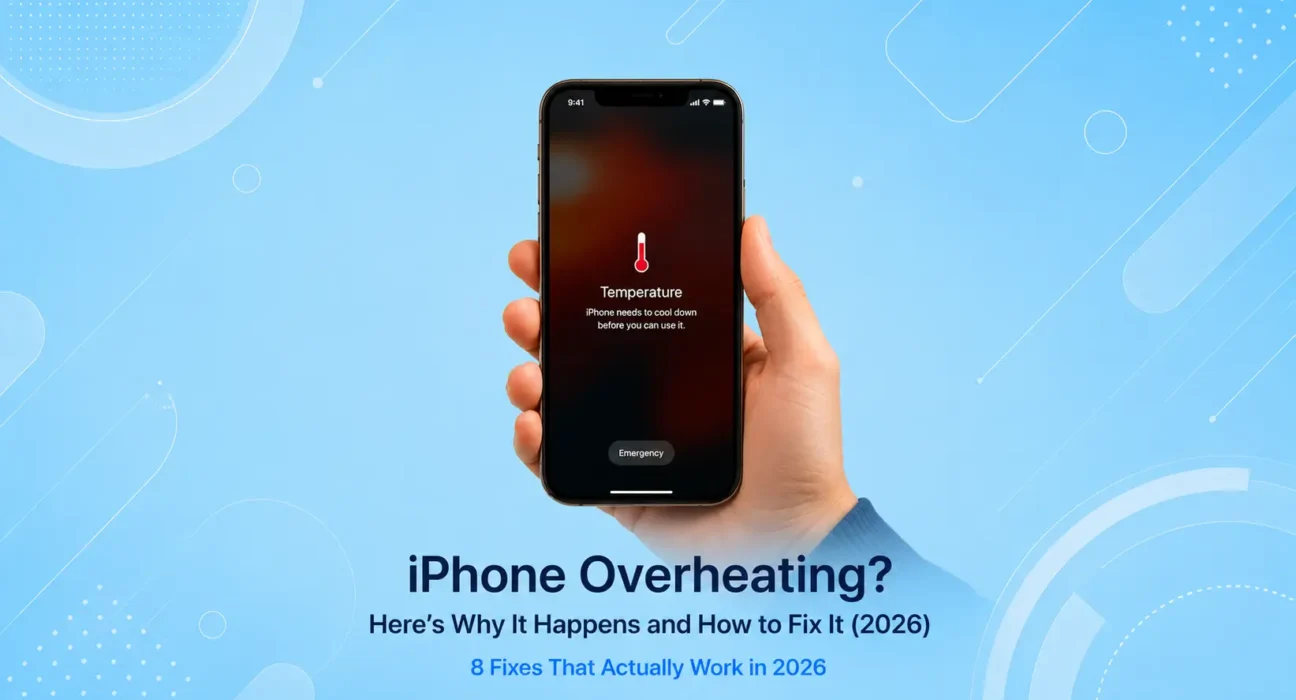
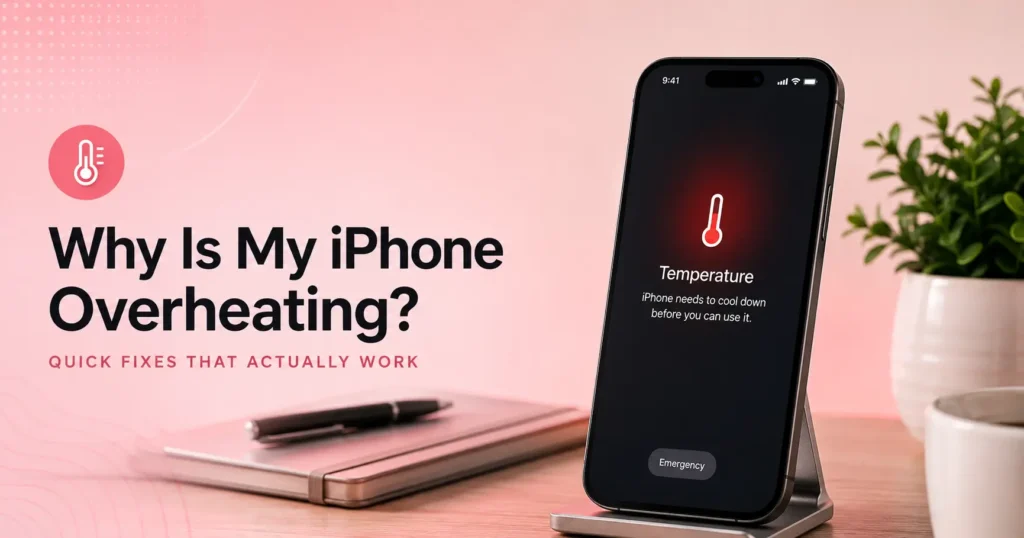
If your iPhone displays the temperature warning (a thermometer on a black screen), stop using it immediately, move it to shade or an air-conditioned space, and let it cool fully before resuming. Continuing to use it in this state causes cumulative, permanent battery damage.
Fix 8: Reset All Settings
If your iPhone consistently runs hot during light, ordinary use and nothing above has resolved it, a full settings reset clears any corrupted system configuration that may be causing runaway background processes.
Steps:
- Settings → General → Transfer or Reset iPhone
- Tap Reset → Reset All Settings
- Enter your passcode → confirm
- After restart, test over a full day before drawing conclusions
This does not erase photos, apps, or personal data — only system preferences and configurations. In most cases where overheating has survived every other fix, this resolves it.
🌡️ When You Need Apple Support
Most overheating is software-related and fixable at home. But some signs point to a hardware fault that no software fix will resolve:
| Warning Sign | What It Could Mean |
|---|---|
| Hot with screen off and no apps running | Faulty battery or logic board |
| Overheating begins immediately after a drop or water exposure | Physical hardware damage |
| Temperature warning during light use, consistently | Battery degradation — replacement needed |
| iPhone shuts down from heat in cool environments | Battery thermal fault — urgent |
| Heat concentrated near the camera area on the back | Logic board issue |
For any of the above, book a Genius Bar appointment at apple.com/retail or contact Apple Support directly. Don’t continue daily use of an iPhone that shuts down from heat or shows repeated temperature warnings — these are faults that won’t self-resolve.
👉 If overheating is happening alongside fast battery drain, the two are often related. See: iPhone Battery Draining Fast? 8 Fixes That Actually Work
📋 Quick Summary Table
| Fix | Best For |
|---|---|
| Remove Case + Close Apps | Getting immediate temperature relief right now |
| Identify Rogue App | Hot during normal use with no obvious cause |
| Stop Using While Charging | Gets hot every time it’s plugged in |
| Disable Background App Refresh | Warm throughout the day with no clear trigger |
| Reduce Location Services | Hot even when not actively using the phone |
| Update iOS | Overheating started after a recent update |
| Avoid Extreme Temperatures | Hot outdoors or after sitting in a car |
| Reset All Settings | Nothing else worked |
❓ FAQ — iPhone Overheating
Q: Is it normal for an iPhone to get warm while charging?
Mild warmth during charging is completely normal. If it gets hot enough to be uncomfortable to hold, that’s a problem — most likely a faulty or uncertified charger, a case trapping heat, or a degraded battery that needs replacement.
Q: Why does my iPhone overheat when I play games?
Gaming pushes the processor and GPU to near-maximum load and generates significant heat — this is expected. What’s not normal is getting a temperature warning or shutdown after just 15–20 minutes of light gaming. If that happens, remove the case, stop charging while playing, and check for a rogue background process.
Q: Can overheating permanently damage my iPhone battery?
Yes. Repeated overheating is one of the fastest ways to degrade battery capacity. Check Settings → Battery → Battery Health & Charging regularly if your phone runs hot often. You’ll likely see Maximum Capacity dropping faster than it should.
Q: My iPhone shows a temperature warning and won’t turn on — what should I do?
Move it to a cool, shaded area and wait 10–15 minutes. Do not put it in a refrigerator or freezer — rapid temperature changes cause condensation inside the device, which creates additional damage. It should restart normally once cooled.
Q: Does iPhone 16 overheat more than iPhone 15?
iPhone 16 models generally run cooler thanks to improved thermal architecture in the A18 chip. The iPhone 15 Pro series had notable thermal issues at launch that Apple addressed in iOS 17 updates. Early iOS 18 releases caused overheating reports across multiple models, most of which were patched in subsequent updates.
Q: Will removing my case help with overheating?
Significantly, in many cases. Thick rubber or silicone cases trap heat that would otherwise dissipate naturally. During charging or intensive use, removing the case — or switching to a thinner case — can reduce device temperature by several degrees.
Q: How hot is too hot for an iPhone?
Apple’s safe operating range tops out at 95°F / 35°C ambient. Your phone will automatically reduce performance and display a temperature warning before reaching a point of hardware damage. If you see that warning regularly during normal indoor use, the phone needs attention.
Final Thoughts
iPhone overheating is almost always a solvable problem that doesn’t require a trip to the Apple Store. Start with the two-minute quick fix at the top, then work through the list until the phone stays cool. The fix is there — it’s just a matter of finding which one applies to your situation.
If your iPhone runs hot constantly during tasks that require minimal processing — browsing, texting, listening to music — that points squarely at a software issue. If it’s hot specifically during charging or after physical damage, hardware is the more likely cause.
👉 Also read: The Complete iPhone Troubleshooting Guide 2026
👉 Related: iPhone Battery Draining Fast? 8 Fixes That Actually Work
👉 Next: iPhone Won’t Charge — 7 Things to Try Before Visiting Apple
About the Author
[Raouf Osman] is a tech writer and mobile hardware specialist who has diagnosed overheating issues across iPhone 13, 14, 15, and 16 models under real-world conditions — including outdoor temperatures above 90°F. Every fix published on WekyTech is hands-on verified before it reaches readers.