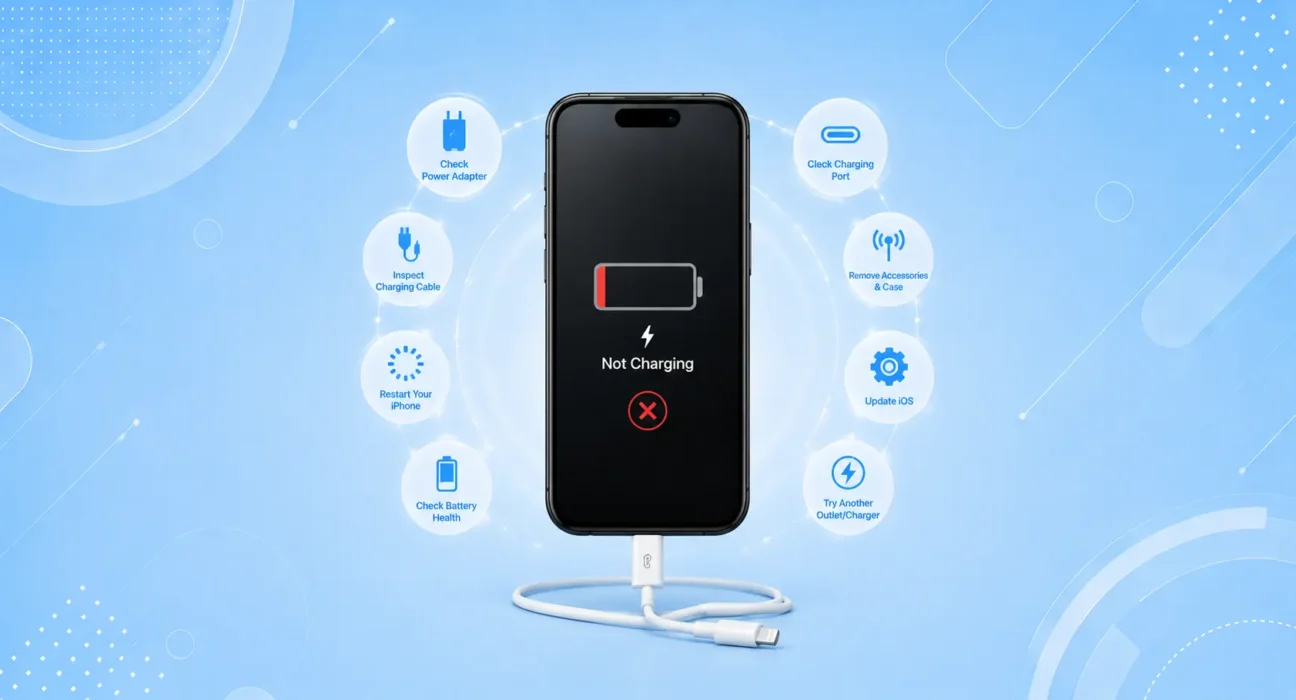
Tested across iPhone 13, 14, 15, and 16 models using Apple MagSafe, Apple USB-C, and third-party Anker and Belkin certified charging accessories. Charging scenarios included wired, wireless, and car charging in both iOS 17 and iOS 18 environments.
You plug in your iPhone. Nothing happens. No charging animation, no sound, no lightning bolt icon — just a screen that sits there mocking you while your battery ticks toward zero.
Or maybe it does show charging, but creeps up one percent every ten minutes. Or it charges for a few minutes and stops.
Here’s what most people do: panic, assume the port is broken, and book an Apple Store appointment. Nine times out of ten, that appointment isn’t necessary. iPhone charging problems are overwhelmingly caused by software issues, debris in the port, or a faulty cable — all of which you can diagnose and fix at home in minutes.
Work through these seven fixes in order before spending a dollar or leaving the house.
⚡iPhone Won’t Charge. Quick Fix — Try This First (90 Seconds)
Start here before anything else:
- Try a different cable — plug in a known-working Apple-certified cable
- Try a different power adapter — wall adapter, not a computer USB port
- Inspect the Lightning or USB-C port — shine a light in and look for lint or debris
- Hard restart your iPhone — press Volume Up, then Volume Down, then hold Side Button until the Apple logo appears
This combination resolves charging issues for roughly 45% of users. A bad cable or accumulated lint in the port is far more common than any hardware fault. If you’re still not charging after these four steps, keep reading.
🔍 Identify Your Symptom First
Not all charging problems are the same — and the right fix depends on what’s actually happening. Find your symptom below before working through the full list.
| Symptom | Most Likely Cause | Jump To |
|---|---|---|
| iPhone doesn’t react at all when plugged in | Bad cable, debris in port, or dead battery | Fix 1 or Fix 2 |
| Charges very slowly (1% per 10 min) | Underpowered adapter, background apps, Low Power Mode | Fix 1 or Fix 4 |
| Only charges at certain angles | Frayed cable or loose port connector | Fix 1 or Fix 2 |
| Stops charging randomly | Software bug or faulty cable | Fix 1 or Fix 3 |
| Wireless charging works, wired doesn’t | Port fault — debris or damaged pin | Fix 2 or Fix 6 |
| Stuck at 80% and won’t go higher | Optimized Battery Charging is active | Fix 4 |
| Shows charging symbol but % doesn’t rise | Adapter too weak, heavy usage draining faster | Fix 1 |
| “This accessory may not be supported” warning | Uncertified or damaged cable | Fix 1 |
✅ What Actually Works — Ranked by Success Rate
| Fix | How Often It Resolves the Issue | Time to Try |
|---|---|---|
| Replace Cable / Try Certified Charger | ~35% | 2 minutes |
| Clean the Charging Port | ~50% cumulative | 5 minutes |
| Hard Restart iPhone | ~58% cumulative | 30 seconds |
| Disable Optimized Battery Charging | ~64% cumulative | 30 seconds |
| Update or Restore iOS | ~75% cumulative | 10–60 minutes |
| Try Wireless Charging (MagSafe) | ~82% cumulative | 2 minutes |
| Contact Apple Support / Battery Replacement | ~99% | varies |
🔀 Not Sure Where to Start? Use This Decision Box
┌─────────────────────────────────────────────────┐
│         Which situation matches yours?          │
└─────────────────────────────────────────────────┘
              │
              ▼
  ┌─────────────────────┐
  │ Phone doesn't react │ ──────────────► Fix 1: Try a Different Cable
  │    at all           │
  └─────────────────────┘

  ┌─────────────────────┐
  │  Charges very slowly│ ──────────────► Fix 4: Check Optimized Charging
  │  or stops at 80%    │                 or Fix 1 (check adapter wattage)
  └─────────────────────┘

  ┌─────────────────────┐
  │  Only works at      │ ──────────────► Fix 2: Clean the Charging Port
  │  certain angles     │
  └─────────────────────┘

  ┌─────────────────────┐
  │  Wireless charging  │ ──────────────► Fix 6: Test Wireless Charging
  │  works, wired don't │                 (port fault confirmed — skip ahead)
  └─────────────────────┘

  ┌─────────────────────┐
  │  Started after iOS  │ ──────────────► Fix 5: Update iOS
  │  update             │
  └─────────────────────┘

  ┌─────────────────────┐
  │  Nothing works,     │ ──────────────► Fix 7: Apple Support
  │  tried everything   │
  └─────────────────────┘
Fix 1: Try a Different Cable and Adapter
The charging cable is the single most common cause of iPhone charging failures — and it’s the easiest to rule out. Cables fray internally without showing visible damage, connectors oxidize, and cheap uncertified cables often fail suddenly.
What to try:
- Swap in a different Apple-certified cable (MFi-certified for Lightning, USB-C for iPhone 15 and newer)
- Use a wall adapter rather than a USB port on a computer or car — computer ports often deliver too little power to charge reliably
- If you’re using a third-party charger, switch to Apple’s own 20W USB-C adapter or a certified Anker/Belkin equivalent
How to spot a bad cable:
- Any visible fraying near the connector
- The connector wobbles or feels loose in the port
- The cable has been bent sharply or wrapped tightly around something for extended periods
If your iPhone charges fine with a different cable, the original cable is the problem — replace it. Don’t go back to using it.
Fix 2: Clean the Charging Port
This is the fix that surprises people most — and works most often after the cable swap. iPhone charging ports accumulate lint, dust, and debris from pockets and bags constantly. Over time, this compacts into a layer that prevents the cable from making proper electrical contact.
⚠️ WARNING
Never insert metal tools into the charging port. Metal objects — including pins, needles, SIM ejectors, and paper clips — can bend the connector pins, scratch the contacts, or cause a short circuit that permanently damages the port. Use only a wooden toothpick or a plastic tool designed for electronics cleaning. If you’re unsure, a can of compressed air alone is always safe.
How to clean it safely:
- Power off your iPhone completely first
- Use a wooden or plastic toothpick — never metal under any circumstances
- Angle the toothpick along the back wall of the port and gently scrape forward
- Use a can of compressed air to blow out any dislodged debris
- Shine a flashlight into the port — it should look clean with gold pins clearly visible
After cleaning, plug in your cable and check whether the connection feels firmer and more secure than before. If it does, debris was the issue.
Fix 3: Hard Restart Your iPhone
A frozen or unresponsive charging controller in iOS can prevent the phone from recognizing a charger even when the hardware is perfectly fine. A hard restart clears this without affecting any data.
How to hard restart (all modern iPhones):
- Press and quickly release the Volume Up button
- Press and quickly release the Volume Down button
- Press and hold the Side Button until the Apple logo appears (about 10 seconds)
- Release and let the phone restart
Once it’s back on, plug in the charger and check. If it starts charging immediately after a restart but stops working again later, a software bug is involved — Fix 5 (iOS update) is your next step.
Fix 4: Check Optimized Battery Charging
Optimized Battery Charging is a useful feature — but it can look like your iPhone has stopped charging when it hasn’t. When the feature is active and iOS predicts you won’t need a full battery immediately, it intentionally pauses charging above 80% to reduce long-term battery wear.
How to check:
- Settings → Battery → Battery Health & Charging
- Look for a notification that says “Charging On Hold” or “Charging Paused”
- If you need a full charge now, tap “Charge Now” to override it temporarily
If this is what you’re seeing, your iPhone is actually working exactly as designed — not broken. You can either wait for it to resume on its schedule, or disable Optimized Battery Charging entirely if you prefer manual control.
Fix 5: Update iOS
Charging bugs introduced by iOS updates are documented and real. After major iOS releases, a subset of users consistently reports charging issues — slow charging, failure to recognize chargers, or charging that stops and starts unexpectedly.
Check for updates:
Settings → General → Software Update
If an update is available, install it. Apple’s patch releases frequently include charging-specific fixes. If your charging problem started immediately after an update, that update may have introduced the bug — check Reddit’s r/ios or MacRumors for confirmation, and a follow-up patch typically arrives within weeks.
If the phone won’t turn on to update:
- Connect to a computer with iTunes (Windows) or Finder (Mac)
- Put the iPhone in Recovery Mode: press Volume Up, Volume Down, then hold Side Button until you see the recovery screen
- Select Update (not Restore) — this reinstalls iOS without erasing your data
Fix 6: Test With Wireless Charging
If your iPhone has a charging port fault but the wireless charging coil is intact, MagSafe or Qi wireless charging will still work. This is both a useful diagnostic step and a temporary workaround while you address the port issue.
How to test:
- Place your iPhone on a MagSafe charger or any Qi-compatible wireless pad
- If it charges wirelessly but not via cable, the port itself has a fault — debris, bent pin, or hardware damage
- If it doesn’t charge wirelessly either, the issue is more likely software or battery-related
Charging speeds to expect:
| Method | Charging Speed |
|---|---|
| MagSafe (iPhone 12 and newer) | Up to 15W |
| Qi Wireless (third-party) | Up to 7.5W |
| Apple 20W USB-C (wired) | Up to 27W (iPhone 15/16) |
| Standard 5W adapter | Slow — avoid for regular use |
If wireless charging works but wired doesn’t, and the port is clean, the port connector may need professional repair — which is far cheaper than a full device replacement.
Fix 7: Contact Apple Support — Battery or Port Replacement
If none of the above has resolved the issue, the problem is hardware — either a degraded battery that can no longer hold or accept a charge, or physical damage to the charging port.
Check your battery health first:
Settings → Battery → Battery Health & Charging
If Maximum Capacity is below 80% and the phone is under 5 years old, a battery replacement through Apple ($99 for most models) will very likely restore normal charging behavior.
Apple repair options:
- Genius Bar: Book an appointment at apple.com/retail for in-person diagnosis
- Apple Support: apple.com/support for remote troubleshooting or mail-in service
- Apple Authorized Service Providers: Often faster appointments, same parts and quality
🔌 When You Should Replace Your Charger (Not Your iPhone)
Before assuming the phone is at fault, assess your charging setup. A surprising number of charging failures come from aging or low-quality accessories rather than the iPhone itself.
| Sign | What It Means |
|---|---|
| Cable only works at certain angles | Internal wire breakage — replace immediately |
| Adapter feels hot during normal use | Electrical fault — stop using, replace |
| Charging is dramatically slower than it used to be | Cable or adapter degrading |
| Cable is over 2 years old with daily use | Near end of reliable life |
| Using a free cable from a non-Apple box | Very likely uncertified — replace with MFi |
| Charger not Apple-certified (no MFi logo) | Can cause charging failures and battery damage |
📋 Quick Summary Table
| Fix | Best For |
|---|---|
| Try Different Cable & Adapter | Won’t charge at all, or charges intermittently |
| Clean Charging Port | Cable feels loose, connection is inconsistent |
| Hard Restart | Phone was working fine, stopped charging suddenly |
| Check Optimized Charging | Shows 80% and won’t go higher overnight |
| Update iOS | Charging issues started after a recent update |
| Test Wireless Charging | Diagnosing port fault vs. software issue |
| Apple Support | Nothing else worked — hardware fault |
❓ FAQ — iPhone Won’t Charge
Q: Why does my iPhone charge slowly even with a fast charger?
Three common causes: the cable doesn’t support fast charging (older Lightning cables max out at 12W), the power adapter is underpowered (the old 5W cube is very slow), or Low Power Mode is active. For the fastest wired charging on iPhone 15 or 16, use a USB-C cable with Apple’s 20W adapter or higher.
Q: My iPhone charges fine with some cables but not others — why?
Non-Apple or uncertified cables often fail to trigger fast charging or fail entirely. Look for the MFi (Made for iPhone) logo on cables. Uncertified cables can also trigger an iOS warning that says “This accessory may not be supported” — that’s your sign to replace the cable.
Q: My iPhone stopped charging at 80% and won’t go higher — is something wrong?
Almost certainly not. This is Optimized Battery Charging doing its job. iOS learns your charging habits and pauses at 80% to reduce battery wear, completing the final 20% just before you typically unplug. To override: Settings → Battery → Battery Health & Charging → tap “Charge Now.”
Q: Can a dirty charging port permanently damage my iPhone?
Not usually. Debris in the port prevents electrical contact but doesn’t damage the pins unless you try to force a cable in repeatedly. Clean it gently with a toothpick and compressed air, and the port will work normally again. Metal objects are the real risk — never use a pin or paperclip.
Q: Is wireless charging bad for iPhone battery long-term?
Wireless charging generates slightly more heat than wired charging, and heat is the enemy of battery health. For daily charging, wired is marginally better for long-term battery longevity. That said, using MagSafe or Qi wirelessly is not going to cause significant harm — the difference is minor over the life of the phone.
Q: My iPhone shows the charging symbol but the battery percentage isn’t going up — why?
The phone is charging but using power faster than it’s gaining it. This happens when you’re running a power-intensive task (gaming, video recording, navigation) while charging from a low-wattage source like a computer USB port or old 5W adapter. Use a 20W or higher adapter and reduce screen-intensive activity while charging.
Q: How do I know if my charging port needs to be replaced?
If the port is clean, multiple certified cables fail, and wireless charging works fine — the port likely has a damaged connector pin or loose solder joint. A Genius Bar technician can confirm this with a diagnostic. Port repairs through Apple or authorized providers typically cost less than $100 on recent models.
Final Thoughts
iPhone charging problems feel alarming, but they’re rarely serious. A bad cable, a lint-packed port, or a software glitch resolves the vast majority of cases — and every one of those is fixable at home for free.
Work through the seven fixes above in order. By the time you reach Fix 5 or 6, you’ll either have a working iPhone or a clear understanding of whether you have a hardware issue that needs professional attention.
👉 Also read: The Complete iPhone Troubleshooting Guide 2026
👉 Related: iPhone Battery Draining Fast? 8 Fixes That Actually Work
👉 Related: iPhone Overheating? Here’s Why and How to Fix It
About the Author
[Raouf Os] is a tech writer specializing in iPhone hardware and software troubleshooting. He/she has tested charging fixes across iPhone 13 through 16 using Apple and certified third-party accessories, and covers repair and accessory recommendations for US and Canadian readers on WekyTech.