
Your WiFi icon shows full bars, your device says “Connected,” but nothing loads. No websites, no apps, nothing. It’s one of the most frustrating tech problems out there, mainly because everything looks fine on the surface — and it’s closely related to issues like WiFi that keeps disconnecting or a router connected but showing no internet.
The good news: this is almost always fixable in a few minutes, and you don’t need to be technical to do it. Below are the 8 fixes that solve this problem most often, starting with the fastest one.
WiFi Connected but No Internet? – Quick Fix
Before anything else, try this: turn off WiFi on your device, wait 15 seconds, turn it back on, then restart your router by unplugging it for 30 seconds. This clears out roughly half of “connected but no internet” cases on its own, because it forces your device to grab a fresh IP address and reconnect to your ISP.
If that doesn’t fix it, keep reading — the rest of this guide walks through exactly why this happens and how to fix each cause.
Is the Problem Your Device or Your Router?
This matters because it changes what you should fix first.
- Only one device has the problem (your laptop, but your phone works fine) → the issue is with that specific device.
- Every device loses internet at the same time → the issue is your router or your internet provider.
- The WiFi network doesn’t even give other devices internet → your router isn’t getting a real connection from your ISP.
Test this by connecting a second device to the same WiFi network. If it also has no internet, skip ahead to Fix 5.
8 Fixes for WiFi Connected but No Internet
1. Restart Your Router and Modem
Unplug both your router and modem (if they’re separate devices) for a full 30 seconds. Plug the modem in first, wait for its lights to stabilize, then plug in the router. This resets the connection your router has with your internet provider and is the single most effective fix for this problem.
2. Forget the Network and Reconnect
On your device, “forget” the WiFi network, then reconnect and re-enter the password. This forces your device to request a completely new IP address instead of reusing one that may no longer be valid.
3. Renew Your IP Address
Sometimes your device is holding onto an outdated or conflicting IP address. On Windows, open Command Prompt and run ipconfig /release followed by ipconfig /renew — Microsoft’s own documentation on the ipconfig command covers every flag if you want the full picture. On a Mac, go to System Settings > Network, click your WiFi connection, and choose “Renew DHCP Lease.” If this keeps happening on the same device, it’s worth reading our guide on WiFi connected but no internet on Windows 11 for OS-specific fixes.
4. Flush and Reset DNS
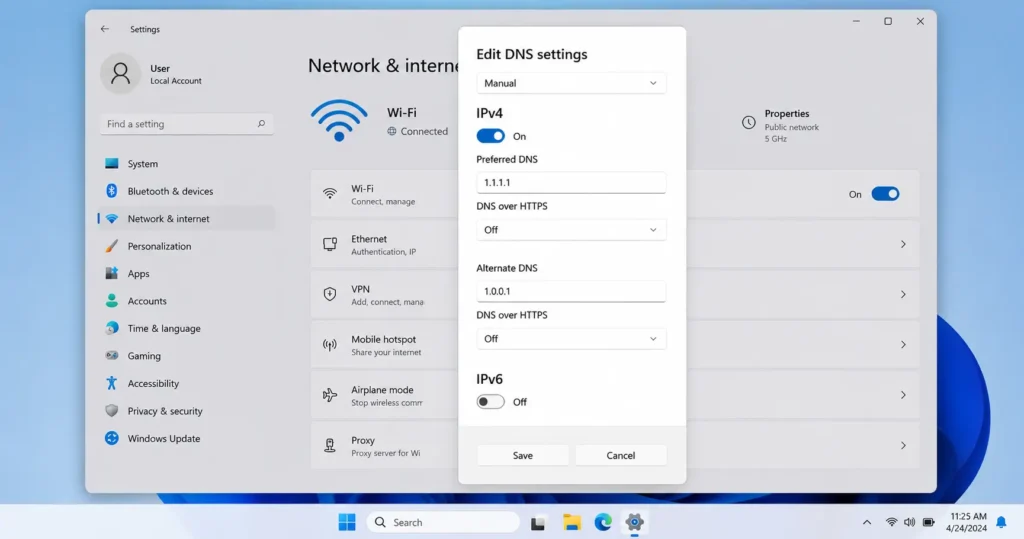
If pages won’t load but your connection is otherwise fine, DNS is a common culprit. On Windows, run ipconfig /flushdns in Command Prompt. You can also switch your DNS servers to a public option like Google Public DNS (8.8.8.8) or Cloudflare’s 1.1.1.1 in your network settings — both are free and typically resolve faster than a default ISP DNS server.
5. Check for an ISP Outage
If every device on your network loses internet at once, the problem is likely upstream. Use your phone’s mobile data to check your provider’s outage map, or use a third-party tracker like Downdetector to see if others are reporting the same issue in your area. Most ISPs post outage updates within minutes of a disruption. If the connection is up but just sluggish rather than fully down, our guide on fixing a weak WiFi signal covers that separately.
6. Update Your Network Adapter Driver
An outdated WiFi driver can cause a device to connect without actually being able to send or receive data properly. On Windows, go to Device Manager > Network Adapters, right-click your WiFi adapter, and select “Update driver.”
7. Disable VPN or Proxy Settings
A VPN or proxy that’s misconfigured or has lost its connection can leave you “connected” to WiFi while blocking all actual traffic. Temporarily disable any VPN or proxy and see if internet access returns.
8. Factory Reset the Router (Last Resort)
If nothing else works and every device is affected, a factory reset clears out corrupted settings that a normal restart can’t fix. Hold the reset pin on the back of your router for 10 seconds, then set up your network fresh. Only do this if you know your WiFi name and password, since you’ll need to re-enter them.
Fix-by-Symptom Table
| Symptom | Most Likely Fix |
|---|---|
| Only one device affected | Forget network + renew IP (Fixes 2–3) |
| All devices affected | Restart router/modem, check ISP outage (Fixes 1, 5) |
| Websites won’t load but apps work | Flush/change DNS (Fix 4) |
| Started after a Windows update | Update network driver (Fix 6) |
| Started after installing a VPN | Disable VPN/proxy (Fix 7) |
| Nothing above works | Factory reset router (Fix 8) |
What Not to Do
- Don’t reset your router repeatedly within a short window — it can take several minutes to fully reconnect to your ISP each time, and resetting too often just restarts that wait.
- Don’t change multiple settings at once (DNS, driver, VPN) — you won’t know which one actually fixed it, and it makes troubleshooting a repeat issue much harder later.
- Don’t ignore an ISP outage and keep resetting your own equipment — if the outage map confirms a problem, the fix is on their end, not yours.
When to Contact Your ISP
Reach out to your internet provider if:
- An outage is confirmed on their end and it’s lasted more than a few hours
- A factory reset didn’t restore internet access
- Your modem’s internet/online light is red, off, or blinking irregularly after a restart
Any of these usually point to a problem with the incoming connection itself, which only your provider can fix.
FAQ
Why does my WiFi say connected but no internet?
Most often it’s because your device has an outdated IP address or DNS setting, your router lost its connection to your ISP, or there’s an outage upstream. It’s rarely a sign your device is broken.
Does this mean my router is broken?
No, in most cases it’s a temporary connection issue that a restart resolves. A genuinely broken router is a less common cause.
Why does this happen only on one device?
That points to a driver, DNS, or IP conflict specific to that device, since your router is clearly working for everything else.
Can a VPN cause “connected but no internet”?
Yes. If a VPN app fails to connect properly, it can block your traffic while your device still shows as connected to WiFi.
Should I reset my router every time this happens?
No — try forgetting and reconnecting to the network first. Reserve a full router reset for when nothing else works.
Final Takeaway
“WiFi connected but no internet” almost always comes down to one of a handful of causes: a stale IP address, a DNS hiccup, a router that’s lost its connection, or an outage on your provider’s end. Working through the fixes above in order will resolve the vast majority of cases without needing to call your ISP.
Related Guides: WiFi Keeps Disconnecting · WiFi Connected but No Internet on Windows 11 · How to Fix Weak WiFi Signal · Router Connected but No Internet