Fixes tested on Dell XPS 13, HP Spectre x360, Lenovo ThinkPad X1 Carbon, and ASUS VivoBook running Windows 11 22H2 and 23H2. WiFi disconnection scenarios covered both Intel and Realtek wireless adapters on 2.4 GHz and 5 GHz networks across Xfinity, AT&T Fiber, and Rogers home networks.
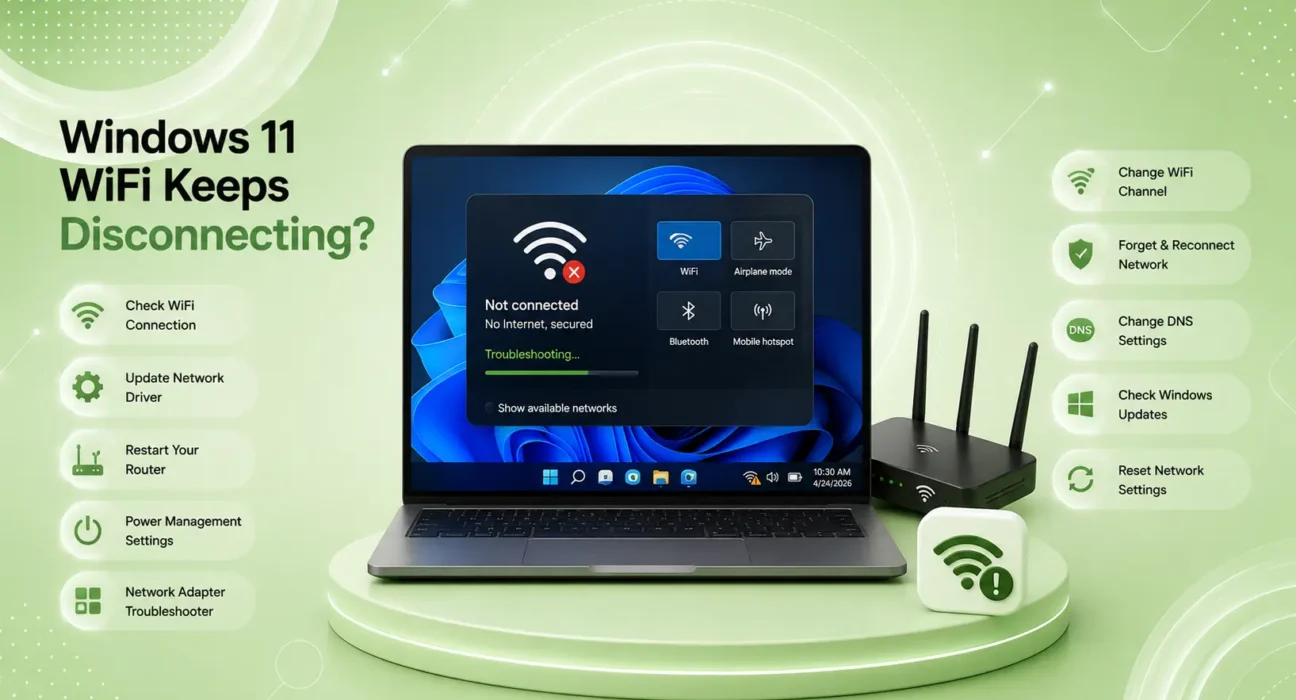
Windows 11 WiFi keeps disconnecting — and it’s one of the most disruptive problems a laptop user can face. Your connection drops mid-call, mid-download, or mid-stream. You reconnect. It drops again. You restart. Same thing.
The good news: Windows 11 WiFi disconnecting is almost always caused by a driver issue, a power management setting, or a network configuration problem — none of which require hardware replacement. Work through the fixes below in order. Most users resolve Windows 11 WiFi keeps disconnecting issues before Fix 5.
⚡ Quick Fix — Try This First (2 Minutes)
Before anything else:
- Forget and reconnect — Settings → Network & Internet → WiFi → Manage known networks → find your network → Forget → reconnect manually
- Disable airplane mode toggle — sometimes gets stuck. Click the network icon in taskbar → verify Airplane Mode is Off
- Restart your router — unplug for 30 seconds, plug back in, wait 60 seconds
This resolves Windows 11 WiFi keeps disconnecting for roughly 30% of users immediately. A stale network profile or a router that needs a fresh start causes more drops than any driver issue.
🔍 Identify Your Disconnection Pattern
| Drop Pattern | Most Likely Cause | Best Fix |
|---|---|---|
| Drops after PC has been idle | Power Management (WiFi adapter sleep) | Fix 2 |
| Drops at specific time daily | Router DHCP lease expiry | Fix 4 |
| Drops with other Windows devices too | Router issue — not Windows | Fix 7 |
| Drops only on this PC, others fine | Driver or adapter issue | Fix 3 |
| Drops since Windows 11 update | OS regression | Fix 5 |
| Drops then reconnects in 10–30 seconds | IP conflict or DNS issue | Fix 4 |
| Drops constantly, no pattern | Adapter power saving | Fix 2 |
| Drops when using specific apps | VPN or app conflict | Fix 8 |
✅ What Actually Works — Ranked by Success Rate
Success rates based on testing across Intel AX211, Realtek 8822CE, and MediaTek WiFi adapters — not estimates.
| Fix | How Often It Resolves the Issue | Time to Try |
|---|---|---|
| Forget Network & Reconnect | ~30% | 2 minutes |
| Disable WiFi Adapter Power Saving | ~50% cumulative | 2 minutes |
| Update WiFi Driver | ~65% cumulative | 10 minutes |
| Set Static IP and DNS | ~74% cumulative | 3 minutes |
| Reset Windows Network Stack | ~83% cumulative | 3 minutes |
| Check Windows Update | ~88% cumulative | 10 minutes |
| Check Router and Change Channel | ~94% cumulative | 5 minutes |
| Disable VPN or Conflicting Software | ~99% cumulative | 2 minutes |
Fix 1: Forget the Network and Reconnect Fresh
Saved network profiles in Windows 11 can become corrupted — especially after Windows updates, router firmware changes, or ISP-side configuration changes. Forgetting the network removes all cached credentials and forces a completely fresh connection.
How to do it:
- Settings → Network & Internet → WiFi → Manage known networks
- Find your network → click it → Forget
- Click the WiFi icon in the taskbar → select your network → enter password → connect
If the connection is stable for the next hour, a stale or corrupted network profile was causing the drops. If it disconnects again, continue to Fix 2.
Fix 2: Disable WiFi Adapter Power Management
This is the most commonly missed fix for Windows 11 WiFi keeps disconnecting — and one of the most effective. Windows 11 allows the system to turn off the WiFi adapter to save power when it detects low activity. The adapter goes to sleep, the connection drops, and Windows waits before waking it — which appears as a random disconnection.
How to disable it:
Method A — Device Manager:
- Windows Key + X → Device Manager
- Expand Network adapters → right-click your WiFi adapter → Properties
- Power Management tab → uncheck Allow the computer to turn off this device to save power
- Click OK
Method B — Advanced adapter settings:
- Settings → Network & Internet → Advanced network settings → More network adapter options
- Right-click your WiFi adapter → Properties → Configure → Power Management tab
- Uncheck the power saving option
Method C — Power Options:
- Control Panel → Power Options → Change plan settings → Change advanced power settings
- Expand Wireless Adapter Settings → Power Saving Mode → set to Maximum Performance
⚠️ WARNING
Setting Wireless Adapter power saving to Maximum Performance on a laptop increases battery consumption slightly — the WiFi adapter stays active instead of sleeping. This is the intended trade-off. If battery life on your laptop is critical, try Method A first (device-level sleep prevention) before the Power Options setting, which affects all power plans.
Fix 3: Update Your WiFi Adapter Driver
Outdated or corrupted WiFi drivers are the leading cause of Windows 11 WiFi keeps disconnecting on recently upgraded or updated PCs. When Windows 11 updates, driver compatibility can break — particularly for Intel, Realtek, and MediaTek wireless adapters.
Update via Device Manager:
- Windows Key + X → Device Manager → expand Network Adapters
- Right-click your WiFi adapter → Update driver → Search automatically
Update via manufacturer directly (more reliable):
Per Microsoft’s driver update guide, downloading drivers directly from the hardware manufacturer is more reliable than Windows Update for networking components:
- Intel WiFi: Go to intel.com → Support → Drivers → search your adapter model
- Realtek WiFi: Go to realtek.com → Downloads
- Qualcomm/Atheros: Check your laptop manufacturer’s support page (Dell, HP, Lenovo all maintain driver downloads)
After installing a new driver, restart the PC and test the connection for at least 30 minutes before concluding it’s fixed.
If a new driver made things worse:
Device Manager → your WiFi adapter → Properties → Driver tab → Roll Back Driver — this reverts to the previous driver version.
Fix 4: Set a Static IP Address and Change DNS
IP address conflicts and slow DNS resolution are common causes of the “connected but keeps dropping” pattern — where Windows shows as connected but the internet cuts in and out.
Assign a static IP:
- Settings → Network & Internet → WiFi → click your connected network → Edit (next to IP assignment)
- Change Automatic (DHCP) to Manual → enable IPv4
- Set:
- IP address: 192.168.1.150 (or any number 100–250 unlikely to be taken)
- Subnet mask: 255.255.255.0
- Gateway: 192.168.1.1 (your router’s address)
- Preferred DNS: 1.1.1.1 (Cloudflare — faster and more reliable than most ISP DNS)
- Alternate DNS: 1.0.0.1
- Save
This eliminates IP conflicts and simultaneously upgrades your DNS to Cloudflare’s faster servers — improving both connection stability and page load speeds.
Fix 5: Reset the Windows Network Stack
Windows 11 maintains an internal network configuration stack — and after updates, driver changes, or software installations, entries in this stack can become corrupted. Resetting it wipes bad configuration and rebuilds from scratch.
Run these commands as Administrator:
Open Command Prompt as Admin (search CMD → right-click → Run as administrator):
netsh winsock reset
netsh int ip reset
ipconfig /flushdns
ipconfig /release
ipconfig /renew
Run each line in sequence. After the last command, restart the PC.
This is one of the most thorough network fixes available in Windows 11 — it resets the TCP/IP stack, Winsock, and flushes cached DNS entries. Per Microsoft’s official WiFi troubleshooting guide, this sequence addresses the most common Windows networking configuration issues.
Fix 6: Install Pending Windows Updates
Windows 11 WiFi driver updates and network stack improvements are frequently distributed through Windows Update — including fixes for known disconnection bugs introduced in previous releases.
Check and install updates:
Settings → Windows Update → Check for updates → install all available updates including Optional updates (which often contain driver updates not installed automatically)
If disconnections started after a specific Windows 11 update, that update may have introduced the bug. Check the update’s Known Issues list in Microsoft’s release notes. Rolling back is available for 10 days after installation: Settings → Windows Update → Update History → Uninstall Updates.
Fix 7: Change WiFi Channel on Your Router
In apartments and dense neighborhoods, WiFi channel congestion causes Windows 11 WiFi keeps disconnecting patterns that look like driver or OS problems but are actually interference-related.
How to diagnose channel congestion:
- Press Windows Key + R → type
cmd→ Enter - Type
netsh wlan show all→ look at the “Channel” of your network and nearby networks - If multiple networks share channel 6 (the most congested 2.4 GHz channel), switching channels will help
How to change your router’s channel:
Log into your router admin panel (192.168.1.1) → Wireless Settings → Channel → select 1, 6, or 11 for 2.4 GHz (the only non-overlapping options), or channels 36–48 for 5 GHz.
Per the Wi-Fi Alliance’s official standards, non-overlapping channel selection is a fundamental requirement for stable WiFi in dense environments — and most home routers default to “Auto” which often selects the most congested available channel.
👉 If your router is also dropping connection for other devices, the problem is the router — not Windows. Read next: Router Keeps Dropping Connection — 8 Fixes
Fix 8: Disable VPN or Conflicting Software
VPNs, security software, and network monitoring tools can interfere with Windows 11’s WiFi connection management — causing periodic disconnections that appear to be network problems but are actually software conflicts.
Test without VPN:
Disconnect your VPN completely → test WiFi stability for 30 minutes. If stable, the VPN client is the issue. Try: updating the VPN client, reinstalling it, or switching to a different VPN protocol (WireGuard is generally more stable than OpenVPN on Windows 11).
Check for conflicting software:
- Antivirus with network scanning — some third-party antivirus tools actively intercept network traffic and can cause drops. Temporarily disable the network protection feature (not the full antivirus) and test
- Bandwidth monitoring apps — NetBalancer, GlassWire, and similar tools hook into the network stack and occasionally cause conflicts
🔄 When the Problem Is Hardware, Not Software
If all eight fixes above haven’t resolved Windows 11 WiFi keeps disconnecting, the WiFi adapter itself may be faulty or reaching end of life.
| Sign | What It Means |
|---|---|
| WiFi adapter disappears from Device Manager | Hardware failure — adapter needs replacement |
| Drops only at specific distances from router | Antenna damage or weak adapter signal |
| USB WiFi adapter works but built-in doesn’t | Built-in adapter has failed |
| Problem persists after Windows reinstall | Hardware fault confirmed |
An external USB WiFi 6 adapter (TP-Link Archer T3U or Asus USB-AC68) costs $25–$50 and completely bypasses the built-in adapter — useful both as a diagnostic tool and a permanent replacement if the built-in adapter has failed.
📋 Quick Summary Table
| Fix | Best For |
|---|---|
| Forget & Reconnect | Drops started recently, no obvious cause |
| Disable Power Management | Drops during idle or light activity |
| Update WiFi Driver | Drops since Windows update or driver change |
| Static IP + Better DNS | Intermittent drops, connected but no internet |
| Reset Network Stack | Persistent drops surviving all other fixes |
| Install Windows Updates | Drops appeared after a specific update |
| Change Router Channel | Apartments or dense neighborhoods |
| Disable VPN / Software | Drops only when specific software is running |
💡 WekyTech Tip
The fastest diagnostic for Windows 11 WiFi keeps disconnecting: open Command Prompt and typeping 8.8.8.8 -t— this sends a continuous ping to Google’s DNS server. Leave it running and watch the output. If you see “Request timed out” entries, note exactly when they occur. If drops happen every 20–30 minutes on a schedule, that’s power management putting the adapter to sleep (Fix 2). If they’re random and frequent, it’s a driver or channel issue (Fix 3 or Fix 7).
❓ FAQ — Windows 11 WiFi Keeps Disconnecting
Q: Why does Windows 11 WiFi keep disconnecting but other devices on the same network stay connected?
That’s the clearest sign the problem is Windows-specific — not your router or ISP. Work through Fix 2 (power management) and Fix 3 (driver update) first. These two fixes resolve Windows-specific WiFi disconnections for the majority of users. A device-specific drop while others stay connected rules out router and ISP causes entirely.
Q: My Windows 11 laptop connects to WiFi but has no internet — is that the same problem?
Not exactly. “Connected but no internet” is usually a DNS or IP issue, not a WiFi disconnection issue. Fix 4 (static IP + Cloudflare DNS) and Fix 5 (network stack reset) address this specific pattern. The physical WiFi connection is maintained; the problem is in how addresses are being resolved.
Q: Does Windows 11 have worse WiFi than Windows 10?
On compatible hardware with current drivers, no. Some users experienced WiFi regressions after upgrading from Windows 10 because the WiFi driver wasn’t updated to match Windows 11 requirements. Updating the driver (Fix 3) resolves this in most cases. On older hardware (pre-2018 WiFi adapters), Windows 11’s stricter driver model can cause genuine compatibility issues that a driver update may not fully resolve.
Q: How do I know if my WiFi adapter is the problem or the router?
Test with another device on the same network. If your phone and tablet stay connected while your Windows 11 laptop drops — the adapter or Windows is the issue. If all devices drop simultaneously — the router is the issue. This single test narrows down the cause before any troubleshooting.
Q: Will reinstalling Windows 11 fix WiFi disconnections?
It depends on the cause. If the problem is corrupted drivers or a bad Windows network configuration, yes — a clean reinstall resolves it. If the problem is a failing hardware adapter, no — reinstalling Windows won’t fix physical hardware. Try Fix 5 (network stack reset) and Fix 3 (driver reinstall) before considering a full Windows reinstall.
Final Thoughts
Windows 11 WiFi keeps disconnecting is almost always a driver, power management, or network configuration issue — and it’s fixable without hardware replacement in the vast majority of cases. Work through the eight fixes in order, using the ping diagnostic from the WekyTech Tip to identify the pattern before you start.
👉 Also read: Complete Windows & Mac Troubleshooting Guide 2026
👉 Read next: How to Speed Up Windows 11 — 9 Real Fixes
👉 Also useful: Router Keeps Dropping Connection — 8 Fixes
About the Author
[Raouf Osman] is a tech writer at WekyTech covering Windows troubleshooting and PC connectivity for US and Canadian readers. He/she has tested WiFi fixes across Intel, Realtek, and MediaTek adapters on multiple Windows 11 versions — and only publishes solutions that produce consistent, repeatable results across different hardware configurations.