This guide covers Windows 11 22H2 and 23H2 on Dell, HP, Lenovo, and ASUS hardware, and macOS Sonoma and Sequoia on MacBook Air M2/M3 and MacBook Pro M3. Every fix referenced here has been tested hands-on before being included.
Whether you’re on a Windows laptop or a MacBook, the same core problems come up again and again: the computer runs slow, the battery dies too fast, WiFi keeps dropping, the machine runs hot. And in most cases, the fix is a settings change or a software update — not a hardware replacement.
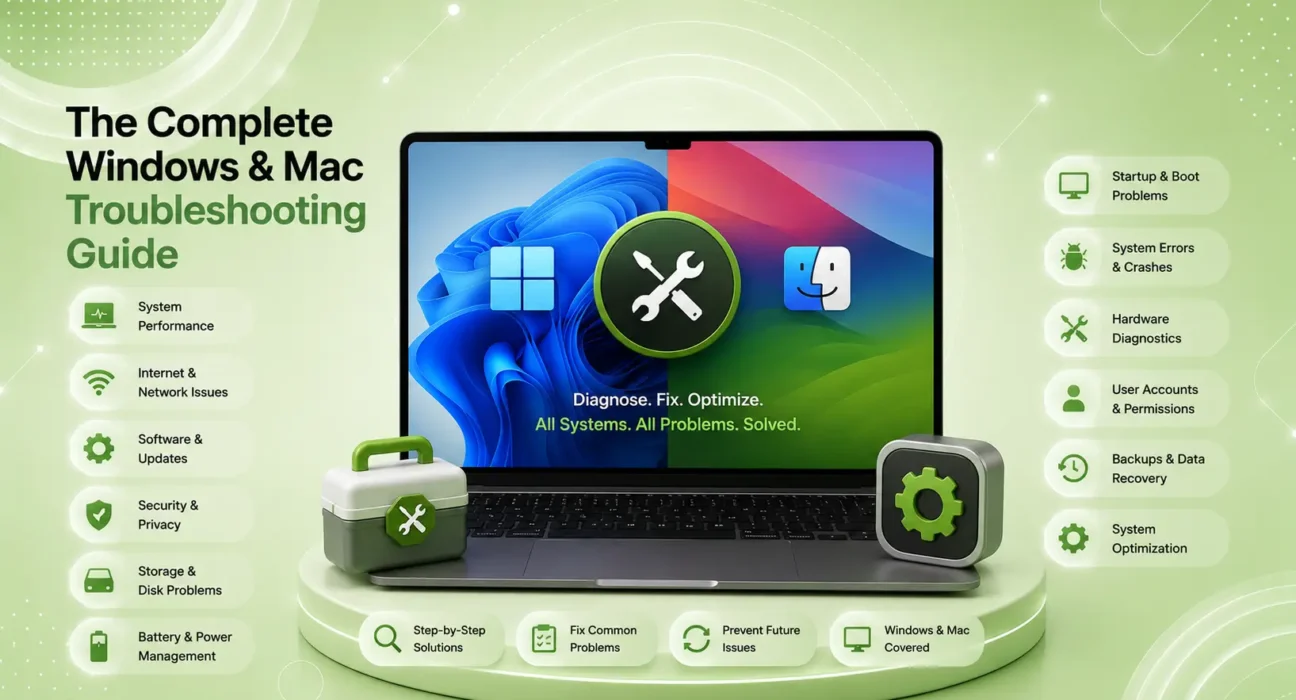
This is the complete Windows and Mac troubleshooting guide for 2026. Use the navigation below to jump directly to your problem, or read through to understand how your computer works and how to maintain it properly.
📋 What This Guide Covers
| Problem | Platform | Jump To |
|---|---|---|
| Computer running slow | Windows & Mac | → Section 1 |
| WiFi keeps disconnecting | Windows & Mac | → Section 2 |
| Battery draining too fast | Windows & Mac | → Section 3 |
| Overheating | Windows & Mac | → Section 4 |
| Apps crashing or freezing | Windows & Mac | → Section 5 |
| Software update problems | Windows & Mac | → Section 6 |
| Storage full | Windows & Mac | → Section 7 |
| When to contact support | Windows & Mac | → Section 8 |
🔀 Quick Decision Box
What's your problem?
            │
    ┌───────┼───────┐
    │       │       │
  Slow    WiFi    Battery
    │       │       │
    ▼       ▼       ▼
Section 1  Sec 2  Sec 3

    │       │
  Hot    Crashes
    │       │
    ▼       ▼
Section 4  Sec 5
Before You Start — The Universal First Steps
Before troubleshooting any specific problem, run through these four steps. They resolve a surprising number of issues on their own:
- Restart properly — not sleep or hibernate. Full shutdown → power on. On Windows, hold Shift while clicking Shut Down for a complete restart (bypasses Fast Startup)
- Check for updates — Windows: Settings → Windows Update | Mac: System Settings → Software Update
- Check storage — Windows: Settings → System → Storage | Mac: Apple menu → About This Mac → Storage. Under 10% free causes widespread performance issues on both platforms
- Check battery health — Mac: Hold Option → Apple menu → System Information → Power. Windows: open Command Prompt → type
powercfg /batteryreport
What your storage level means:
| Free Storage | Status |
|---|---|
| 20%+ | Healthy |
| 10–20% | Monitor — performance may be affected |
| Under 10% | Act now — causing active slowdowns |
| Under 5% | Critical — immediate cleanup required |
Section 1: Computer Running Slow
Slow performance is the most common complaint across both Windows 11 and macOS — and it’s almost never a hardware failure.
Windows 11 — Why It Slows Down
Most common causes:
- Too many startup programs consuming RAM from the moment Windows loads
- Background processes using CPU while you’re trying to work
- Storage under 10% free, forcing Windows to use slower virtual memory
- Outdated or mismatched drivers following a Windows update
- Visual effects consuming GPU resources unnecessarily
The most effective fixes for Windows in order:
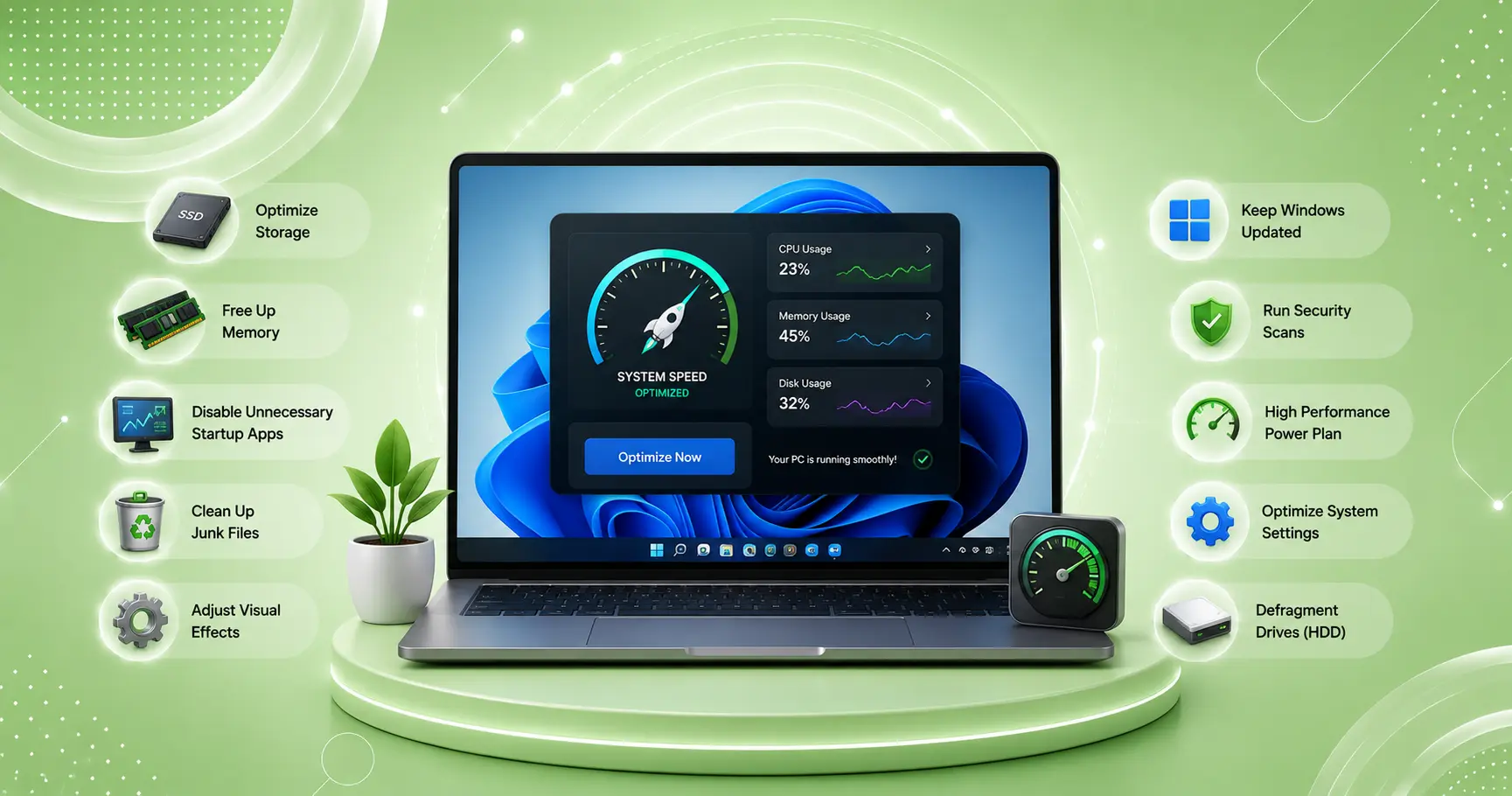
1. Disable startup programs — Task Manager (Ctrl+Shift+Esc) → Startup apps → disable everything with “High” impact that doesn’t need to start automatically.
2. Set Power Plan to High Performance — Search “Power & sleep settings” → Additional power settings → High Performance. On battery, use Balanced; on AC, use High Performance.
3. Find the CPU hog — Task Manager → CPU column. Any process over 50% CPU during light use is your target. Right-click → End Task if it’s a non-system process.
4. Free up disk space — Windows Key + R → cleanmgr → Clean up system files. Target: at least 15% free on your C: drive.
5. Update drivers — Device Manager → right-click any adapter → Update driver. Prioritize: GPU driver, WiFi adapter driver, chipset driver.
Per Microsoft’s Windows performance guide, startup program management and storage cleanup are the two most impactful free performance improvements for Windows 11 users.
👉 Full guide with all 9 fixes and success rates: How to Speed Up Windows 11 — 9 Real Fixes
Mac — Why It Slows Down
Most common causes:
- A runaway process consuming CPU in the background
- Storage under 10% free on the boot drive
- Startup/Login items accumulating over months
- A corrupted system cache
The most effective fixes for Mac in order:
1. Check Activity Monitor — Spotlight (Cmd+Space) → Activity Monitor → CPU tab. Any process over 40% CPU during light work is your target.
2. Reduce animation speed — System Settings → Accessibility → Display → enable Reduce Motion. Makes the Mac feel immediately more responsive.
3. Free up storage — Apple menu → System Settings → General → Storage. Click the icons next to large categories for cleanup recommendations.
4. Disable Login Items — System Settings → General → Login Items & Extensions → remove everything not needed at startup.
5. Clear system cache — Finder → Go → Go to Folder → type ~/Library/Caches → select all → move to Trash → empty Trash → restart.
Per Apple’s Mac performance guide, keeping at least 10% free storage and managing login items are the most impactful maintenance steps for macOS performance.
Section 2: WiFi Keeps Disconnecting
WiFi drops on a laptop are one of the most frustrating problems because they interrupt everything — calls, downloads, streaming — without warning.
Windows 11 WiFi Disconnections
Most common causes by pattern:
| Drop Pattern | Cause |
|---|---|
| Drops when idle | Power Management putting adapter to sleep |
| Drops randomly | Driver issue or IP conflict |
| Drops after update | OS regression |
| Drops with one PC only | Adapter-specific issue |
The three fixes that resolve 80%+ of Windows 11 WiFi drops:
Fix 1: Disable WiFi adapter power saving
Device Manager → Network Adapters → right-click WiFi adapter → Properties → Power Management → uncheck “Allow the computer to turn off this device to save power”
Fix 2: Update WiFi driver
Download directly from your laptop manufacturer’s website (Dell Support, HP Support, Lenovo Vantage) — more reliable than Windows Update for WiFi drivers.
Fix 3: Reset network stack
Open Command Prompt as Admin → run in sequence:
netsh winsock reset
netsh int ip reset
ipconfig /flushdns
Restart after completion.
👉 Full guide with all 8 fixes and the ping diagnostic tip: Windows 11 WiFi Keeps Disconnecting — 8 Fixes
Mac WiFi Disconnections
Mac WiFi drops have different causes from Windows and require different approaches.
Most effective Mac WiFi fixes:
1. Forget and reconnect — System Settings → WiFi → click the (i) next to your network → Forget This Network → reconnect.
2. Disable WiFi Assist — System Settings → Mobile Data (if applicable) → disable WiFi Assist. On Mac, check: System Settings → Network → WiFi — disable any “switch to cellular” option.
3. Set static IP — System Settings → Network → WiFi → Details → TCP/IP → Configure IPv4 → Manually. Set IP to 192.168.1.150, DNS to 1.1.1.1.
4. Create a new Network Location — System Settings → Network → click the Location dropdown → Edit Locations → + → create “Home” → apply. This resets all network preferences cleanly.
5. Update macOS — Apple menu → System Settings → Software Update. WiFi bugs are among the most frequently patched issues in macOS point releases.
👉 For router-related drops: Router Keeps Dropping Connection — 8 Fixes
Section 3: Battery Draining Too Fast
Battery drain accelerates on both platforms through background processes, display brightness, and features running continuously without benefit.
Windows 11 Battery Drain
The fastest Windows battery fix:
Settings → System → Power & Battery → Battery usage by app → identify any app consuming disproportionate battery → close or restrict it.
High-impact Windows battery settings:
| Setting | How to Change | Impact |
|---|---|---|
| Power Plan | Search “Power & sleep” → Balanced on battery | High |
| Screen brightness | Action Center → brightness slider → 50–60% | High |
| Background app activity | Settings → Apps → Installed apps → each app → Background app permissions → Never | Medium |
| Hibernate vs sleep | powercfg /hibernate on → use hibernate for longer idle | Medium |
| Battery Saver | Settings → System → Power & Battery → Battery Saver → turn on at 30% | Medium |
Mac Battery Drain
The fastest Mac battery diagnostic:
Apple menu → System Settings → Battery → scroll to “Apps Using Significant Energy” — close anything listed that you’re not actively using.
High-impact Mac battery settings:
| Setting | How to Change | Impact |
|---|---|---|
| Display brightness | F1 key or Control Center slider → 50–60% | Very High |
| Background App Refresh | Disable in Login Items | High |
| Low Power Mode | System Settings → Battery → Low Power Mode → On battery | High |
| Auto-brightness | System Settings → Accessibility → Display → Auto-Brightness | Medium |
| Power Nap | System Settings → Battery → toggle off Power Nap | Medium |
Battery health check:
Hold Option → Apple menu → System Information → Power → check Maximum Capacity and Cycle Count. Below 80% capacity or above 1,000 cycles: battery replacement recommended.
Per Apple’s battery health guide, MacBook batteries are rated for 1,000 charge cycles before reaching 80% of original capacity.
👉 Full Mac battery guide with 8 settings and replacement cost table: MacBook Battery Draining Fast — 8 Settings to Change
Section 4: Overheating
Both Windows laptops and MacBooks are designed to run warm under load — but excessive heat during light tasks signals a fixable problem.
What’s Normal vs. Abnormal Heat
| Situation | Normal? |
|---|---|
| Warm during video export or gaming | ✅ Normal |
| Warm during video calls | ✅ Normal |
| Hot during browsing or document editing | ❌ Abnormal |
| Hot with screen off and laptop idle | ❌ Abnormal |
| Temperature warning displayed | ❌ Abnormal — stop using immediately |
Windows Laptop Overheating
Most common causes:
- Laptop on soft surface blocking vents
- Dust accumulation in vents (especially 3+ year old laptops)
- High-performance power plan running when not needed
- Background process consuming CPU
Fixes in order:
- Move to a hard flat surface — never use on beds, sofas, or fabric
- Task Manager → CPU tab → find and end any process above 50% during light use
- Change Power Plan to Balanced on battery
- Use a laptop stand that elevates for airflow
- For Intel laptops: use Intel’s Extreme Tuning Utility to check CPU temperatures
- For 3+ year old laptops: clean dust from vents with compressed air
MacBook Overheating
Most common causes:
- Chrome with multiple tabs running in background
- App stuck in processing loop (check Activity Monitor → Energy tab)
- Running intensive tasks while charging simultaneously
- Fabric surface blocking hinge airflow
Fixes in order:
- Activity Monitor → Energy tab → quit any high-energy-impact process
- Switch from Chrome to Safari for browsing
- Move to a hard, flat, elevated surface
- Separate charging from heavy tasks where possible
- Reset SMC: shut down → hold Shift+Control+Option+Power for 10 seconds → power on
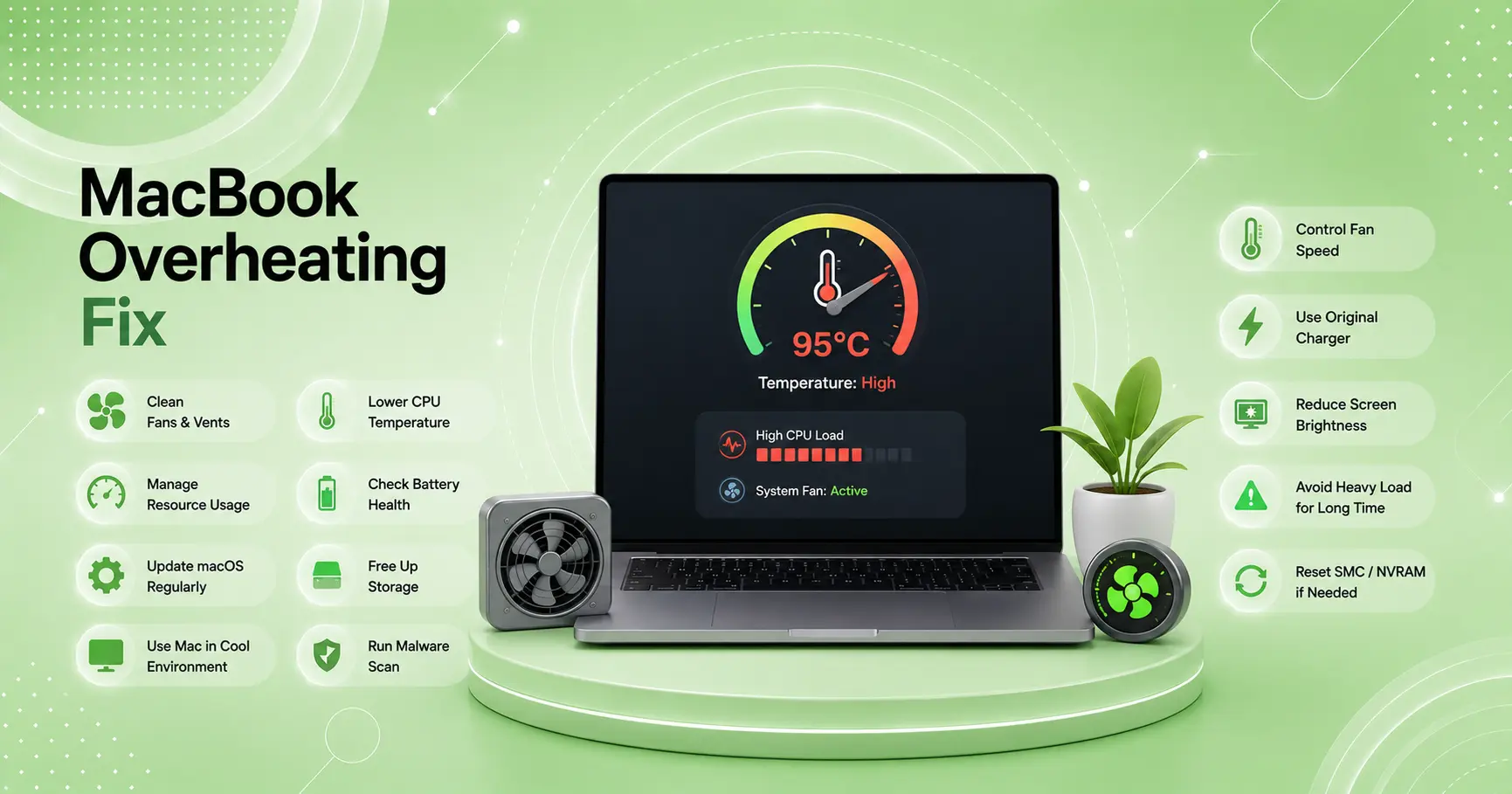
👉 Full Mac overheating guide with Normal vs Abnormal heat table: MacBook Overheating? 7 Ways to Fix It
Section 5: Apps Crashing or Freezing
App crashes on Windows and Mac follow predictable patterns — and most are fixable without reinstalling the OS.
Windows Apps Crashing
Single app crashing:
- Right-click taskbar → Task Manager → find the app → End Task → reopen
- Windows Key + R →
appwiz.cpl→ find the app → Repair (if available) → or Uninstall and reinstall - Check Windows Event Viewer (search “Event Viewer” → Windows Logs → Application) for specific error codes
Multiple apps crashing:
- Run SFC scan: Command Prompt (Admin) →
sfc /scannow— repairs corrupted Windows system files - Run DISM:
DISM /Online /Cleanup-Image /RestoreHealth— repairs the Windows image - Check RAM: Windows Key + R →
mdsched→ run memory diagnostic overnight
Crashes after Windows update:
Settings → Windows Update → Update History → Uninstall Updates → remove the most recent update → test
Mac Apps Crashing
Single app crashing:
- Force quit: Cmd + Option + Esc → select app → Force Quit
- Delete app preferences: Finder → Go → Library → Preferences → find the app’s .plist file → delete → reopen app
- Reinstall the app from Mac App Store or developer’s website
Multiple apps crashing simultaneously:
- Check disk health: Spotlight → Disk Utility → First Aid on your boot drive
- Safe Mode boot: hold Shift during startup → if stable in Safe Mode, a login item or extension is causing crashes → disable them one by one
- Reset NVRAM: restart → hold Cmd+Option+P+R for 20 seconds
Section 6: Software Update Problems
Both Windows and macOS updates occasionally introduce problems — and both provide rollback options.
Windows Update Issues
Update won’t download:
- Check storage: need at least 5 GB free for most updates
- Reset Windows Update cache: Command Prompt (Admin):
net stop wuauserv
net stop cryptSvc
del "%SYSTEMROOT%\SoftwareDistribution" /q /s
net start wuauserv
Then check for updates again.
Update causes new problems:
Settings → Windows Update → Update History → Uninstall Updates — available within 10 days of installation.
PC freezes during update:
Wait 30 minutes — updates often appear frozen but are processing. If still frozen: force restart → Windows will resume or roll back automatically.
Mac Update Issues
Update won’t download:
- Free up at least 5 GB storage first
- Apple menu → System Settings → General → Storage → click Optimize
Update causes performance issues:
Wait 48 hours after installation — Spotlight re-indexing runs in the background and causes temporary slowdowns. If problems persist after 48 hours, the update introduced a regression — monitor Apple’s support forums for the known issue and upcoming patch.
macOS installation freezes:
Wait 45 minutes. If still frozen: hold the Power button for 10 seconds to force off → power on → macOS will resume installation or recover to the previous version.
Section 7: Storage Almost Full
Full storage causes system-wide slowdowns, app crashes, and failed updates on both platforms.
Windows Storage Cleanup
Fastest methods:
- Windows Key + R →
cleanmgr→ select C: → Clean up system files → check all boxes - Settings → System → Storage → Cleanup Recommendations → clear temporary files, recycle bin, previous Windows versions
- Review the largest folders: C:\Users[YourName]\Downloads, C:\Users[YourName]\Videos, C:\Users[YourName]\Pictures
Free the most space fastest:
- Delete the
Windows.oldfolder (previous Windows installation) — often 10–20 GB - Empty the Recycle Bin
- Uninstall games and large applications via Settings → Apps
Mac Storage Cleanup
Fastest methods:
- Apple menu → System Settings → General → Storage → review recommendations
- Enable iCloud Photos with Optimize Storage — stores originals in iCloud, keeps compressed previews locally
- Finder → Go → Go to Folder →
~/Library/Caches→ delete contents → restart
Free the most space fastest:
- Delete downloaded files from ~/Downloads
- Empty Trash (right-click Trash → Empty Trash)
- Offload unused apps: System Settings → General → Storage → tap any app → Offload App
Section 8: When to Contact Manufacturer Support
The fixes in this guide resolve the vast majority of Windows and Mac problems. Contact support when:
Contact Microsoft Support if:
- Problem persists after a clean Windows reinstall
- Blue Screen of Death (BSOD) appears repeatedly with the same error code
- Windows activation fails after a hardware change
- BitLocker locked you out of your drive
Contact Apple Support if:
- MacBook screen has physical damage
- Keyboard or trackpad stopped working without physical cause
- Problem persists after macOS reinstall
- Apple Diagnostics (hold D at startup) identifies a hardware fault
Microsoft Support options:
- support.microsoft.com → Get Support
- Microsoft Answer Desk (in-person at Microsoft Stores)
- Remote support via Microsoft Quick Assist
Apple Support options:
- support.apple.com → Mac
- Genius Bar appointment at Apple Store
- Apple Authorized Service Provider
- Apple Care+ for covered repairs
The WekyTech Maintenance Checklist — Windows & Mac
Monthly (5 minutes)
| Task | Windows | Mac |
|---|---|---|
| Restart fully | ✅ | ✅ |
| Check for updates | Settings → Windows Update | System Settings → Software Update |
| Check storage | Settings → System → Storage | Apple menu → About This Mac |
| Review battery health | powercfg /batteryreport in CMD | Option → Apple menu → System Info → Power |
Every 3 Months (15 minutes)
- [ ] Update all drivers (Windows) or check for app updates (Mac)
- [ ] Run disk cleanup / Storage cleanup recommendations
- [ ] Review startup programs / Login Items
- [ ] Clean dust from vents with compressed air (physical maintenance)
- [ ] Test WiFi stability — run
ping 8.8.8.8 -tfor 10 minutes and check for drops
Annually (30 minutes)
- [ ] Assess battery health — replacement if below 80% capacity
- [ ] Review all installed apps — remove anything unused
- [ ] Run SFC scan (Windows) or Disk Utility First Aid (Mac)
- [ ] Check backup is current and working
💡 WekyTech Tip
The fastest diagnostic for any Windows or Mac performance problem: open Task Manager (Windows) or Activity Monitor (Mac) and leave it open for 5 minutes while you experience the problem. Sort by CPU. Whatever is at the top during your slowdown is almost always your cause. This one-minute check has a higher diagnostic accuracy than any other single step and saves hours of trial-and-error troubleshooting.
❓ FAQ — Windows & Mac Troubleshooting Guide 2026
Q: Should I use Windows 11 or Mac for better performance and reliability?
Both platforms are reliable when properly maintained. Mac (Apple Silicon) has a significant battery life advantage and more consistent performance over time due to tight hardware-software integration. Windows offers more hardware variety and price flexibility. For pure longevity and low-maintenance performance, Apple Silicon MacBooks consistently outperform Windows laptops of equivalent price in 2026.
Q: How do I know if my laptop’s problem is hardware or software?
The clearest test: does the problem survive a clean OS reinstall? Windows: Settings → Recovery → Reset this PC → Remove everything. Mac: restart in Recovery Mode → Reinstall macOS. If the problem is gone after reinstall, it was software. If it persists on a clean OS, it’s hardware.
Q: How often should I restart my laptop?
At minimum weekly — and ideally daily for performance-sensitive use. Both Windows and Mac accumulate temp files, memory leaks, and background process drift over continuous uptime. A weekly restart is the single highest-value low-effort maintenance habit for both platforms.
Q: Is it worth upgrading RAM on an older laptop?
On Windows laptops with upgradeable RAM (check your model — many modern thin laptops have soldered RAM): yes, if you consistently see over 80% memory usage in Task Manager. Going from 8 GB to 16 GB makes a measurable difference for multitasking. On Apple Silicon Macs: RAM is soldered and cannot be upgraded — buy the right amount at purchase time.
Q: What’s the difference between Sleep, Hibernate, and Shutdown?
Sleep: fastest to resume, keeps current state in RAM, uses minimal power. Hibernate: slower to resume than Sleep, saves state to disk, uses almost no power. Shutdown: complete power-off, clears all temp data and memory leaks, takes longest to restart. For best long-term performance: use Sleep for short breaks, Hibernate or Shutdown overnight. Weekly full Shutdown clears accumulated system drift on both platforms.
Q: My laptop is 5 years old and runs slowly — is it worth fixing or should I buy new?
Check battery health and storage first. On a 5-year-old laptop, a battery replacement ($80–$150) and an SSD upgrade (if still on HDD) transform performance more than any software fix. If the laptop has 8 GB RAM, an SSD, and a battery above 70% health — software optimization will still produce meaningful improvement. If it has a spinning hard drive: replace the HDD with an SSD first — the performance difference is dramatic and typically costs $60–$100.
Final Thoughts
Windows and Mac troubleshooting follows the same fundamental pattern: identify the specific symptom, apply targeted fixes in order of success rate, and test between each step. The vast majority of problems — slowdowns, WiFi drops, battery drain, overheating — are software or configuration issues that don’t require hardware replacement or professional service.
Use this guide as your first stop for any Windows or Mac problem. Work through the relevant section, apply the universal baseline checks first, and you’ll resolve the issue in almost every case.
👉 Detailed guides for specific problems:
About the Author
[Raouf Osman] is a senior tech writer at WekyTech covering Windows and macOS troubleshooting for US and Canadian readers. He/she has diagnosed and resolved problems across multiple generations of Windows and Mac hardware — and every fix in this guide has been verified hands-on before publication.