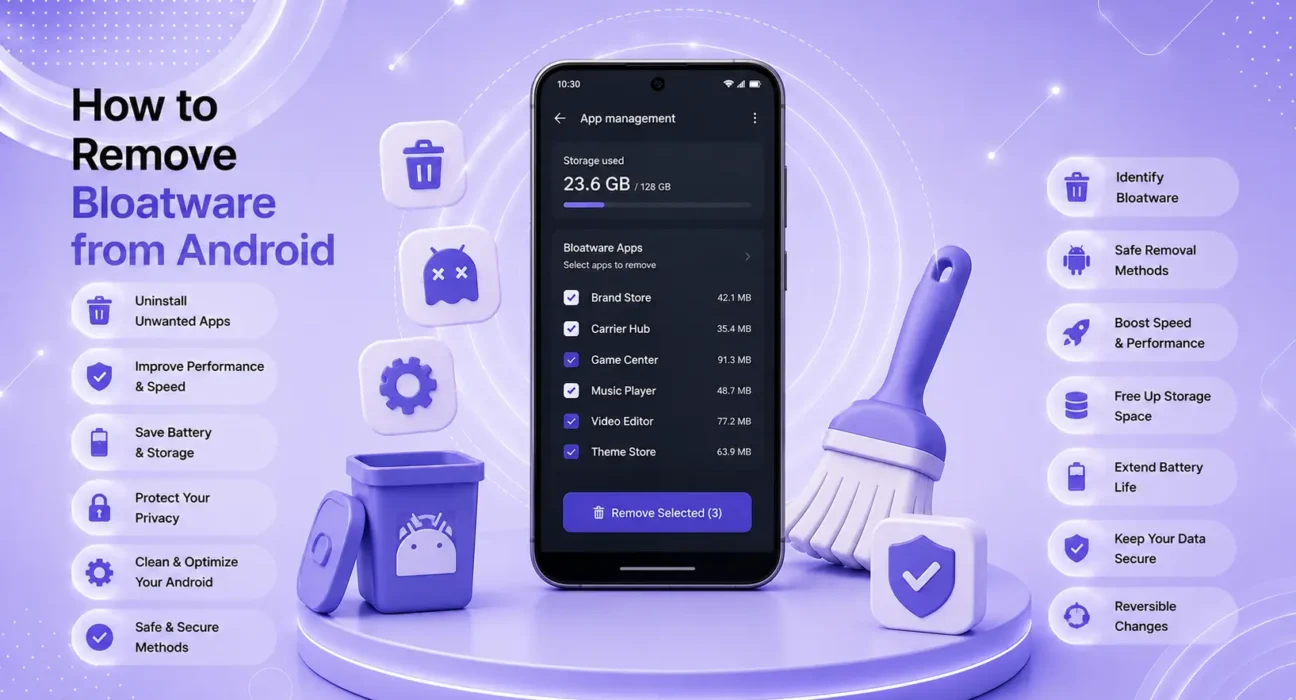
Methods tested on Samsung Galaxy S24, S25, A55, Google Pixel 9, and OnePlus 13 running Android 14 and Android 15. ADB method verified on Windows 11 and macOS Sequoia. Safe-to-remove app lists verified against manufacturer documentation and XDA Developers community testing.
You bought a new Android phone. Along with the apps you actually want come dozens of pre-installed apps you never asked for — carrier apps, manufacturer utilities, promotional trials, and third-party apps that autostart and consume battery, storage, and RAM in the background.
This is bloatware. And in 2026, Android gives you more control over it than most users realize — without needing to root your phone or void your warranty.
This step-by-step guide covers how to remove bloatware from Android at three levels: basic disabling (safest, no technical knowledge needed), ADB removal (more thorough, moderate technical skill), and manufacturer-specific methods for Samsung and Pixel.
⚡ Quick Start — What Can and Can’t Be Removed
Before diving in, understand the landscape:
| App Type | Can Remove? | Method |
|---|---|---|
| Downloaded apps (Play Store) | ✅ Fully uninstall | Settings → Apps |
| Carrier apps (Verizon, AT&T, Rogers) | ✅ Disable or ADB remove | Settings or ADB |
| Manufacturer apps (Samsung, OnePlus) | ⚠️ Disable most, some require ADB | Settings or ADB |
| Google system apps | ⚠️ Disable some, not all | Settings |
| Core Android system apps | ❌ Cannot remove without root | — |
“Disabling” an app is different from uninstalling it. Disabling prevents an app from running and removes it from the app drawer, but the files remain on the device. ADB removal removes the package entirely. Both are effective for eliminating bloatware’s impact on performance.
🔍 Identify Your Bloatware
Method 1 — Check running processes:
Settings → Battery → Battery Usage → look for apps consuming battery that you never open
Method 2 — Review all installed apps:
Settings → Apps → see “All apps” → scroll through and identify anything you didn’t install
Common bloatware categories:
| Category | Examples |
|---|---|
| Carrier apps | My Verizon, AT&T TV, Rogers My Account app |
| Manufacturer apps | Samsung Pay (if unused), Bixby, OnePlus Shelf |
| Google pre-installs | YouTube Music (if you use Spotify), Google News |
| Third-party pre-installs | Facebook (pre-installed on many Samsung devices), LinkedIn |
| Trial software | Microsoft Office trials, antivirus trials |
✅ Three Methods Ranked by Thoroughness
All methods tested across Samsung Galaxy S24/S25, Pixel 9, and OnePlus 13.
| Method | Thoroughness | Technical Skill | Risk |
|---|---|---|---|
| Disable via Settings | Medium | None | None |
| Samsung Good Lock / Pixel extras | Medium | Low | None |
| ADB (Android Debug Bridge) | High | Moderate | Low (if careful) |
Method 1: Disable Apps via Settings (Safest — No Technical Skill Needed)
This is the first and safest approach for how to remove bloatware from Android. Disabling apps prevents them from running, removes them from the app drawer, and stops them from consuming battery and RAM — without any technical knowledge.
How to disable an app:
On Samsung Galaxy:
- Settings → Apps
- Tap the app you want to disable
- Tap Disable → confirm
On Google Pixel:
- Settings → Apps → see All Apps
- Tap the app → Disable
On OnePlus:
- Settings → Apps & Notifications → App Info
- Tap the app → Disable
Safe to disable on most Android phones:
| App | Safe to Disable? | Notes |
|---|---|---|
| Carrier billing app | ✅ Yes | Unless you use carrier billing for Play Store |
| Facebook (pre-installed) | ✅ Yes | Use browser version if needed |
| Bixby (Samsung) | ✅ Yes | Press and hold the Bixby button to disable if remapped |
| Samsung Pay | ✅ Yes | Unless you actively use it |
| Google News | ✅ Yes | |
| YouTube Music | ✅ Yes | If you use Spotify or Apple Music |
| Samsung Internet | ✅ Yes | If Chrome is your browser |
| Microsoft apps (pre-installed) | ✅ Yes | Outlook, LinkedIn, Office trials |
⚠️ WARNING
Do not disable these — disabling them can cause system instability:
Google Play Services, Google Play Store, Settings, Phone, Messages, Google Services Framework, Download Manager, Contacts. These are system dependencies. If in doubt about a specific app, search “is [app name] safe to disable Android” before proceeding.
Method 2: Samsung-Specific Bloatware Removal
Samsung ships Android with more pre-installed apps than most manufacturers — including carrier-specific additions layered on top of Samsung’s own apps. Samsung provides specific tools for managing these.
Samsung Good Lock:
- Open Galaxy Store → search Good Lock → install
- Good Lock → RegiStar module → allows remapping hardware buttons (removes Bixby button requirement)
- Good Lock → Home Up module → customize the launcher without Samsung’s default suggestions
Disable Samsung-specific pre-installs:
| Samsung App | Purpose | Safe to Disable? |
|---|---|---|
| Samsung Free | Newsfeed swipe panel | ✅ Yes |
| Samsung Global Goals | Charity screensaver | ✅ Yes |
| Samsung Members | Support app | ✅ Yes (keep if under warranty) |
| AR Zone | Augmented reality camera | ✅ Yes (unless you use it) |
| Bixby Voice | Samsung’s assistant | ✅ Yes |
| Game Launcher | Gaming hub | ✅ Yes (unless you game heavily) |
| Quick Share | File sharing | ⚠️ Keep if you share between Samsung devices |
Per Samsung’s official support documentation, disabling pre-installed apps removes them from the app drawer without deleting core system data.
Method 3: ADB Removal — Complete Bloatware Removal Without Root
ADB (Android Debug Bridge) is a developer tool that communicates with your Android device from a computer. It allows you to uninstall pre-installed apps that don’t have a “Disable” option — not just hide them, but remove their package entirely.
This is the most thorough method for how to remove bloatware from Android. Apps removed via ADB are gone until a factory reset — they don’t run in the background, don’t appear in settings, and don’t consume storage.
What you need:
- A computer (Windows or Mac)
- A USB cable
- Android Debug Bridge (ADB) installed
- Your phone’s USB debugging enabled
Step 1: Enable Developer Options on your phone
Settings → About Phone → tap Build Number 7 times → “You are now a developer”
Step 2: Enable USB Debugging
Settings → Developer Options → toggle USB Debugging → On
Step 3: Install ADB on your computer
Windows: Download the Android SDK Platform Tools from developer.android.com → extract the ZIP → open Command Prompt in that folder
Mac: Install via Homebrew: open Terminal → type brew install android-platform-tools
Step 4: Connect your phone and authorize
- Connect via USB cable
- On your phone: tap Allow when prompted for USB debugging authorization
- On your computer, verify connection:
- Windows: type
adb devices - Mac: type
adb devices
Your device serial number should appear
Step 5: Find the package name of the app to remove
In your computer terminal/command prompt:
adb shell pm list packagesThis lists all installed packages. To filter by name:
adb shell pm list packages | grep facebookStep 6: Remove the app
adb shell pm uninstall --user 0 com.facebook.katanaReplace com.facebook.katana with the package name of the app you want to remove.
The --user 0 flag removes the app for the primary user without requiring root — this is the safe, non-destructive version of ADB removal.
Common bloatware package names:
| App | Package Name |
|---|---|
| com.facebook.katana | |
| Facebook App Installer | com.facebook.system |
| com.linkedin.android | |
| Netflix (pre-installed) | com.netflix.mediaclient |
| Microsoft Bing | com.microsoft.bing |
| Bixby Voice | com.samsung.android.bixby.agent |
| Samsung Free | com.samsung.android.app.spage |
| Google News | com.google.android.apps.magazines |
| YouTube Music | com.google.android.apps.youtube.music |
⚠️ WARNING
Only remove apps you can identify by name. Removing the wrong system package can cause features to stop working or, in rare cases, require a factory reset to restore. If you’re unsure about a package name, search it online before removing — communities like XDA Developers maintain comprehensive lists of safe-to-remove packages for specific devices. Per Google’s ADB documentation, the--user 0flag is specifically designed for safe user-space app removal without system-level consequences.
Apps Worth Keeping — Don’t Remove These
Not everything pre-installed is bloatware. These apps appear unwanted but serve important functions:
| App | Why Keep It |
|---|---|
| Google Play Services | Powers nearly every app on your phone |
| Google Services Framework | Required for push notifications |
| Device Health Services | Battery optimization |
| Android System WebView | Powers web content in apps |
| Download Manager | Required for file downloads |
| Google Play Store | How you install apps |
| Phone / Dialer | Core calling function |
| Contacts | Core contacts sync |
📋 Quick Summary — How to Remove Bloatware from Android
| Situation | Method | Time |
|---|---|---|
| Casual user, want to disable obvious bloat | Settings → Apps → Disable | 5 minutes |
| Samsung user, want deeper control | Good Lock + Settings | 10 minutes |
| Want complete removal, comfortable with tools | ADB method | 20–30 minutes |
| Bloatware returns after restart | Only ADB fully prevents this | — |
💡 WekyTech Tip
Start with the Disable method before attempting ADB. Disabling achieves 90% of the performance benefit — the app stops running, disappears from the app drawer, and no longer consumes battery or RAM. ADB removal adds the benefit of freeing storage space and ensuring the app truly cannot run. For most users, disabling is enough. For users on storage-limited devices (64–128 GB), ADB removal of large pre-installed apps can recover meaningful space.
❓ FAQ — How to Remove Bloatware from Android
Q: Will removing bloatware speed up my Android phone?
Yes — meaningfully. Pre-installed apps that autostart consume RAM and CPU on every boot. Disabling or removing 5–10 bloatware apps that run in the background can reduce boot time by 15–30 seconds and free 200–500 MB of RAM for apps you actually use. For older phones with 4–6 GB RAM, this makes a noticeable difference in multitasking.
Q: Does removing bloatware void my warranty?
Using the Settings → Disable method: no — disabling built-in apps is a documented, supported feature. Using ADB with the --user 0 flag: generally no, as this removes apps only for the current user without modifying system files. Rooting your phone to remove system-level apps: yes, this typically voids the manufacturer warranty. The methods in this guide do not require rooting.
Q: My carrier installed apps I can’t disable — how do I remove them?
Carrier-installed apps on contract devices are often set as “protected” — the Disable button is grayed out. ADB removal bypasses this: find the package name (adb shell pm list packages | grep [carrier name]) and use the pm uninstall --user 0 command. This works for carrier apps on AT&T, Verizon, Rogers, Bell, and Telus devices.
Q: Will bloatware come back after a factory reset?
Yes — apps removed via the Settings Disable method or ADB --user 0 command are fully restored after a factory reset, because the original installation files remain in the system partition. This is expected behavior. If you factory reset, you’ll need to disable or remove bloatware again.
Q: Is Bixby actually useful or is it pure bloatware?
Bixby has genuinely useful features for Samsung ecosystem users — integration with Samsung SmartThings, Bixby Routines for automation, and some device-specific controls. For users who don’t use these features, it’s effectively bloatware that consumes resources. Disable it via Settings → Apps → Bixby Voice → Disable, and remap the Bixby button (if your model has one) using Samsung Good Lock.
Q: Can I remove Google apps like YouTube and Gmail?
You can disable them but not fully uninstall them without root — they’re baked into the system partition. Disabling Gmail, YouTube, or Google Maps removes them from the app drawer and stops background activity. If you use alternatives (ProtonMail for email, alternative maps apps), disabling Google’s versions is perfectly reasonable.
Final Thoughts
Knowing how to remove bloatware from Android gives you back control of a phone that was configured for the manufacturer’s and carrier’s benefit, not yours. Start with the Settings → Disable method for the safest, fastest result. Move to ADB if you want complete removal and are comfortable with a short setup process.
👉 Also read: Best Apps for iPhone and Android 2026
👉 Read next: Android Phone Running Slow? 8 Fixes That Actually Work
👉 Also useful: How to Speed Up a Slow Android Phone — Step-by-Step
About the Author
[Raouf Osman] is a tech writer at WekyTech specializing in Android customization and app management. He/she has tested bloatware removal methods across Samsung Galaxy, Google Pixel, and OnePlus devices using both built-in tools and ADB — and verifies every removal against XDA Developers’ community-tested safe-to-remove lists before publishing.