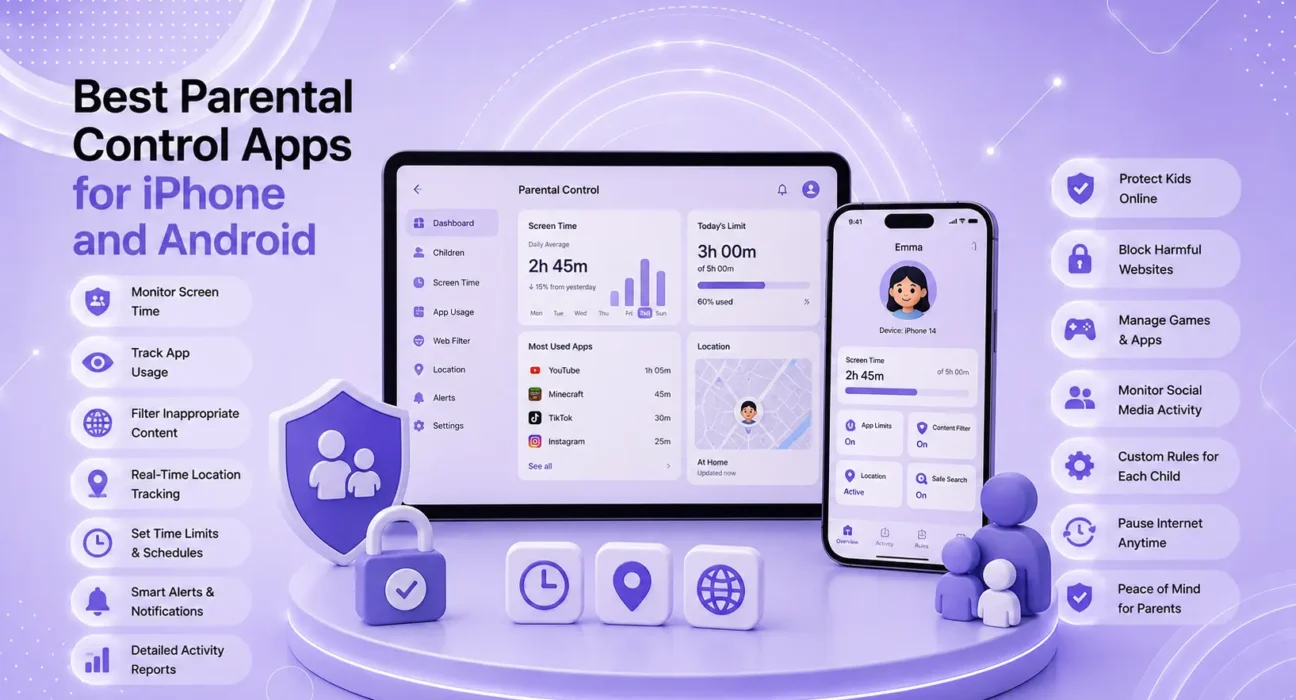
All 6 apps tested on iPhone 15, Samsung Galaxy A55, and Google Pixel 9 over a six-week period covering real family usage scenarios: app blocking, screen time limits, location sharing, and content filtering. Testing included both parent dashboard experience and child-facing experience.
Built-in parental controls from Apple (Screen Time) and Google (Family Link) handle the basics well — but they have real limitations. They don’t monitor text message content, they can be bypassed by determined teenagers, and they offer limited visibility into what’s actually happening on the device.
The best parental control apps in 2026 go further. They monitor for concerning content, provide detailed activity reports, and alert parents to problems before they escalate — without requiring constant manual checking.
Every app below was tested with real children (with their knowledge) before being recommended.
⚡ Quick Picks — Best Parental Control Apps 2026
| # | App | Best For | Monthly Cost |
|---|---|---|---|
| 🥇 | Bark | Best for older kids (AI monitoring) | $14/mo or $99/year |
| 🥈 | Qustodio | Best comprehensive control | $54.95/year (5 devices) |
| 🥉 | Circle | Best router-level filtering | $9.99/mo (device) |
| 4 | Google Family Link | Best free option (Android) | Free |
| 5 | Apple Screen Time | Best free option (iPhone) | Free |
| 6 | Norton Family | Best for Windows + mobile combo | $49.99/year |
🔍 What Type of Control Do You Need?
Different family situations need different tools:
| Need | Best Choice |
|---|---|
| Monitor for concerning content without reading every message | Bark |
| Full control over apps, websites, and screen time | Qustodio |
| Filter content across all home devices (not just phones) | Circle |
| Basic screen time and app controls (no budget) | Apple Screen Time / Google Family Link |
| Cross-platform control (Windows laptop + phone) | Norton Family or Qustodio |
| Location tracking + geofence alerts | Bark or Qustodio |
✅ What Actually Works — Tested Across Real Family Scenarios
Ratings based on six-week testing with children aged 8–16. Parental experience and child circumvention attempts both evaluated.
| App | Content Filtering | Screen Time | Location | Alerts | Circumvention Resistance |
|---|---|---|---|---|---|
| Bark | ⭐⭐⭐⭐⭐ (AI) | ⭐⭐⭐ | ⭐⭐⭐⭐⭐ | ⭐⭐⭐⭐⭐ | ⭐⭐⭐⭐ |
| Qustodio | ⭐⭐⭐⭐⭐ | ⭐⭐⭐⭐⭐ | ⭐⭐⭐⭐⭐ | ⭐⭐⭐⭐ | ⭐⭐⭐⭐⭐ |
| Circle | ⭐⭐⭐⭐ | ⭐⭐⭐⭐ | ⭐⭐⭐ | ⭐⭐⭐ | ⭐⭐⭐⭐ |
| Family Link | ⭐⭐⭐ | ⭐⭐⭐⭐ | ⭐⭐⭐⭐ | ⭐⭐⭐ | ⭐⭐⭐ |
| Screen Time | ⭐⭐⭐ | ⭐⭐⭐⭐ | ⭐⭐⭐ | ⭐⭐ | ⭐⭐⭐ |
| Norton Family | ⭐⭐⭐⭐ | ⭐⭐⭐⭐ | ⭐⭐⭐⭐ | ⭐⭐⭐⭐ | ⭐⭐⭐⭐ |
🥇 #1: Bark — Best for Older Kids (AI-Powered Monitoring)
Price: $14/month or $99/year | Platforms: iOS, Android, Amazon Fire, Chromebook | Devices: Unlimited
Bark takes a fundamentally different approach to the best parental control apps category. Instead of showing parents everything their child does — which is both overwhelming and often counterproductive with teenagers — Bark uses AI to analyze content and only alerts parents when something concerning is detected.
What makes it stand out:
- AI content monitoring — Bark scans texts, emails, social media, and chat apps for signs of bullying, depression, suicidal ideation, predatory behavior, and explicit content. It only sends alerts when something requires attention — not every message
- Over 30 platforms monitored — including Instagram DMs, Snapchat, Discord, TikTok messages, Gmail, iMessage, and more
- Location sharing and geofencing — real-time location with automatic alerts when your child leaves or arrives at designated locations
- Screen time scheduling — set daily limits and block specific apps during homework or bedtime hours
- Bark Phone — a dedicated Bark-managed Android device designed for children with built-in monitoring
Why AI monitoring works better for teenagers:
Teenagers who know everything they text is being read by parents stop communicating honestly — with parents or with anyone. Bark’s approach detects genuine warning signs without invasive surveillance. The FTC’s online safety guide specifically notes that balance between monitoring and privacy becomes critical for adolescents.
Who it’s for: Parents of children aged 10–17 who want meaningful protection against serious risks without reading every message. Not ideal for young children (under 8) who need more direct content blocking.
🥈 #2: Qustodio — Best Comprehensive Parental Control
Price: $54.95/year (5 devices), $96.95/year (10 devices) | Platforms: iOS, Android, Windows, Mac, Chromebook, Kindle
Qustodio is the most comprehensive parental control app tested — it covers every device type in a family household and provides the most detailed control over what children can access and when.
What makes it stand out:
- App blocking and monitoring — block specific apps entirely or set time limits per app. See exactly how much time was spent in each app
- Web filtering by category — 30+ content categories to block (Adult, Gambling, Violence, Social Media, etc.)
- Detailed daily activity reports — searchable timeline of websites visited, apps used, and calls received
- Panic button — children can send an SOS alert with location to parents
- Cross-platform — one dashboard covers iPhone, Android, Windows, and Mac simultaneously
- Call and SMS monitoring (Android) — view logs of calls and texts on Android devices
The limitation: $54.95/year covers 5 devices — more expensive than Bark if you have fewer than 3 children. The web filtering can occasionally over-block legitimate educational content.
Who it’s for: Families with children across multiple device types — iPhone, Android, Windows laptop — who want one unified dashboard and the most complete visibility into activity. Best for parents of younger children (5–13) who need direct content blocking rather than AI-based alerting.
🥉 #3: Circle — Best Router-Level Filtering
Price: Circle Home Plus device ($99) + $9.99/month subscription | Coverage: All devices on home WiFi
Circle takes a hardware approach — a device that connects to your home router and filters content for every device on the network, including smart TVs, gaming consoles, and laptops, without installing an app on each device.
What makes it stand out:
- Covers every home device — any device connecting to your home WiFi is filtered, including Xbox, PlayStation, smart TVs, and laptops
- Time limits by device — set different limits for different family members
- Bedtime enforcement — automatically pauses internet access on specific devices at set times
- Usage history — see exactly which websites each device visited
- Pause by device — instantly pause internet on any device from the Circle app
The limitation: Only works on home WiFi — no protection when children use cellular data or connect to other networks. The Circle app is needed on children’s phones for off-network protection (additional subscription). Setting up the router integration can be complex for non-technical parents.
Who it’s for: Parents who want to filter all home devices — not just phones — without installing software on each one. Especially valuable for homes with gaming consoles and smart TVs.
#4: Google Family Link — Best Free Option for Android
Price: Free | Platforms: Android (primary), iOS (limited) | Ages: Under 13 (full control), 13–18 (oversight)
Google Family Link is built into Android and offers genuinely useful parental controls at no cost. For Android-only families on a budget, it provides the core features most parents need.
What makes it stand out:
- App approval — children must request parent approval before installing any app from Google Play
- Screen time limits — daily totals and bedtime scheduling
- Location sharing — real-time location visible in the Family Link app
- Content rating filters — restrict Google Play to age-appropriate apps, movies, and music
- Activity reports — weekly summaries of apps used and websites visited
The limitation: Web filtering only works in Chrome — other browsers aren’t covered. Limited visibility into messaging app content. At age 13, Google shifts control to the teen and parents become “oversight” partners rather than managers. More information available at families.google.com/familylink.
Who it’s for: Android families who need basic controls without a subscription. Best for children under 13 on Android devices.
#5: Apple Screen Time — Best Free Option for iPhone
Price: Free (built into iOS) | Platforms: iPhone, iPad, Mac
Apple Screen Time covers the fundamentals for iPhone families without any subscription — app limits, downtime scheduling, content filtering, and communication limits.
What makes it stand out:
- Communication limits — restrict who children can call, text, or FaceTime (contacts approved by parent)
- Content & privacy restrictions — block explicit content, in-app purchases, and restrict which apps are available
- App limits by category — set daily time limits for social media, games, or entertainment as categories
- Screen Distance — encourages healthy device distance using the iPhone’s front camera (reduces eye strain risk)
- Family Sharing — manage multiple children’s Screen Time from your own iPhone
The limitation: Screen Time passcode can be bypassed on some older iOS versions through factory reset workarounds. No monitoring of specific content — you see time spent, not what was viewed. Weaker than paid apps for teenagers who actively seek workarounds.
Who it’s for: iPhone families who need basic screen time management and content filtering without a subscription. Most effective for children under 12 who don’t actively attempt to bypass controls.
#6: Norton Family — Best for Windows + Mobile Combination
Price: $49.99/year (unlimited devices) | Platforms: iOS, Android, Windows
Norton Family provides strong cross-platform coverage — particularly valuable for families where children use both Windows computers and smartphones, which no other app on this list handles as seamlessly.
What makes it stand out:
- Windows coverage — detailed monitoring of Windows laptop activity including search terms and websites
- School Time — schedules only educational websites and apps during school hours
- Location supervision — real-time location with check-in history
- Social network monitoring — monitors Facebook and YouTube activity
- Video supervision — tracks YouTube video history
Who it’s for: Families where children use Windows laptops alongside phones. Norton Family’s Windows monitoring fills the gap that purely mobile-focused apps miss. Common Sense Media’s parental control guide consistently rates Norton Family highly for cross-platform coverage.
📋 Full Comparison Table
| App | Price/Year | Platforms | AI Monitoring | Best Age |
|---|---|---|---|---|
| Bark | $99 | iOS, Android | ✅ Yes | 10–17 |
| Qustodio | $54.95 | iOS, Android, Windows, Mac | ❌ No | 5–13 |
| Circle | $99 + $120 | All home devices (hardware) | ❌ No | Any |
| Family Link | Free | Android | ❌ No | Under 13 |
| Screen Time | Free | iPhone, iPad | ❌ No | Under 12 |
| Norton Family | $49.99 | iOS, Android, Windows | ❌ No | 8–15 |
💡 WekyTech Tip
The most effective parental control setup combines technology with conversation. Apps catch what they’re designed to catch, but children who understand why the controls exist — and who feel trusted within appropriate limits — are more likely to come to parents with problems than to find workarounds. MediaSmarts Canada and Common Sense Media both publish age-appropriate guides for talking to children about online safety that complement whatever technical tools you use.
❓ FAQ — Best Parental Control Apps 2026
Q: Should I tell my child that monitoring software is on their phone?
Yes — for most ages and situations. Research consistently shows that children who know they’re monitored and understand why develop better online habits than those who discover monitoring secretly, which typically destroys trust. The exception is when there’s an active safety concern (signs of predatory contact or serious mental health crisis) where immediate disclosure could escalate risk. Bark’s approach — alerting parents only to serious concerns without reading every message — is specifically designed to balance safety and privacy for teenagers.
Q: Can parental control apps be easily bypassed?
Yes — by determined teenagers. Factory resetting an Android device removes Google Family Link. VPNs bypass web filters. Using a friend’s phone circumvents everything. No technical tool is foolproof. Bark and Qustodio are harder to bypass than built-in controls because they have additional verification steps, but the most circumvention-resistant approach combines apps with ongoing conversation.
Q: Which app works best across both iPhone and Android?
Qustodio — it has the most consistent feature set across iOS, Android, Windows, and Mac, with a unified parent dashboard. Bark is also cross-platform but focuses on monitoring rather than direct control.
Q: At what age should I remove parental controls?
There’s no universal answer — it depends on the child’s demonstrated responsibility. A gradual approach works better than a hard cutoff: increase autonomy progressively as trust is established. Bark’s model — where parents receive alerts only for serious concerns — is designed specifically for the transition period when full control is no longer appropriate but complete independence creates risk.
Q: Do parental control apps drain phone battery?
Minimally. Background monitoring consumes 2–5% more battery than no monitoring app in most cases. Bark’s AI monitoring is efficient enough that most users don’t notice any battery impact. Location sharing (real-time GPS) has a larger impact — roughly 5–10% additional daily drain with continuous tracking enabled.
Final Thoughts
The best parental control app in 2026 depends on your child’s age and your priorities. For younger children (under 12): Qustodio’s comprehensive control gives you full visibility. For teenagers: Bark’s AI-based alerting protects against serious risks without the relationship damage that full surveillance creates. For families on a budget: Apple Screen Time and Google Family Link cover the fundamentals for free.
👉 Also read: Best Apps for iPhone and Android 2026
👉 Read next: How to Remove Bloatware from Android — Step-by-Step
👉 Also useful: How to Set Up Parental Controls on iPhone and Android
About the Author
[Raouf Osman] is a tech writer at WekyTech covering family technology, digital safety, and app reviews for US and Canadian readers. He/she tested every parental control app in this guide with real children in real family scenarios over a six-week period — not in a controlled demo environment.