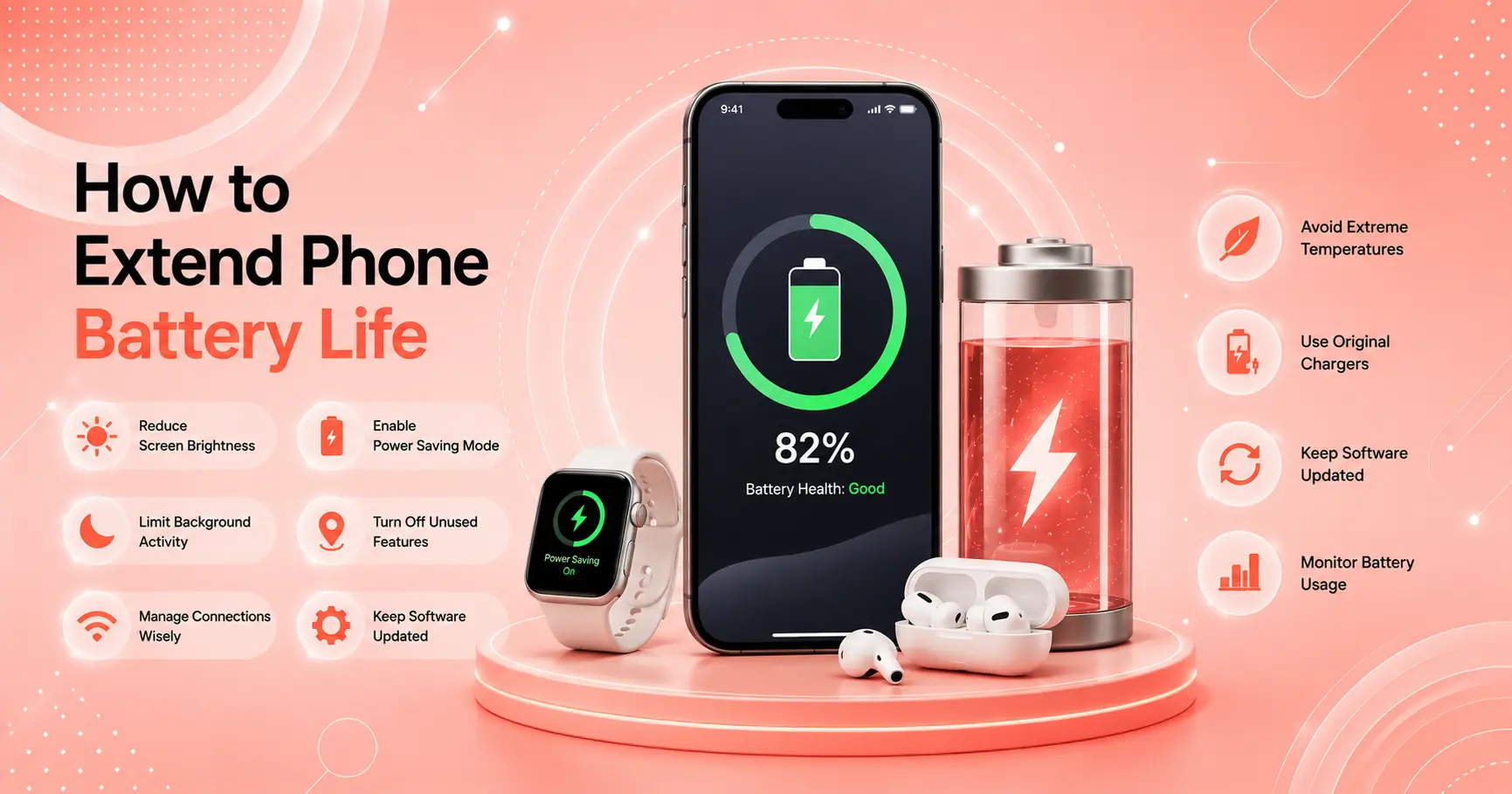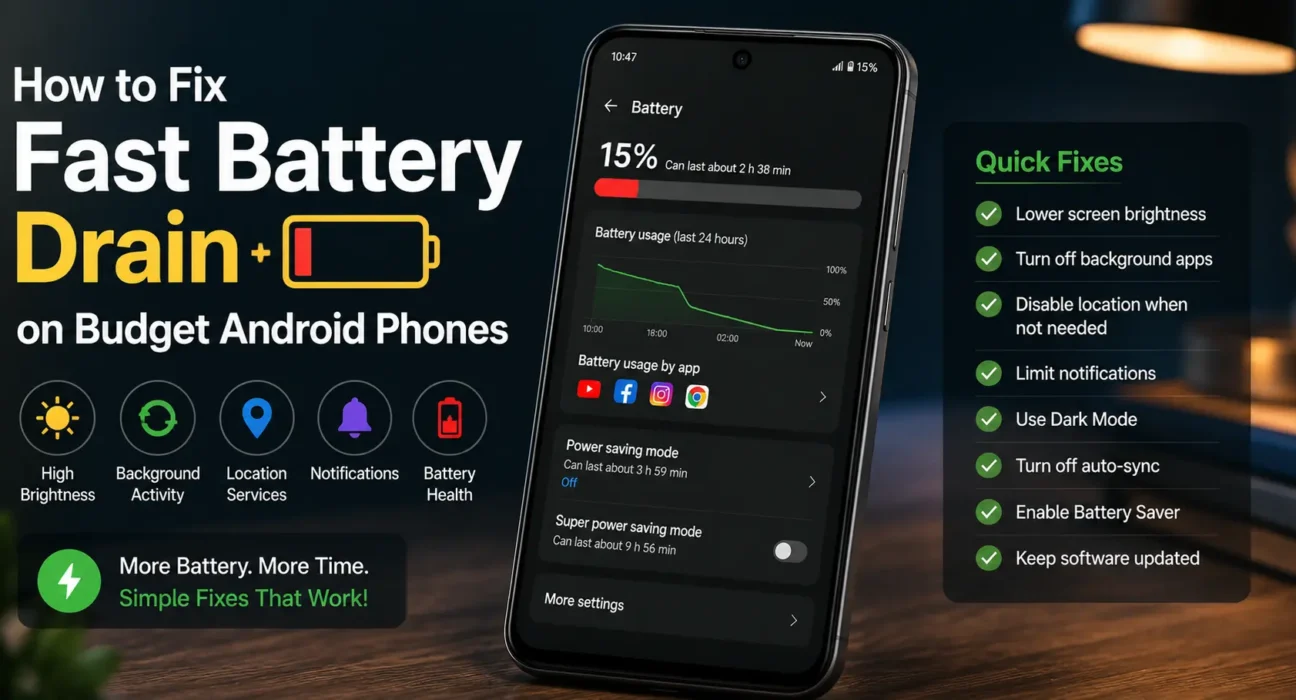
A budget Android phone that used to power through a full day but now barely reaches early evening is a frustratingly common issue. Budget devices pair smaller battery capacities with entry-level chipsets that have lower power efficiency. As a result, even minor background activity can severely degrade daily runtime. Learning how to fix battery drain budget android phone setups experience allows you to restore all-day longevity without needing an expensive repair or battery replacement.
Quick Diagnostic Step: Analyze Battery Usage
Before applying generic settings changes, identify the exact source of your power loss:
- Open Settings > Battery > Battery Usage on your Android device.
- Review the percentage consumption breakdown over the last 24 hours.
- Check whether screen time or specific applications dominate battery consumption. If an app you rarely opened shows high active or background usage, it is running unauthorized CPU wake locks.
8 Proven Fixes to Fix Battery Drain Budget Android Phone Issues
1. Set Rogue Apps to “Restricted” Battery Mode
If an application consumes excessive power in the background, restrict its system privileges. Go to Settings > Apps > See all apps > [App Name] > Battery (or App Battery Usage) and switch the setting from Optimized to Restricted. This prevents the app from launching background sync threads when idle.
2. Adjust Display Brightness and Screen Timeout
Display panels remain the single highest power-consuming component on any mobile device. Set your screen timeout to 30 seconds (Settings > Display > Screen timeout) and enable Adaptive Brightness. Lowering the backlight by just 15% directly increases overall screen-on time (SOT).
3. Disable Always-On Display and Live Wallpapers
Always-On Display (AOD) and animated wallpapers continuously draw power from the display driver and GPU. Disabling AOD and switching to a static dark wallpaper reduces idle power draw, especially on AMOLED display panels where black pixels turn off completely.
4. Limit Background Data and Cellular Syncing
Apps continuously ping remote servers for push notifications and location updates. To restrict this, navigate to Settings > Apps > [App Name] > Mobile data & Wi-Fi and toggle off Background data for non-essential applications like games or offline utilities.
5. Lower Screen Refresh Rate or Enable Adaptive Mode
High refresh rate screens consume significantly more battery power per hour. If your device features a high refresh rate panel, open Settings > Display > Refresh Rate and switch from locked 120Hz to 60Hz or Adaptive. Refer to our guide on enabling 120Hz on budget Android devices to locate your device’s specific display toggles.
6. Remove Pre-Installed Background Bloatware
Unwanted carrier apps and system bloatware frequently run hidden telemetry services that drain power silently. Review our step-by-step tutorial on removing bloatware without root to safely eliminate persistent system background processes.

7. Turn Off Unnecessary Location Services & Scanning
Background GPS tracking and wireless scanning drain low-cost processors rapidly. Go to Settings > Location > Location Services and disable Wi-Fi scanning and Bluetooth scanning. Additionally, set app location permissions to “Allow only while using the app.”
8. Check Physical Battery Degradation Signs
Lithium-ion batteries naturally lose capacity over 300 to 500 charge cycles. If you suspect hardware degradation, check for physical signs such as unexpected shutdowns at 20% charge or overheating while idle. Consult Google Support or review our diagnosis guide on why your budget Android phone is overheating to differentiate software bugs from physical hardware wear.
What Not to Do
- Avoid Task Killers and “Battery Boosters”: Do not install third-party task killer apps from the Play Store. They run persistent background ads and constantly force-close system processes that Android immediately reloads, causing more battery drain.
- Do Not Manually Swipe Away Every App: Closing apps manually forces the CPU to reload them from storage into RAM the next time they open, which uses more power than leaving them paused in system memory.
- Do Not Use Uncertified Chargers: Low-quality chargers deliver unstable voltage that increases heat generation and accelerates physical battery degradation over time.
FAQ
How can I fix battery drain budget android phone issues quickly?
Start by restricting background activity for high-consumption apps in Settings > Battery, lowering display brightness, turning off background location scanning, and switching high refresh rates (120Hz) to 60Hz or Adaptive.
Does dark mode really save battery on budget Android phones?
Dark mode saves battery primarily on devices with OLED/AMOLED screens. On budget phones using standard LCD screens, dark mode reduces eye strain but has a minimal impact on battery life since LCD backlights remain lit regardless of color.
Why is my battery draining fast even when I am not using the phone?
Idle battery drain is usually caused by active background app syncs, continuous location scanning, poor cellular reception forcing the modem to draw extra power, or background bloatware.
When should I replace my budget phone’s battery?
Consider replacing the battery or upgrading the device if the phone shuts down unexpectedly before reaching 0%, charges unnaturally fast, or loses power rapidly despite performing a full system reset.
Final Takeaway
Successfully applying steps to fix battery drain budget android phone models suffer from relies on controlling background software processes and display consumption. By restricting background apps, turning off unused wireless scanning, and eliminating pre-installed bloatware, you can reclaim lost power and restore reliable battery performance. For more maintenance strategies, read our Ultimate Buyer’s Guide to Budget Android Phones in 2026.
Related Guides: How to Enable 120Hz Refresh Rate on Budget Android Devices · Why Is My Budget Android Phone Overheating? · How to Remove Bloatware from Budget Android Phones Without Root