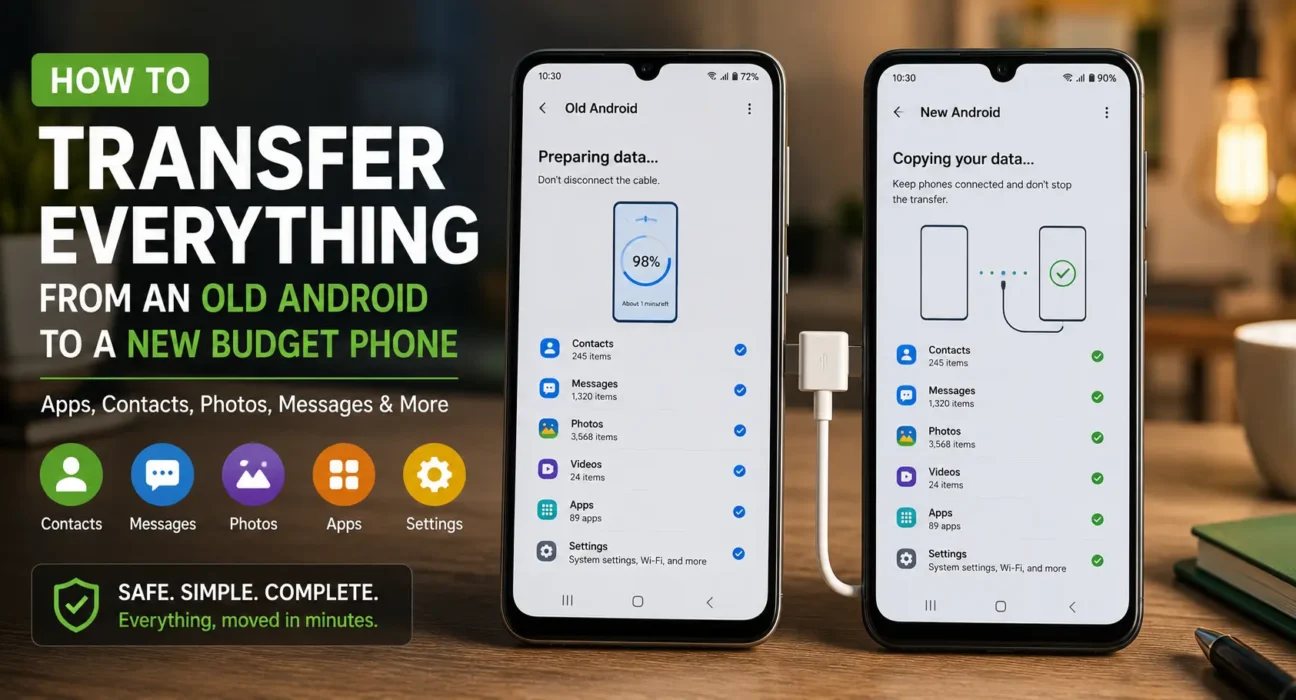
Unboxing a new budget smartphone is exciting, but configuring your accounts, apps, and media from scratch can be frustrating. Modern Android OS includes streamlined device-to-device migration protocols that make migrating seamless. Whether you are upgrading between budget devices or switching from iOS, this transfer data to new android phone guide walks you through moving your contacts, photos, call logs, and app data in a single sitting.
Pre-Transfer Checklist: Preparing Your Old Device
Before you set up new android phone hardware, complete these steps on your existing device to avoid interrupted connections or missing files:
- Charge Both Devices to at Least 60%: Wireless peer-to-peer transfers and large file extractions consume significant battery.
- Update Systems and Core Apps: Ensure Google Play Services, Google Drive, and your messaging apps (such as WhatsApp) are updated on your old phone.
- Trigger a Manual Google Cloud Backup: Go to Settings > Google > Backup on your old phone and tap Back up now as a safety fallback.
- Prepare an Uncluttered Cable Connection: A physical USB-C to USB-C cable offers the fastest and most stable protocol to move data old phone to new android, though Wi-Fi Direct works wirelessly if a cable is unavailable.
Method 1: Cable or Wireless Direct Transfer (Standard Android Setup)
Google’s built-in Data Restore Tool runs automatically during initial device setup. It is the most reliable cross-brand method when moving between Android phones from different manufacturers (e.g., Motorola to Samsung, or Nokia to Xiaomi).
- Turn on your new phone, select your language, and connect to your home Wi-Fi network.
- On the Copy apps & data screen, tap Next.
- Turn on your old phone, unlock it, and select Next when prompted.
- Connect both phones using a USB-C to USB-C cable (or select No cable? to pair wirelessly via local Wi-Fi Direct).
- Verify the on-screen matching code on both displays.
- Select the content categories you want to copy—including contacts, call history, SMS messages, device settings, photos, videos, and installed apps.
- Tap Copy and allow the background restore process to finish while you complete the initial setup prompts.
Method 2: Manufacturer-Specific Migration Tools
When migrating between devices from the same brand or moving to specialized UI skins, proprietary manufacturer tools often capture extra settings (such as home screen layouts, Wi-Fi passwords, and custom alarms) that standard Android backups miss.
- Samsung Smart Switch: Pre-installed on Samsung Galaxy devices. It transfers call logs, Secure Folder structures, layout settings, and media files via Wi-Fi Direct or cable.
- Xiaomi / Redmi / POCO (Mi Mover): Scans a local QR code to establish a high-speed Wi-Fi hotspot for moving system apps, wallpapers, and app data between Xiaomi devices.
- OPPO / Realme / OnePlus (Clone Phone): Clones complete system settings, app caches, and media folders across ColorOS and Realme UI devices.
If your new budget phone uses one of these brand interfaces, download its corresponding migration tool from the Google Play Store on your old phone before initiating the transfer.
Method 3: Transferring from iPhone Using the Android Switch App
If you are transitioning from iOS to Android, Google provides a dedicated utility to bridge the platform gap:
- Download the official Android Switch app (formerly listed as Switch to Android) from the Apple App Store on your iPhone.
- Power on your new Android phone and select Transfer from iPhone or iPad on the setup screen.
- Scan the QR code displayed on your new Android device using your iPhone camera to link both phones via a encrypted Wi-Fi connection.
- Follow the prompts to transfer photos to new phone storage, along with contacts, calendar events, and videos.
- Disable iMessage: Turn off iMessage in Settings > Messages on your iPhone so SMS and RCS text messages route to your new Android device without dropping.
Method 4: How to Transfer WhatsApp Chats via QR Code
WhatsApp does not automatically restore chat history via standard Google backups during device setup unless you configure its independent transfer engine.
- Keep WhatsApp logged in on your old phone and open Settings > Chats > Transfer chats.
- Tap Start to initialize local Wi-Fi scanning.
- Install WhatsApp on your new phone and register with the same phone number.
- Scan the QR code shown on your new phone using your old phone’s camera.
5. Keep both phones side-by-side with Wi-Fi enabled until the local peer-to-peer transfer completes 100% of your messages and media attachments.
Android Data Transfer Methods Compared
| Method | Connection Type | Best Used For | Key Advantage |
|---|---|---|---|
| Google Data Restore | USB-C Cable or Wi-Fi Direct | Cross-brand Android migration | Native OS integration; copies apps, settings, and SMS |
| OEM Apps (Smart Switch, Mi Mover) | Wi-Fi Direct / Local Hotspot | Same-brand Android migration | Preserves home screen layouts, Wi-Fi keys, and UI settings |
| Android Switch (iOS App) | Wireless / Lightning-to-C | Moving from iPhone to Android | Converts iCloud photos/contacts directly to Google ecosystem |
| WhatsApp Direct QR | Local Wi-Fi Direct | WhatsApp chat history & media | Moves entire chat database without requiring cloud storage |
What Doesn’t Transfer Automatically (And How to Fix It)
- Banking Apps and Two-Factor Authenticators (2FA): Banking applications require fresh device registration and SMS verification for security. Export your security keys manually inside apps like Google Authenticator or Microsoft Authenticator before resetting your old device.
- App Login Sessions: While app binaries move over, security tokens do not. You will need to log back into streaming, social media, and email accounts.
- Local Offline Media Downloads: Offline music playlists (Spotify, YouTube Music) and offline video downloads (Netflix) must be re-downloaded to your new device or stored on an external memory card. Review our guide on how to use a microSD card on budget Android phones for expanded storage options.
What Not to Do
- Do Not Wipe Your Old Phone Immediately: Keep your old device powered on and connected to Wi-Fi for at least 24 hours after setup. Verify all contacts, banking apps, and photo galleries on your new phone before performing a factory reset.
- Do Not Interrupt the Process Mid-Transfer: Disconnecting a USB-C cable or walking out of Wi-Fi range during transfer can leave corrupted app databases on the new phone, requiring a full factory reset to fix.
- Do Not Forget Your SIM/eSIM Transfer: If your carrier uses physical SIM cards, swap the SIM tray before powering on the new phone. For eSIM profiles, initiate the carrier eSIM transfer wizard inside Settings > Network & Internet > SIMs.
FAQ
How to transfer contacts Android to Android effortlessly?
Knowing how to transfer contacts android devices is simple: sign into your Google account on the old phone, confirm Settings > Google > Contacts Sync is enabled, and log into the same Google account on your new device.
Is a cable transfer faster than Wi-Fi transfer?
Yes. Connecting phones directly via a USB-C to USB-C cable achieves significantly faster transfer speeds than wireless connections, making it the ideal choice if you have gigabytes of local photos and videos.
Can I transfer apps from my old phone without downloading them again?
The transfer tool copies app manifest data and installs the corresponding, up-to-date APK versions directly from the Google Play Store onto your new device during background setup.
What should I do if my budget phone runs out of storage during data transfer?
Ensure your target device has sufficient internal storage. If space is tight, uncheck heavy photo/video categories during setup, clear app caches, or read our guide on how to free up system storage on Android.
Final Takeaway
By applying this transfer data to new android phone guide, migrating to a new budget Android device is seamless. Using Google’s native cable setup or dedicated manufacturer apps ensures your photos, contacts, SMS messages, and applications move over securely without data loss.
Once your data is successfully moved, optimize your new phone’s speed by reading our guide on best settings to make a budget Android phone faster or explore our Ultimate Buyer’s Guide to Budget Android Phones in 2026.
Related Guides: Best Settings to Make a Budget Android Phone Faster · How to Safely Expand Storage Using MicroSD on Budget Android Phones · How to Free Up System Storage on Budget Android Phones