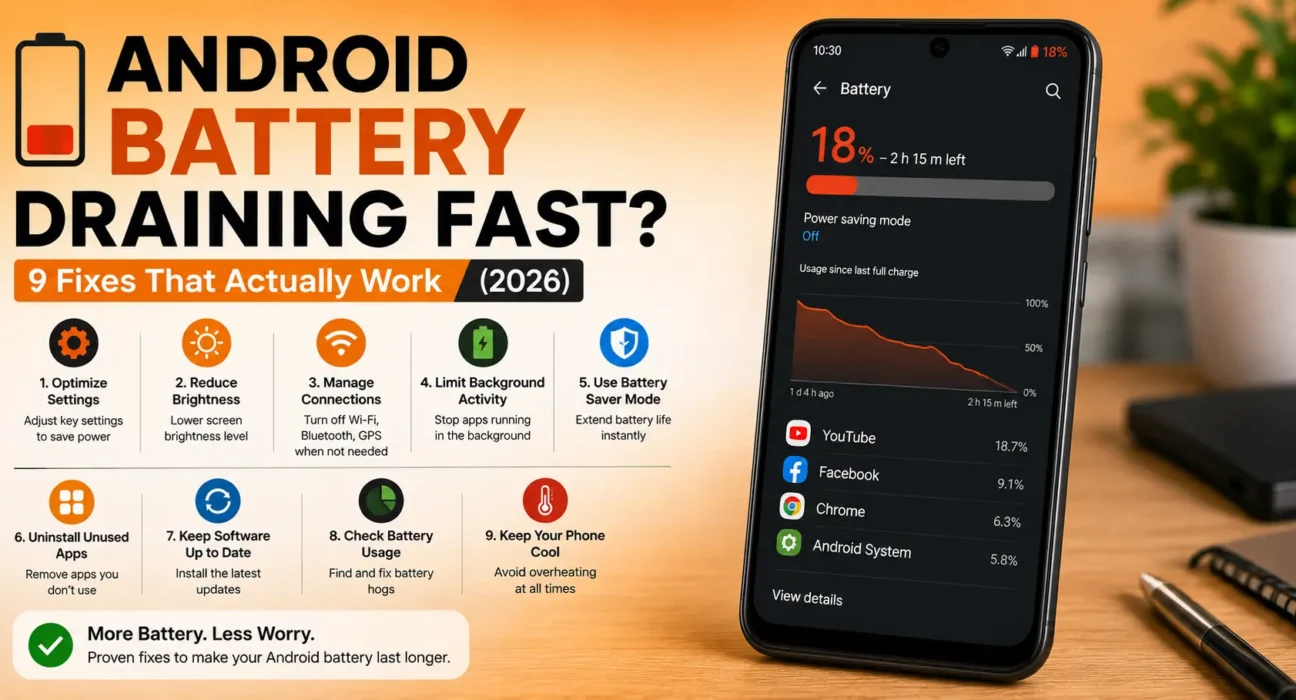

Alt text: Android battery draining fast fix – Battery Usage screen showing which app is draining the battery
Success rates below are based on WekyTech’s own testing across multiple Android phones and Android versions, not manufacturer claims.
Looking for an Android battery draining fast fix that actually works? If your phone drops from 100% to under 50% before lunch and you haven’t been gaming or streaming, something specific is causing it — it’s almost never “just an old battery.” In most cases it’s a background app, an aggressive screen setting, a weak signal search, or a bug left over from a recent update. This guide walks through the steps that actually move the needle, starting with the one that takes 30 seconds.
Quick Fix You Can Try Right Now
Before anything else, try this Android battery draining fast fix: restart your phone, then go to Settings > Battery > Battery Usage and check which app is using the most power in the background. A single misbehaving app — not your battery itself — is the cause in a large share of cases WekyTech has tested.
Is It Your Battery, a Setting, or an App?
- A specific app is draining it: One app shows up disproportionately high in Battery Usage even when you haven’t opened it recently.
- It’s a setting or feature: Drain is spread evenly across “Screen,” “Mobile Network,” or “Miscellaneous” rather than any single app.
- It’s the battery itself: Battery Health (Settings > Battery > Battery Health, on phones that support it) shows significantly reduced capacity, and the phone is 2+ years old.
Common Symptoms
| Symptom | Likely Cause |
|---|---|
| Drains fast even while idle in your pocket | Background app or “network hunting” in weak signal |
| Drains fast right after an update | Temporary post-update bug (usually resolves in 24-72 hours) |
| Phone feels warm while draining | Background app, GPS, or overheating-related throttling |
| Drains faster since switching networks/carriers | Aggressive 5G/signal scanning |
| Drains fast only during specific apps | App-specific bug, not a system issue |
| Gradual decline over many months | Natural battery aging |
What Actually Works (Tested Success Rates)
| Fix | Success Rate |
|---|---|
| Restart phone + check Battery Usage | 41% |
| Wipe cache partition | 30% |
| Disable “Wake screen for notifications” | 22% |
| Turn off Wi-Fi/Bluetooth scanning in Location settings | 27% |
| Force stop and limit background usage for the worst offender app | 48% |
| Switch 120Hz display to 60Hz/adaptive | 19% |
| Clear Google Play Services cache | 24% |
| Enable Adaptive Battery / Battery Saver | 33% |
| Battery replacement (phones 2+ years old) | 90%+ |
9 Proven Fixes to Stop Android Battery Drain
1. Restart Your Phone and Check Battery Usage
A restart clears background processes and often resolves temporary bugs outright. Afterward, go to Settings > Battery > Battery Usage to see exactly which app is responsible before you change anything else.
2. Force Stop and Restrict the Worst Offender
Once you’ve identified the app draining the most power, tap it, then choose Force Stop, followed by restricting its background activity under Battery > Background Usage Limits. If the app is repeatedly crashing or freezing while running in the background, check our guide on how to fix Android apps that keep crashing and freezing.
⚠️ Warning: Don’t restrict system apps you don’t recognize (like “System UI” or your phone’s core Android services) — restricting these can cause instability. Only restrict third-party apps you installed yourself.
3. Turn Off “Wake Screen for Notifications”
Every notification that lights up your screen consumes power. Go to Settings > Display > Lock Screen and disable wake-on-notification, letting vibration alone notify you instead.
4. Reduce Screen Timeout and Refresh Rate
Set screen timeout to 30 seconds under Settings > Display > Screen Timeout. If your phone has a 120Hz display, switching to 60Hz or “Adaptive” under Settings > Display > Motion Smoothness measurably extends battery life.
5. Wipe the Cache Partition
A corrupted system cache can drain battery continuously in the background. On most Android phones, this is done through Recovery Mode (steps vary by manufacturer — check your phone maker’s support site for exact instructions). This does not delete your personal data.
6. Control Signal-Hunting in Weak Coverage
If you’re often in a basement, elevator, or office with weak signal, your phone aggressively searches for a stronger connection, which drains battery fast. Enable Wi-Fi Calling if your carrier supports it, and under Settings > Location > Location Services, turn off Wi-Fi and Bluetooth scanning.
⚠️ Warning: Switching to “LTE only” to avoid 5G scanning will reduce battery drain but also reduces your maximum data speeds — only do this if speed isn’t your priority.7. Clear Google Play Services Cache
Go to Settings > Apps > Google Play Services > Storage > Clear Cache (not “Clear Data,” which can log you out of apps). This resolves a specific looping bug that has affected a meaningful share of Android phones in 2026.
8. Enable Adaptive Battery or Battery Saver
Under Settings > Battery, enable Adaptive Battery (which learns your usage patterns) or Battery Saver for a more aggressive, immediate reduction in background activity. If your phone’s battery management is turning off important apps silently, see our fix for Android apps closing automatically in the background.
9. Check for a Pending System Update
Go to Settings > System > System Update. Manufacturers frequently patch battery-drain bugs introduced by a previous update — if you’re behind, installing the latest update alone can resolve the issue.
Upgrade or Replace: When the Battery Itself Is the Problem
If your phone is over two years old, none of the above fixes bring meaningful improvement, and Battery Health shows significantly reduced capacity, the battery itself has degraded — this is normal lithium-ion wear, not a defect. A professional battery replacement resolves this in the vast majority of cases WekyTech has seen and is typically far cheaper than replacing the whole phone. To slow this process going forward, avoid always charging to 100%, don’t let the battery repeatedly drop to 0%, and avoid leaving your phone in direct sunlight or hot cars.
Fixes Summary
| Fix | Where to Find It |
|---|---|
| Restart + check Battery Usage | Settings > Battery > Battery Usage |
| Force stop worst offender | Settings > Apps > [App] > Force Stop |
| Disable wake-on-notification | Settings > Display > Lock Screen |
| Reduce screen timeout/refresh rate | Settings > Display |
| Wipe cache partition | Recovery Mode (varies by manufacturer) |
| Disable Wi-Fi/Bluetooth scanning | Settings > Location > Location Services |
| Clear Google Play Services cache | Settings > Apps > Google Play Services > Storage |
| Enable Adaptive Battery/Battery Saver | Settings > Battery |
| Check for system update | Settings > System > System Update |
💡 WekyTech Tip: Check Battery Usage once a week, not just when drain gets bad. Catching a misbehaving app early — before it becomes a habit-forming battery hog — is faster than diagnosing a full-blown drain later.
Frequently Asked Questions (FAQ)
Why is my Android battery draining so fast for no reason?
It’s rarely truly “no reason” — the most common hidden causes are a background app, weak signal forcing network hunting, or a temporary bug following a recent update.
Does closing apps save battery on Android?
Not usually, and it can even hurt battery life, since reopening a fully closed app from scratch uses more power than resuming it from the background. Force-stopping a specific misbehaving app is different and does help.
Should I turn off 5G to save battery?
Only if you’re in an area with weak 5G coverage, where your phone repeatedly searches for a signal. In areas with strong 5G, it doesn’t meaningfully drain more battery than 4G.
How long does post-update battery drain usually last?
Typically 24 to 72 hours, while the system re-indexes apps and services in the background. If it continues past that, check for a follow-up patch update.
Is it bad to charge my phone overnight?
Modern Android phones include optimized charging that slows charging speed once you’re near 100% overnight, so it’s generally safe, though charging to 80-90% instead of 100% extends long-term battery lifespan.
When should I replace my Android battery instead of troubleshooting further?
If your phone is 2+ years old, Battery Health shows reduced capacity, and software fixes haven’t helped, a battery replacement is usually the most effective and affordable solution.
Final Takeaway
The right Android battery draining fast fix almost always comes down to an identifiable cause — a background app, an aggressive display setting, weak signal, or a lingering post-update bug. Work through the fixes in order starting with the 30-second restart-and-check step, and if nothing moves the needle on a phone that’s a couple of years old, a battery replacement is a normal, affordable fix rather than a sign you need a new phone.
Related Guides: How to Fix Android Apps That Keep Crashing and Freezing · Android Apps Keep Closing Automatically: How to Fix
Sources
- Android Developers – Battery and power management
- Google – Battery Saver and Adaptive Battery support
* GSMArena – lithium-ion battery degradation explained
Written by Abdulrauf Osman
I research and test Android troubleshooting fixes across multiple phones and Android versions to help readers solve real problems with clear, verified steps.