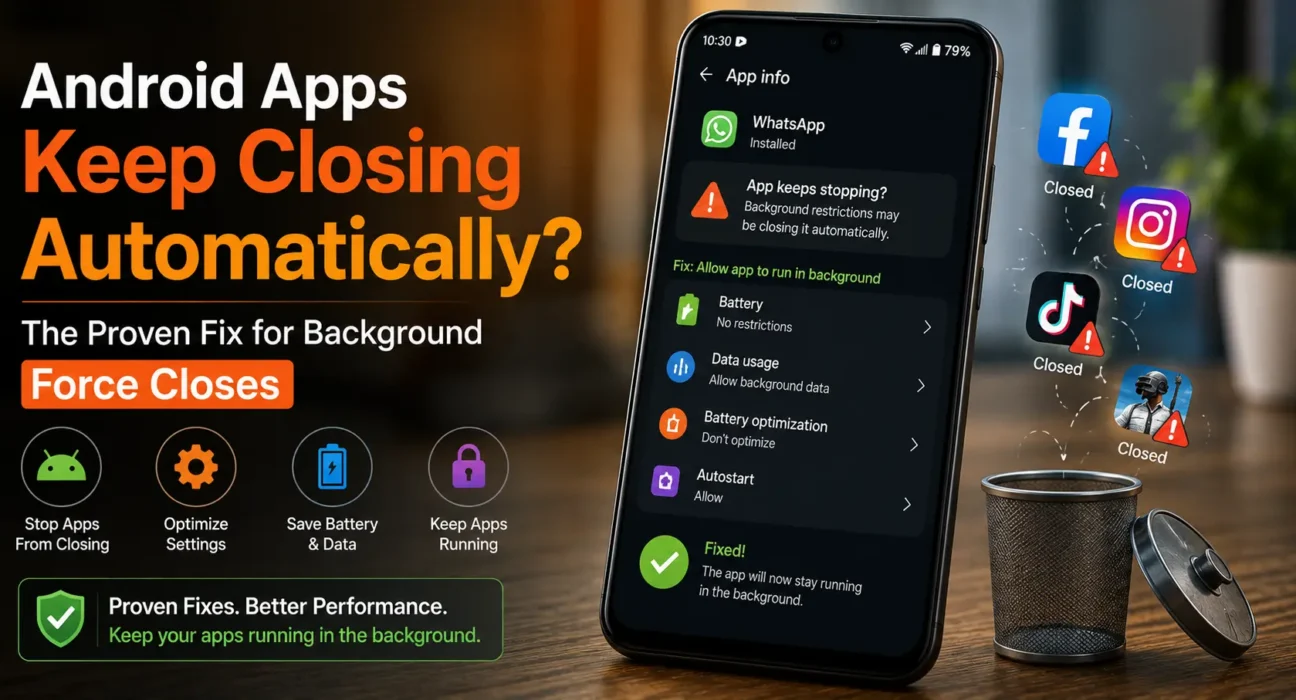
If your android apps keep closing automatically, learning how to fix background force closes starts with understanding why it happens. When an app closes the moment you switch away from it — no error message, no crash log, just gone the next time you open it — that’s not the same problem as an app crashing. This is almost always aggressive battery optimization silently force-closing the app in the background, a behavior that manufacturer skins like Samsung’s One UI and Xiaomi’s MIUI apply far more aggressively than stock Android.
Quick Summary: Cause and Fix
| Symptom | Likely Cause | Fix |
|---|---|---|
| App closes silently when you switch away | Manufacturer battery optimization | Exclude the app from battery optimization |
| Notifications from the app arrive late or not at all | App put to “sleep” in the background | Set the app to “unrestricted” or “no restrictions” |
| Only happens on certain apps, not all | App-specific power management setting | Check per-app battery settings individually |
| Started after a recent update | New default optimization policy applied | Re-check settings after every major OS update |
Android Apps Keep Closing Automatically: How to Fix Step-by-Step
Step 1: Exclude the App From Battery Optimization
- Go to Settings > Apps > [App Name] > Battery.
- Look for Battery optimization, Background restriction, or Power saving (naming varies by manufacturer).
- Choose Don’t optimize, Unrestricted, or Allow background activity.
⚠️ Warning: Removing battery optimization for an app means it can run more freely in the background, which will use somewhat more battery. Only do this for apps you actually need to stay active — messaging apps, alarms, or fitness trackers — not every app on your phone.
Technical Deep Dive: Why Manufacturer Skins Kill Apps More Than Stock Android
Stock Android’s memory management generally pauses background apps gracefully, keeping them ready to resume instantly. Manufacturer skins like One UI and MIUI layer their own, more aggressive battery management on top of this — often maintaining a separate “sleeping apps” or “deep sleep” list that force-closes apps entirely after a period of inactivity, specifically to advertise longer battery life in benchmarks. This is why the exact same app can behave differently on a Samsung phone versus a Pixel running closer-to-stock Android.
Step 2: Check the Manufacturer-Specific Battery Menu
Beyond the standard per-app setting, most manufacturer skins have an additional, separate battery management screen:
- Samsung (One UI): Settings > Battery and device care > Battery > Background usage limits > check “Sleeping apps” and “Deep sleeping apps” lists, and remove the app if it’s there.
- Xiaomi (MIUI/HyperOS): Settings > Apps > Manage apps > [App] > Battery saver > set to “No restrictions”.
- Other manufacturers: Search “[your phone brand] battery optimization list” to find the equivalent menu.
Step 3: Lock the App in Recent Apps (If Supported)
Many phones let you “lock” an app from the Recent Apps screen (usually by long-pressing the app’s icon or tapping a lock icon) to prevent it from being cleared when you swipe away other apps. This adds another layer of protection specifically against manual or automatic clearing from the recents screen.
Step 4: Update to the Latest Software Version
Manufacturers occasionally adjust default battery optimization behavior in software updates, sometimes making it more aggressive by default. Check Settings > System > System Update, and if the issue started right after an update, re-check your battery settings, since they may have reset.
For a deeper technical reference on how Android’s background process limits work at the system level, see Google’s own Android developer documentation on background execution limits.When It’s Not Battery Optimization
If your android apps keep closing automatically and learning how to fix battery settings didn’t resolve it, the cause may be closer to general instability rather than power management — our technical breakdown of 10 causes covers other possibilities like low RAM or corrupted cache.
Frequently Asked Questions (FAQ)
Why do my apps close by themselves with no error message?
This is almost always battery optimization silently force-closing the app in the background, rather than an actual crash — manufacturer skins like One UI and MIUI are more aggressive about this than stock Android.
Will excluding an app from battery optimization drain my battery faster?
Slightly, since the app can run more freely in the background, but the difference is usually small for a single important app — reserve this for apps you genuinely need to stay active.
Is this the same issue as an app crashing?
No — a crash typically involves an error or unexpected close during active use, while this issue is specifically about apps being closed while backgrounded, with no error at all.
Final Takeaway
When android apps keep closing automatically, knowing how to fix aggressive battery management solves the problem in the vast majority of cases. Excluding the specific apps you need running from your phone’s battery optimization — both the standard Android setting and any manufacturer-specific battery menu — prevents unwanted background closures.
If the issue persists after taking these steps, our technical causes guide covers what else might be going on. For the complete picture of Android troubleshooting, see our full Android Performance & App Troubleshooting Guide.
Related Guides: How to Fix Android Apps That Keep Crashing and Freezing · Why Do Android Apps Keep Crashing? · How to Fix “App Keeps Stopping” Pop-Up Error