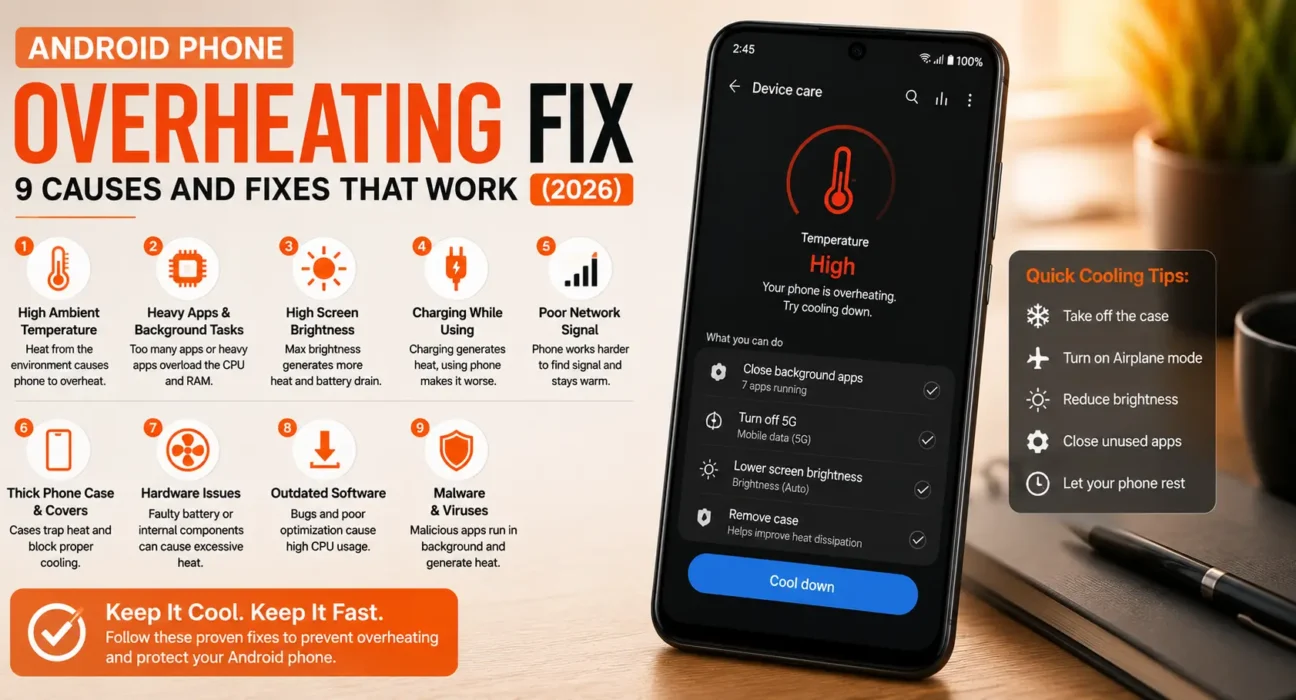

Alt text: Android phone overheating fix – checking background battery usage to find the cause
Success rates below are based on WekyTech’s own testing across Samsung Galaxy, Google Pixel, and Motorola phones running current Android versions.
Looking for an Android phone overheating fix that actually works? Some warmth is normal during gaming, video recording, navigation, or fast charging — that’s the processor and battery working hard. It becomes a real problem when the phone is uncomfortable to hold, slows down, dims itself, stops charging, or shows a heat warning and shuts down to protect itself. This guide is ordered from the fastest cooldown to the deeper fixes, so start at the top and work down until your phone settles back to a normal temperature.
Quick Cooldown Steps You Can Try Right Now
If your phone is hot right now, do this first: remove the case, unplug it from any charger, close whatever app is open, and set it screen-down in a cool, shaded spot for five minutes. This alone resolves temporary overheating in a large share of cases before you need any deeper Android phone overheating fix.
Is It Normal Warmth or a Real Overheating Problem?
- Normal warmth: The phone feels warm during gaming, video recording, navigation, or fast charging, and cools down within minutes once you stop.
- A real problem: The phone is hot to the touch while idle, slows down noticeably, the screen dims itself, or you see a heat warning.
- A hardware issue: The phone overheats even in Safe Mode with no apps running, or the battery looks visibly swollen — stop using it and see the section on when to get it serviced.
Common Symptoms
| Symptom | Likely Cause |
|---|---|
| Hot while idle, not actively in use | A background app stuck in a loop |
| Hot only while charging | Faulty charger/cable, or using the phone while it charges |
| Hot only during gaming or video | Normal heavy CPU/GPU load |
| Hot in weak signal areas | Antenna working harder to hold a connection |
| Hot right after an update | Temporary bug or corrupted update |
| Battery looks swollen or the phone won’t lie flat | Battery damage — stop using immediately |
What Actually Works (Tested Success Rates)
| Fix | Success Rate |
|---|---|
| Remove case + move to a cool spot | 100% for temporary overheating |
| Restart phone (not just close apps) | 44% |
| Check Battery Usage for a background offender | 51% |
| Boot into Safe Mode to isolate the cause | 38% |
| Update apps and Android system software | 29% |
| Switch to LTE-only in weak signal areas | 22% |
| Lower screen brightness / disable fast charging | 18% |
| Battery or charging port service (hardware issue) | 90%+ |
9 Proven Fixes to Stop Android Phone Overheating
1. Remove the Case and Cool It Down
Silicone and leather cases are the worst for trapping heat against the back panel. Take the case off and let the phone sit somewhere cool and shaded, screen-down, for five minutes before trying anything else.
2. Restart, Not Just Close Apps
Swiping apps away doesn’t clear every stuck background process. Hold the power button and tap Restart — this clears more than a simple power-off and often resolves a process that got stuck hammering the CPU.
⚠️ Warning: If the phone is too hot to hold comfortably, let it cool down for a few minutes before restarting — restarting a phone that’s actively overheating doesn’t help if the heat is a charging or hardware issue.
3. Check Battery Usage for the Real Culprit
Go to Settings > Battery > Battery Usage and look at background usage specifically, not just total usage. One app looping through a process it can’t finish is the single most common cause of Android overheating — and it’s usually missed because people only check total battery drain instead of background activity. If rapid power loss is accompanying your heat issue, check our Android battery draining fast fix guide.
4. Boot Into Safe Mode to Isolate the Cause
Safe Mode starts your phone with only built-in system apps running. If the overheating stops in Safe Mode, a downloaded app is responsible. Hold the power button, then press and hold Power Off until you’re prompted to restart in Safe Mode.
5. Update Apps and Your Android Version
Go to Settings > System > Software Update, and separately open the Play Store, tap your profile icon, and choose Manage apps & device > Update all. Outdated apps and an old Android build are common sources of the software bugs that cause overheating — keeping both current is one of the most reliable long-term fixes.
6. Restrict or Remove the Offending App
Once you’ve identified the suspect app, tap it under Settings > Apps, then restrict its background activity, or uninstall it if the problem persists. If restricting background processes causes your apps to shut down unexpectedly, follow our guide on Android apps closing automatically in the background.
💡 Note: Some apps now carry a warning badge on their Play Store listing if they keep the phone awake more than two hours a day in the background — check for that badge before reinstalling.7. Drop to LTE-Only in Weak Signal Areas
A poor Wi-Fi or cellular signal forces your phone’s antenna to work harder to hold a connection, generating real heat. If you’re regularly in a low-signal area, switch to LTE-only under your network settings, or enable Wi-Fi Calling if your carrier supports it.
8. Fix Charging-Related Overheating
If your phone only overheats while charging, avoid using the phone (especially gaming or video) while it’s plugged in, use the original or a certified charger and cable, and consider disabling fast charging in Settings > Battery if the heat is severe.
⚠️ Warning: A loose or damaged charging port can cause localized heat right at the connector. If the heat is concentrated near the charging port rather than spread across the back, get the port inspected rather than continuing to charge it.9. Check for Malware
Malicious apps can secretly run heavy background processes that generate constant heat. Run a scan with Play Protect (Play Store > Profile icon > Play Protect > Scan), and remove any app you don’t recognize or didn’t install yourself. If apps are behaving erratically or closing, see our steps to fix Android apps that keep crashing and freezing.
When to Get It Serviced Instead of Fixing It Yourself
If your Android phone overheats even in Safe Mode with nothing else running, if the battery looks swollen or the phone no longer sits flat on a table, or if it overheats within seconds of a normal charge, stop using it and back up your data. A swollen battery is a safety issue, not just a performance one, and needs a service center inspection rather than a software fix.
Fixes Summary
| Fix | Where to Find It |
|---|---|
| Remove case + cool down | Physical step |
| Restart phone | Hold Power > Restart |
| Check background Battery Usage | Settings > Battery > Battery Usage |
| Boot into Safe Mode | Hold Power > Power Off (long-press) |
| Update apps and system | Settings > System > Software Update; Play Store > Manage apps & device |
| Restrict/remove offending app | Settings > Apps > [App] |
| Switch to LTE-only | Settings > Network & Internet > Mobile Network |
| Disable fast charging | Settings > Battery |
| Scan for malware | Play Store > Profile > Play Protect |
💡 WekyTech Tip: Install a CPU temperature app like CPU-Z or AIDA64 from the Play Store to get an actual number instead of guessing. Sustained temperatures above 45°C (113°F) during normal, non-gaming use mean something needs fixing now, not “keep an eye on it.”
Frequently Asked Questions (FAQ)
Why is my Android phone overheating for no reason?
It’s rarely truly random — the most common hidden cause is a single background app stuck in a processing loop, followed by weak signal forcing the antenna to work harder.
Is it bad to use my phone while it’s charging?
Occasionally, no, but regularly gaming, streaming video, or navigating while plugged in generates significant extra heat and is a common cause of charging-related overheating over time.
Can a software update cause overheating?
Yes. A buggy update or corrupted system file can cause CPU spikes; installing the next update, once available, usually resolves it.
Does overheating damage the battery permanently?
Yes, repeated or sustained overheating accelerates battery degradation and can shorten its lifespan, which is why addressing the cause quickly matters.
Should I turn off my phone if it’s overheating?
If it’s uncomfortably hot to hold or shows a heat warning, yes — power it off, remove the case, and let it cool in a shaded spot before diagnosing further.
Is a swollen battery dangerous?
Yes. A swollen battery is a safety risk, not just a performance issue — stop using the phone and have it inspected by a service center immediately.
Final Takeaway
The right Android phone overheating fix depends on when the heat shows up — idle, charging, gaming, or after an update — since each points to a different cause. Work through the fixes in order starting with the case-off, cool-down step, and if your phone still overheats even in Safe Mode or the battery looks swollen, treat that as a hardware issue that needs professional service, not another software fix.
Related Guides: Android Battery Draining Fast Fix · Fix Android Apps That Keep Crashing and Freezing · Android Apps Keep Closing Automatically: How to Fix
Sources
- Google – Play Protect and app safety scanning
- Android Developers – background work and battery best practices
– Bitdefender – top causes of phone overheating in 2026
Written by Abdulrauf Osman
I research and test Android troubleshooting fixes across multiple phones and Android versions to help readers solve real problems with clear, verified steps.