
Alt text: Android phone running slow fix – Developer Options animation scale settings
Results below are based on WekyTech’s own testing across Samsung Galaxy, Google Pixel, and Motorola phones running current Android versions.
Looking for an Android phone running slow fix that actually works? Apps take forever to launch, scrolling stutters, the camera needs a few seconds to open, and even typing starts to feel laggy — but a slow Android phone is rarely a hardware problem. In most cases, the cause is fixable through your settings in 10-15 minutes, no new phone required. This guide walks through the fixes in order, from the fastest checks to deeper cleanup steps.
Try Quick Android Phone Running Slow Fix First
Before touching storage, animation settings, or anything in Developer Options, do this first: perform a full restart from the power menu (do not just lock the screen and wake it up). A fresh reboot clears temporary app hangs and resets background processes that have piled up, often restoring noticeable responsiveness within a single boot cycle.
Is It Storage, RAM, a Bad App, or Overheating?
- Storage pressure: Storage capacity is above 90% full — write performance on internal memory chips drops significantly when buffer space is low.
- RAM starvation: The phone slows down specifically when switching between apps, forcing background processes to reload from scratch.
- A specific bad app: System performance is fluid until one specific application opens, dragging down total device speed.
- Overheating: The device becomes warm to the touch and throttles performance during gaming, GPS navigation, or direct sun exposure.
Common Symptoms
| Symptom | Likely Cause |
|---|---|
| Slow right after a system update | Temporary background re-indexing (usually resolves within a few hours to days) |
| Apps reload from scratch when switching | Low RAM availability or excessive background apps |
| Slow only when storage is nearly full | Reduced storage write speed due to low free capacity |
| Slow and warm to the touch | Thermal throttling designed to protect internal hardware |
| Slow only in one specific app | Application-specific bug or memory leak |
| Gradual slowdown over many months | Accumulated system cache, bloatware, and memory leaks |
What Actually Works (Tested Results)
| Fix | Effectiveness |
|---|---|
| Full restart | Noticeable improvement in most cases |
| Clear cache for top apps | Moderate, especially on devices with 6GB RAM or less |
| Free up storage below 90% | High when storage capacity was the primary bottleneck |
| Update apps and system software | Moderate to high |
| Switch to the stock launcher | High if currently utilizing heavy third-party launchers |
| Limit background activity for non-essential apps | Moderate, most noticeable on 4-6GB RAM devices |
| Reduce animation speed (Developer Options) | High for perceived speed and UI responsiveness |
| Uninstall/disable unused pre-installed apps | Moderate |
| Factory reset (last resort) | Very high; erases local device data |
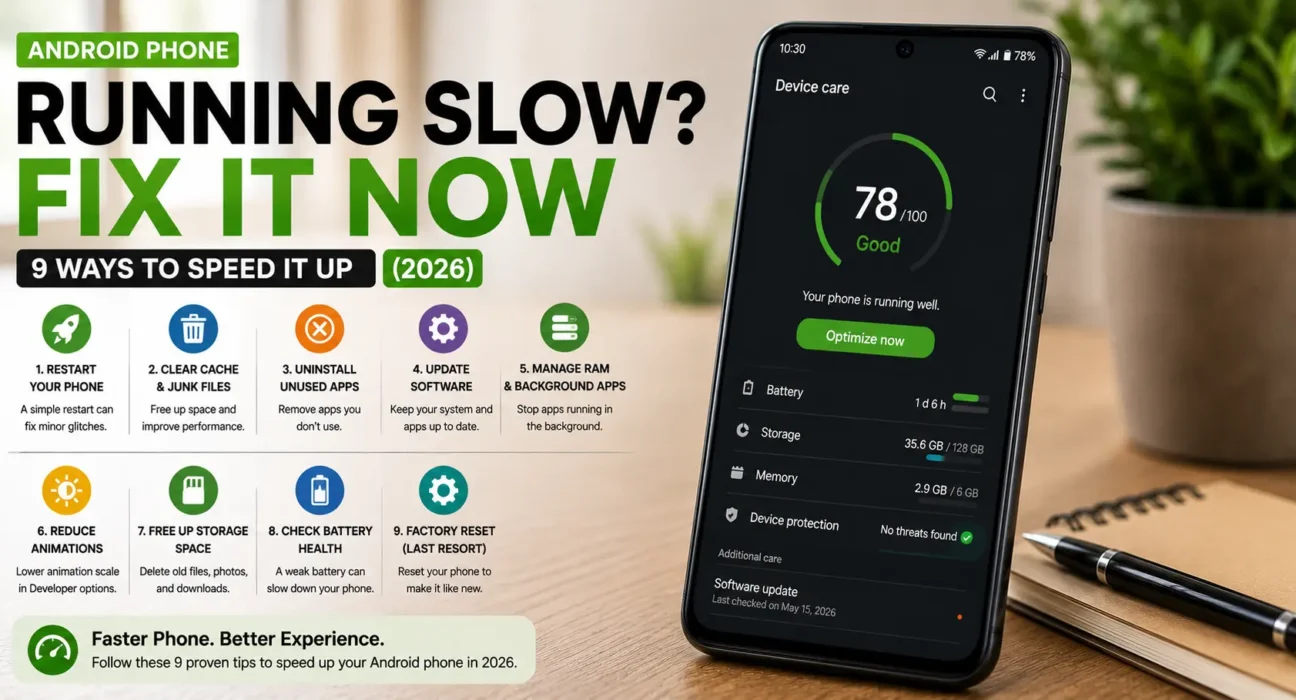
9 Proven Ways to Speed Up Your Android Phone
1. Restart the Phone
A complete restart clears temporary memory bottlenecks, resets runaway background tasks, and allows Android’s memory manager to re-allocate system RAM. If your device has remained powered on for several consecutive days, a reboot delivers immediate responsiveness gains.
2. Clear Cache for Your Most-Used Apps
Navigate to Settings > Apps, select resource-heavy applications, tap Storage, and choose Clear Cache. This targets sluggish software performance without clearing stored personal data. If specific applications freeze completely or crash, review our dedicated guide to fix Android apps that keep crashing and freezing.
⚠️ Warning: Select “Clear cache” rather than “Clear data.” Clearing data resets the application to its original installation state and logs out your account, while clearing cache only removes temporary operational files.
3. Free Up Storage Space
Android requires operational buffer space to manage application caches, process temporary files, and execute background tasks. When internal storage capacity exceeds 90%, read and write speeds degrade noticeably. Visit Settings > Storage to offload unused files. For a comprehensive walkthrough on clearing system clutter, follow our Android phone storage full fix guide.
4. Update Apps and System Software
While system updates occasionally trigger brief background re-indexing, running outdated software degrades performance over time. Developers routinely issue patches to optimize RAM usage and execution efficiency. Check for pending updates under Play Store > Profile Icon > Manage apps & device, and verify system builds under Settings > System > System Update.
5. Switch to the Stock Launcher
Third-party launchers offer extensive visual customization, but heavy icon packs and custom widgets can consume significant background RAM. If overall navigation feels laggy, revert to your device’s default system launcher under Settings > Apps > Default Apps > Home App.
6. Limit Background Activity for Non-Essential Apps
Navigate to Settings > Apps > [App Name] > Battery and apply background execution restrictions to non-critical applications. Avoid restricting core communication apps, calendar alarms, or banking tools to prevent delayed notifications.
7. Reduce Animation Speed in Developer Options
You can accelerate interface feedback by adjusting system animation scales:
- Enable Developer Options via Settings > About Phone and tap Build Number seven times.
- Navigate to Settings > System > Developer Options.
- Locate Window animation scale, Transition animation scale, and Animator duration scale.
- Adjust all three scales from
1xdown to0.5x(orOff).
While this does not increase raw CPU execution speed, it cuts UI transition delays in half, making the interface feel significantly snappier.8. Disable Unused Pre-Installed Apps (Bloatware)
Carrier-branded and pre-installed manufacturer apps often run background services. If an application cannot be uninstalled outright, select Disable under Settings > Apps > [App Name]. Disabling prevents the app from running background processes or consuming RAM.
9. Resolve Overheating and Thermal Throttling
System processors automatically reduce clock speeds when internal temperatures spike to prevent hardware damage. If your phone slows down specifically during heavy usage, direct sunlight exposure, or gaming, refer to our Android phone overheating fix guide to cool the internal components properly.
When a Factory Reset Makes Sense
If system performance remains severely degraded after applying all standard troubleshooting steps, a factory reset eliminates deep software corruption, legacy configuration bottlenecks, and hidden cache buildup.
Prior to resetting: verify that photos, contacts, and media are safely synced to cloud storage. Execute the reset via Settings > System > Reset Options > Erase All Data (Factory Reset).Fixes Summary
| Fix | Where to Find It |
|---|---|
| Restart the phone | Power menu > Restart |
| Clear app cache | Settings > Apps > [App] > Storage > Clear cache |
| Free up storage | Settings > Storage > Free up space |
| Update apps and system | Play Store > Manage apps & device; Settings > System Update |
| Switch to stock launcher | Settings > Apps > Default Apps > Home App |
| Limit background activity | Settings > Apps > [App] > Battery |
| Reduce animation speed | Settings > System > Developer Options |
| Disable unused apps | Settings > Apps > [App] > Disable |
| Factory reset | Settings > System > Reset Options |
💡 WekyTech Tip: Slow web browsing is easily mistaken for overall hardware slowdown. If page loads drag exclusively within your web browser while system menus remain smooth, clear your browser cache or enable data-saver modes before initiating system-wide cleanup.
Frequently Asked Questions (FAQ)
Why is my Android phone slow all of a sudden?
Sudden slowdowns typically stem from storage capacity exceeding 90%, background re-indexing following a system update, or an isolated application memory leak.
Does clearing app cache delete my account credentials or photos?
No. Clearing cache removes only temporary operational files. Your account logins, saved preferences, and personal media remain entirely intact.
How long does performance lag last after a major system update?
Background index building generally concludes within a few hours to two days depending on total stored data. If sluggishness persists beyond three days, check for minor patch updates.
Does using a custom launcher degrade device performance?
Yes, particularly on hardware equipped with 6GB of RAM or less. Reverting to the stock launcher frees up system memory for active tasks.
What does the Developer Options animation scale tweak accomplish?
It shortens the visual duration of UI transitions. It does not alter CPU benchmarks, but it removes visual delays when opening app folders and switching screens.
Does a slow phone mean I need to upgrade to new hardware?
Not necessarily. The vast majority of performance issues on devices under three years old stem from software clutter, background activity, or full storage rather than hardware degradation.
Final Takeaway
Resolving Android slowdowns relies on addressing storage bottlenecks, restricting background app activity, and optimizing system animation scales. Begin with a simple restart and storage audit before proceeding to advanced settings tweaks, reserving factory resets for persistent system corruption.
Related Guides: Android Phone Storage Full Fix · Android Phone Overheating Fix · Fix Android Apps That Keep Crashing and Freezing
Sources
- Google – Performance optimization guidelines for Android
- Google Chrome Help – Reducing data usage and Lite mode
– GetJar – Fixing a slow Android phone in 2026
Written by Abdulrauf Osman
I research and test Android troubleshooting fixes across multiple phones and Android versions to help readers solve real problems with clear, verified steps.