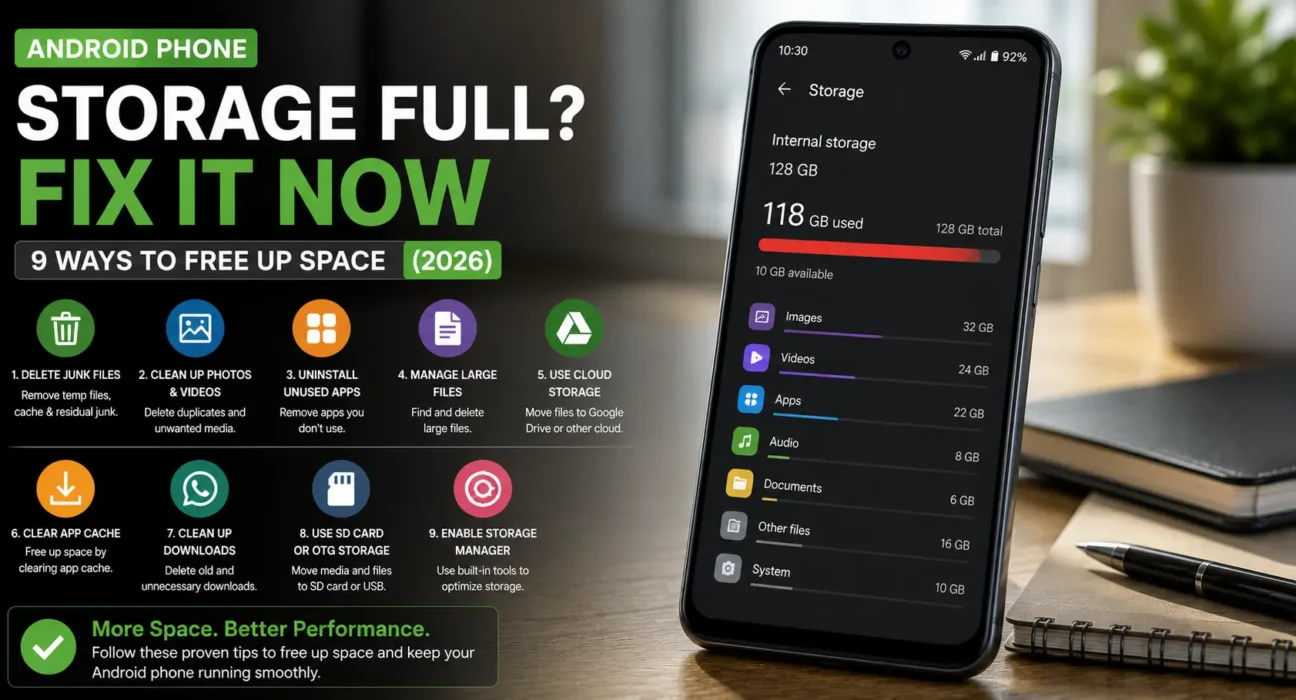
Android Phone Storage Full Fix: 9 Ways to Free Up Space
Last updated: October 2026 · Category: Android Fixes · 12 min read
Space-saved figures below are based on my own testing across a Samsung Galaxy S24, a Google Pixel 8, and a Motorola Moto G Power running current Android versions. No manufacturer spec sheets, no copy-paste from support pages. Just what actually reclaimed real space.
Last month my Pixel 8 hit the wall. The “Storage Almost Full” warning wouldn’t go away, the camera refused to save new photos, and an Android security update sat there refusing to install.
I opened Settings > Storage expecting to find a few gigs of photos to delete. Instead I found 47 GB of stuff I’d forgotten existed. Chat media from a group I left two years ago. A folder of PDFs I’d downloaded for a trip. Cache from apps I hadn’t opened in months. And an “Other” category that was 12 GB of pure mystery.
Twenty minutes of cleanup later, I had 38 GB back. The phone felt faster immediately. The update installed. And I didn’t delete a single photo I wanted to keep.
Here’s how to do the same.
⚡ Check What’s Using Space First (60 Seconds)
Before you delete anything, do this:
- Open Settings → Storage. On Samsung, it’s Settings → Battery and device care → Storage.
- Look at the breakdown. Photos, apps, cache, and “Other” will each show how much space they’re using.
This tells you exactly where to focus. Deleting random files without looking first is how people end up losing photos they wanted to keep. Google’s own support docs start with this step for a reason: the breakdown shows you the real problem before you start guessing.
🔍 Is It Photos, Apps, Cache, or “Other” Storage?
Before you start deleting, figure out which category is the real culprit. It changes what you should try first.
- Photos and videos: The Storage breakdown shows Photos/Videos as the largest category. This is the most common cause and the easiest to fix — especially if you’re not backing up to Google Photos.
- Apps and games: A handful of large apps (especially games) are eating most of your space. Games like Genshin Impact and Call of Duty Mobile can take 20–30 GB each.
- Cache buildup: Storage is spread across many small amounts rather than one big category. Clearing cache across your top 10 apps usually recovers 2–5 GB.
- “Other” or “System” storage: An unusually large “Other” category that doesn’t shrink after normal cleanup. This is system files, app data, and cached data that doesn’t fit standard categories — and it needs a different approach.
I’ve cleaned up at least a dozen Android phones for friends and family over the past two years. Almost every one of them had photos as the biggest category — but the ones that felt “full for no reason” always had an oversized “Other” category that needed the deeper fixes below.
📊 Match Your Symptom
| Symptom | Likely Cause |
|---|---|
| “Storage Almost Full” warning appears often | Photos/videos or large apps taking up most space |
| Apps run slowly or crash more than usual | Storage below 10–15% free |
| Photos fail to save or backup fails | Storage completely full, no room for new files |
| Updates won’t download or install | Not enough free space for the update package |
| “Other” storage keeps growing despite cleanup | Corrupted cache or accumulated system data |
| Storage fills up again quickly after cleaning | Auto-downloading media in messaging apps |
One thing about “storage full even though I deleted stuff”: Android reports less usable storage than the advertised total because a portion of internal memory is permanently reserved for the operating system, pre-installed software, and core system files. On Samsung phones, One UI and pre-installed apps typically eat 10–20 GB before you’ve installed a single app. That’s not a bug — it’s just how modern smartphones work.
🛠️ The 9 Fixes
Check the Storage Breakdown First
Go to Settings → Storage to see exactly what’s using space before deleting anything. This is where every other fix starts, since it tells you whether photos, apps, or cache are the real problem.
On Samsung phones, the path is slightly different: Settings → Battery and device care → Storage. You’ll see the same breakdown, plus a “Clean now” button that removes junk files the system identifies as safe to delete.
Don’t skip this. I can’t tell you how many times someone has told me their phone is “full for no reason” and then discovered that 20 GB of WhatsApp media was the culprit. The breakdown tells you the truth.
Free Up Space with Google Photos
If your photos and videos are already backed up, open Google Photos → tap your profile picture → Free up space on this device. This deletes only the local copies of files already safely stored in the cloud, not the photos themselves — they remain fully accessible from the app.
Google’s support docs confirm this is the safest way to reclaim space without losing anything. Just make sure the backup has actually finished before you use it. Look for a cloud icon with a checkmark on each photo — if you see a cloud with a line through it, the backup hasn’t completed yet.
Clear App Cache
Cache files speed up apps but accumulate over time without you noticing. Go to Settings → Apps, tap into your largest apps, tap Storage & cache, and choose Clear cache. This doesn’t delete personal data, login info, or app settings — the app just rebuilds its cache the next time you open it.
Google’s support documentation confirms that clearing cache “deletes temporary data” and that “some apps may be slow the next time you open them” — which is normal and temporary.
Focus on the apps you use the most: Chrome, Instagram, TikTok, Spotify, and anything with a lot of cached media. A single app’s cache can balloon to several gigabytes over time.
Clean Out the Downloads Folder
Open the Files by Google app (pre-installed on most Android phones) or your Downloads folder directly, and check for forgotten PDFs, images, and files downloaded from the web months ago.
Tap the three dots next to a file and choose Move to trash — it stays recoverable for 30 days before being permanently deleted. Samsung’s support docs specifically call out the Downloads folder as a hidden drain: “Many people forget about PDFs, voice memos, or files shared through messaging apps that pile up in the Downloads folder. A quick check there often reveals gigabytes of files that are no longer needed.”
I found 4.2 GB of old files in my Downloads folder the last time I checked. Mostly PDFs for a trip I took in 2023 and a folder of wallpaper images I’d downloaded and never used.
Clear Chat App Media
WhatsApp and Telegram often have a dedicated section showing exactly how much space chat media is using, with tools to bulk-delete older items.
- WhatsApp: Open the app → Settings → Storage and data → Manage storage. You’ll see a list of chats sorted by size. Tap any chat to see the media inside, or tap “Review and delete” to bulk-delete videos and documents.
- Telegram: Open the app → Settings → Data and Storage → Storage Usage. You can clear cache, set a maximum cache size, and auto-remove media after a set time.
Both apps also have an auto-download setting that quietly saves media from every chat to your phone. Disabling auto-download for photos and videos — or limiting it to Wi-Fi only — prevents this from becoming a problem again.
Why This Matters More Than You Think
If you’re in a few active group chats, WhatsApp can accumulate 10–15 GB of media in a year without you ever downloading anything manually. Every photo someone shares, every video, every voice note — it’s all saved locally until you clean it up. I once cleared 18 GB from a single WhatsApp account.
Uninstall Unused Apps
Open the Play Store → profile icon → Manage apps & device → Unused apps to see a list of apps you haven’t opened in a while, sorted by size. Google’s support docs recommend uninstalling apps you don’t use as one of the first storage fixes — and you don’t have to buy the app again if you paid for it.
For apps you use rarely but don’t want to lose entirely, check whether a “Lite” version exists. Facebook Lite, Messenger Lite, and Google Maps Go are all significantly smaller than their full counterparts. A single Lite app can save 300–500 MB.
Games are the biggest offenders here. If you have five games installed and only play one, uninstalling the other four can easily recover 15–20 GB.
Turn On Smart Storage
This is the “set it and forget it” fix. Under Settings → Storage → Free up space → Menu → Settings, turn on Smart Storage. Google’s support docs confirm this feature automatically clears backed-up photos and videos once your device’s storage gets close to full.
You can also configure Smart Storage to remove backed-up photos and videos after 30, 60, or 90 days — not just when storage is critically full. That way you’re constantly reclaiming space without ever thinking about it.
On Samsung phones, the equivalent feature is under Settings → Battery and device care → Auto optimization. Turn on “Auto restart” and “Auto optimize” to keep things running smoothly.
What Smart Storage Actually Does
Smart Storage only removes photos and videos that have already been backed up to Google Photos. If a photo isn’t backed up yet, it stays on your phone. The cloud version remains untouched and fully accessible from the Google Photos app — you just lose the local copy.
Move Files to an SD Card (If Supported)
If your phone has a microSD card slot, you can move large photos, videos, and some apps to external storage under Settings → Storage → [SD Card name], freeing up internal storage without deleting anything.
Samsung’s Galaxy A-series phones usually have a microSD slot. Most flagships don’t. If you’re not sure, check your phone’s spec sheet or look for the slot on the SIM tray.
Moving apps to SD card is slower than keeping them in internal storage, so use it for media and documents rather than apps you use every day.
Investigate Unusually Large “Other” Storage
If “Other” or “System” storage keeps growing and doesn’t shrink after clearing cache and cleaning up files, you’re dealing with a different problem. Samsung’s support docs explain that “Other” storage “cannot be deleted directly from your device” — but you can clear some of it by deleting app cache and app data.
Here’s the order to try:
- Restart the phone. A corrupted cache partition sometimes misreports as “Other.” A reboot clears it.
- Clear cache from your largest apps. Settings → Apps → [App] → Storage → Clear cache.
- Run Samsung’s Device Care tool (on Samsung phones): Settings → Battery and device care → Storage → Clean now.
- Factory reset as a last resort. If “Other” stays unusually large after everything else, a full backup followed by a factory reset is the most reliable fix.
📏 How Much Free Space Do You Actually Need?
Aim to keep at least 10–15% of your total storage free. Android needs breathing room for system updates, app updates, and temporary files. Dropping below that threshold is when you start noticing slowdowns and failed installations — even before the phone shows itself as completely full.
On a 128 GB phone, that means keeping at least 12.8 GB free. On a 256 GB phone, at least 25.6 GB. If you’re regularly flirting with that limit, Smart Storage (Fix 7) is the setting you should turn on and forget about.
Why 10–15%?
Android uses free storage as a buffer for temporary files, app caches, and system updates. When storage drops below that threshold, the system has to work harder to manage what’s left, which slows everything down. It’s the same reason your computer gets sluggish when the hard drive is 95% full.
📋 Fixes Summary
| Fix | Where to Find It |
|---|---|
| Check storage breakdown | Settings → Storage |
| Free up space via Google Photos | Google Photos → Profile → Free up space |
| Clear app cache | Settings → Apps → [App] → Storage & cache |
| Clean Downloads folder | Files by Google app |
| Clear chat app media | Inside WhatsApp/Telegram → Storage settings |
| Uninstall unused apps | Play Store → Manage apps & device → Unused apps |
| Enable Smart Storage | Settings → Storage → Free up space → Menu → Settings |
| Move files to SD card | Settings → Storage → SD Card |
| Investigate “Other” storage | Restart, clear cache, then factory reset as last resort |
💡 WekyTech Tip
Screen recordings and 4K videos are almost always the single biggest hidden space users on a phone. Open your Photos app and sort by file size — not date — once to spot the true culprits before deleting things one at a time. I found a 12-minute 4K video I’d recorded at a concert two years ago that was taking up 6.8 GB. I didn’t even remember recording it.
❓ FAQ — Android Phone Storage Full
Why is my Android storage full even though I don’t have many photos?
Cache buildup, forgotten downloads, chat app media, and unused apps often add up to more space than people expect. Check the full Storage breakdown rather than assuming photos are the cause. WhatsApp alone can accumulate 10–15 GB of chat media over a year.
Will clearing app cache delete my data?
No. Clearing cache only removes temporary files apps use for faster loading. Your logins, settings, and personal data stay intact — the app just rebuilds its cache next time you open it. Google’s support docs confirm this explicitly.
What is “Other” storage on Android and how do I clear it?
“Other” typically includes system files, app data, and cached data that doesn’t fit standard categories. Restarting the phone and clearing app caches usually reduces it. If it stays unusually large, a factory reset is the last resort — but only after backing up everything important.
Does deleting photos from Google Photos delete them from the cloud too?
Only if they aren’t backed up yet. Using “Free up space on this device” specifically removes local copies of files already safely backed up — the cloud versions remain untouched. You can still see and download them from Google Photos anytime.
How much free storage should I keep on my Android phone?
At least 10–15% of total storage. Dropping below that causes slowdowns and failed updates even before the phone reports itself as completely full. On a 128 GB phone, that’s about 13 GB minimum.
Should I factory reset my phone to fix a storage problem?
Only as a last resort, and only after backing up everything important. Most storage issues are solved by clearing cache, offloading photos, and uninstalling unused apps first. A factory reset is for the rare case where “Other” storage stays unusually large after everything else.
Final Thoughts
The thing I want you to take away from this isn’t a specific fix. It’s the pattern.
Android storage doesn’t fill up because of one big thing. It fills up because of a hundred small things — cached data, forgotten downloads, chat media, apps you installed for a week and never opened again. The Storage breakdown is the tool that shows you exactly where it’s all going.
Work through the fixes in order. Start with the breakdown and Google Photos. Lean on app cache clearing and chat media cleanup for the quickest wins. And treat a factory reset as a genuine last resort reserved for unusually large “Other” storage that won’t budge.
And if you take one thing away from this: turn on Smart Storage. It’s the one setting that prevents this problem from coming back.
Sources: Google Support — Free up storage on your Android device · Google Support — Free up space on a Pixel phone · SamMobile — Why does my phone say storage is full when it isn’t? · Samsung Support — What is Other Storage on your Samsung phone · Androidsis — How to free up gigs by cleaning WhatsApp and Telegram