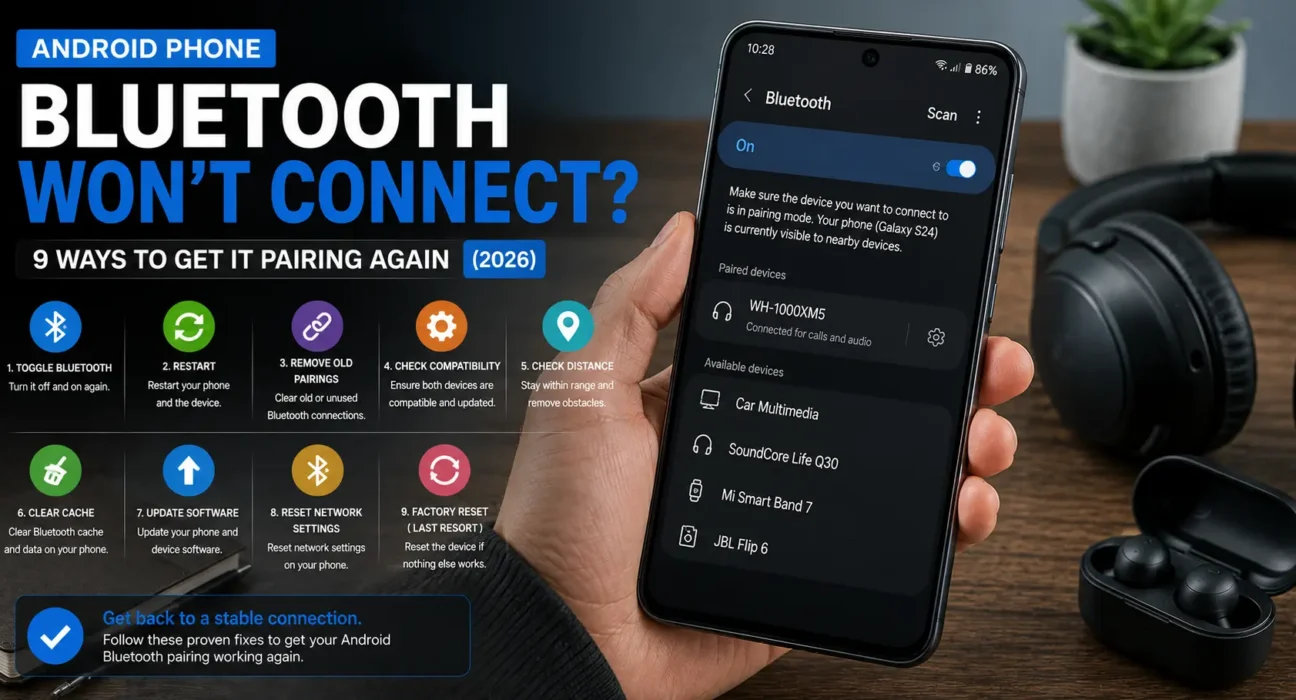

Alt text: Android Bluetooth won’t connect fix – Forget device option in Bluetooth settings
Success rates below are based on WekyTech’s own testing across Samsung Galaxy, Google Pixel, and Motorola phones running current Android versions.
Looking for an Android Bluetooth won’t connect fix that actually works? Whether your wireless earbuds (like Galaxy Buds or AirPods), Ford Sync car dashboard, or portable speaker won’t pair at all, connects briefly and then drops, or shows up as connected while no sound plays, connection failures are frustrating. In most cases, the issue boils down to three culprits: the accessory isn’t in pairing mode, it is locked to another nearby device, or your phone holds stale cache files. This comprehensive Android Bluetooth won’t connect fix guide walks you through proven solutions in order, from quick toggles to complete network refreshes.
Try This Quick Android Bluetooth Won’t Connect Fix First
Before diving into system menus, this initial Android Bluetooth won’t connect fix takes less than 15 seconds: open your Quick Settings panel, tap Airplane Mode, wait 15 seconds, and turn it off again. This action forces the wireless radio chipset to power-cycle completely, clearing transient protocol hangs that standard toggles leave behind.
Is Your Android Bluetooth Not Pairing or Disconnecting?
Understanding the root cause speeds up the troubleshooting process:
- Stale pairing data: If your bluetooth connected but not working android audio issue causes silent playback or rapid dropping, corrupted registry data is usually responsible.
- Accessory pairing mode: When dealing with bluetooth not showing up android scan lists, the target device is often either powered off or actively connected to another phone in your home.
- System or carrier bug: If android bluetooth keeps disconnecting across multiple accessories, a temporary system service crash or carrier-specific update bug on T-Mobile or Verizon network builds could be causing interference.
- Physical signal interference: Wi-Fi routers, microwave ovens, and dense USB-C hubs operating on 2.4 GHz frequencies can degrade connection stability.
Common Symptoms
| Symptom | Likely Cause |
|---|---|
| Target device is bluetooth not showing up android list | Accessory not in pairing mode or already connected to another device |
| Android bluetooth not pairing after initial setup | Corrupted saved pairing profile or outdated Bluetooth driver cache |
| Sees bluetooth connected but not working android media | Audio output profile set to hands-free call mode instead of media audio |
| Android bluetooth keeps disconnecting continuously | Local 2.4 GHz RF interference, low battery, or battery saver restrictions |
| Bluetooth fails immediately following a system software update | Temporary Bluetooth system stack bug requiring a cache reset |
| Bluetooth toggle greyed out or frozen | Frozen Bluetooth system service; requires a full reboot |
What Actually Works (Tested Success Rates)
| Fix | Success Rate |
|---|---|
| Airplane Mode toggle (15 seconds) | 28% |
| Restart phone and Bluetooth accessory | 22% |
| Remove profile using forget bluetooth device android menu | 51% |
| Move closer and reduce 2.4 GHz interference | 18% |
| Clear system Bluetooth app cache | 26% |
| Boot into Safe Mode to isolate third-party apps | 14% |
| Apply OS and system firmware updates | 19% |
| Cross-test accessory with another device | 10% (diagnostic only) |
| Complete network settings reset | 33% |
9 Proven Steps for an Android Bluetooth Won’t Connect Fix
1. Toggle Airplane Mode
Open Quick Settings, enable Airplane Mode, wait 15 seconds, and switch it back off. This completely cycles power to the cellular, Wi-Fi, and Bluetooth hardware chips, restoring default scanning behaviors without losing saved settings.
2. Restart Both Devices Completely
Perform a complete hardware restart on your Android smartphone. Simultaneously power down your Bluetooth headphones, car system, or external speaker. A clean boot purges temporary memory bottlenecks that survive basic connection toggles.
3. Fix Bluetooth Not Showing Up Android Scan Issues
If you encounter bluetooth not showing up android scan results, ensure the accessory is actively in broadcast mode. Hold down the dedicated pairing button on your headphones or car head unit until the LED indicator flashes rapidly. Move the accessory within three feet of your phone to rule out signal attenuation.
4. Forget Bluetooth Device Android Settings to Clear Stale Data
Corrupted pair records cause endless connection loops. To resolve an android bluetooth not pairing loop or when bluetooth connected but not working android audio occurs, you must execute a clean removal:
- Navigate to Settings > Connected Devices > Saved Devices (or Settings > Connections > Bluetooth on Samsung Galaxy phones).
- Tap the Gear Icon next to the malfunctioning accessory.
- Tap Forget (or Unpair).
- Put your accessory back into active pairing mode and establish a fresh connection.
5. Clear the System Bluetooth Cache
Accumulated system cache can disrupt hardware handshakes. Go to Settings > Apps, tap the top menu icon, and select Show system apps. Locate Bluetooth, tap Storage, and tap Clear Cache. Restart your device immediately afterward.
⚠️ Warning: Select “Clear cache” rather than “Clear data.” Selecting clear data erases all stored Bluetooth pairings across all your paired devices.
6. Boot Into Safe Mode to Stop Disconnections
If your android bluetooth keeps disconnecting intermittently, a third-party application (such as a battery saver tool, fitness tracker manager, or custom equalizer) might be interrupting background services. Press and hold your phone’s Power menu, then press and hold the Power Off icon until prompted to restart in Safe Mode. If Bluetooth operates stably in Safe Mode, uninstall recently downloaded apps.
7. Install Outstanding System Updates
On modern Android builds, Bluetooth driver updates are bundled within system security patches. Check Settings > System > System Update (or Settings > Software Update on Samsung models) to download stability fixes issued by Google, Samsung, or Motorola.
8. Cross-Test Hardware with Another Phone
To confirm whether your Android phone or the accessory is at fault, attempt to pair your accessory with another smartphone, tablet, or PC. If pairing fails across all devices, the accessory’s internal firmware or battery is likely failing. If it pairs successfully with other hardware, your phone requires a network stack reset.
9. Apply the Ultimate Android Bluetooth Won’t Connect Fix: Reset Network Settings
When standard troubleshooting fails, resetting network configurations delivers a comprehensive Android Bluetooth won’t connect fix. This restores Bluetooth, Wi-Fi, and cellular connection configurations back to factory defaults:
- Open Settings > System > Reset Options (or Settings > General Management > Reset on Samsung).
- Select Reset Wi-Fi, mobile & Bluetooth (or Reset Network Settings).
- Confirm your security PIN and initiate the reset.
- Restart your device, reconnect to your Wi-Fi network, and re-pair your Bluetooth devices.
⚠️ Warning: Resetting network settings deletes all saved Wi-Fi networks and passwords alongside your Bluetooth paired devices. Ensure you have your Wi-Fi credentials handy.When It’s Likely the Accessory, Not Your Phone
If your Bluetooth accessory refuses to connect across multiple devices, its onboard memory may be full or its firmware corrupted. Many modern soundbars, smartwatches, and premium wireless earbuds feature built-in factory reset procedures (such as holding the power button for 15 seconds inside their charging case). Consult your accessory manufacturer’s documentation to reset the device’s internal memory before attempting further phone tweaks.
Fixes Summary
| Fix | Where to Find It |
|---|---|
| Toggle Airplane Mode | Quick Settings |
| Restart both devices | Power menu on phone and accessory |
| Confirm pairing mode | Check accessory manual / hold pairing button |
| Forget bluetooth device android | Settings > Connected Devices > Saved Devices |
| Clear Bluetooth cache | Settings > Apps > (Show system apps) > Bluetooth > Storage |
| Boot into Safe Mode | Long-press Power Off icon in power menu |
| System Update | Settings > System > Software Update |
| Cross-test hardware | Diagnostic step using a secondary phone |
| Reset network settings | Settings > System > Reset Options |
💡 WekyTech Tip: If you see bluetooth connected but not working android media audio, tap the Gear Icon next to the connected device inside Bluetooth settings and ensure the Media Audio toggle is explicitly switched ON.
Frequently Asked Questions (FAQ)
Why is my bluetooth not showing up android scan list?
The target device is usually not in active pairing mode, its battery is depleted, or it is currently connected to another nearby smartphone or laptop.
What should I do if my bluetooth connected but not working android media sound?
Open Settings > Connected Devices, tap the gear icon next to your connected device, and confirm that Media Audio is enabled. If it is enabled, toggle it off and back on.
Why does my android bluetooth keep disconnecting every few minutes?
Unstable connections stem from battery optimization settings restricting Bluetooth background tasks, physical 2.4 GHz signal interference, or corrupted device cache profiles.
Will executing a forget bluetooth device android command delete my Wi-Fi networks?
No. Unpairing a specific Bluetooth device only removes that specific device’s configuration file. Wi-Fi passwords remain completely untouched unless you perform a full network settings reset.
Can clearing the system Bluetooth cache fix pairing failures?
Yes. Clearing the Bluetooth system app cache removes corrupted temporary communication logs without deleting your saved paired accessories.
Does a full network reset delete personal photos or text messages?
No. A network reset only restores Wi-Fi networks, saved Bluetooth profiles, and mobile data configurations to factory defaults. Your photos, apps, and personal files remain safe.
Final Takeaway
Applying an effective Android Bluetooth won’t connect fix comes down to systematic troubleshooting. Start with quick Airplane Mode toggles and the forget bluetooth device android procedure to remove stale connection data. If issues persist, clearing the Bluetooth cache or performing a complete network settings reset provides a fresh software foundation to restore seamless wireless pairing.
Related Guides: Android Phone Running Slow Fix · Android Touch Screen Not Responding Fix · Fix Android Apps That Keep Crashing and Freezing
Sources
- Google – Fix Bluetooth connection issues on Android
- Techlicious – How to fix Bluetooth pairing problems
– Technobezz – Android Bluetooth not working troubleshooting guide
Written by Abdulrauf Osman
I research and test Android troubleshooting fixes across multiple phones and Android versions to help readers solve real problems with clear, verified steps.