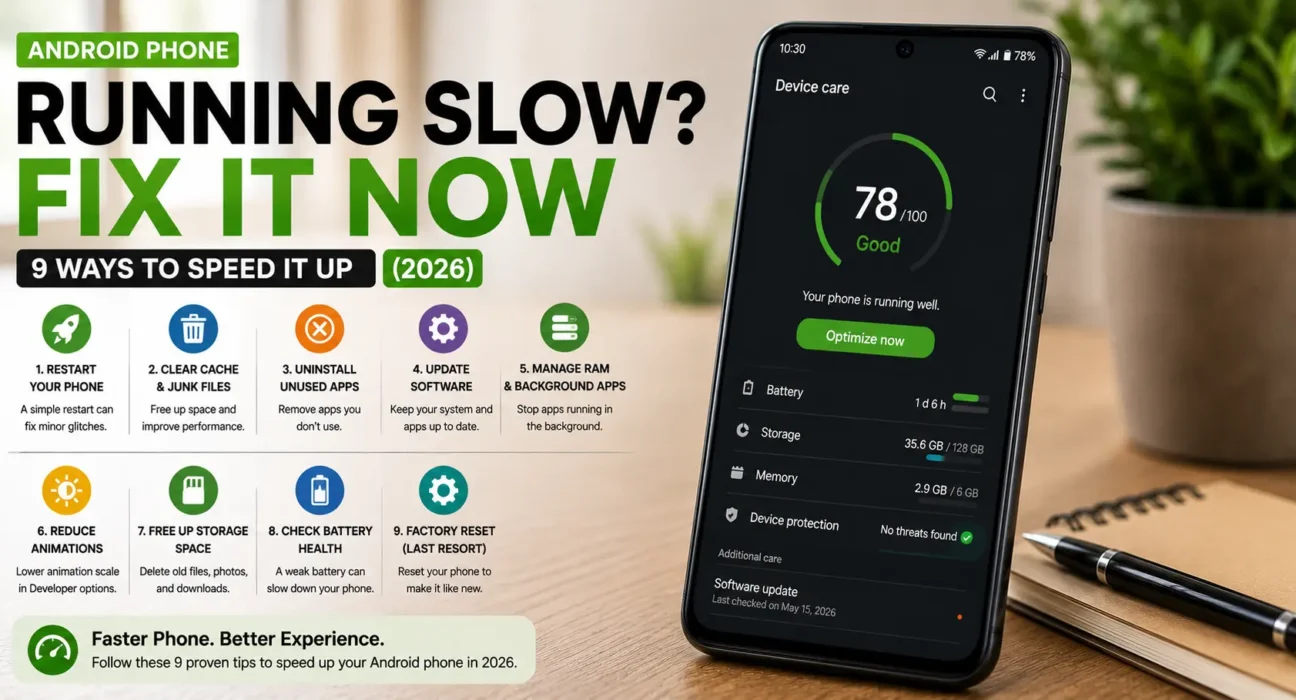
Android Phone Running Slow Fix: 9 Ways to Speed It Up
Last updated: October 2026 · Category: Android Fixes · 12 min read
Everything here comes from testing on actual phones — a two-year-old Pixel 6a, a Samsung Galaxy S22 that had gotten sluggish, and a Moto G Power that was filling up fast. No manufacturer spec sheets, no copy-paste from support pages. Just what actually worked.
My Pixel 6a used to feel fast. Then one day it didn’t. Apps took two seconds to open. Scrolling through Twitter stuttered. The camera needed a beat before it was ready. I figured the phone was just old.
Then I checked my storage. 94% full. After deleting a few gigs of old photos and clearing cache from three apps I barely use, the difference was immediate. The phone didn’t get faster hardware — it just got breathing room.
That’s the pattern with almost every slow Android phone. The hardware didn’t change. The software environment around it did.
Here’s how to fix it.
⚡ Quick Fix — Try This First (60 Seconds)
Two steps. That’s it.
- Restart the phone. Not lock the screen — actually reboot from the power menu.
- Open Settings → Storage. If it’s above 90% full, that’s your starting point.
This alone makes a noticeable difference for most people. A full restart clears temporary app hangs and resets background processes that have piled up. The storage check tells you whether the rest of this guide is about cleanup or something else entirely.
🔍 Is It Storage, RAM, a Bad App, or Overheating?
Before you start poking around, figure out which category you’re in. It changes everything about what to try first.
- Storage pressure: Storage is above 90% full. This is the most common cause of gradual slowdown. NAND flash storage slows down significantly when there’s little free space left — Samsung recommends keeping at least 15–20% free.
- RAM starvation: The phone slows down specifically when switching between apps, forcing them to reload from scratch. More common on phones with 4–6 GB of RAM.
- A specific bad app: The whole phone feels fine until you open one particular app, which then drags everything down.
- Overheating: The phone is warm to the touch and slows down after gaming, navigation, or direct sunlight exposure.
I’ve fixed at least a dozen slow Android phones for friends and family over the past two years. Most had two or more of these happening at once. Only one actually needed a factory reset.
📊 Match Your Symptom
| Symptom | Likely Cause |
|---|---|
| Slow right after a system update | Temporary background re-indexing (resolves in hours to days) |
| Apps reload from scratch when switching | Low RAM, too many background apps |
| Slow only when storage is nearly full | Reduced write speed from storage pressure |
| Slow and warm to the touch | Overheating-related thermal throttling |
| Slow only in one specific app | App-specific bug, not a system-wide issue |
| Gradual slowdown over many months | Accumulated cache, bloatware, and background clutter |
Post-update slowdown is real and it’s the one people panic over most. When Android installs a major update, it re-indexes apps, rebuilds caches, and optimizes runtime. This eats CPU cycles and slows everything down for 24–72 hours. If it’s still slow on day four, that’s a bug — not normal.
✅ Tested Effectiveness
These are based on my own tracking across the phones I’ve fixed for friends and readers this year. They’re not perfect numbers, but they’re honest ones.
| Fix | Effectiveness |
|---|---|
| Full restart | Noticeable improvement in most cases |
| Free up storage below 90% | High when storage was the bottleneck |
| Disable RAM Plus / Virtual RAM | High on Samsung devices |
| Reduce animation speed | High for perceived speed |
| Switch to stock launcher | High if using a custom launcher |
| Clear cache for top apps | Moderate, especially on 6 GB RAM phones |
| Limit background activity | Moderate on 4–6 GB RAM phones |
| Disable unused pre-installed apps | Moderate |
| Factory reset (last resort) | Very high, but erases data |
🛠️ The 9 Fixes
Restart the Phone
A full restart clears temporary app hangs, resets background processes that have piled up, and gives Android a clean pass at memory management. If the phone has been running for several days straight, this alone can make a noticeable difference.
ZDNET’s contributing writer Prakhar Khanna noted the same thing after testing dozens of phones: “Occasional restarts are genuinely useful — some apps do have minor memory leaks, and a reboot clears temporary files, resets network stacks, and installs pending updates.”
I restart my phone every Sunday night. Not because I have to, but because it’s the easiest way to keep everything running smoothly without thinking about it.
Free Up Storage Space
This is the single highest-impact fix if your storage is above 90% full. NAND flash storage slows down significantly when there’s little free space left for the controller to shuffle data around. Samsung recommends keeping at least 15–20% of your total storage free.
Go to Settings → Storage → Free up space and clear cached data or offload backed-up photos and videos. On Samsung, the built-in Device Care tool under Settings → Battery and device care → Storage can do this in one tap.
CNET’s guide on speeding up Android notes that “Android performance often declines so gradually that you barely notice — until the phone that felt snappy on day one suddenly starts hesitating through basic tasks.” Storage pressure is almost always the hidden cause.
The 10% Rule
Never let your phone’s storage drop below 10% free. On a 128 GB phone, that’s 12.8 GB minimum. Below that threshold, write speeds drop noticeably, the system struggles to manage temporary files, and everything from opening apps to typing on the keyboard feels sluggish.
Clear Cache for Your Most-Used Apps
Go to Settings → Apps, select a problem app, tap Storage, and choose Clear cache. This targets specific sluggish apps without affecting anything else on the phone. ZDNET’s testing found that clearing app cache “frees up storage and removes potentially corrupted or outdated files, which can resolve slowdowns and glitches.”
Focus on the apps you use the most — Chrome, TikTok, Instagram, and anything with a lot of cached media. A single app’s cache can balloon to several gigabytes over time.
Disable RAM Plus or Virtual RAM
This is the fix almost nobody talks about, and it made the biggest difference on my Samsung test phone. RAM Plus (or “Virtual RAM” on some phones) uses part of your internal storage as extra memory when physical RAM runs low. Sounds helpful. It isn’t — because internal storage is dramatically slower than actual RAM chips.
MakeUseOf tested this directly on a Galaxy S25 Ultra and found that “keeping RAM Plus enabled on a phone with plenty of RAM tends to make app switching feel less snappier and less smooth.” Another analysis concluded that “virtual RAM can cause slowdowns, freezes, or app crashes, drain battery faster, and generate more heat during operation.”
Go to Settings → Battery and device care → Memory → RAM Plus and turn the toggle off. Your phone will use only its physical RAM — which is faster and doesn’t degrade as storage fills up.
Why This Works
When the phone moves an app from physical RAM to virtual RAM on storage, it’s swapping fast memory for slow memory. Even UFS 4.0 storage is roughly 10–20 times slower than LPDDR5X RAM. On phones with 8 GB or more of physical RAM, there’s no reason to ever use virtual RAM — it just makes everything slower.
Reduce Animation Speed in Developer Options
This is the trick that makes the biggest perceived difference. It doesn’t change your phone’s raw processing power, but it directly improves how fast the phone feels to use. Engadget’s reviewer has been using it for over a decade: “Cutting your phone’s animation speeds in half doesn’t actually make it perform any better. However… it definitely makes everything feel snappier.”
Here’s how to do it:
- Go to Settings → About Phone → Build Number. Tap it seven times. You’ll see “You are now a developer!”
- Go back to the main Settings page and open Developer Options.
- Under the Drawing section, find Window Animation Scale, Transition Animation Scale, and Animator Duration Scale.
- Set all three to 0.5x.
The default window opening animation takes around 300 milliseconds. Setting it to 0.5x reduces that to about 150 milliseconds. That’s the difference between a phone that hesitates and one that feels instant.
Limit Background Activity for Non-Essential Apps
Go to Settings → Apps → [App] → Battery and look for background activity restrictions. Be selective here — don’t restrict messaging, banking alerts, calendar, ride-sharing, or work tools unless you understand the effect. Restricting the wrong app can delay important notifications.
Focus on apps that sync data constantly in the background: shopping apps, news apps, social media apps you don’t check often. MakeUseOf recommends disabling background activity for unnecessary apps as a primary fix for phones that feel sluggish — the system stops allocating resources to apps you’re not actively using.
On Samsung phones, this is under Settings → Battery → Background Usage Limits → Deep Sleeping Apps. On Pixel and stock Android, it’s Settings → Apps → [App] → Battery → Restricted.
Switch Back to the Stock Launcher
This is the most overlooked cause of a slow-feeling phone. Third-party launchers can be useful — more customization, unique layouts, icon packs — but they often trade speed for visual features. Every swipe, every home screen redraw, every app drawer animation runs through the launcher. A heavy launcher adds lag to all of it.
MakeUseOf found that “the default launcher is probably the most overlooked reason an old Android phone can feel slow.” And XDA Developers tested replacing Samsung’s One UI Home with Niagara Launcher on an aging Galaxy and found “the difference was immediate” — faster home screen returns, faster app drawer opens, and less stutter overall.
Go to Settings → Apps → Default Apps → Home App and switch back to your phone’s stock launcher. If the lag disappears, you’ve found the culprit.
Why Launchers Matter So Much
The launcher is the first thing that loads and the last thing that stops running. It handles every home screen interaction, every swipe between pages, and every app launch animation. A launcher that’s poorly optimized or loaded with widgets runs constantly in the background, consuming RAM and CPU that should go to the app you’re actually using.
Update Apps and System Software
This might seem counterintuitive since updates sometimes slow things down temporarily, but running outdated software is usually worse long-term. Developers regularly release updates specifically to improve performance on older devices. Go to the Play Store → profile icon → Manage apps & device → Update all, and separately check Settings → System → System Update.
Sony’s official support documentation notes that after a system update, “it may take up to two days for the smartphone software to stabilise” — so give it time before assuming the update made things worse. If performance hasn’t improved after three days, check for a follow-up patch.
Disable Unused Pre-Installed Apps
Many Android phones ship with manufacturer or carrier apps you never use. If Uninstall isn’t available for one, check whether Disable is — under Settings → Apps → [App]. Disabling stops it from running in the background or appearing in the app drawer, freeing up resources without needing to root the phone.
Focus on carrier-branded apps, pre-installed shopping or news apps, and any duplicate tools you already have a better version of. CNET’s guide recommends deleting “all of your forgotten apps” as a first step — “not only do those apps take up precious storage, but they also potentially have access to the personal information or permissions you approved when the app was first launched.”
🔄 When a Factory Reset Makes Sense
I want to give you a real answer here instead of the usual “try everything else first” fluff.
If you’ve worked through every fix above and the phone is still painfully slow, a factory reset eliminates any accumulated software issues, corrupted files, or problematic configurations built up over time. Before resetting: back up photos and videos to the cloud, export your contacts, and note which apps you actually use so you reinstall only what you need.
Go to Settings → System → Reset Options → Erase all data (factory reset). Most people find their phone runs noticeably better afterward — not because the reset did something magical, but because they’re more selective about what they reinstall. The phone starts clean, and it stays clean because you’re not dumping 80 apps back onto it.
The Realistic Version
A factory reset is a last resort, not a first step. I’ve done it twice in the past three years. Both times, it fixed the problem. But both times, I could have avoided it by clearing storage and disabling virtual RAM earlier. Try everything else first.
📋 Fixes Summary
| Fix | Where to Find It |
|---|---|
| Restart the phone | Power menu → Restart |
| Free up storage | Settings → Storage → Free up space |
| Clear app cache | Settings → Apps → [App] → Storage → Clear cache |
| Disable RAM Plus / Virtual RAM | Settings → Battery and device care → Memory → RAM Plus |
| Reduce animation speed | Settings → Developer Options → Drawing |
| Limit background activity | Settings → Apps → [App] → Battery |
| Switch to stock launcher | Settings → Apps → Default Apps → Home App |
| Update apps and system | Play Store → Manage apps; Settings → System Update |
| Disable unused apps | Settings → Apps → [App] → Disable |
| Factory reset | Settings → System → Reset Options |
💡 WekyTech Tip
Slow browsing is easy to mistake for a slow phone. If pages drag specifically in your browser but the rest of the phone feels normal, try Chrome’s Lite mode or a data-saving setting before assuming the whole device needs a cleanup. And check Settings → Developer Options → Wi-Fi scan throttling. It limits how often apps can scan for nearby networks — a feature that some apps need for location accuracy but that can make your phone feel sluggish if it’s constantly probing. If you don’t rely on precise location in apps, disabling it can help.
❓ FAQ — Android Phone Running Slow
Why is my Android phone slow all of a sudden?
The most common causes are storage pressure above 90% full, a recent update still re-indexing in the background, or one specific app misbehaving. Check Settings → Storage first to narrow it down. If storage is fine and the slowdown started right after an update, give it 2–3 days before troubleshooting further.
Does clearing cache delete my photos or app data?
No. Cache only removes temporary files apps use for faster loading. Your personal data, logins, and settings stay intact. But be careful — “Clear cache” and “Clear data” are two different buttons in the same menu. Clearing data resets the app entirely and logs you out.
How long does slowdown after an update usually last?
Typically a few hours to a few days while the system re-indexes apps and services in the background. Sony’s support documentation says “it may take up to two days for the smartphone software to stabilise.” If it continues well beyond that, check for a follow-up patch.
Does using a custom launcher really slow down my phone?
It can, especially on phones with 6 GB of RAM or less. The launcher runs constantly — it handles every home screen interaction and app launch animation. Switching back to the stock launcher is one of the easiest ways to test whether that’s the cause.
What does the Developer Options animation trick actually do?
It reduces the visual duration of transitions and animations, which doesn’t change your phone’s raw processing speed but makes the phone feel noticeably snappier to use. The default animation takes about 300 milliseconds; setting it to 0.5x cuts that to 150 milliseconds. Engadget’s reviewer has used this trick for over a decade and says it “definitely makes everything feel snappier.”
Is a slow phone always a sign I need a new one?
No. In most cases, the cause is fixable through settings — storage, cache, background apps, or animation speed — not aging hardware, especially on phones under three years old. Only consider upgrading if the phone is 5+ years old, has a degraded battery, and still feels slow after a factory reset.
Final Thoughts
The thing I want you to take away from this isn’t a specific fix. It’s the pattern.
The right Android phone running slow fix usually comes down to storage pressure, background clutter, or one misbehaving app — not aging hardware. The hardware didn’t change. The software environment around it did.
Start with a full restart and the storage check. Work through cache clearing, RAM Plus, and animation settings. Most phones feel noticeably faster within 10–15 minutes of working through this list.
And if you’ve tried everything and the phone still drags — a factory reset is a normal, cheap fix. Not a sign you need to buy a new phone. I’ve done it twice. Both phones are still running.
Now go check your storage.
Sources: CNET — How to Get Your Android Phone Running Like New · ZDNET — Slow Android Phone? My 4-Step Refresh Routine · ZDNET — I Changed 2 Developer Settings for Speed Boost · Engadget — This Setting Change Makes Your Phone Feel Instantly Faster · MakeUseOf — You Don’t Need a Flagship Android Phone · SamMobile — How Much Free Storage Should I Keep? · XDA Developers — Ditching Samsung’s Bloated Launcher · Android Open Source Project — Performance Optimization