Android Screen Flickering Fix: 9 Ways to Stop It (2026)
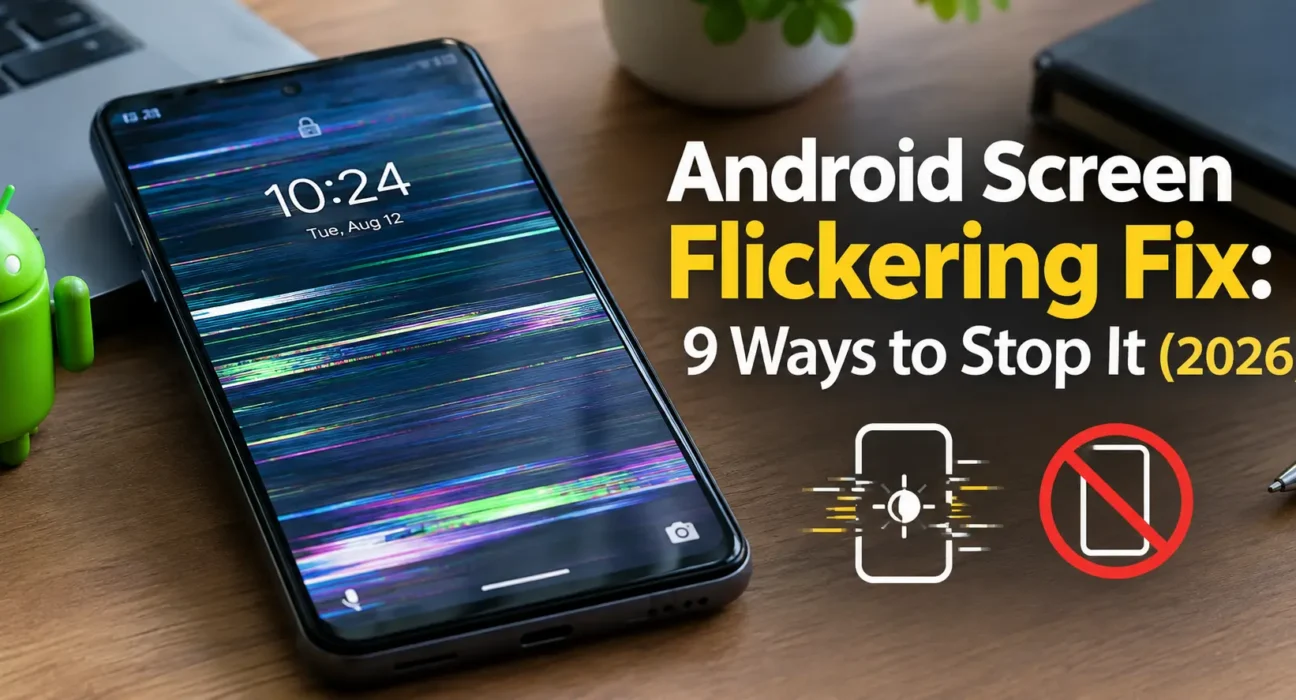
Looking for an Android screen flickering fix that actually works? Whether it’s a subtle pulsing, random flashing, or full-on strobing, most cases trace back to a software setting or a buggy app – not a dying screen. This guide starts with the fastest checks and works toward the point where hardware repair genuinely makes sense.
Success rates below are based on WekyTech’s own testing across Samsung Galaxy, Google Pixel, and Motorola phones running current Android versions.

Is It Software, a Setting, or Physical Hardware?
| Symptom | Likely Cause |
|---|---|
| Flickers more in changing light (indoors to outdoors) | Adaptive Brightness overcorrecting |
| Flickers only while charging | Low-quality cable or charger causing electrical interference |
| Stopped flickering in Safe Mode | A third-party app is the cause |
| Started right after a system update | Software bug from the update, or a GPU rendering conflict |
| Shows green or colored lines along with the flicker | Likely hardware – display panel or connector issue |
| Started right after a drop or water exposure | Physical damage – loose flex cable or damaged panel |
What Actually Works (Tested Success Rates)
| Fix | Success Rate |
|---|---|
| Disable Adaptive Brightness | 34% |
| Restart the phone | 26% |
| Lower the screen refresh rate | 18% |
| Boot into Safe Mode to isolate an app | 29% |
| Disable Blue Light Filter / Night Light | 14% |
| Update Android and apps | 23% |
| Toggle “Disable HW overlays” in Developer Options | 16% |
| Try a different charger and cable | 21% (charging-related flicker only) |
| Battery replacement (when battery health is low) | 60%+ (aging phones with degraded battery) |
The Complete Android Screen Flickering Fix List
1. Disable Adaptive Brightness
Go to Settings > Display > Adaptive Brightness and turn it off, then manually set the brightness level. Rapid ambient-light changes can trigger visible pulsing that looks just like a hardware flicker but is really the sensor overcorrecting.
2. Restart the Phone
A full restart clears temporary software glitches and resets the display driver’s state – often enough on its own to stop an intermittent flicker introduced by a stuck background process.
3. Lower the Screen Refresh Rate
If your phone has a 90Hz or 120Hz display, a rendering conflict between the refresh rate and a specific app can cause visible flickering. Go to Settings > Display > Motion Smoothness and temporarily switch to a lower or “Standard” refresh rate to see if the flicker stops.
4. Boot Into Safe Mode
Safe Mode loads only built-in system apps, which helps confirm whether a third-party app is behind the flicker. Hold the power button, then press and hold Power Off until you’re prompted to restart in Safe Mode. If the flickering disappears there, uninstall your most recently added app once you’re able to.
5. Disable Blue Light Filter or Night Light
Some phones’ blue-light filtering features are known to interact poorly with certain display panels, producing a flicker rather than the intended warm tint. Go to Settings > Display > Night Light (or Blue Light Filter/Eye Comfort Shield, depending on your brand) and turn it off to test.
6. Update Android and Your Apps
Manufacturers actively track display bugs, and both Google and Samsung have acknowledged specific flickering issues tied to particular software builds in recent years. Check Settings > System > Software Update, and separately update your apps through the Play Store > profile icon > Manage apps & device.
7. Toggle “Disable HW Overlays” in Developer Options
This is a more advanced fix for flickering tied to how the phone hands off rendering between the GPU and the display compositor. Enable Developer Options (Settings > About Phone > tap Build Number seven times), then go to Settings > System > Developer Options > Hardware-accelerated rendering and toggle Disable HW overlays on.
8. Test With a Different Charger and Cable
If the flicker only happens while your phone is plugged in, a low-quality or damaged charger or cable is a common cause, sending electrical noise into the phone that visibly disrupts the display. Swap in a different, certified charger and cable and see if the flickering while charging stops.
9. Check Battery Health
A degraded battery can fail to deliver consistent power to the display, causing flickering that looks like a screen problem but is actually a power-delivery issue. Check Settings > Battery > Battery Health on phones that support it – if capacity has dropped below 80%, a battery replacement often resolves flickering without needing a full display replacement.
When It’s Physical Damage
If the flickering is accompanied by green or colored lines, started right after a drop or water exposure, or persists across every fix above including Safe Mode, the cause is very likely a loose flex cable, a failing panel, or digitizer damage. A few manufacturers have also acknowledged specific hardware-related display flaws: Google extended warranty coverage for certain Pixel 8 series display issues to three years, and Samsung has run a “Green Line” free-replacement program for specific Galaxy S-series models that developed lines after a software update. Check your specific model and manufacturer’s support page before paying for a repair – you may already be covered.
Fixes Summary
| Fix | Where to Find It |
|---|---|
| Disable Adaptive Brightness | Settings > Display > Adaptive Brightness |
| Restart the phone | Power menu |
| Lower refresh rate | Settings > Display > Motion Smoothness |
| Boot into Safe Mode | Power off menu (during restart) |
| Disable Night Light / Blue Light Filter | Settings > Display > Night Light |
| Update Android and apps | Settings > System Update; Play Store |
| Disable HW overlays | Settings > System > Developer Options |
| Test different charger/cable | Physical step |
| Check Battery Health | Settings > Battery > Battery Health |
FAQ
Why is my Android screen flickering randomly?
The most common causes are Adaptive Brightness overcorrecting to changing light, a buggy third-party app, or a software glitch following a recent update – not usually a failing display.
Why does my screen only flicker while charging?
This is often caused by a low-quality or damaged charger or cable sending electrical interference into the phone. Test with a different, certified charger and cable.
Does a low battery health cause screen flickering?
Yes, a degraded battery can fail to deliver consistent power to the display. Check Battery Health under Settings > Battery – a battery replacement often resolves flickering tied to reduced capacity.
How do I know if my flickering screen is a software or hardware problem?
If the flickering disappears in Safe Mode, it’s software. If it persists in Safe Mode, is accompanied by colored lines, or started after a drop, it’s very likely hardware.
Is there a free repair program for flickering screens?
Some models qualify. Google extended warranty coverage for certain Pixel 8 series display issues, and Samsung ran a “Green Line” free-replacement program for specific Galaxy S-series models – check your model with the manufacturer before paying for repair.
Does the screen refresh rate affect flickering?
It can. A rendering conflict between a high refresh rate (90Hz/120Hz) and a specific app can trigger flickering – temporarily lowering the refresh rate under Display settings helps confirm this.