
Alt text: Android phone stuck on boot logo fix – Recovery Mode menu used to break a boot loop
Success rates below are based on WekyTech’s own testing across Samsung Galaxy, Google Pixel, and Motorola phones running current Android versions.
Looking for an Android phone stuck on boot logo fix that actually works? Your phone powers on, shows the manufacturer or Android logo, and then either freezes there or restarts over and over without ever reaching the home screen. This is usually called a boot loop, and it looks worse than it actually is — in most cases it’s a software issue, not a dead phone. This guide walks through the fixes in order, from a simple force restart to the more involved recovery steps.
Try This Quick Fix First
Before anything else, remember that the first boot after a factory reset or a major system update genuinely takes longer than normal — give it at least 10-15 minutes before assuming something is wrong. If it’s been longer than that, a force restart is the fastest way to unstick the screen: hold Power + Volume Down together for 10-20 seconds until the screen goes black, then let it try booting again on its own.
Is It a Software Freeze, a Boot Loop, or Hardware?
- Software freeze: The phone shows the logo and simply stops moving — no restart, no animation change.
- Boot loop: The phone shows the logo, restarts itself, shows the logo again, and repeats this cycle continuously.
- Hardware issue: The phone is warm or was recently dropped or exposed to water, or a factory reset in Recovery Mode still doesn’t resolve it.
Common Symptoms
| Symptom | Likely Cause |
|---|---|
| Stuck on logo right after a system update | Interrupted or corrupted update installation |
| Stuck on logo after a factory reset | Normal first-boot delay, or an incomplete reset |
| Restarts repeatedly, never reaches home screen | Boot loop from a corrupted app or system file |
| Vibrates or restarts constantly on its own | Jammed or stuck power button |
| Stuck on logo after rooting or a custom ROM | Incompatible or failed software modification |
| Still stuck after a full factory reset | Likely hardware failure, needs professional repair |
What Actually Works (Tested Success Rates)
| Fix | Success Rate |
|---|---|
| Wait out the normal first-boot delay | 100% when it’s simply a slow first boot |
| Force restart (Power + Volume Down) | 34% |
| Check for a jammed power button | 8% |
| Boot into Safe Mode to isolate the app cause | 21% |
| Wipe cache partition in Recovery Mode | 29% |
| Install a pending manufacturer bug-fix update | 15% |
| Factory reset in Recovery Mode | 62% |
| Professional repair (hardware failure) | 80%+ |
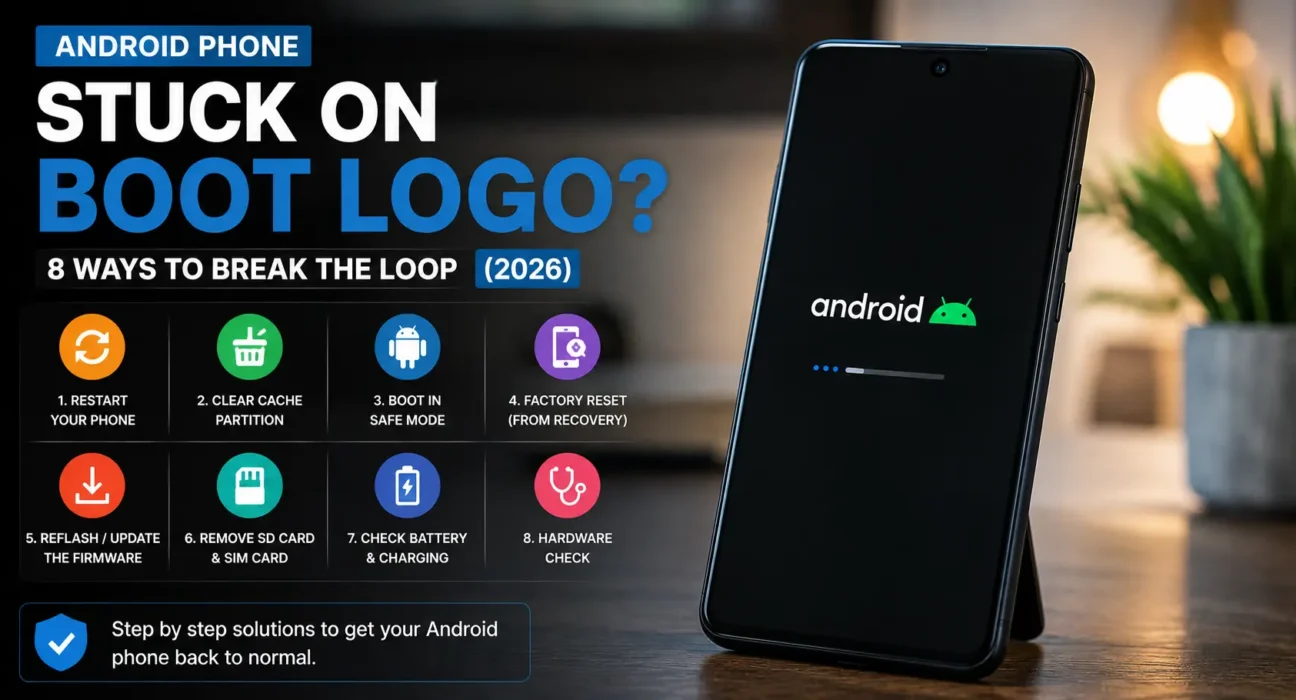
8 Proven Fixes to Break the Boot Loop
1. Rule Out a Normal First-Boot Delay
If the logo appeared right after a factory reset or a major Android version update, wait at least 10-15 minutes before assuming it’s stuck — first boots rebuild app data and can genuinely take that long.
2. Force Restart
A force restart clears a frozen software state without erasing your data. The button combination varies by brand:
- Samsung: Hold Power + Volume Down for about 10-15 seconds.
- Google Pixel: Hold Power + Volume Down for about 20 seconds.
- Motorola / most other Android phones: Hold Power for up to 35 seconds, or Power + Volume Down if that doesn’t work.
3. Check for a Jammed Power Button
If the phone is stuck on the logo but keeps vibrating or restarting every few seconds, check whether the power button is physically stuck or gunked up — a jammed button acts like a constant finger press, which tricks the phone into thinking you’re holding it down to force a restart. Clean around the button, or give it a few firm clicks to free it.
4. Boot Into Safe Mode
If the boot loop started after installing a new app, Safe Mode can help confirm that. On the phone’s power-off menu (accessible during a force restart on many models), press and hold Power Off until you’re prompted to restart in Safe Mode. If the phone boots normally in Safe Mode, uninstall the most recently added app once you’re able to. If app instability persists, check our guide to fix Android apps that keep crashing and freezing.
5. Wipe the Cache Partition in Recovery Mode
This clears temporary system files without touching your personal data. The button combination to enter Recovery Mode varies by brand:
- Samsung: Hold Volume Up + Power together, release both when the logo appears.
- Google Pixel: Hold Power + Volume Down to reach the bootloader, then use Volume buttons to select Recovery Mode.
- Motorola / most other Android phones: Hold Volume Down + Power together.
Once in Recovery Mode, select Wipe cache partition and confirm, then restart.
⚠️ Warning: In Recovery Mode, use the Volume buttons to navigate and Power to select — don’t press Power to scroll, since that can accidentally trigger the wrong option.
6. Check for a Known Manufacturer Bug
Boot loops sometimes trace back to a specific software bug rather than anything you did. Google, for example, shipped a July 2026 update specifically fixing a boot loop affecting Pixel 6 through Pixel 10 phones after an earlier feature update. If your phone can reach Recovery Mode, check Settings > System > Software Update once it boots, or look up your specific model and carrier for a known issue before wiping any data.
7. Factory Reset as a Last Resort
If wiping the cache doesn’t help, a factory reset from Recovery Mode reinstalls Android from scratch and resolves the large majority of remaining software-based boot loops. In the Recovery Mode menu, select Wipe data/factory reset and confirm. This erases everything not backed up to the cloud.
⚠️ Warning: After a factory reset performed from Recovery Mode, Google’s Factory Reset Protection (FRP) will ask for the Google account previously signed into the phone during setup. Make sure you know those credentials before resetting, or you may be locked out entirely.8. Get a Professional Diagnosis
If a full factory reset still leaves the phone stuck on the logo, or the phone is warm, was recently dropped, or was exposed to water, the cause is very likely a failing hardware component, not software. Continued force-restarts and reset attempts won’t fix a hardware issue and can waste time better spent getting a professional opinion.
Fixes Summary
| Fix | Where to Find It |
|---|---|
| Wait out first-boot delay | No action needed, 10-15 min |
| Force restart | Power + Volume Down (varies by brand) |
| Check power button | Physical inspection |
| Boot into Safe Mode | Power off menu (during restart) |
| Wipe cache partition | Recovery Mode |
| Check for a manufacturer bug fix | Settings > System > Software Update (once booted) |
| Factory reset | Recovery Mode > Wipe data/factory reset |
| Professional repair | Authorized service center |
💡 WekyTech Tip: If your phone overheated right before getting stuck on the logo, review our Android phone overheating fix guide and let it cool down in a shaded room for an hour before trying anything else — extreme heat can temporarily disrupt flash memory and cause exactly this symptom without any lasting damage.
Frequently Asked Questions (FAQ)
Why is my Android phone stuck on the logo screen?
The most common causes are an interrupted system update, a corrupted cache, an incompatible app, or — less often — a genuine hardware failure.
Will a force restart delete my data?
No, a force restart only clears a frozen software state and doesn’t erase photos, apps, or files.
How long should I wait before assuming my phone is actually stuck?
At least 10-15 minutes after a factory reset or major update, since the first boot in either case genuinely takes longer than a normal restart.
Does a factory reset always fix a boot loop?
In most software-caused cases, yes — but if the phone is still stuck on the logo after a full factory reset from Recovery Mode, the problem is very likely hardware, not software.
Can overheating cause a phone to get stuck on the boot logo?
Yes, extreme heat can temporarily disrupt flash memory or cause a battery voltage drop. Let the phone cool down for an hour in a shaded area before trying again.
What is Factory Reset Protection and why does it matter here?
It’s a security feature that asks for your Google account credentials after a factory reset from Recovery Mode — without them, you can be locked out of the phone entirely, so make sure you remember your login before resetting.
Final Takeaway
The right Android phone stuck on boot logo fix depends on how the phone is behaving — a single freeze usually clears with a force restart, a repeating loop often needs a cache wipe or factory reset, and a phone that’s warm or was recently dropped points toward hardware rather than software. Work through the fixes in order, back up what you can before a factory reset, and treat a phone that’s still stuck after a full reset as a hardware issue that needs professional repair.
Related Guides: Android Phone Won’t Turn On Fix · Android Phone Overheating Fix · Fix Android Apps That Keep Crashing and Freezing
Sources
- Google – Pixel July 2026 boot loop fix (build CP2A.260705.006)
- Android Developers – Recovery Mode and system diagnostics
– Google – Fix an Android device that won’t charge or turn on
Written by Abdulrauf Osman
I research and test Android troubleshooting fixes across multiple phones and Android versions to help readers solve real problems with clear, verified steps.