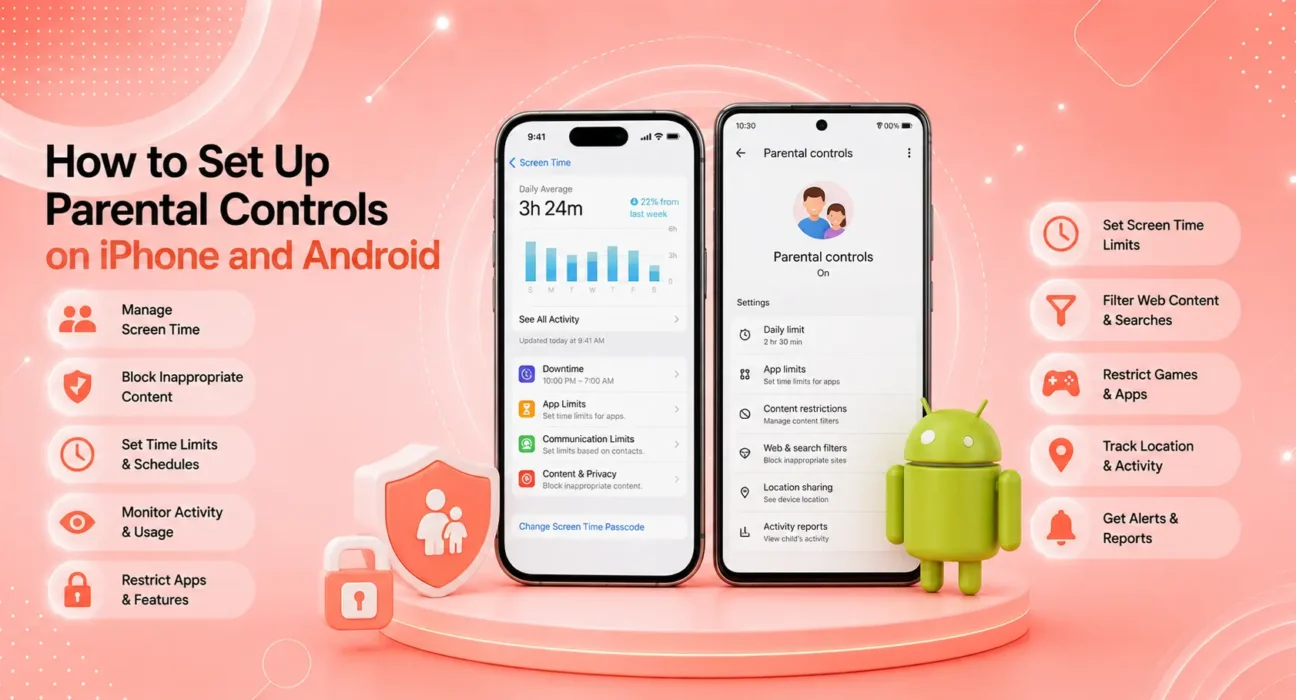
Setup steps verified on iPhone 14, 15, and 16 running iOS 18, and Samsung Galaxy A55, Google Pixel 8 running Android 15. Family Link tested with both parent and child Google accounts. Screen Time tested across multiple restriction scenarios including app limits, content filters, and downtime schedules.
Setting up parental controls on iPhone and Android in 2026 takes less than 15 minutes — and prevents months of headaches managing your child’s screen time, content access, and app purchases.
Both Apple and Google have built comprehensive parental control systems directly into their operating systems. You don’t need a third-party app to get meaningful protection — though dedicated apps add additional layers if needed. This guide covers both platforms completely, step by step.
⚡ Quick Start — What You’ll Set Up
| Control | iPhone (Screen Time) | Android (Family Link) |
|---|---|---|
| Daily screen time limits | ✅ | ✅ |
| App download approval | ✅ | ✅ |
| Content age ratings | ✅ | ✅ |
| Website filters | ✅ | ✅ |
| Location sharing | ✅ (Find My) | ✅ (Family Link) |
| Downtime scheduling | ✅ | ✅ |
| App usage reports | ✅ | ✅ |
| In-app purchase blocking | ✅ | ✅ |
🔍 Before You Start — What to Decide
Answer these before opening any settings:
| Question | Why It Matters |
|---|---|
| What age is your child? | Determines appropriate content rating level |
| Do they have their own device or share yours? | Changes which features apply |
| Do they have an Apple ID / Google account? | Required for Family Link (Android) |
| What are your biggest concerns? | Screen time? Content? Purchases? App downloads? |
| Will you use a parental controls passcode? | Prevents children from changing settings |
✅ Setup Complexity by Platform
Setup times based on testing across multiple devices and account configurations.
| Platform | Setup Time | Complexity | Remote Management |
|---|---|---|---|
| iPhone Screen Time | 10–15 min | Easy | Limited (same device) |
| iPhone + Family Sharing | 15–20 min | Easy-Medium | Yes (from parent’s iPhone) |
| Android Family Link | 15–20 min | Medium | Yes (Family Link app) |
PART 1: Setting Up Parental Controls on iPhone
Apple’s Screen Time feature is built into every iPhone running iOS 12 and later. It requires no downloads, no accounts, and works immediately.
Step 1: Enable Screen Time
- Settings → Screen Time
- Tap Turn On Screen Time
- Tap This is My Child’s iPhone (if setting up on your child’s device)
— or —
Tap This is My iPhone if setting up for yourself, then use Family Sharing to manage your child’s device remotely - Set a Screen Time Passcode — this is critical. Without a passcode, children can turn off restrictions themselves. Choose a 4-digit code different from the device passcode. Per Apple’s official Screen Time guide, the Screen Time passcode is stored separately from the device unlock code.
Step 2: Set Content and Privacy Restrictions
- Settings → Screen Time → Content & Privacy Restrictions → toggle On
Recommended settings for children under 13:
| Category | Recommended Setting |
|---|---|
| iTunes & App Store Purchases | Don’t Allow or Require Password |
| Allowed Apps | Review and disable: Safari, Camera (optional), Siri |
| Content Restrictions → Apps | 9+ or 12+ depending on age |
| Content Restrictions → Movies | G or PG |
| Content Restrictions → TV Shows | TV-Y, TV-G, or TV-PG |
| Content Restrictions → Web Content | Limit Adult Websites |
| Privacy → Location Services | Don’t Allow Changes |
| Privacy → Contacts | Don’t Allow Changes |
Web content filtering:
Settings → Screen Time → Content & Privacy Restrictions → Content Restrictions → Web Content → Limit Adult Websites
This adds a blocklist of known adult sites. For stricter control: select Allowed Websites Only and manually add approved sites — best for younger children (under 10).
Step 3: Set App Limits and Downtime
App Limits — restrict time on specific app categories:
- Settings → Screen Time → App Limits → Add Limit
- Select categories (Social Networking, Games, Entertainment)
- Set daily time allowance (e.g., 1 hour for games)
- Enable Block at End of Limit — without this, the limit is just a notification
Downtime — block all apps except approved ones during set hours:
- Settings → Screen Time → Downtime → toggle On
- Set hours (e.g., 9 PM – 7 AM for school nights)
- Specify which apps remain available during downtime (Phone, Messages, Safari for emergencies)
Step 4: Set Up Family Sharing for Remote Management
If you want to manage your child’s iPhone remotely from your own device:
- Settings → your name → Family Sharing → Add Member → Create Child Account
- Follow the prompts to create an Apple ID for your child under 13
- On your child’s iPhone, sign in with their new Apple ID
- You can now manage their Screen Time from Settings → your name → Family Sharing → your child’s name → Screen Time on your own iPhone
⚠️ WARNING
Choose your Screen Time passcode carefully and store it somewhere safe. If you forget a Screen Time passcode, recovery requires erasing the device entirely. Apple no longer provides a bypass method for Screen Time passcodes. Write it down and keep it secure.
PART 2: Setting Up Parental Controls on Android (Family Link)
Google Family Link is Android’s parental control system. For children under 13, it creates a supervised Google account that parents manage through the Family Link app. For teens 13 and over, Family Link provides oversight tools with the teen’s awareness and consent.
Step 1: Create a Google Account for Your Child
If your child doesn’t have a Google account:
- On your phone, go to families.google.com/familylink
- Tap Get Started → Set up supervision
- Follow prompts to create a Google account for your child
- Children under 13 automatically get a supervised account
If they already have a Google account:
- Open the Family Link app on your phone
- Tap + → Add a child → sign in with their existing account
- Follow prompts to link the account
Step 2: Set Up Their Device
- On your child’s Android device, go through initial setup
- When asked to sign in to Google, use the child’s supervised account
- The device will prompt to confirm parental supervision — approve from your phone
Step 3: Configure Content Controls
In the Family Link app on your device:
App controls:
- Family Link → your child’s name → Controls → Approved apps
- Toggle Approve apps → On: your child must request your approval before installing any app
- Review installed apps and remove any inappropriate ones
Google Play content rating:
- Family Link → Controls → Google Play → set maximum content rating for apps, movies, and music
- Recommended for under 13: Apps (Everyone or Everyone 10+), Movies (G or PG), Music (Clean)
SafeSearch:
- Family Link → Controls → Google Search → toggle SafeSearch → On
Chrome filtering:
- Family Link → Controls → Google Chrome → select content filter level
- For younger children: Approved sites only — manually add allowed websites
Step 4: Set Screen Time Limits and Downtime
Daily screen time limit:
- Family Link → your child’s name → Controls → Screen time → Daily limit
- Set per-day limits (e.g., 2 hours weekdays, 3 hours weekends)
Bedtime / scheduled downtime:
- Family Link → Controls → Screen time → Bedtime
- Set lock schedule (e.g., lock at 9 PM, unlock at 7 AM)
- Device locks automatically — only emergency calls remain available
App-specific limits:
- Family Link → Controls → App limits → select individual apps → set time limit per app
Step 5: Location Sharing
Family Link automatically enables location sharing for supervised accounts:
- Family Link home screen shows your child’s device location on a map
- Tap Location for full-screen map view
- Tap Refresh to get current location
Beyond Built-In Controls — When to Consider Third-Party Apps
Built-in controls from Apple and Google cover most families’ needs. Consider third-party apps if you need:
| Need | Recommended App |
|---|---|
| Cross-platform management (iPhone + Android) | Bark, Qustodio |
| Text message monitoring for specific keywords | Bark ($14/month) |
| Real-time content filtering with detailed reports | Circle ($10/month) |
| VPN-based filtering (works across WiFi and cellular) | Bark, Circle |
The FTC’s online safety guide recommends combining technical controls with ongoing conversations about online safety — technology limits content access but doesn’t replace parental involvement. For Canadian families, MediaSmarts provides age-appropriate resources for digital literacy.
📋 Quick Comparison — iPhone vs Android Parental Controls
| Feature | iPhone Screen Time | Android Family Link |
|---|---|---|
| App download approval | ✅ (Ask to Buy) | ✅ (require approval) |
| Screen time by category | ✅ | ✅ |
| Content rating filtering | ✅ | ✅ |
| Website filtering | ✅ | ✅ (Chrome only) |
| Downtime scheduling | ✅ | ✅ |
| Remote management | ✅ (Family Sharing) | ✅ (Family Link app) |
| Location sharing | ✅ (Find My) | ✅ (built-in) |
| App-specific time limits | ✅ | ✅ |
| Setup complexity | Easy | Medium |
💡 WekyTech Tip
Set the Screen Time or Family Link controls when you first give your child the device — not after a problem arises. Retrofitting restrictions onto a device your child has used freely creates conflict and workarounds. Starting with controls in place from day one sets a natural baseline. Also: review the settings quarterly as your child grows — what’s appropriate at age 8 is different at age 11.
❓ FAQ — Parental Controls on iPhone and Android
Q: Can my child turn off Screen Time restrictions without my passcode?
No — the Screen Time passcode prevents any changes to restrictions. However, children who know your passcode can bypass controls. Use a passcode different from your device unlock code and from any password your child might guess.
Q: What’s the difference between Screen Time on iPhone and Family Link on Android?
Screen Time is primarily a self-contained on-device system with optional remote management through Family Sharing. Family Link is designed specifically for supervised children’s accounts with comprehensive remote management from the parent’s phone. Family Link provides more granular app-by-app approval and more detailed usage reports; Screen Time is simpler to set up.
Q: My child is 13 — does Family Link still work?
Yes, but with differences. At 13, Google considers users old enough to manage their own account. Family Link shifts to a “parental oversight” mode where your teen can see what you’re monitoring and can request to disable supervision. You can maintain controls, but the teen is made aware of them.
Q: Can parental controls block specific apps on iPhone?
Yes — Settings → Screen Time → Content & Privacy Restrictions → Allowed Apps allows you to disable specific built-in apps. For third-party apps, App Limits can set a 1-minute daily limit, effectively blocking the app. There’s no single-app block for third-party apps, but the 1-minute limit workaround is effective.
Q: Will parental controls work if my child uses a VPN?
VPNs can bypass web content filters. To prevent VPN installation: Settings → Screen Time → Content & Privacy Restrictions → Allowed Apps → toggle off VPN & Device Management — this blocks VPN installation on the device.
Q: How do I manage a child’s phone remotely without being on the same network?
iPhone Family Sharing works over any internet connection — no need to be on the same WiFi. Android Family Link also manages over any internet connection from the parent’s device.
Final Thoughts
Setting up parental controls on iPhone and Android takes 15 minutes and provides ongoing protection that would take hours to manage manually. Both platforms have matured significantly — the built-in tools from Apple and Google are genuinely capable for most families without requiring paid third-party apps.
Set them up now, review them quarterly as your child grows, and combine the technical controls with open conversations about online safety.
👉 Also read: How to Get the Most Out of Your Phone — Complete Guide 2026
👉 Also useful: How to Free Up Storage on iPhone — 8 Simple Methods
👉 Read next: Best Apps for iPhone and Android 2026
About the Author
[Raouf Osman] is a tech writer at WekyTech covering family technology, digital safety, and smartphone optimization for US and Canadian readers. He/she has tested parental control setups across multiple device configurations and age groups to provide guidance that works in real family environments.