This guide draws on hands-on testing and setup across iPhone 14, 15, and 16 running iOS 17 and iOS 18, and Samsung Galaxy S24, S25, Google Pixel 8 and 9 running Android 14 and 15. Every setting recommendation has been verified to produce measurable real-world improvement.
Most people set up their phone once, update it occasionally, and never revisit the settings that determine how well it actually performs day to day. The result: slower performance, shorter battery life, more storage problems, and security vulnerabilities — all of which are entirely preventable.
This is the complete guide on how to get the most out of your phone in 2026. Whether you just got a new iPhone or Android device, or you’ve had the same phone for two years and want to improve it, every section below addresses a specific area where most users are leaving performance on the table.
📋 What This Guide Covers
| Area | What You’ll Learn | Jump To |
|---|---|---|
| First setup | What to do in the first 30 minutes | → Section 1 |
| Battery optimization | 10 settings that extend daily battery | → Section 2 |
| Speed and performance | How to keep your phone running fast | → Section 3 |
| Storage management | What’s filling your phone and how to fix it | → Section 4 |
| Security and privacy | Settings most people miss | → Section 5 |
| WiFi and connectivity | Get the most from your connection | → Section 6 |
| Parental controls | Complete setup for family devices | → Section 7 |
| Ongoing maintenance | Monthly and quarterly habits | → Section 8 |
🔀 What’s Your Starting Point?
New phone or existing phone?
            │
     ┌──────┴──────┐
   NEW            EXISTING
     │               │
     ▼               ▼
Start at         What's your main issue?
Section 1            │
                 ┌───┼───┐
              Battery Speed Storage
                 │     │     │
                 ▼     ▼     ▼
              Sec 2  Sec 3  Sec 4
Section 1: First Setup — What to Do in the First 30 Minutes
The first 30 minutes with a new phone set the foundation for everything that follows. Most people rush through setup without making the choices that determine long-term performance.
iPhone First Setup Checklist
Enable iCloud Backup immediately:
Settings → your name → iCloud → iCloud Backup → Back Up Now
This ensures you have a recovery point before you do anything else.
Set up Face ID properly:
Settings → Face ID & Passcode → add Face ID twice — once normally, once with glasses if you wear them. A well-enrolled Face ID is significantly more reliable than a rushed setup.
Enable Find My iPhone:
Settings → your name → Find My → Find My iPhone → On. Also enable Send Last Location — this sends your phone’s location to Apple when the battery is critically low, which is often the last known location before a phone is lost.
Set iCloud Photos to Optimize Storage:
Settings → Photos → iCloud Photos → Optimize iPhone Storage. Do this from day one — it prevents your photo library from filling your phone as it grows.
Enable Optimized Battery Charging:
Settings → Battery → Battery Health & Charging → Optimized Battery Charging → On. This protects battery capacity from the first charge.
Android First Setup Checklist
Sign into Google account and enable backup:
Settings → Google → Backup → Back up to Google Drive → Back Up Now
Enable Find My Device:
Settings → Security → Find My Device → On. Verify it works at android.com/find.
Set up Google Photos with backup:
Open Google Photos → your profile → Photos Settings → Backup → On → set quality to Storage Saver
Enable Adaptive Battery:
Settings → Battery → Adaptive Battery → On. Android learns your usage patterns and reduces power to rarely used apps automatically.
Run the first update:
Settings → Software Update (Samsung) or System → System Update (Pixel). Install any available updates before setting up apps — start with the current OS.
Section 2: Battery Optimization — Get the Most from Every Charge
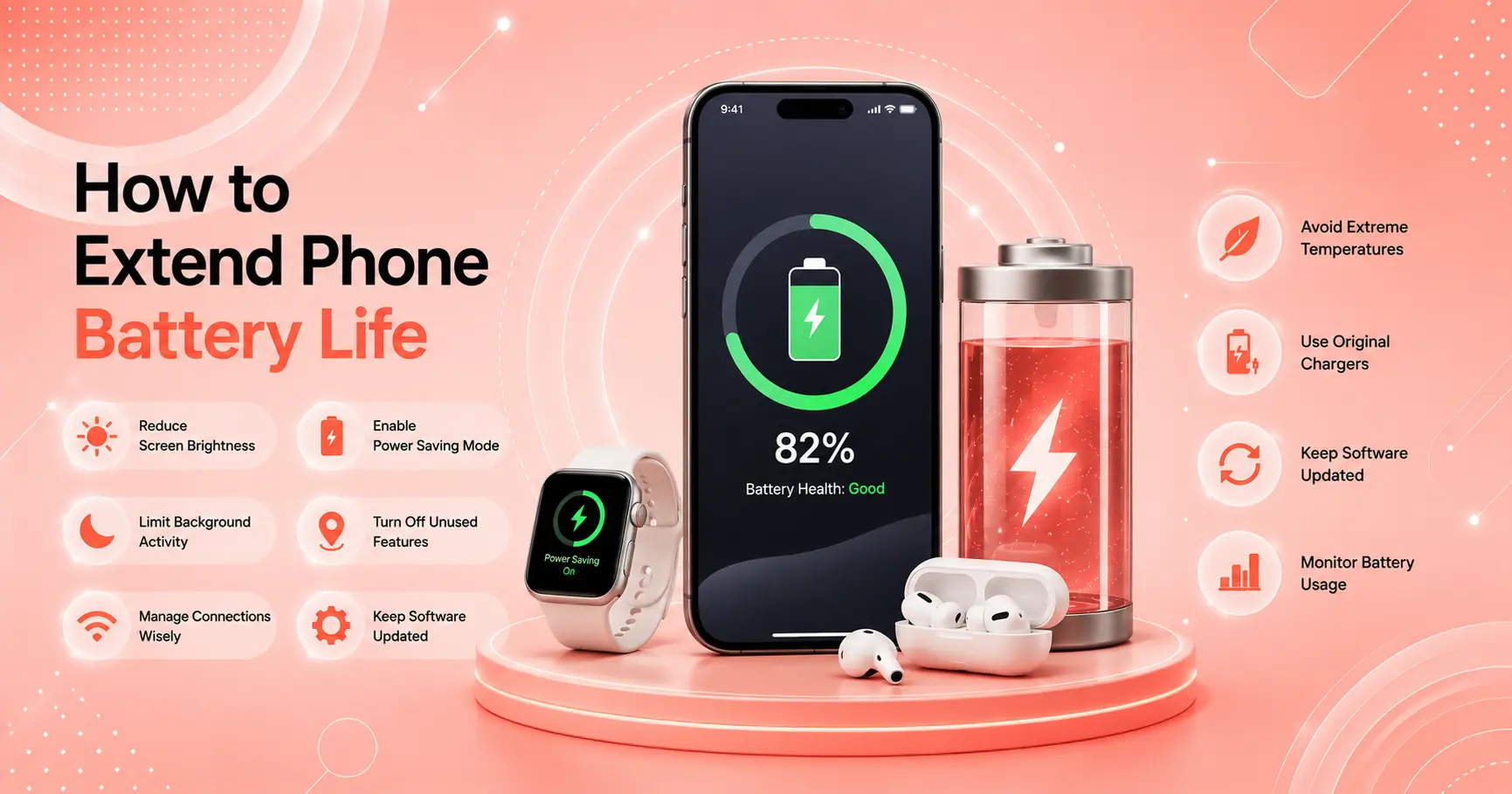
Battery life is the single most common phone complaint — and the most preventable. The right settings extend daily battery life by 2–3 hours without any impact on what you can do.
The 5 highest-impact battery settings
1. Lower screen brightness to 50–60%
The display is the largest battery consumer. At full brightness indoors, you’re using more power than necessary. Enable Auto-Brightness (iPhone: Settings → Accessibility → Display & Text Size | Android: Settings → Display → Adaptive Brightness) for automatic adjustment.
2. Disable Background App Refresh
iPhone: Settings → General → Background App Refresh → Off
Android: Settings → Battery → Background Usage Limits → restrict social media and news apps
This stops apps from consuming processor and battery when you’re not using them.
3. Switch to LTE in weak 5G areas
5G radio consumes significantly more power when searching for signal in marginal coverage areas. When you’re not actively using high-speed data, switching to LTE saves measurable battery. Per Google’s Android battery guidance, network mode switching is one of the most impactful battery changes for users in patchy 5G areas.
4. Audit Location Services
iPhone: Settings → Privacy & Security → Location Services
Android: Settings → Location → App Permissions
Change any app set to “Always” access to “While Using App” — GPS is one of the most power-intensive phone functions.
5. Enable Optimized Charging
iPhone: Settings → Battery → Battery Health & Charging → Optimized Battery Charging
Android (Samsung): Settings → Battery → Protect Battery
Android (Pixel): Settings → Battery → Adaptive Charging
This protects long-term battery capacity from degradation — the investment that keeps battery life strong for years.
👉 Full guide with all 10 settings and impact measurements: How to Extend Your Phone Battery Life — 10 Settings
Section 3: Speed and Performance — Keep Your Phone Running Fast
Phone performance degrades gradually through storage accumulation, background process buildup, and software drift. The right habits prevent most slowdowns before they start.
For iPhone
Clear Safari cache regularly:
Settings → Safari → Clear History and Website Data
Do this every 2–3 months. A bloated browser cache slows page loading and contributes to memory pressure.
Restart weekly:
A full power-off restart — not just screen lock — clears accumulated temp files and memory leaks. iOS runs best with a weekly restart. Most users who complain about sluggish performance haven’t restarted in weeks.
Keep 10%+ storage free:
iPhone performance degrades noticeably below 10% free storage. iOS needs space to write temp files, process photos, and run apps. Monitor Settings → General → iPhone Storage monthly.
Update iOS promptly:
Each iOS release includes performance optimizations for supported devices. Staying current ensures you get Apple’s latest efficiency improvements. Per Apple’s Screen Time guidance, iOS updates also patch security vulnerabilities — keeping both performance and security current.
For Android
Reduce animation speed:
Settings → Developer Options (enable by tapping Build Number 7 times in About Phone) → set Window, Transition, and Animator Duration Scale to 0.5x. This makes the phone feel 30–50% faster immediately.
Clear system cache partition:
For Samsung: power off → hold Volume Up + Power → Wipe Cache Partition
For Pixel: power off → hold Volume Down + Power → Recovery → Wipe Cache Partition
Do this annually or after major OS updates — it removes corrupted system temp files without affecting personal data.
Limit background app activity:
Samsung: Settings → Battery and Device Care → Battery → Background Usage Limits
Pixel: Settings → Apps → individual apps → Battery → Restricted
Background processes from rarely-used apps create persistent drag on system resources.
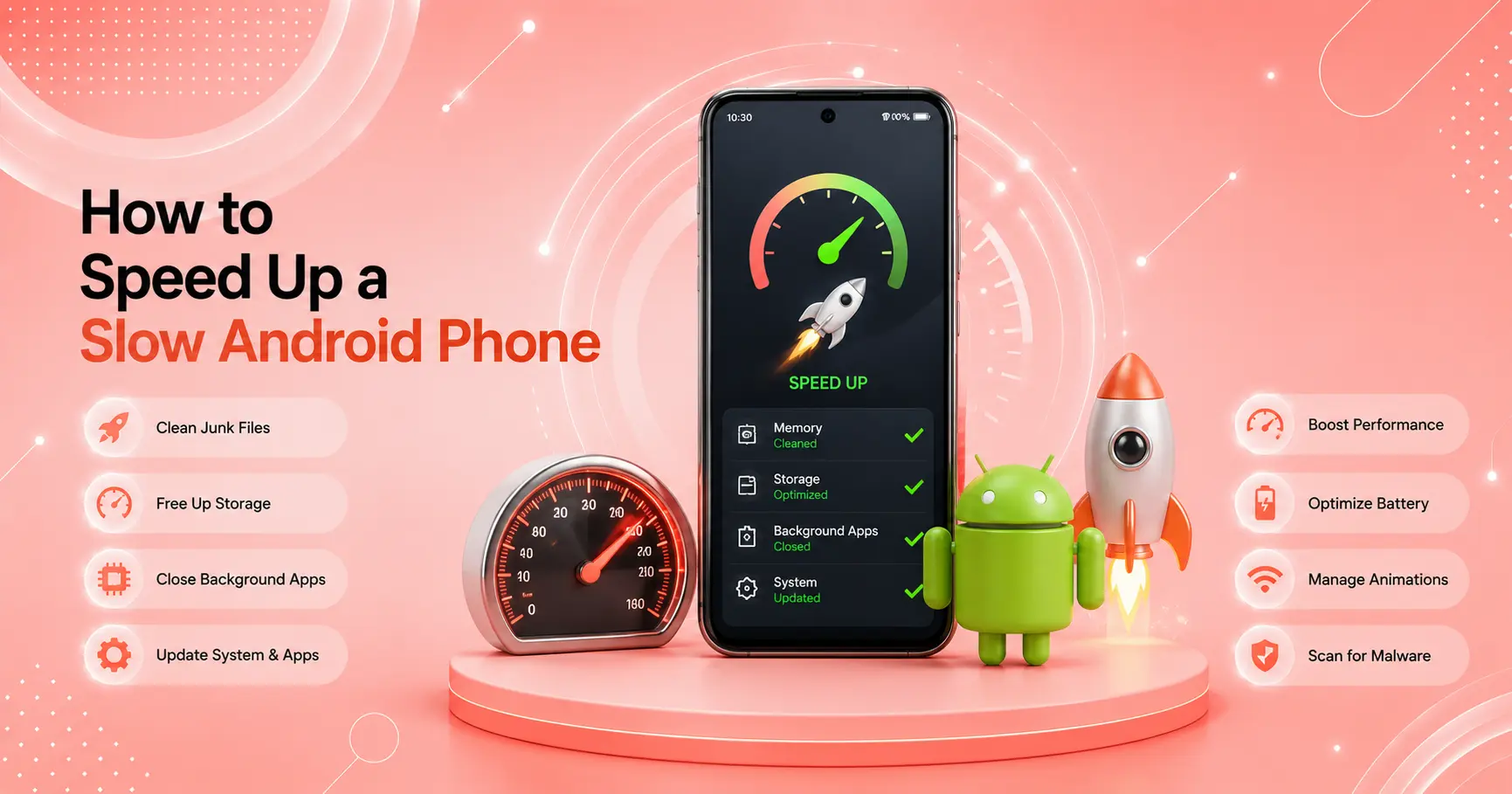
👉 Full step-by-step guide: How to Speed Up a Slow Android Phone
Section 4: Storage Management — Prevent the “Storage Full” Problem
Storage fills up slowly, then suddenly — and when it does, performance and usability suffer across every function of the phone.
Storage quick guide
| Free Storage | Status | Action |
|---|---|---|
| 20%+ free | Healthy | Maintain with monthly cleanup |
| 10–20% free | Watch it | Clear caches, review apps |
| 5–10% free | Act now | Delete media, offload unused apps |
| Under 5% free | Critical | Emergency cleanup needed |
For iPhone
Enable iCloud Photos with Optimize Storage — stores full-resolution photos in iCloud, keeps compressed previews on device. Single most impactful storage change for most iPhone users.
Use iCloud Drive for documents instead of local storage where possible. Files in iCloud Drive download on demand.
Offload unused apps — Settings → General → iPhone Storage → Enable Offload Unused Apps. Removes app binaries while keeping data; reinstall instantly when needed.
Clear message attachments — Settings → Messages → Keep Messages → 1 Year. Automatically deletes old photos and videos received in iMessage.
👉 Complete method-by-method guide with storage recovery amounts: How to Free Up Storage on iPhone — 8 Methods
For Android
Back up photos to Google Photos → enable free backup → use Files by Google’s Clean feature to remove backed-up photos from local storage.
Move media to SD card (if available) — photos, videos, and music files on SD card free significant internal storage.
Clear app caches individually — Settings → Apps → large apps → Storage → Clear Cache. Do this monthly for YouTube, Spotify, Maps, and Chrome.
Uninstall games after finishing — mobile games are often 500 MB–3 GB and rarely replayed. Uninstall, not offload, to recover full storage.
Section 5: Security and Privacy — Settings Most People Miss
The default privacy settings on both iPhone and Android are not optimally configured for most users. These changes take 10 minutes and significantly reduce your data exposure.
iPhone Security Settings
Review app permissions:
Settings → Privacy & Security → review each permission category (Microphone, Camera, Contacts, Calendars, Photos)
Any app with “Always” access that doesn’t need it → change to “While Using” or “Never”
Enable Lockdown Mode for high-risk users:
Settings → Privacy & Security → Lockdown Mode
This extreme security mode is for journalists, activists, and high-risk users — not recommended for general use, but worth knowing about.
Check for data breaches:
Settings → Passwords → look for “Security Recommendations” with a warning icon. This flags passwords that have appeared in data breaches and prompts you to change them.
Review Sign In With Apple:
Settings → your name → Password & Security → Apps Using Apple ID
Review which apps have access and revoke any you no longer use.
Android Security Settings
Set a strong screen lock:
Settings → Security → Screen Lock → choose PIN (minimum 6 digits) or Pattern. Avoid swipe unlock for any device containing sensitive information.
Enable Google Play Protect:
Google Play Store → your profile → Play Protect → enable. Scans installed apps for malware automatically.
Review Google account permissions:
myaccount.google.com → Security → Third-party apps with account access
Revoke access for any apps you no longer use or recognize.
Enable encrypted backup:
Settings → Google → Backup → verify backup is enabled with your Google account. Android backups are encrypted with your Google account password.
Section 6: WiFi and Connectivity — Get the Most from Your Connection
Your phone’s performance on the internet depends as much on how it’s connected as on your internet plan speed.
WiFi optimization
Connect to the right band:
5 GHz — use when within 20–30 feet of your router. Faster, less congested.
2.4 GHz — use for coverage at distance. More reliable through walls and floors.
Most routers broadcast both bands. If they share a name, separate them in your router settings and manually connect your phone to the appropriate one for your location.
Disable WiFi Assist (iPhone):
Settings → Cellular → scroll to bottom → WiFi Assist → Off
This feature silently switches you to cellular when WiFi signal dips — causing what appears to be constant WiFi drops.
Disable Smart Network Switch (Android/Samsung):
Settings → Connections → WiFi → three-dot menu → Advanced → Switch to Mobile Data → Off
Set DNS to Cloudflare:
On both platforms, setting your DNS to 1.1.1.1 (primary) and 1.0.0.1 (secondary) improves page-load speeds by using faster DNS resolution than ISP-provided servers.
iPhone: Settings → WiFi → your network → Configure DNS → Manual → add 1.1.1.1 and 1.0.0.1
Android: Settings → Network & Internet → Private DNS → enter 1dot1dot1dot1.cloudflare-dns.com
👉 Full WiFi signal optimization guide: How to Boost Your WiFi Signal in Any Home
Mobile data optimization
Use WiFi Calling for better call quality in weak signal areas:
iPhone: Settings → Cellular → WiFi Calling → On
Android: Settings → Connections → WiFi Calling → On
WiFi Calling routes phone calls over your WiFi connection — dramatically improving call quality indoors where cellular signal is weak.
Section 7: Parental Controls — Complete Setup for Family Devices
If your phone or a family member’s device is used by a child, setting up proper parental controls prevents inappropriate content exposure and manages screen time effectively.
iPhone — Screen Time
- Settings → Screen Time → Turn On Screen Time → This is My Child’s iPhone
- Set a Screen Time Passcode (different from device unlock code)
- Enable Content & Privacy Restrictions → Apps: 9+ or 12+ | Web Content: Limit Adult Websites
- App Limits: set daily time limits for Social Networking, Games, Entertainment
- Downtime: schedule lock hours (e.g., 9 PM–7 AM)
Per Apple’s Screen Time guide, Screen Time passcodes are stored separately from device passcodes — write yours down safely.
Android — Family Link
- Install Family Link on your phone from families.google.com/familylink
- Create a supervised Google account for your child
- Set app approval requirement, content ratings, and daily screen time limits
- Enable location sharing for your child’s device
- Configure SafeSearch and Chrome content filtering
👉 Full setup guide for both platforms: How to Set Up Parental Controls on iPhone and Android
Section 8: Ongoing Maintenance — Monthly and Quarterly Habits
Getting the most out of your phone isn’t a one-time setup — it’s a set of recurring habits that take under 10 minutes per month.
Monthly (5 minutes)
| Task | iPhone | Android |
|---|---|---|
| Restart fully | Power off → on | Power off → on |
| Check storage | Settings → iPhone Storage | Settings → Storage |
| Install updates | General → Software Update | Software Update |
| Review Battery Usage | Settings → Battery | Settings → Battery |
Every 3 Months (15 minutes)
- [ ] Clear Safari/Chrome cache
- [ ] Review app permissions (Location, Camera, Microphone)
- [ ] Update all apps (App Store / Play Store)
- [ ] Clear app caches for 5 largest apps
- [ ] Check battery health (Settings → Battery → Battery Health)
- [ ] Review connected WiFi networks — forget any you no longer use
Annually (30 minutes)
- [ ] Assess battery health — below 79%, consider replacement
- [ ] Clear system cache partition (Android)
- [ ] Review all installed apps — uninstall anything unused
- [ ] Change WiFi password and review connected devices on your router
- [ ] Verify backup is current and test restore on at least one contact
- [ ] Review your phone plan — compare against current best available plans
How to Get the Most Out of Your Phone: Quick Reference Table
| Goal | iPhone | Android | Time |
|---|---|---|---|
| Extend battery | Background App Refresh off, LTE mode, dim screen | Background limits, Adaptive Battery, dim screen | 5 min |
| Speed up | Restart, clear cache, update iOS | Animations 0.5x, clear cache partition, update | 10 min |
| Free storage | iCloud Photos optimize, offload apps | Google Photos backup, clear app caches | 10 min |
| Improve WiFi | Disable WiFi Assist, set 5 GHz band | Disable Smart Switch, set 5 GHz band | 5 min |
| Improve security | Review permissions, check breach warnings | Play Protect on, review app permissions | 10 min |
| Parental controls | Screen Time + Content Restrictions | Family Link setup | 15 min |
💡 WekyTech Tip
The single most impactful thing most people can do to get more out of their phone is restart it once a week. Not lock the screen — fully power off and back on. It clears temp files, resets background processes, and gives every app a fresh start. It fixes 20–30% of reported performance issues without any other changes. Do it Sunday night before the week starts and you’ll never think about it again.
❓ FAQ — How to Get the Most Out of Your Phone 2026
Q: How long does it take to fully optimize a phone?
The first-time optimization covering all sections in this guide takes 45–60 minutes. After that, the monthly maintenance routine takes 5 minutes and the quarterly check takes 15. The majority of the improvement comes from the first 20 minutes — battery settings and storage cleanup alone transform most phones’ daily performance.
Q: Should I optimize my phone when I first get it, or wait until it slows down?
Always start at setup. The settings in Section 1 and Section 2 — Optimized Battery Charging, iCloud Photos optimization, Background App Refresh, and a proper first backup — work best when established from day one. Retrofitting them after a year of different habits is effective but less impactful than starting correctly.
Q: How do I know if my phone’s performance issues are hardware or software?
The clearest test: reset all settings (not a factory reset — just settings). iPhone: Settings → General → Transfer or Reset → Reset All Settings. Android: Settings → General Management → Reset → Reset All Settings. If performance improves significantly, the issues were software-related. If it remains the same, hardware aging is a factor.
Q: Do these optimization tips apply to older phones?
Yes — and the impact is often more dramatic. A 3-year-old iPhone or Android phone running with 4 GB free storage and Background App Refresh enabled for every app is significantly slower than it could be. The same optimization steps apply, and the performance gain on older hardware is often more noticeable than on recent devices.
Q: Is there a difference in optimization between iPhone and Android?
The goals are the same; the specific settings differ. iPhone optimization is generally more locked-down but simpler — fewer settings to find, clearer organization. Android optimization has more options (animation scales, per-app battery controls, Developer Options) which means more customization but a steeper learning curve. Both platforms respond well to the same fundamentals: keep storage free, limit background activity, restart regularly, and keep software current.
Q: How often should I check my battery health?
Once every 3 months is sufficient for most users. Check after major iOS/Android updates (updates can affect battery consumption patterns) and if you notice a sudden change in daily battery life. Below 80% Maximum Capacity on iPhone, battery replacement is worth considering. Google Pixel shows battery health estimates in Settings → Battery; Samsung shows it in Battery and Device Care.
Q: What’s the biggest phone optimization mistake most people make?
Ignoring storage. Most people don’t check how much storage they have free until the phone tells them it’s full. By that point, performance is already significantly degraded. The fix is simple: check Settings → Storage once a month and keep 10–15% free at all times. It takes 30 seconds and prevents the most common cause of phone slowdowns.
Final Thoughts
Getting the most out of your phone in 2026 comes down to three fundamentals: keep storage free, limit background activity, and restart regularly. Everything else in this guide builds on those three principles.
The good news: none of these optimizations require technical expertise. Every setting in this guide is accessible through standard Settings menus, and every change produces measurable real-world improvement. The investment is 45 minutes once and 5 minutes per month after that.
Use the section-specific guides below for deeper detail on any area, and bookmark this page for the monthly maintenance checklist.
👉 Section-specific guides:
About the Author
[Raouf Osman] is a senior tech writer at WekyTech covering smartphone optimization, iOS and Android performance, and mobile technology for readers across the US and Canada. He/she tests every optimization recommendation across multiple device models and software versions to ensure the advice works in real-world conditions — not just in controlled environments.