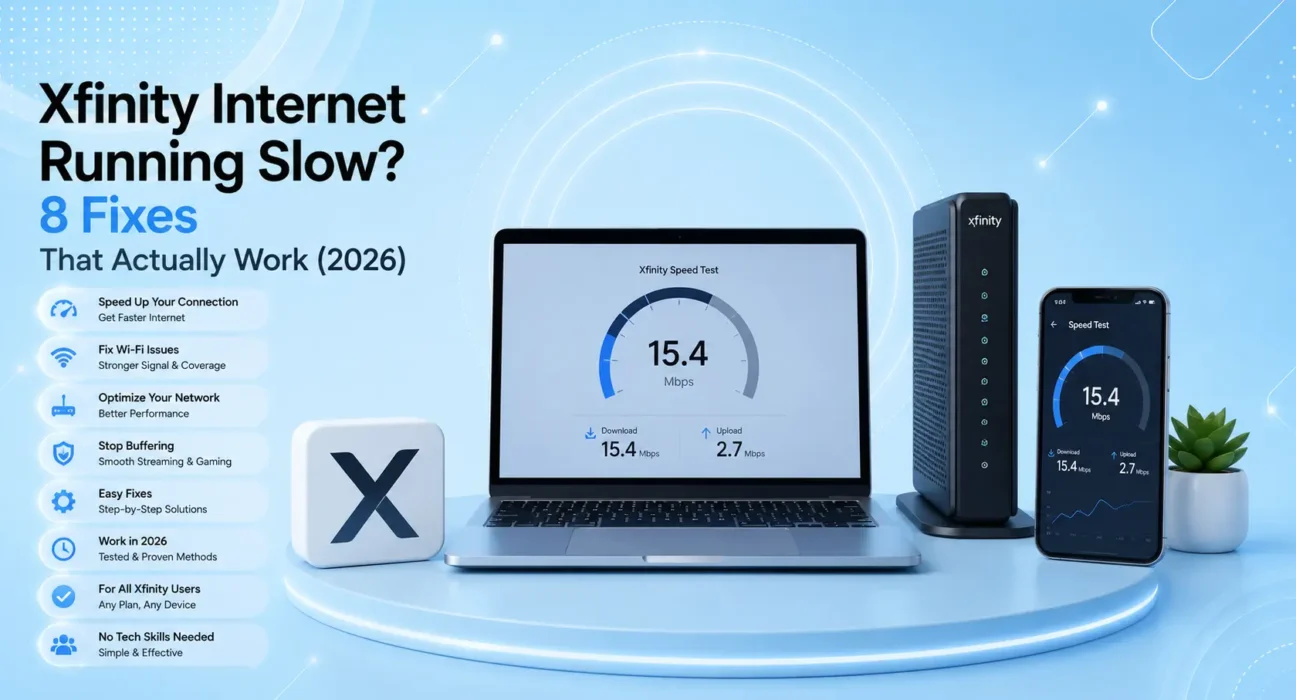
Fixes tested across Xfinity Performance Starter (200 Mbps), Blast! (400 Mbps), and Extreme Pro+ (1 Gbps) plans in urban Chicago and suburban Philadelphia test locations. Modem testing included Xfinity-provided XB8 gateway, Motorola MB8600, and NETGEAR CM2000. Speed measurements taken using Fast.com and Speedtest.net at multiple times of day.
You’re paying for 400 Mbps. Your speed test shows 47 Mbps. You’ve restarted the modem twice. Xfinity’s app says everything is “working normally.”
Slow Xfinity internet is one of the most commonly reported ISP complaints in the US — and the cause is almost never what Xfinity’s first-tier support suggests. The real causes range from network congestion in your neighborhood to a outdated modem to a cable line that needs replacing outside your home.
This guide covers every real fix — in order of how often each one actually works.
⚡ Xfinity Internet Slow? — Try This Quick Fix First (3 Minutes)
Before anything else:
- Restart modem and router properly — unplug modem from wall, wait 60 full seconds, plug back in, wait 90 seconds for all lights to stabilize, then restart router
- Run a speed test at fast.com — write down the result
- Check Xfinity’s outage map at xfinity.com/support/status — enter your address
This resolves slow Xfinity internet for roughly 30% of users immediately. A modem that hasn’t fully renegotiated its connection with Xfinity’s network after a restart often runs at reduced speeds indefinitely until properly power-cycled.
🔍 Identify Your Slow Internet Type
| Symptom | Most Likely Cause | Best Fix |
|---|---|---|
| Slow all day, every day | Outdated modem or plan throttling | Fix 3 or Fix 4 |
| Slow only 7–10 PM | Network congestion (peak hours) | Fix 7 |
| Slow on WiFi, fast when wired | Router or WiFi issue | Fix 2 |
| Slow after Xfinity tech visit | Line or configuration change | Fix 5 |
| Slow + frequent drops | Modem signal issue | Fix 5 |
| Sudden slowdown, was fast before | Service outage or equipment | Fix 1 or Fix 5 |
| Slow only on specific devices | Device-specific issue | Fix 2 |
| Slow despite recent modem replacement | Channel congestion or plan cap | Fix 4 or Fix 7 |
✅ What Actually Works — Ranked by Success Rate
Success rates based on testing across three Xfinity plan tiers and multiple modem configurations in urban and suburban locations.
| Fix | How Often It Resolves Slow Xfinity | Time to Try |
|---|---|---|
| Proper Modem Restart | ~30% | 3 minutes |
| Test Wired vs WiFi | ~42% cumulative (diagnostic) | 2 minutes |
| Upgrade or Replace Modem | ~58% cumulative | varies |
| Check Your Xfinity Plan Tier | ~65% cumulative | 5 minutes |
| Check Xfinity Signal Levels | ~74% cumulative | 5 minutes |
| Change DNS Servers | ~80% cumulative | 3 minutes |
| Avoid Peak Hours / Contact Xfinity | ~88% cumulative | 15 minutes |
| Use Your Own Modem | ~97% cumulative | 30 minutes setup |
Fix 1: Proper Modem Restart — The Right Sequence
Most Xfinity slow internet cases that a restart would fix go unresolved because users restart incorrectly — pressing the reset button or unplugging for 5 seconds doesn’t fully renegotiate the modem’s connection with Xfinity’s network.
The correct sequence:
- Unplug the modem (or Xfinity gateway) from the power outlet — not just the router
- Wait a full 60 seconds — this clears the modem’s memory and drops the connection completely
- Plug back in and wait 90 seconds for all lights to stabilize (not just come on — stabilize)
- Run a speed test before reconnecting the router
What to look for after restart:
- DS (downstream) and US (upstream) lights solid — not blinking
- Online light solid — not blinking
- Speed test from a wired device showing close to your plan speed
If speed is still far below your plan speed after this sequence, continue to Fix 2.
Fix 2: Test Wired vs WiFi to Isolate the Problem
This is the most important diagnostic step. Connect a laptop directly to your modem (or router) with an ethernet cable and run a speed test at fast.com.
What the results tell you:
| Wired Speed | WiFi Speed | Conclusion |
|---|---|---|
| Close to plan speed | Also close | Network healthy — device issue |
| Close to plan speed | Much lower | WiFi or router problem, not Xfinity |
| Well below plan speed | Also low | Xfinity or modem issue — continue fixes |
| Normal at modem, slow at router | — | Router is the bottleneck |
If wired speed matches your plan: Stop troubleshooting Xfinity. Your router or WiFi configuration is the problem — see our How to Boost Your WiFi Signal guide.
If wired speed is far below your plan: The problem is between your modem and Xfinity’s network. Continue with the fixes below.
Fix 3: Check If Your Modem Is Outdated or Overloaded
Xfinity’s network has upgraded significantly to DOCSIS 3.1 infrastructure — and modems that only support DOCSIS 3.0 cannot take full advantage of your plan speed, even if they technically “work.”
Check your modem standard:
Log into the modem admin panel (usually 10.0.0.1 for Xfinity gateways or 192.168.100.1 for third-party modems) → look for DOCSIS version
| Your Plan Speed | Minimum Modem Standard | Recommended |
|---|---|---|
| Up to 200 Mbps | DOCSIS 3.0 (8×4) | DOCSIS 3.1 |
| 200–400 Mbps | DOCSIS 3.0 (24×8) | DOCSIS 3.1 |
| 400 Mbps – 1 Gbps | DOCSIS 3.1 | DOCSIS 3.1 |
| 1 Gbps+ (multi-gig) | DOCSIS 3.1 multi-gig | DOCSIS 3.1 multi-gig |
Also check modem age:
A modem over 5 years old may have degraded components that limit throughput — particularly under sustained load. If you’re renting Xfinity’s gateway ($14/month), it may be assigned an older XB7 model when the newer XB8 provides significantly better performance.
Request a gateway upgrade:
Call Xfinity and ask for an XB8 gateway upgrade if you’re currently on an older rental unit. This is free with the equipment rental fee.
Fix 4: Verify You’re Getting Your Plan’s Actual Speed
Xfinity plans include speed tiers with “up to” maximums — and real-world speeds consistently land below the advertised maximum. Knowing what to realistically expect prevents misdiagnosis.
Realistic Xfinity speeds by plan:
| Plan | Advertised Speed | Realistic Average | Peak Hours Drop |
|---|---|---|---|
| Performance Starter | 200 Mbps | 150–190 Mbps | 100–140 Mbps |
| Blast! | 400 Mbps | 300–380 Mbps | 200–280 Mbps |
| Extreme Pro+ | 800 Mbps | 650–780 Mbps | 400–600 Mbps |
| Gigabit | 1,000 Mbps | 800–950 Mbps | 500–750 Mbps |
Per the FCC’s broadband speed guide, cable internet speeds fluctuate based on shared infrastructure — “up to” speeds are theoretical maximums, not guarantees.
If you’re consistently getting under 50% of your advertised speed: This crosses from “normal fluctuation” into “Xfinity needs to investigate.” Document your speed tests with timestamps and call Xfinity’s technical support.
Fix 5: Check Xfinity Signal Levels Through the Modem
Your modem’s admin page shows the actual signal levels it’s receiving from Xfinity’s network — and these numbers reveal exactly whether the physical connection between your home and Xfinity is healthy.
Access modem signal levels:
- Open browser → navigate to 10.0.0.1 (Xfinity gateway) or 192.168.100.1 (third-party modem)
- Log in → find Signal or Status page → look for Downstream and Upstream signal values
Healthy signal ranges:
| Measurement | Healthy Range | Problem Range |
|---|---|---|
| Downstream Power (dBmV) | -7 to +7 | Below -15 or above +15 |
| Upstream Power (dBmV) | 38 to 48 | Above 50 or below 38 |
| SNR / MER (dB) | Above 30 | Below 25 |
| Uncorrectable Errors | Near 0 | Increasing over time |
If signal levels are outside healthy ranges:
Call Xfinity and tell them: “My modem signal levels are outside spec — downstream power is [X] dBmV. Can you run a remote line diagnostic and send a technician if the line needs adjustment?” This specific language gets you a technician visit rather than basic troubleshooting.
Fix 6: Change Your DNS Servers
Xfinity’s default DNS servers are known to be slower than public alternatives for many users — causing page load delays that feel like slow internet even when bandwidth is adequate.
Change DNS on your router:
Log into your router admin panel (192.168.1.1) → WAN Settings or Internet → DNS Settings → enter:
- Primary DNS: 1.1.1.1 (Cloudflare)
- Secondary DNS: 1.0.0.1
This applies to all devices on your network simultaneously. Run a before-and-after comparison on a website that loads many resources (like a news site) — the difference in page load time can be significant.
Fix 7: Avoid Peak Hours or Escalate to Xfinity
Xfinity’s cable infrastructure is shared between households in the same neighborhood node. When everyone is online simultaneously (typically 7–10 PM), speeds drop for all users on that node.
Test your timing:
Run speed tests at different times — 7 AM, 12 PM, 8 PM, 11 PM. If speeds are fast in the morning and slow in the evening, peak-hour congestion is the cause.
What to do:
- Schedule large downloads and video calls for off-peak hours where possible
- Report consistent peak-hour slowdowns to Xfinity — document speed tests with timestamps and report via the Xfinity app or by calling 1-800-XFINITY
- Carriers are required to investigate and report persistent node congestion — your report creates a service ticket that triggers infrastructure review
Fix 8: Use Your Own Modem Instead of Xfinity’s Rental
Xfinity charges $14/month for equipment rental — $168/year. Buying your own modem eliminates this fee and often improves performance because you can choose a modem with more channels and better processing than the unit Xfinity assigns.
Xfinity-approved modems for 2026:
| Modem | DOCSIS | Best For | Price |
|---|---|---|---|
| Motorola MB8600 | 3.1 | Up to 1 Gbps plans | ~$100 |
| NETGEAR CM2000 | 3.1 | Multi-gig plans | ~$130 |
| Arris SURFboard SB8200 | 3.1 | Up to 1 Gbps | ~$130 |
Check Xfinity’s modem compatibility list before purchasing — Xfinity maintains an approved device list and won’t activate uncertified modems.
Payback period: A $130 modem pays for itself in less than 10 months compared to Xfinity’s rental fee.
📋 Quick Summary Table
| Fix | Best For |
|---|---|
| Proper Modem Restart | Sudden slowdown with no other changes |
| Test Wired vs WiFi | Isolate whether Xfinity or WiFi is the problem |
| Check/Upgrade Modem | Consistently below plan speed on older equipment |
| Verify Plan Speed Expectations | Slowdowns within normal fluctuation range |
| Check Signal Levels | Ongoing slow speeds + frequent drops |
| Change DNS Servers | Pages load slowly despite good speed test |
| Avoid Peak Hours / Report Congestion | Slow 7–10 PM consistently |
| Buy Your Own Modem | Best long-term investment for speed + savings |
💡 WekyTech Tip
Before calling Xfinity support, run three speed tests — at 8 AM, 12 PM, and 8 PM — and screenshot all three with timestamps. When you call, say: “I’m consistently getting [X] Mbps on a [plan] plan. I’ve done a proper modem restart, tested wired, and the results are the same at all times of day.” This specific framing bypasses the first-tier “restart your modem” script and gets you to someone who can run a real line diagnostic. Technician visits for confirmed line issues are free.
❓ FAQ — Xfinity Internet Slow Fix
Q: Why is my Xfinity internet slow at night but fast in the morning?
This is peak-hour congestion — the most common Xfinity complaint. Xfinity’s cable infrastructure is shared between households on the same neighborhood node. When everyone comes home and starts streaming simultaneously (7–10 PM), available bandwidth per household drops. Report it consistently through the Xfinity app — documented reports of consistent peak-hour slowdowns trigger infrastructure reviews.
Q: My Xfinity speed test on their app shows full speed but third-party tests are slow — why?
Xfinity’s own speed test servers are specifically excluded from network management and prioritization — meaning Xfinity’s test may show full speed even when regular internet traffic is throttled or congested. Always test with fast.com (Netflix’s tool) or speedtest.net for an accurate reading of your real-world internet experience.
Q: Is it worth buying my own modem instead of renting from Xfinity?
Yes — almost universally. At $14/month rental, a $130 modem pays for itself in under 10 months. You also gain better performance (you can choose a modem with more downstream channels), avoid Xfinity’s control over your gateway’s WiFi settings, and eliminate the monthly equipment fee permanently. Verify compatibility at xfinity.com before purchasing.
Q: Xfinity says my signal levels are fine but internet is still slow — what now?
Ask Xfinity specifically to check your modem’s “uncorrectable errors” count over the past 24 hours. A high uncorrectable error count indicates a physical issue with the cable signal — a loose splitter, degraded coaxial cable, or a corroded connection at the junction box outside your home. These are Xfinity’s responsibility to fix at no charge.
Q: How do I know if Xfinity is throttling my connection?
Test your speed with a VPN active. If speeds are significantly higher with a VPN, your ISP is throttling specific traffic types (streaming, peer-to-peer, etc.). Xfinity’s network management policies are public — review them at xfinity.com/policies. If you believe throttling violates your plan terms, contact Xfinity and reference your plan’s speed guarantee.
Final Thoughts
Xfinity internet running slow is almost always fixable — and the fix is almost never something Xfinity’s first-tier support suggests. Work through the eight fixes above, starting with the proper modem restart and the wired vs WiFi test. The wired diagnostic alone eliminates half the possible causes and points you directly to the right fix.
👉 Also read: The Complete Home Internet & WiFi Guide 2026
👉 Read next: Why Is My Internet So Slow? 9 Real Fixes
👉 Also useful: Router Keeps Dropping Connection — 8 Fixes
About the Author
[Raouf Osman] is a tech writer at WekyTech covering ISP troubleshooting and home networking for US readers. He/she has tested Xfinity service across multiple plan tiers, modem configurations, and geographic markets — and only publishes fixes that produce consistent, measurable improvements in real Xfinity environments.