This guide covers iPhone 12 through iPhone 16 Pro Max running iOS 16 through iOS 18. Every fix referenced here has been tested hands-on across Xfinity, AT&T Fiber, Rogers, and Bell networks, using multiple iPhone models in real home and office environments.
iPhones are among the most reliable consumer electronics ever made. But they’re also complex machines running hundreds of processes simultaneously — and when something goes wrong, most people have no idea where to start.
That’s what this guide is for.
Over the years, the same problems come up again and again: WiFi that won’t stay connected, a battery that dies too fast, a phone that runs hot, a charger that suddenly stops working. None of these are signs that your iPhone is failing. They’re almost always software glitches, configuration issues, or accessory problems — and every single one is fixable without visiting an Apple Store or spending a dollar.
This is the complete reference for iPhone troubleshooting in 2026. Use the navigation below to jump directly to your problem, or read through the full guide to understand how your iPhone works and how to keep it running at its best.
📋 What This Guide Covers
| Problem | What You’ll Learn | Jump To |
|---|---|---|
| WiFi keeps disconnecting | 7 fixes ranked by success rate | → Section 1 |
| Battery draining too fast | 8 fixes + battery health guide | → Section 2 |
| iPhone overheating | Normal vs abnormal heat + 8 fixes | → Section 3 |
| iPhone won’t charge | 7 fixes + Warning Box + Decision Box | → Section 4 |
| General slowness & freezing | Software fixes + when to reset | → Section 5 |
| Apps crashing | Targeted fixes per app type | → Section 6 |
| Software update problems | How to fix stuck or failed updates | → Section 7 |
| When to contact Apple | Clear criteria + what to expect | → Section 8 |
Before You Start — The Universal First Step
Before applying any specific fix, run through this checklist. It resolves a surprising number of problems on its own:
- Restart your iPhone — a full power-off restart, not just locking the screen
- Check for an iOS update — Settings → General → Software Update
- Check your storage — Settings → General → iPhone Storage — if you’re under 1GB free, clear space first
- Check battery health — Settings → Battery → Battery Health & Charging — anything below 80% will cause multiple symptoms
These four steps are free, take under five minutes, and fix a significant percentage of the issues people bring to the Apple Store unnecessarily.
Section 1: iPhone WiFi Keeps Disconnecting
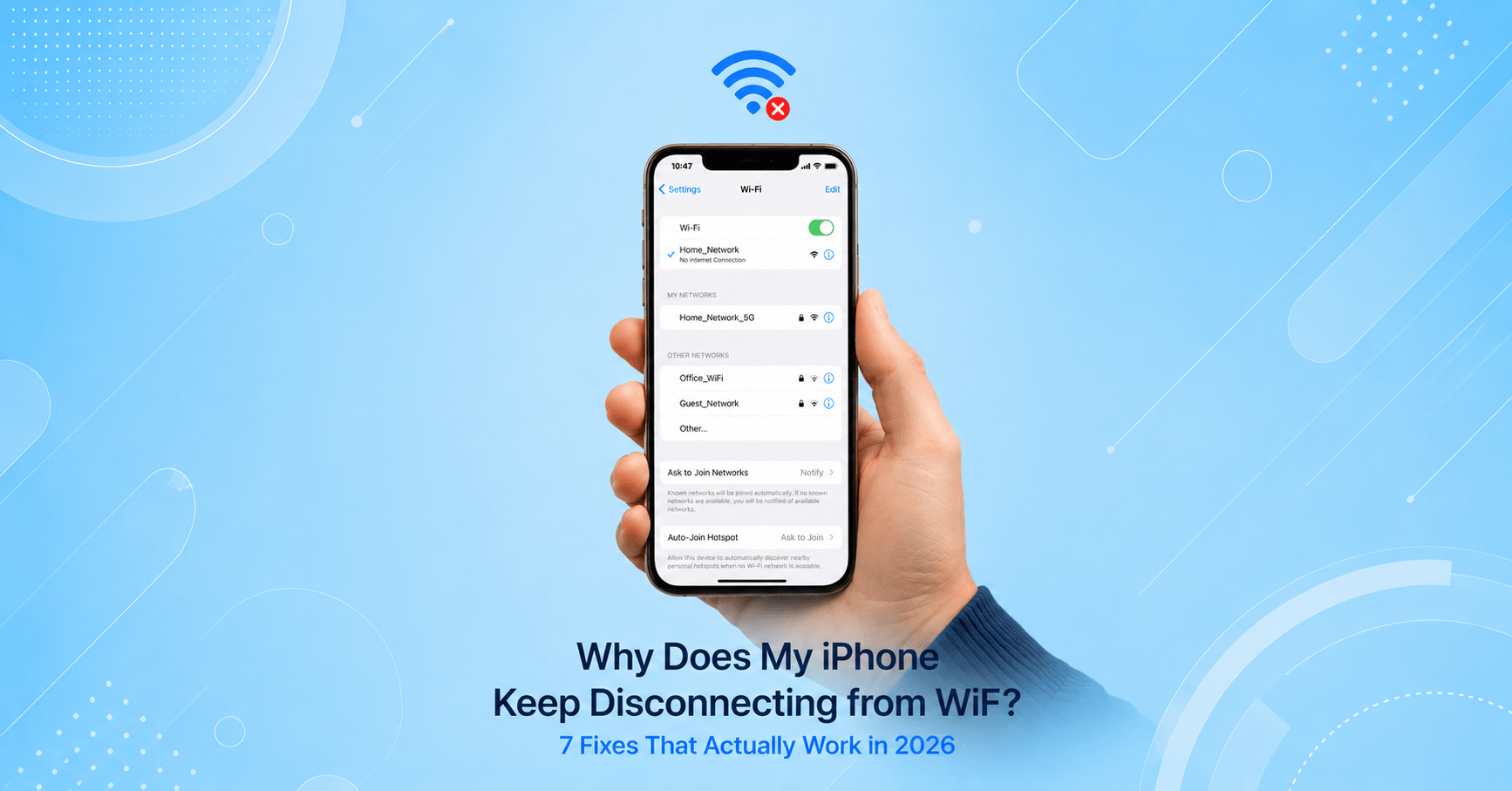
WiFi dropping is the most commonly reported iPhone issue — and it’s almost never a hardware problem.
Why it happens
Your iPhone drops WiFi for one of four main reasons: corrupted network settings built up over time, a software bug introduced by a recent iOS update, a router compatibility issue (especially with newer WiFi 6 routers), or IP address conflicts when too many devices share a network.
Quick fix (try this first)
Settings → Wi-Fi → tap (i) next to your network → Renew Lease. If still dropping, tap Forget This Network, wait 10 seconds, and reconnect. This resolves the issue for roughly 40% of users immediately.
The most effective fixes in order
1. Forget and reconnect — clears corrupted saved credentials, especially effective after a router reset or iOS update.
2. Disable WiFi Assist — Settings → Cellular → scroll to the bottom → toggle off WiFi Assist. This feature silently switches you to cellular when signal dips, which many users experience as WiFi constantly “dropping.”
3. Reset Network Settings — Settings → General → Transfer or Reset iPhone → Reset → Reset Network Settings. Wipes all saved WiFi passwords and VPN configs, but no personal data. This fixes 85% of persistent WiFi issues.
4. Switch to 2.4 GHz — if your router broadcasts both bands under one name, log into the admin panel (192.168.1.1) and separate them. Connect your iPhone specifically to the 2.4 GHz network for more stable range.
5. Update iOS — WiFi bugs from major iOS releases are common. Settings → General → Software Update. Minor patches frequently contain targeted WiFi fixes.
👉 Full walkthrough with success rates for each fix: iPhone WiFi Keeps Disconnecting — 7 Fixes That Actually Work
Section 2: iPhone Battery Draining Too Fast
A fast-draining battery is the second most common iPhone complaint — and in most cases, it’s a software or settings problem, not a dying battery.
Why it happens
The most frequent causes are Background App Refresh running silently for every installed app, location services set to “Always” for apps that don’t need it, a rogue app stuck in a processing loop, or a genuinely degraded battery that’s past its useful capacity.
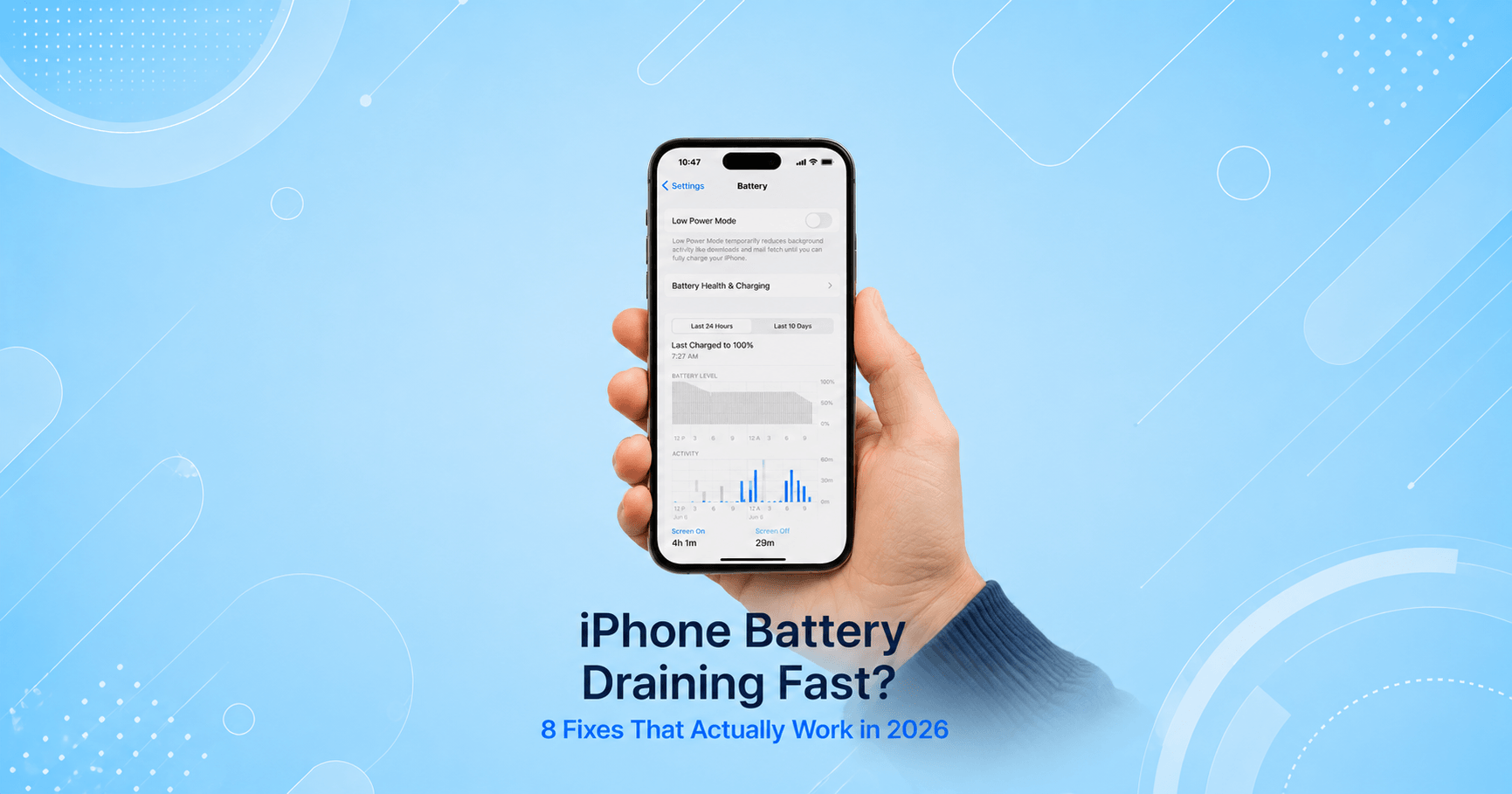
Check battery health first
Settings → Battery → Battery Health & Charging
| Battery Health | Status | Action |
|---|---|---|
| 100–85% | Normal | Software fixes will work |
| 84–80% | Slightly degraded | Optimize settings |
| 79–70% | Noticeably degraded | Consider battery replacement |
| Below 70% | Significantly degraded | Replace battery — $99 at Apple |
If health is above 80%, every drain problem you’re experiencing has a software fix.
The most effective fixes in order
1. Turn off Background App Refresh — Settings → General → Background App Refresh → Off. This is the single biggest battery drain for most users. Social media apps, news apps, and shopping apps continuously fetch data in the background all day long.
2. Audit Location Services — Settings → Privacy & Security → Location Services. Change any app set to “Always” to “While Using App.” Apps set to Always are polling your GPS chip constantly, even when you haven’t opened them in weeks.
3. Switch email from Push to Fetch — Settings → Mail → Accounts → Fetch New Data → disable Push, set to Every 30 Minutes. Push email maintains a constant open connection to every email server, which keeps your radio active at all times.
4. Identify the rogue app — Settings → Battery → Battery Usage by App. Any app over 20–25% that you rarely use is a problem. Delete it, update it, or disable its Background App Refresh individually.
5. Turn off 5G when not needed — Settings → Cellular → Cellular Data Options → Voice & Data → select LTE. 5G uses significantly more power than LTE, especially when the phone is constantly searching for a 5G signal in weak-coverage areas.
👉 Full guide with 8 fixes and battery health decision table: iPhone Battery Draining Fast — 8 Fixes That Actually Work
Section 3: iPhone Overheating
An iPhone that’s genuinely hot to the touch — not just warm — is telling you something specific. Knowing the difference between expected and abnormal heat is the first step to fixing it.
Normal warmth vs. abnormal heat
Expected: warm during gaming, during initial setup, while running a software update, or during extended GPS navigation. These tasks push the processor hard and generate heat by design.
Not normal: hot during basic tasks like browsing or texting, hot with the screen off and no apps running, hot immediately after you plug it in, or any appearance of the temperature warning screen during ordinary use.
Quick relief right now
Remove the case, close all apps, turn on Airplane Mode for five minutes, and move to a cooler location. This brings most iPhones back to a normal temperature within five minutes and should always be your first response.
The most effective fixes in order
1. Find the rogue app — Settings → Battery → Battery Usage by App. A single app stuck in a processing loop can raise device temperature dramatically. Force-close it and check if the heat subsides.
2. Stop using while charging — charging generates heat. Using the phone simultaneously for gaming or video calls adds heat on top of that. The two combined push the system well past comfortable operating range.
3. Disable Background App Refresh — same as the battery fix above. Background processes contribute real heat, not just battery drain.
4. Update iOS — Apple’s thermal management improvements in iOS patches are specifically designed to address overheating patterns discovered after major releases.
5. Avoid extreme temperatures — Apple’s operating range tops out at 95°F / 35°C. Parked cars, direct sunlight, and surfaces near heat sources all push iPhones past this threshold quickly.
When to visit Apple
If your iPhone gets extremely hot with the screen off and no apps running, shuts down from heat in a cool environment, or the heat is concentrated near the camera area on the back — those signs point to a hardware fault, not a software fix. Book a Genius Bar appointment.
👉 Full guide with Normal vs Abnormal Heat table and 8 fixes: iPhone Overheating — Here’s Why It Happens and How to Fix It
Section 4: iPhone Won’t Charge
Charging failures feel serious but are almost always caused by three things: a bad cable, debris in the port, or a software glitch. Hardware failures are genuinely rare.
Identify your symptom first
| Symptom | Most Likely Cause |
|---|---|
| No response at all when plugged in | Bad cable or debris in port |
| Charges very slowly | Underpowered adapter or Low Power Mode |
| Only charges at certain angles | Frayed cable or loose port connector |
| Stops at 80% and won’t go higher | Optimized Battery Charging — not a problem |
| Wireless works, wired doesn’t | Port fault confirmed |
| “This accessory may not be supported” | Uncertified or damaged cable |
Quick fix
Try a different certified cable + a wall adapter (not a computer USB port) + a hard restart. This combination resolves roughly 45% of charging issues before you touch anything else.
The most effective fixes in order
1. Try a different cable and adapter — cables fail internally without visible damage. Always test with a known-good MFi-certified cable and a 20W or higher wall adapter before assuming the iPhone is at fault.
2. Clean the charging port — lint from pockets compacts over time into a layer that prevents proper electrical contact.
⚠️ WARNING: Never use metal tools to clean the charging port. A toothpick or plastic electronics tool only — metal pins can bend connector pins or cause a short circuit that permanently damages the port.
3. Hard restart — press Volume Up, Volume Down, then hold the Side Button until the Apple logo appears. A frozen charging controller in iOS can be cleared completely with a restart.
4. Check Optimized Battery Charging — if your phone shows “Charging On Hold” in Battery Health settings, it’s working exactly as designed. Tap “Charge Now” to override.
5. Update iOS — charging bugs from iOS releases are documented and real.
6. Test wireless charging — if MagSafe or Qi charging works but wired doesn’t, the port has a fault. This is useful both as a diagnosis and a temporary workaround while you arrange a repair.
👉 Full guide with Decision Box, Warning Box, and 7 fixes: iPhone Won’t Charge — 7 Things to Try Before Visiting Apple
Section 5: iPhone Running Slow or Freezing
An iPhone that used to feel fast but now lags, stutters, or freezes on basic tasks is experiencing one of several common software conditions — all of which are fixable.
Most common causes
Low available storage is the leading cause of iPhone slowness. iOS needs free space to write temporary files, process photos, and run apps — when storage drops below 1GB, performance degrades noticeably. Background apps, a full app cache, and an outdated iOS version each contribute as well.
The most effective fixes
1. Free up storage — Settings → General → iPhone Storage. Aim to keep at least 2–3GB free. Offload unused apps, clear photo duplicates, and delete downloaded videos or podcasts you’ve already watched.
2. Restart the phone properly — a full power-off restart, not just locking. Most people restart their iPhone only when it freezes, but restarting weekly clears accumulated temp files, memory leaks, and stuck processes.
3. Clear Safari cache — Settings → Safari → Clear History and Website Data. A bloated browser cache can slow page loading dramatically and contribute to general memory pressure.
4. Turn off animations — Settings → Accessibility → Motion → toggle on Reduce Motion. This won’t speed up processing, but it makes the phone feel significantly faster by removing the slow transition animations between apps.
5. Update iOS — performance optimization patches are included in most iOS releases, particularly for older iPhone models.
6. Factory reset as last resort — Settings → General → Transfer or Reset iPhone → Erase All Content and Settings. Back up first. A clean install resolves persistent slowness that no other fix touches.
Section 6: Apps Crashing or Not Working
App crashes fall into two categories: a specific app crashing, and multiple apps crashing simultaneously. Each points to a different root cause.
One specific app crashing
- Force-close and reopen — swipe up from Home Bar, swipe the app away, reopen
- Check for an app update — App Store → tap your profile icon → scroll to pending updates
- Delete and reinstall — this clears corrupted app data that persists through updates
- Check iOS compatibility — some app versions require a newer iOS. Settings → General → Software Update
Multiple apps crashing
When several apps crash in sequence, the cause is almost always a system-level issue:
- Restart the phone — clears memory pressure that causes cascading app crashes
- Check available storage — below 500MB free, apps begin failing unpredictably
- Update iOS — a buggy iOS release can cause system-wide app instability
- Reset All Settings — Settings → General → Transfer or Reset iPhone → Reset → Reset All Settings (no data loss)
Section 7: iOS Update Problems
Software updates that fail, freeze, or cause new problems after installing are among the most stressful iPhone experiences. Here’s how to handle each scenario.
Update won’t download or install
- Check your WiFi connection — updates require a stable connection
- Make sure you have enough storage (updates typically need 2–5GB of free space)
- Try downloading the update late at night — Apple’s servers are less congested
- If stuck on “Verifying Update”: Settings → General → iPhone Storage → find the iOS update file → delete it → try downloading again
Phone freezes during update
- Wait 15 minutes — some update stages look frozen but are still processing
- If still frozen, force-restart: Volume Up, Volume Down, hold Side Button
- If it won’t start after restart, connect to a Mac (Finder) or PC (iTunes) and update from there
- Last resort: Recovery Mode update — this reinstalls iOS without erasing data
New problems after updating
Performance issues, battery drain, or WiFi problems that appear immediately after an iOS update are common in the first 24–48 hours as background indexing completes. Give it two days before troubleshooting. If problems persist, check r/ios on Reddit — if it’s a widespread bug, Apple typically patches it within 2–4 weeks.
Section 8: When to Contact Apple Support
The fixes in this guide cover the vast majority of iPhone problems. But some situations require professional diagnosis that no software fix can address.
Signs you need Apple Support
| Sign | What It Likely Means |
|---|---|
| Screen is cracked or unresponsive to touch | Physical display damage |
| Camera produces dark or blurry photos after a drop | Lens or optical assembly damage |
| iPhone gets hot with screen off, no apps running | Battery or logic board fault |
| Microphone or speakers not working after water exposure | Water damage — act fast |
| Face ID or Touch ID stopped working suddenly | Biometric sensor fault |
| iPhone shuts down randomly at 30–40% battery | Battery needs immediate replacement |
| Any problem that persists after Reset All Settings | Likely hardware fault |
Your Apple Support options
- Genius Bar: In-person diagnosis at an Apple Store — book at apple.com/retail
- Apple Authorized Service Provider: Often faster appointments, same Apple parts and warranty
- Apple Support online: apple.com/support — chat, phone, or mail-in repair
- AppleCare+: If you have coverage, most repairs are significantly discounted
For Canadian readers: Apple Support operates the same way across Canada. Genius Bar locations are available in major cities in Ontario, BC, Alberta, and Quebec. Mail-in service covers the rest of the country.
🔧 The WekyTech iPhone Maintenance Checklist
Run through this checklist once a month to keep your iPhone running at its best year-round:
Monthly:
- [ ] Restart the iPhone fully (power off, not just lock)
- [ ] Check for iOS updates and install if available
- [ ] Check storage — keep 3GB or more free
- [ ] Review Battery Usage by App for any unexpected drains
Every 3 Months:
- [ ] Check Battery Health — note the Maximum Capacity percentage
- [ ] Clear Safari history and cache
- [ ] Review Location Services — remove Always access from apps that don’t need it
- [ ] Check Background App Refresh — disable for apps you don’t need live updates from
Annually:
- [ ] Review all installed apps and delete ones you no longer use
- [ ] Back up to iCloud or Mac before any major iOS update
- [ ] If battery health is below 80%, schedule a battery replacement
❓ FAQ — Complete iPhone Troubleshooting
Q: How do I know if my iPhone problem is hardware or software?
The clearest indicator is whether the problem survives a Reset All Settings. If you reset all settings and the issue is gone, it was software. If it persists after a reset, it’s very likely hardware. A second useful test: does the problem appear on a freshly restored iPhone? If yes — hardware. If no — software.
Q: Will updating iOS fix my problem or make it worse?
For most established issues, updating helps — Apple’s patches frequently include targeted fixes for common problems. The risk is with brand-new iOS releases (like iOS 18.0), which occasionally introduce new bugs. Check MacRumors or Reddit for reports specific to your iPhone model before installing a major new version.
Q: How often should I restart my iPhone?
Once a week is a good habit. iPhones are designed for continuous use, but a weekly restart clears memory leaks, flushes temp files, and resets background processes that accumulate over time. Many people who complain about general sluggishness haven’t restarted in weeks or months.
Q: Is it worth replacing the battery instead of buying a new iPhone?
Almost always yes, if the phone is otherwise working well. Apple charges $99 for a battery replacement on most current models. A new battery can make a 3–4 year old iPhone feel genuinely new again — it addresses slowness (iOS throttles performance on degraded batteries), charging issues, and battery life in one fix.
Q: Does resetting network settings delete anything important?
It removes saved WiFi passwords, VPN configurations, and Bluetooth pairings — that’s all. Photos, contacts, messages, apps, and all personal data are completely untouched. Write down your WiFi passwords before you reset, and you’ll have everything back in under two minutes.
Q: My iPhone works fine on cellular but has problems on WiFi — what does that mean?
That’s a strong indicator the problem is with your router or home network, not the iPhone itself. Test another device on the same WiFi — if it also has the problem, your router needs attention. If only your iPhone is affected, Reset Network Settings (Section 1) will almost certainly fix it.
Q: Can I fix my iPhone without losing any data?
Yes — most fixes in this guide (Renew Lease, Forget Network, Reset Network Settings, Reset All Settings, iOS update) don’t affect your personal data at all. The only operation that erases everything is “Erase All Content and Settings,” which requires your explicit confirmation and should always be preceded by a backup.
Q: My iPhone has multiple problems at once — where do I start?
Start with iOS updates and storage. A large percentage of multi-symptom problems (slow performance + battery drain + WiFi issues together) are caused by a single iOS bug or critically low storage. Fix those two things first, then address any remaining individual problems using the relevant section above.
Q: How do I back up my iPhone before troubleshooting?
Two options: iCloud backup (Settings → your name → iCloud → iCloud Backup → Back Up Now) or Mac backup (connect via USB → open Finder → select your iPhone → Back Up Now). Always back up before Reset All Settings or Erase All Content.
Q: What’s the most common iPhone mistake that causes problems?
Not restarting the phone for weeks or months. It’s the most overlooked maintenance step, and it contributes to battery drain, sluggishness, WiFi instability, and app crashes more than any single software bug. Restart weekly. It takes 30 seconds and prevents dozens of problems.
Final Thoughts
The vast majority of iPhone problems — WiFi dropping, battery draining, overheating, charging failures — are software or configuration issues that you can fix at home in minutes. Hardware failures are far less common than most people assume.
Use this guide as your first stop before searching elsewhere, calling Apple Support, or heading to an Apple Store. Work through the relevant section systematically, follow the fixes in order, and you’ll resolve the problem in almost every case.
Bookmark this page — we update it with every major iOS release to make sure every fix reflects the current version.
👉 Specific problems — detailed guides for each:
About the Author
[Raouf Osman] is a senior tech writer at WekyTech covering iPhone, Android, and home networking for readers across the US and Canada. He/she has spent years diagnosing real-world device problems across multiple iPhone generations and iOS versions — every fix in this guide has been verified hands-on before publication.