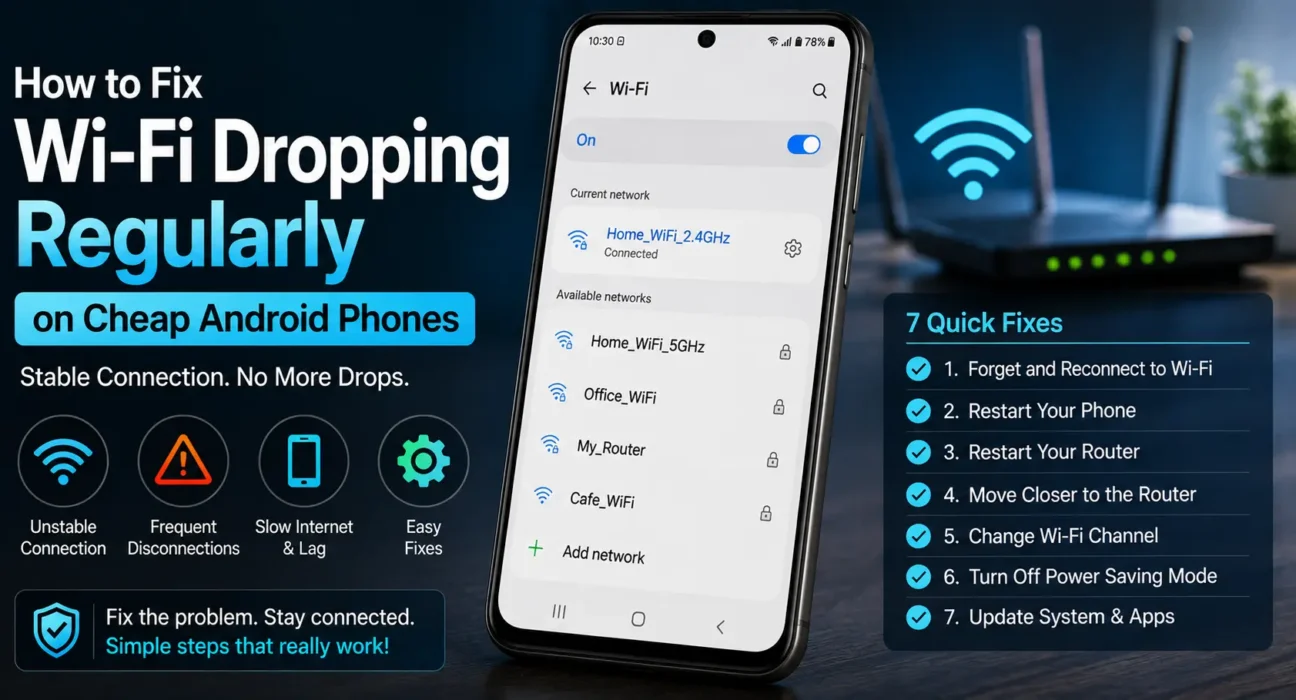
If your cheap android wifi keeps disconnecting even when sitting right next to the wireless router, lower-tier hardware components and aggressive power-management software are usually responsible. Budget Android devices often utilize 1×1 SISO (Single-Input Single-Output) Wi-Fi antennas and entry-level wireless chipsets that struggle with signal attenuation, radio frequency interference, and router IP lease renewals. Here is a technical breakdown of why budget phones lose Wi-Fi stability and 7 proven methods to fix it.
Why Budget Android Phones Drop Wi-Fi More Than Flagships
Flagship smartphones feature multi-antenna 2×2 or 3×3 MIMO (Multiple-Input Multiple-Output) arrays, higher RF transmit power, and dedicated Wi-Fi co-processors. In contrast, entry-level phones make cost-saving hardware compromises:
- SISO 1×1 Antenna Design: Budget chipsets (such as entry-level MediaTek Helio or Unisoc processors) frequently share a single physical antenna between Wi-Fi and Bluetooth, causing momentary connection drops when Bluetooth accessories are active.
- Aggressive Battery Management: Low-end devices rely on aggressive Doze mode rules to extend small battery capacities, putting background network interfaces to sleep when the screen turns off.
- DHCP & MAC Address Lease Failures: Default Android privacy features like randomized MAC addresses can confuse budget Wi-Fi drivers during router DHCP lease renewals, triggering sudden disconnections.
7 Fixes for Cheap Android Wi-Fi Disconnection Issues
1. Disable Randomized MAC Address (Use Device MAC)
Android uses randomized MAC addresses by default for privacy. However, entry-level Wi-Fi chipsets often drop the connection when negotiating DHCP renewals under randomized MAC profiles. Go to Settings > Network & Internet > Wi-Fi, tap the Gear Icon next to your connected network, tap Privacy (or MAC Address Type), and change it from Randomized MAC to Use Device MAC (or Phone MAC).
2. Turn Off Wi-Fi Power-Saving & Battery Optimization
Aggressive power-management profiles put the wireless network card into low-power states prematurely. Open Settings > Network & Internet > Wi-Fi > Wi-Fi Preferences and toggle off Wi-Fi Optimization or Wi-Fi Power Saving. Additionally, go to Settings > Apps > Special App Access > Battery Optimization, filter by “All Apps,” select Wi-Fi Service or System UI, and set it to Don’t Optimize.
3. Switch to the 2.4GHz Band (Or Separate SSIDs)
While 5GHz delivers faster throughput, its shorter wavelength struggles to penetrate solid walls. Budget phone antennas have lower receiver sensitivity, making 5GHz unstable at distance. Access your router settings and split your dual-band network into separate 2.4GHz and 5GHz SSIDs, then force your phone to connect exclusively to the 2.4GHz band for greater signal penetration. For deeper network troubleshooting, consult our guide on fixing Wi-Fi that keeps disconnecting.

4. Disable Wi-Fi Scanning for Location Services
Background Wi-Fi scanning constantly searches for nearby access points to assist GPS location tracking. On weak wireless chipsets, these background scans interrupt active packet transfers and cause frame drops. Navigate to Settings > Location > Location Services > Wi-Fi Scanning and toggle the feature Off.
5. Forget Network and Reset Network Settings
Corrupted network configuration caches or IP conflicts cause repeated disconnections. First, go to Settings > Wi-Fi, select your network, tap Forget, and reconnect. If drops persist, perform a full network flush by navigating to Settings > System > Reset Options > Reset Wi-Fi, Mobile & Bluetooth (or Reset Network Settings).
6. Update System Software and Wi-Fi Drivers
Device manufacturers regularly distribute modem patch fixes and Wi-Fi driver stability improvements via official over-the-air updates. Verify your system status under Settings > System > System Update. You can also read official Android Support documentation for network protocol standards.
7. Adjust Router Channel Width and Security Protocols
Some entry-level Android network chips struggle with WPA3 security protocols or wide 40MHz channels on 2.4GHz. Log into your router’s administration portal (usually 192.168.1.1 or 192.168.0.1), set the 2.4GHz channel width fixed to 20MHz, and ensure wireless security is set to WPA2-PSK (AES) rather than WPA3/WPA2 mixed mode.
What Not to Do
- Do Not Leave Bluetooth Running Unused: On 1×1 SISO budget hardware, active Bluetooth scanning directly interferes with 2.4GHz Wi-Fi frequencies due to shared antenna lines.
- Do Not Rely on Third-Party “Wi-Fi Booster” Apps: Play Store booster apps simply toggle your Wi-Fi interface or show ads; they cannot modify hardware radio transmission limits.
- Do Not Assume the Wireless Router Is Defective: If laptops or higher-end devices maintain stable connections, the issue resides within the budget phone’s wireless antenna sensitivity or software optimization.
FAQ
Why does my cheap android wifi keep disconnecting even near the router?
Budget phones use smaller 1×1 SISO antennas and aggressive power-saving protocols that suspend wireless radios or drop connection leases during background operations.
Does disabling Randomized MAC address fix Wi-Fi drops on Android?
Yes. Switching to Device MAC eliminates IP lease renewal conflicts between budget Android network drivers and household wireless routers.
Should I use 2.4GHz or 5GHz on a budget phone with weak Wi-Fi?
2.4GHz provides superior wall penetration and signal range, making it the better choice for budget phones with weaker receiver sensitivity.
Can a system update fix budget phone Wi-Fi drops?
Yes. Manufacturers frequently deploy modem driver updates and kernel patches to resolve known Wi-Fi disconnect bugs on entry-level chipsets.
Final Takeaway
When your cheap android wifi keeps disconnecting, fixing the issue requires disabling aggressive power-saving policies, turning off randomized MAC addresses, and setting your phone to a stable 2.4GHz band. Adjusting these settings neutralizes hardware constraints without requiring an immediate device upgrade. For more tips on optimizing entry-level hardware, explore our guide on how to fix lag and stutter on budget Android phones or check out our Ultimate Buyer’s Guide to Budget Android Phones in 2026.
Related Guides: WiFi Keeps Disconnecting · WiFi Connected but No Internet · How to Fix Lag and Stutter on Budget Android Phones