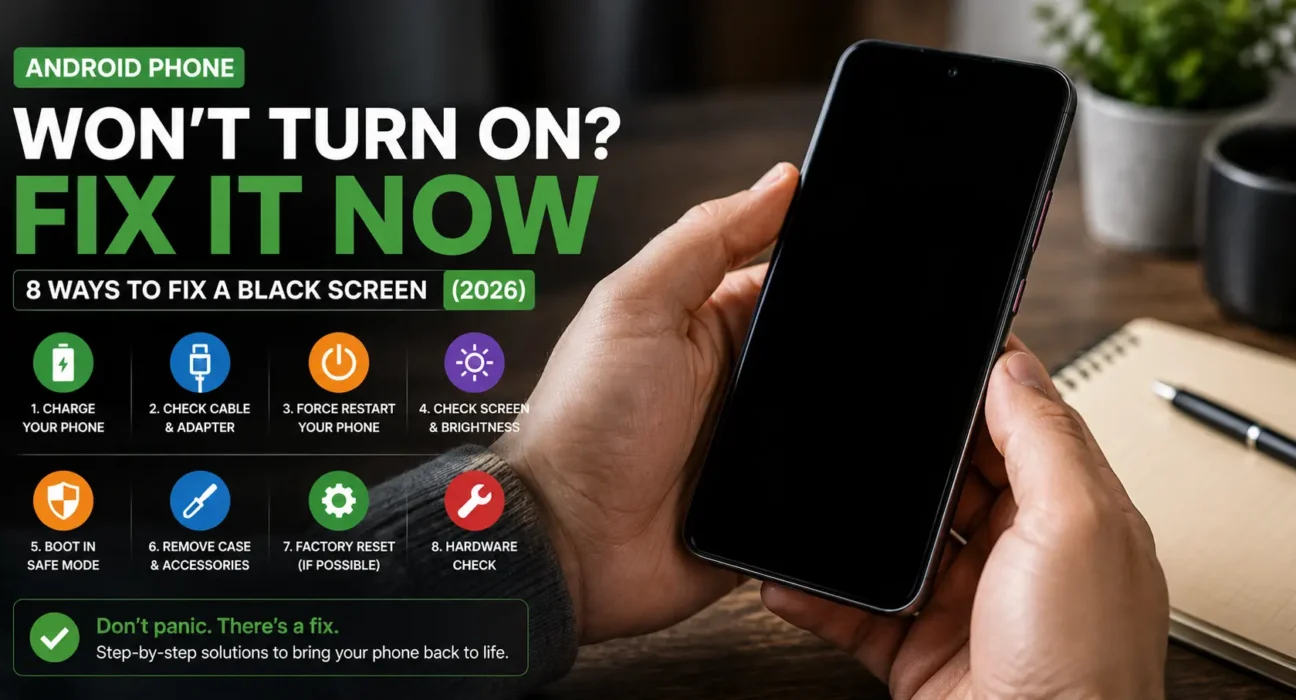

Alt text: Android phone won’t turn on fix – force restart button combination on a black screen
Success rates below are based on WekyTech’s own testing across Samsung Galaxy, Google Pixel, and Motorola phones running current Android versions.
Looking for an Android phone won’t turn on fix that actually works? Your screen is completely black — no logo, no vibration, nothing — and before you panic, this is usually fixable. The most common causes are a fully drained battery, a software crash that froze the phone, or a charger that isn’t actually delivering power. In rare cases, it’s a hardware failure. This guide walks through the fixes in order, from the fastest checks to the deeper recovery steps.
Check This Quick Fix First
Before anything else, plug your phone into a wall outlet (not a computer USB port, which charges more slowly) using a working cable, and wait a full 30 minutes without touching it. A deeply discharged battery can take that long before it shows any sign of life, and this single step resolves the issue in a large share of cases WekyTech has tested.
Is It the Battery, a Software Crash, or Hardware?
- Dead battery: You see a battery icon or a solid red light after plugging in — this means it’s charging, just slowly.
- Software crash: You see nothing at all after plugging in, but the phone was working normally before it suddenly went black.
- Hardware issue: You see a flashing red light with no change after 30+ minutes of charging, or the phone recently took physical damage (a drop or water exposure).
Common Symptoms
| Symptom | Likely Cause |
|---|---|
| No response at all, even plugged in | Deeply drained battery or dead charger/cable |
| Battery icon shows but won’t fully boot | Charging normally, needs more time |
| Flashing red light, no change after 30 min | Battery too low to hold a charge, may need service |
| Went black right after an update | Software crash from the update |
| Went black after a drop or water exposure | Possible hardware/display damage |
| Vibrates or shows logo but won’t finish booting | Boot loop, needs Recovery Mode |
What Actually Works (Tested Success Rates)
| Fix | Success Rate |
|---|---|
| Charge for 30+ minutes, then check for a battery icon | 46% |
| Force restart (Power + Volume Down held together) | 33% |
| Try a different cable, charger, and outlet | 24% |
| Check for a battery icon or red charging light | 20% |
| Boot into Recovery Mode and wipe cache partition | 18% |
| Call the phone to check if the screen alone is dead | 12% |
| Professional battery/charging port service | 85%+ |
| Professional data recovery (phone is truly dead) | 70%+ |
8 Proven Fixes to Turn On Your Android Phone
1. Charge It and Wait
Plug your phone into a wall outlet with a working charger and cable, then leave it completely alone for at least 30 minutes. If you see a battery icon, it’s charging normally and you can try restarting once it has a little charge. If severe battery health issues caused the total drain, consult our Android battery draining fast fix guide once power is restored. If you see a flashing red light, there isn’t enough power yet to turn on — keep charging.
⚠️ Warning: Don’t repeatedly unplug and re-plug the phone or mash the power button during this step. Constant interruptions can slow down a deeply discharged battery’s recovery.
2. Force Restart the Phone
A force restart clears a frozen software state without deleting any data. The exact button combination varies by brand:
- Samsung: Hold Power + Volume Down for about 10-15 seconds.
- Google Pixel: Hold Power + Volume Down for about 20 seconds.
- Motorola / most other Android phones: Hold Power alone for up to 35 seconds, or Power + Volume Down if that doesn’t work.
3. Try a Different Cable, Charger, and Outlet
A worn-out cable is one of the most common reasons a phone “won’t turn on” when it’s actually just not charging. Swap in a different charger, cable, and wall outlet, and confirm the combination works by testing it on another device first.
4. Check for a Battery Icon or Charging Light
Plug the phone in and wait one minute. A battery icon means it’s powered off and charging normally — you can restart once you see it. A solid red light usually means the battery is fully discharged but charging. A flashing red light means there isn’t enough power yet to turn on; keep charging for at least 30 more minutes.
5. Call the Phone to Rule Out a Screen Problem
If you don’t see a battery icon or any light after plugging in, call the phone from another device. If you hear it ring or feel it vibrate, the phone itself is on and the problem is isolated to the display, not the battery or motherboard.
6. Boot Into Recovery Mode
If the phone has enough charge (you saw the battery icon) but won’t boot into Android normally, Recovery Mode lets you wipe the cache partition without erasing your data. The button combination varies by brand:
- Samsung: Hold Volume Up + Power together, release both when the logo appears.
- Google Pixel: Hold Power + Volume Down to reach the bootloader, then use Volume buttons to navigate to Recovery Mode.
- Motorola / most other Android phones: Hold Volume Down + Power together.
Once in Recovery Mode, select Wipe cache partition first before considering a factory reset.
⚠️ Warning: Only choose “Factory Reset” as a last resort — it erases all data on the phone. Try every other step first, and back up your data beforehand if at all possible.7. Check for Physical Damage
If the phone was recently dropped or exposed to water, don’t attempt continuous charging or repeated force-restarts — these can worsen an underlying hardware issue. A cracked internal connection or water-damaged logic board needs professional diagnosis, not more DIY attempts.
8. Rule Out a Recent Update as the Cause
If the phone went black immediately after installing a system update, a corrupted update file is a plausible cause. Recovery Mode’s cache wipe (step 6) resolves this in many cases. If system crashes or app instability triggered the black screen, review our guide to fix Android apps that keep crashing and freezing or check how to stop Android apps closing automatically in the background.
When to Get Professional Help Instead
If you’ve tried charging, a force restart, a different charger, and Recovery Mode with no change, or if the phone was recently dropped or got wet, it’s time for a professional diagnosis rather than continued DIY attempts. Repeated force-restarts and continuous charging on a genuinely damaged phone can make the underlying problem worse. If your data matters more than the phone itself, a specialized data recovery service can often access the storage directly even when the phone won’t power on at all.
Fixes Summary
| Fix | Where to Find It |
|---|---|
| Charge 30+ minutes | Wall outlet, working cable |
| Force restart | Power + Volume Down (varies by brand) |
| Try different cable/charger/outlet | Physical step |
| Check for battery icon or light | Plug in and wait 1 minute |
| Call the phone | From another device |
| Boot into Recovery Mode | Volume + Power combination (varies by brand) |
| Check for physical damage | Visual inspection |
| Rule out a recent update | Check timing of the issue |
💡 WekyTech Tip: Note exactly what you saw right before the screen went black — mid-update, after a drop, after a specific app crashed, or simply while charging. That detail narrows down the cause faster than working through every fix from scratch.
Frequently Asked Questions (FAQ)
Why won’t my Android phone turn on even when plugged in?
Most often it’s a deeply discharged battery that needs 30+ minutes of charging before showing any response, or a cable/charger that isn’t actually delivering power.
How long should I charge a completely dead Android phone before trying to turn it on?
At least 30 minutes on a wall outlet with a working cable, and don’t interrupt the charge by repeatedly unplugging it or pressing the power button.
Does a force restart delete my data?
No. A force restart only clears a frozen software state — it doesn’t erase photos, apps, or files, unlike a factory reset.
My phone shows a flashing red light and won’t turn on — what does that mean?
The battery doesn’t have enough charge yet to turn the phone on. Keep it plugged in for at least another 30 minutes before trying again.
Can a software update cause my phone to not turn on?
Yes, a corrupted update file can crash the system during installation. Recovery Mode’s cache wipe resolves this in many cases.
Should I try to fix a dropped or water-damaged phone myself?
No — avoid continuous charging or repeated force-restarts, since these can worsen hardware damage. Get a professional diagnosis instead.
Final Takeaway
The right Android phone won’t turn on fix depends on what you see when you plug it in — a battery icon means patience, a flashing red light means more charging time, and no response at all points toward a force restart or Recovery Mode. Work through the fixes in order, and if the phone was dropped, got wet, or shows no change after every DIY step, stop and get a professional diagnosis rather than risking further damage.
Related Guides: Android Phone Overheating Fix · Android Battery Draining Fast Fix · Fix Android Apps That Keep Crashing and Freezing
Sources
- Google – Fix an Android device that won’t charge or turn on
- iFixit – Android phone won’t turn on troubleshooting
– Android Developers – Recovery Mode and system diagnostics
Written by Abdulrauf Osman
I research and test Android troubleshooting fixes across multiple phones and Android versions to help readers solve real problems with clear, verified steps.