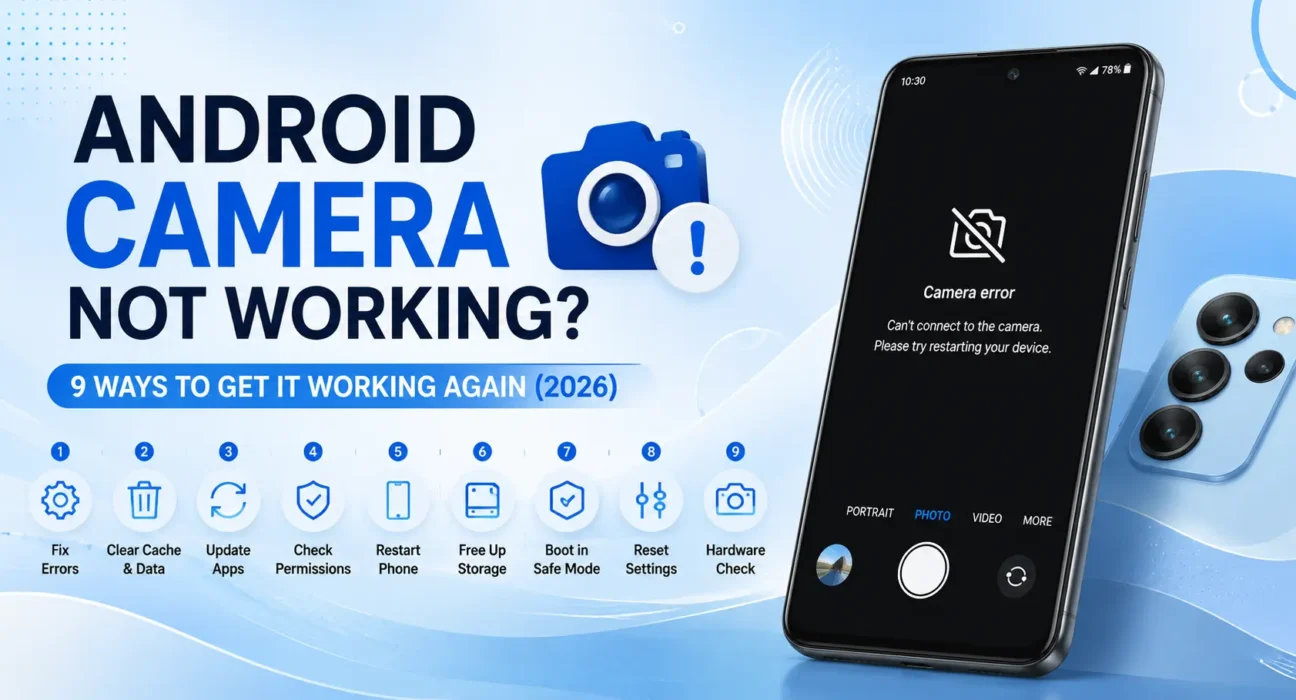
Android Camera Not Working Fix: 9 Ways to Get It Working Again (2026)
Looking for an Android camera not working fix that actually works? Whether the app crashes on open, shows a black screen, won’t focus, or fails to save photos, this guide walks through the fixes that resolve it – tested across Samsung, Pixel, and Motorola phones.
Success rates below are based on WekyTech’s own testing across Samsung Galaxy, Google Pixel, and Motorola phones running current Android versions.

Is It a Permission Issue, a Software Glitch, or Hardware Damage?
Start by identifying exactly how the camera is failing – a crash, a black screen, a blurry image, a failed save, or a blocked third-party app all point to different causes:
| Symptom | Likely Cause |
|---|---|
| App crashes immediately or shows “Unfortunately, Camera has stopped” | Corrupted cache or a stuck background process |
| Black screen, camera won’t open | Permission blocked, or another app is using the camera |
| Photos are blurry or won’t focus | Dirty lens, or a focus bug – not usually a hardware fault |
| Camera opens but photos fail to save | Storage nearly full |
| Only a third-party camera app is affected | App-specific bug, not a system-wide issue |
| Camera briefly works after a gentle tap on the lens area, or failure follows a drop/water exposure | Physical hardware damage |
What Actually Works (Tested Success Rates)
| Fix | Success Rate |
|---|---|
| Restart the phone | 38% |
| Check and reset Camera permissions | 27% |
| Clear Camera app cache | 31% |
| Free up storage space | 18% |
| Clean the lens | 12% (optical symptoms only) |
| Update the Camera app and Android | 22% |
| Boot into Safe Mode to isolate a third-party app | 19% |
| Uninstall and reinstall the Camera app | 15% (where supported) |
| Professional repair (hardware damage) | 90%+ |
The Complete Android Camera Not Working Fix List
1. Restart the Phone
A full restart clears a temporary camera-service failure, a stuck app state, or a conflict left behind by another app that used the camera and didn’t release it properly. This is different from a factory reset and doesn’t touch your photos or data.
2. Check Camera Permissions
Go to Settings > Apps > Camera > Permissions and confirm Camera access is set to Allow (or “Allow only while using this app”). If a video calling or scanning app recently asked for camera access and you denied it, that same phone-wide permission toggle can silently affect the default Camera app too.
3. Clear the Camera App’s Cache
Corrupted cache files are one of the most common causes of a camera app that crashes or shows “Unfortunately, Camera has stopped.” Go to Settings > Apps > Camera > Storage > Clear Cache. This does not delete your existing photos or videos.
4. Free Up Storage Space
When storage is nearly full, the camera can fail to save photos or refuse to open the preview at all. Check Settings > Storage, and if you’re above 90% full, clear out large files or offload backed-up photos and videos before trying the camera again.
5. Clean the Lens
If photos come out blurry, hazy, or the camera won’t focus – but the app itself opens and works otherwise normally – wipe the lens (and laser autofocus sensor, if your phone has one) with a soft, dry microfiber cloth. This step only helps with optical symptoms; it won’t fix a crash or a black screen.
6. Update the Camera App and Android
Outdated software is a common source of camera compatibility bugs. Update the default Camera app (if it’s listed separately) through the Play Store, and check Settings > About Phone > Software Updates for a pending Android update.
7. Boot Into Safe Mode
If the camera problem started after installing a new app, Safe Mode helps confirm that by loading only built-in system apps. Hold the power button, then press and hold Power Off until you’re prompted to restart in Safe Mode. If the camera works normally there, uninstall the most recently added app once you’re able to.
8. Uninstall and Reinstall the Camera App
This works best for third-party camera apps, which can be fully removed and reinstalled from the Play Store. For a manufacturer’s default Camera app that can’t be uninstalled, look for a Disable option under its app info, then re-enable it, or check for an app-specific update instead.
9. Test for Physical Hardware Damage
Gently tap around the camera lens area – if the camera briefly activates or flickers after the nudge, or if the failure directly followed a drop, overheating, or liquid exposure, the camera module itself likely needs professional inspection rather than further software troubleshooting.
When to Get Professional Repair Instead
If the camera still fails across every app – not just one – after working through the fixes above, or the phone was recently dropped, overheated significantly, or exposed to water, treat this as a hardware issue. Continued factory resets and reinstalls won’t fix a damaged camera module, and a manufacturer service center or authorized repair shop can confirm whether it’s covered under warranty before you pay for repair.
Fixes Summary
| Fix | Where to Find It |
|---|---|
| Restart the phone | Power menu |
| Check Camera permissions | Settings > Apps > Camera > Permissions |
| Clear Camera cache | Settings > Apps > Camera > Storage > Clear Cache |
| Free up storage | Settings > Storage |
| Clean the lens | Dry microfiber cloth |
| Update Camera app and Android | Play Store; Settings > About Phone > Software Updates |
| Boot into Safe Mode | Power off menu (during restart) |
| Reinstall the Camera app | Play Store (third-party apps) |
| Check for hardware damage | Gentle physical inspection |
FAQ
Why does my Android camera say “Unfortunately, Camera has stopped”?
This is almost always caused by corrupted cache files. Clearing the Camera app’s cache under Settings > Apps > Camera > Storage resolves it in most cases without affecting your existing photos.
Will clearing the camera cache delete my photos?
No, clearing cache only removes temporary files the app uses to run smoothly. Your photos and videos remain untouched – only “Clear Data” resets the app more completely.
Why is my camera app showing a black screen?
The most common causes are a blocked camera permission or another app still holding onto the camera in the background. Restarting the phone and checking permissions resolves this in most cases.
Why won’t my photos save after I take them?
This usually means storage is nearly full. Check Settings > Storage and free up space if you’re above 90% capacity.
How do I know if my camera problem is hardware, not software?
If the camera fails across every app (not just one), the phone was recently dropped or exposed to water, or gently tapping near the lens briefly activates it, the issue is likely a hardware fault that needs professional repair.
Does cleaning the lens actually help?
Only for optical symptoms – blurry, hazy, or out-of-focus photos. It won’t fix a crashing app, a black screen, or a permissions issue.