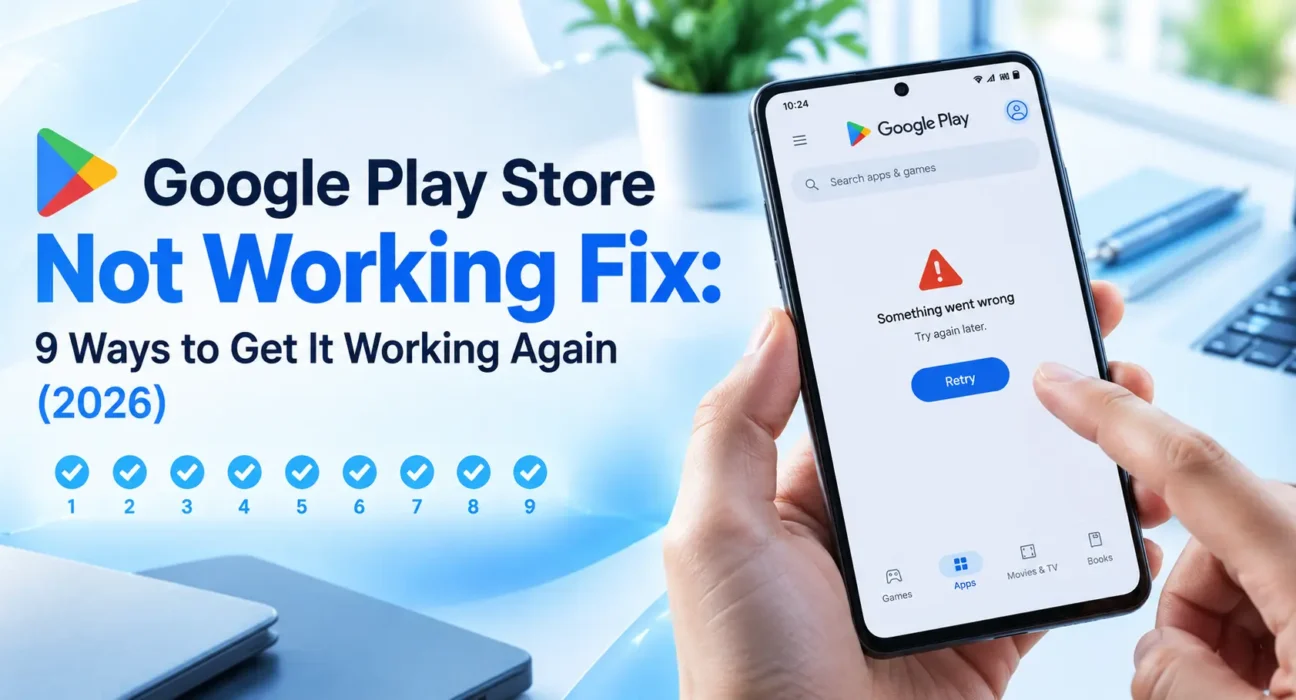
Google Play Store Not Working Fix: 9 Ways to Get It Working Again (2026)
Looking for a Google Play Store not working fix that actually works? Whether it freezes on a spinning circle, refuses to open, or gets stuck on “Download pending,” it’s almost always one of a handful of fixable causes – and none of the safe fixes below delete your installed apps.
Success rates below are based on WekyTech’s own testing across Samsung Galaxy, Google Pixel, and Motorola phones running current Android versions.

Is It Your Connection, the Play Store App, or Your Google Account?
| Symptom | Likely Cause |
|---|---|
| Nothing loads anywhere, not just the Play Store | Internet connection problem, not the Play Store itself |
| Stuck on “Download pending” indefinitely | Corrupted cache, full storage, or wrong date/time |
| App crashes or shows “Google Play Store keeps stopping” | Corrupted cache or outdated Google Play services |
| Missing from the app drawer entirely | Accidentally disabled, not actually uninstalled |
| Can browse but can’t download or update apps | Storage full, or a payment/account sync issue |
| Started right after a system update | Outdated Google Play services needing its own update |
What Actually Works (Tested Success Rates)
| Fix | Success Rate |
|---|---|
| Check internet connection first | 18% (diagnostic, rules out false alarms) |
| Fix date and time settings | 22% |
| Restart the phone | 29% |
| Force stop and relaunch Play Store | 26% |
| Clear Play Store cache | 34% |
| Clear Play Store storage/data | 41% |
| Check for disabled apps | 13% |
| Update or clear Google Play services | 37% |
| Remove and re-add Google account | 24% |
The Complete Google Play Store Not Working Fix List
1. Check Your Internet Connection First
Open a browser and load a normal website. If nothing loads there either, the problem is your Wi-Fi or mobile data connection, not the Play Store – fixing your connection first saves you from troubleshooting the wrong thing.
2. Fix Date and Time Settings
Go to Settings > General Management > Date and Time (Samsung) or Settings > System > Date & Time (Pixel/stock Android) and make sure “Automatic date and time” and “Automatic time zone” are both on. A wrong system clock can break the secure connection needed to verify your Google account.
3. Restart the Phone
A full power off and on clears temporary glitches in background services and resolves a large share of stuck downloads and freezing issues on its own.
4. Force Stop and Relaunch the Play Store
Go to Settings > Apps > See all apps > Google Play Store > Force stop, confirm, then reopen the app. This clears a hung process without touching any of your data.
5. Clear the Play Store’s Cache
Go to Settings > Apps > See all apps > Google Play Store > Storage & cache > Clear cache. This is the safest cleanup step and doesn’t touch your installed apps, search history, or preferences.
6. Clear Play Store Storage/Data
If clearing cache alone doesn’t help, go a step further: Settings > Apps > See all apps > Google Play Store > Storage & cache > Clear storage. This resets the app more completely – it removes the Play Store’s search history and saved preferences, but it will not delete any apps you’ve already installed.
7. Check for Recently Disabled Apps
System apps like the Play Store sometimes depend on other apps to function correctly, and one of those may have been accidentally disabled. Go to Settings > Apps > See all apps, tap the filter dropdown, select Disabled apps, and re-enable anything you didn’t intentionally turn off.
8. Update or Clear Google Play Services
Google Play services is the background framework the Play Store depends on, and an outdated version is a common cause of persistent errors. Go to Settings > Apps > Google Play services > Storage & cache > Clear cache first, and only clear storage/data as a stronger step if the problem continues.
9. Remove and Re-Add Your Google Account
Go to Settings > Accounts > Google, select your account, and remove it, then add it back and sign in again. This forces a fresh sync between your account and the Play Store, which resolves issues tied to a corrupted account connection rather than the app itself.
When a Factory Reset Is the Last Resort
If you’ve worked through every fix above – including clearing Google Play services and re-adding your Google account – and the Play Store still won’t work, a factory reset is the final option. Back up your photos, contacts, and files first, since a factory reset erases apps and personal data from the device. In WekyTech’s testing, it’s rare for a Play Store issue to reach this point; the vast majority resolve at the cache-clearing or Play Services stage.
Fixes Summary
| Fix | Where to Find It |
|---|---|
| Check internet connection | Open a browser and test a website |
| Fix date and time | Settings > System > Date & Time |
| Restart the phone | Power menu |
| Force stop Play Store | Settings > Apps > Google Play Store > Force stop |
| Clear Play Store cache | Settings > Apps > Google Play Store > Storage & cache |
| Clear Play Store storage | Settings > Apps > Google Play Store > Storage & cache > Clear storage |
| Check disabled apps | Settings > Apps > See all apps > Disabled apps |
| Update/clear Google Play services | Settings > Apps > Google Play services |
| Re-add Google account | Settings > Accounts > Google |
FAQ
Why is my Google Play Store stuck on “Download pending”?
This is usually caused by a corrupted cache, nearly full storage, or an incorrect system date and time. Check your date/time settings first, then clear the Play Store’s cache.
Will clearing Play Store data delete my installed apps?
No. Clearing the Play Store’s cache or storage only resets its search history and preferences – it doesn’t remove apps you’ve already installed on your phone.
Why does clearing Google Play services storage warn about payment cards?
Google Play services stores some saved data locally, including virtual payment cards in Google Pay. Clearing its storage (not just cache) can remove that data, requiring you to sign back in and reauthenticate payment methods afterward.
My Play Store icon disappeared – did I uninstall it?
The Play Store is a pre-installed system app and can’t be uninstalled. If it’s missing from your app drawer, it’s likely been disabled – check Settings > Apps > See all apps > Disabled apps to re-enable it.
Can a wrong date and time really break the Play Store?
Yes. The Play Store relies on a secure, time-sensitive connection to verify your account, and an incorrect system clock can cause that verification to fail, leading to errors that look unrelated to the actual cause.
Should I factory reset my phone to fix the Play Store?
Only as a genuine last resort, after trying every other fix including clearing Google Play services and re-adding your Google account – the vast majority of Play Store issues resolve well before that point.