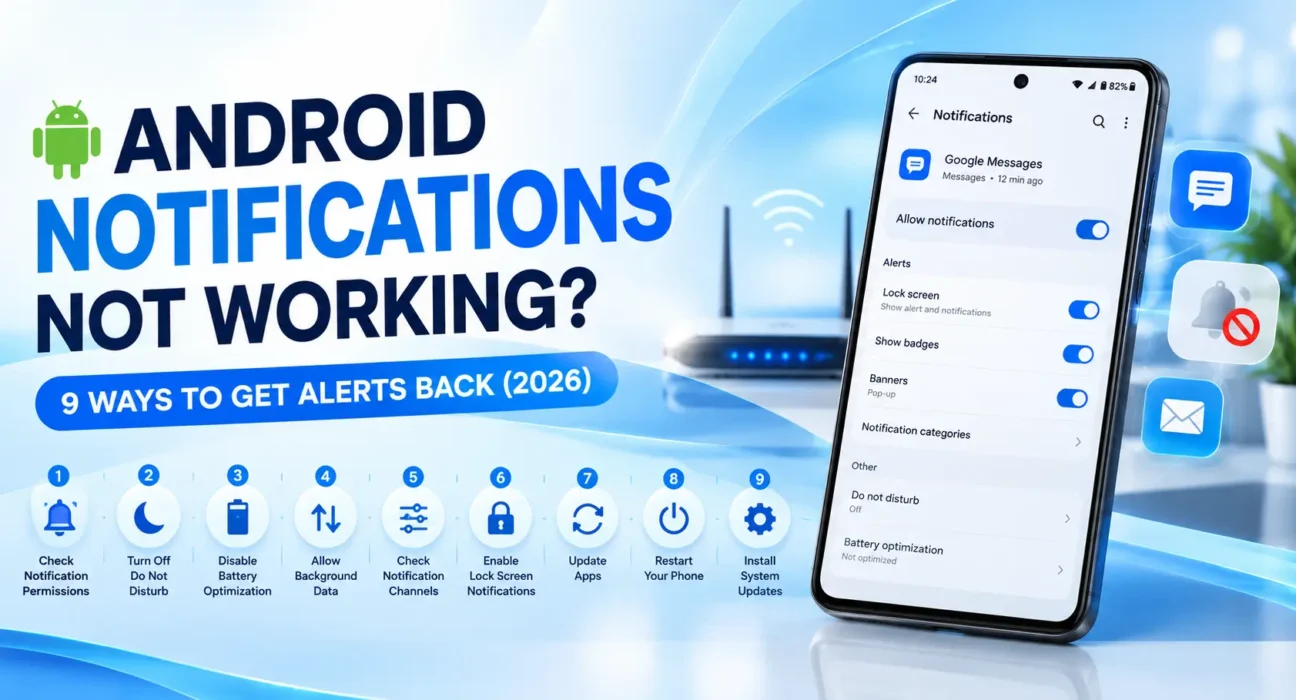
Android Notifications Not Working Fix: 9 Ways to Get Alerts Back (2026)
Looking for an Android notifications not working fix that actually works? Alerts can be blocked, delayed, silenced, or hidden at several different layers of the system – the fix depends on where the chain actually broke, not on changing every setting at once.
Success rates below are based on WekyTech’s own testing across Samsung Galaxy, Google Pixel, and Motorola phones running current Android versions.

Which Notification Symptom Do You Actually Have?
Android notifications can fail in more than one way, and each points to a different cause. Identify your specific symptom before changing settings:
| Symptom | Likely Cause |
|---|---|
| No notifications at all, from any app | Do Not Disturb, or a system-wide setting |
| Only specific apps stay silent | App notification permission denied, or channel muted |
| Notifications work, then stop after the app’s been open a while | Battery optimization restricting background activity |
| Notifications arrive late, not missing entirely | Data Saver, weak connection, or Doze Mode |
| Notifications only fail on Wi-Fi or only on cellular | Network-specific background data restriction |
| Started right after a system update | Reset notification permissions or a temporary bug |
What Actually Works (Tested Success Rates)
| Fix | Success Rate |
|---|---|
| Turn off Do Not Disturb / check schedules | 34% |
| Check app notification permission | 29% |
| Check notification channels within the app | 21% |
| Remove app from battery optimization | 38% |
| Disable Data Saver for the app | 24% |
| Restart the phone | 27% |
| Update the app and system software | 19% |
| Check Notification History for missed alerts | 15% (diagnostic only) |
| Reset app preferences | 32% |
The Complete Android Notifications Not Working Fix List
1. Turn Off Do Not Disturb
Swipe down your notification shade and check whether the Do Not Disturb icon is active. Long-press it to check for schedules or exceptions that might be silently blocking specific apps – it’s common to have this scheduled to turn off in the morning, but a manually enabled Focus Mode can still override that schedule.
2. Check the App’s Notification Permission
Since Android 13, apps must explicitly request permission before they can show notifications at all – a prompt some apps fail to trigger properly. Go to Settings > Apps > [App Name] > Notifications and confirm the toggle is on. On Samsung: Settings > Notifications > App notifications.
3. Check the App’s Notification Channels
Individual apps can have multiple notification “channels” (like Messages, Promotions, or Reminders within one app), and it’s possible for one specific channel to be muted while others work fine. Inside Settings > Apps > [App Name] > Notifications, expand the category list and check each channel individually.
4. Remove Battery Optimization Restrictions
If notifications work right when you open an app but stop once it’s been in the background a while, battery optimization is likely restricting it. Go to Settings > Battery > [App Name] > Unrestricted (or Settings > Apps > [App Name] > Battery > Unrestricted) for apps where timely alerts matter, like messaging or ride-sharing apps.
5. Disable Data Saver for Specific Apps
Data Saver restricts background data to save your data plan, which can delay or block notifications that rely on a live background connection. Go to Settings > Network & Internet > Data Saver, and if it’s on, tap Unrestricted data to allow background data specifically for apps like Gmail, WhatsApp, or Telegram.
6. Restart the Phone
A restart clears hung background processes that may be silently blocking notification delivery. Hold the power button, tap Restart, and once the phone boots up, wait about a minute for all services to load before testing again.
7. Update the App and System Software
Notification bugs get patched regularly on both sides. Open the Play Store > profile icon > Manage apps & device > Update all, and separately check Settings > System > System Update for a pending Android update.
8. Check Notification History
Android’s Notification History tells you whether the phone actually received an alert but hid or dismissed it, versus never receiving it at all – a useful diagnostic before changing more settings. Go to Settings > Notifications > Notification History and turn it on to start logging going forward.
9. Reset App Preferences
This resets all apps’ notification, permission, and background-data settings back to their defaults without deleting any app data or files – useful if a setting got tangled up somewhere you can’t pinpoint. Go to Settings > Apps > three-dot menu > Reset app preferences.
When to Refresh the Notification Framework
If you’ve tried every fix above and notifications are still missing across multiple apps, clearing Google Play Services’ cache can help, since it manages the underlying push notification delivery system for most Android apps. Go to Settings > Apps > See all apps > Google Play Services > Storage > Clear Cache, then restart the phone. Also check that any physical alert slider (on phones that have one) isn’t set to Silent – no software setting will override a hardware switch left in the wrong position.
Fixes Summary
| Fix | Where to Find It |
|---|---|
| Turn off Do Not Disturb | Notification shade / Settings > Sound & vibration > Do Not Disturb |
| Check app notification permission | Settings > Apps > [App] > Notifications |
| Check notification channels | Settings > Apps > [App] > Notifications > [Category] |
| Remove battery restrictions | Settings > Battery > [App] > Unrestricted |
| Disable Data Saver for an app | Settings > Network & Internet > Data Saver |
| Restart the phone | Power menu |
| Update app and system | Play Store; Settings > System Update |
| Check Notification History | Settings > Notifications > Notification History |
| Reset app preferences | Settings > Apps > three-dot menu |
FAQ
Why are my Android notifications not showing up at all?
The most common causes are Do Not Disturb being active, a blocked notification permission for that app, or battery optimization restricting its background activity – check those three first.
Why do my WhatsApp or messaging app notifications arrive late instead of missing entirely?
This usually points to Data Saver restricting background data, or Doze Mode delaying delivery while the phone is stationary. Set the app to unrestricted battery usage and allow it under Data Saver’s exceptions.
What’s the difference between a notification permission and a notification channel?
The permission is an app-wide on/off switch; channels are more granular categories within an app (like “Messages” vs. “Promotions”) that can be individually muted while the overall permission stays on.
Does resetting app preferences delete my apps or data?
No, it only resets notification, permission, and background-data settings back to default – it doesn’t remove any apps, files, or personal data.
Why did my notifications stop working right after a system update?
Updates occasionally reset notification permissions or introduce a temporary bug. Re-check the app’s notification permission first, and look for a follow-up patch if the issue persists.
How do I check if Android actually received a notification I missed?
Turn on Notification History under Settings > Notifications > Notification History – it logs alerts going forward, which helps confirm whether the phone received them but hid them, versus never getting them at all.