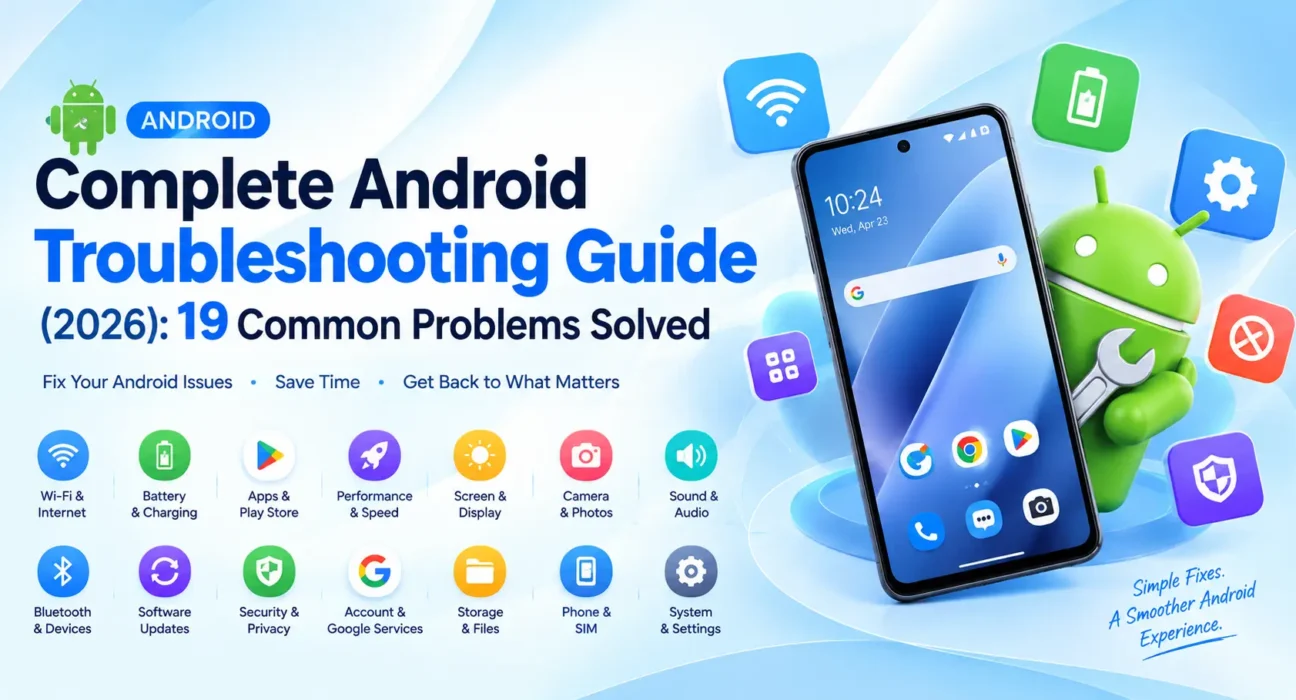
Complete Android Troubleshooting Guide (2026): 19 Common Problems Solved
Every major Android problem WekyTech has tested and documented, organized in one place – battery, charging, apps, storage, connectivity, camera, and display issues, each with its own step-by-step fix guide.
Android phones fail in predictable ways. Whether it’s a battery that drains too fast, a Wi-Fi connection that keeps dropping, an app that won’t stop crashing, or a screen that won’t respond to touch, the vast majority of Android problems trace back to a small set of causes – and nearly all of them are fixable without a repair shop. This guide is the central hub for every Android troubleshooting article WekyTech has published, organized by category so you can jump straight to your specific problem.
Apps & Software
📱 App Crashes, Freezes, and Store Problems
-
Fix Android Apps That Keep Crashing and Freezing
Force-stop, cache-clearing, and permission fixes for apps that lock up mid-use.
-
Android Apps Keep Closing Automatically: How to Fix
What to do when an app closes itself seconds after opening, even without an error message.
-
Google Play Store Not Working Fix
Fixes for a Play Store that won’t open, freezes, or gets stuck on “Download pending.”
-
Android Apps Won’t Download or Install Fix
Covers the “App not installed” error and downloads that stall before completing.
Battery & Power
🔋 Draining, Overheating, and Charging Issues
-
Android Battery Draining Fast Fix
Identify the background app or setting responsible for fast, unexplained battery drain.
-
Android Phone Overheating Fix
Cooldown steps and causes for a phone that gets hot during normal or heavy use.
-
Android Phone Won’t Charge Fix
Diagnose whether a bad cable, blocked port, or failing battery is behind a charging failure.
Startup & Stability
🔄 Won’t Turn On, Boot Loops, and Random Restarts
-
Android Phone Won’t Turn On Fix
What to check when the screen stays completely black, even when plugged in.
-
Android Phone Stuck on Boot Logo Fix
Break a boot loop where the phone repeatedly shows the logo but never finishes starting up.
-
Android Phone Keeps Restarting Fix
Find out whether an app, storage, heat, or hardware is causing repeated unexpected reboots.
Performance & Storage
🐢 Slow Performance and Full Storage
-
Android Phone Storage Full Fix
Reclaim real space from cache, photos, and forgotten downloads without deleting what matters.
-
Android Phone Running Slow Fix
Speed up a laggy phone through settings changes that take 10-15 minutes, no new phone required.
Connectivity & Location
📶 Wi-Fi, Bluetooth, and GPS
-
Android Bluetooth Won’t Connect Fix
Get headphones, speakers, and car systems pairing again after a failed or dropped connection.
-
Android Wi-Fi Keeps Disconnecting Fix
Stop Wi-Fi from dropping, especially when the screen turns off or the phone goes idle.
-
Android GPS Not Working Fix
Fix a location that won’t lock on, shows the wrong place, or fails in specific apps only.
Display
🖥️ Touch Response and Screen Flickering
-
Android Touch Screen Not Responding Fix
Diagnose a frozen, laggy, or partially unresponsive touchscreen before assuming it’s broken.
-
Android Screen Flickering Fix
Stop screen flashing or pulsing, plus how to check for known manufacturer display issues.
Camera & Alerts
📷 Camera and Notification Problems
-
Android Camera Not Working Fix
Fix a camera app that crashes, shows a black screen, or won’t save photos.
-
Android Notifications Not Working Fix
Restore missing, delayed, or silent alerts across specific apps or the whole phone.
General Troubleshooting Order That Works Across Every Problem
If you’re not sure which specific guide applies, or your problem doesn’t match any of the categories above, these steps resolve a large share of Android issues in general, roughly in order of how invasive they are:
1. Restart the phone
Clears temporary software glitches and stuck background processes – the single highest-value, lowest-effort fix for almost any Android problem.
2. Boot into Safe Mode
Loads only built-in system apps. If the problem disappears in Safe Mode, a third-party app is responsible – uninstall your most recently added app first.
3. Check for a pending update
Under Settings > System > Software Update. Manufacturers regularly patch exactly the kind of bugs covered throughout this guide.
4. Clear the relevant app’s cache
Under Settings > Apps > [App] > Storage > Clear cache. Safe, reversible, and resolves a meaningful share of app-specific glitches without deleting any data.
5. Wipe the cache partition via Recovery Mode
Clears corrupted system-level temporary files without touching personal data – a deeper version of step 4 for system-wide issues.
6. Factory reset, as a genuine last resort
Back up your data first. This resolves the vast majority of remaining software-based issues, but should only come after every guide-specific fix above has actually been tried.
When to Stop Troubleshooting and Get Professional Help
Software fixes have limits. Treat these as signs to stop DIY troubleshooting and get a professional opinion instead:
- The phone was recently dropped, overheated significantly, or exposed to water
- A problem persists even in Safe Mode and after a full factory reset
- The battery looks visibly swollen or the phone no longer sits flat on a table
- A specific component (camera, charging port, touchscreen) fails consistently across every app and after every relevant fix
Check your model with the manufacturer before paying for a repair – some issues, like Samsung’s “Green Line” display program or Google’s extended Pixel 8 display warranty, are covered for free even outside the standard warranty period.
FAQ
What’s the most common cause of Android problems overall?
A misbehaving background app or a corrupted cache accounts for the largest share of issues WekyTech has tested – which is why Safe Mode and cache clearing appear as early steps across almost every guide in this hub.
Should I always start with a factory reset if nothing else works?
No – treat it as a genuine last resort. Work through the guide-specific fixes and the general troubleshooting order first; the vast majority of problems resolve well before a factory reset is necessary.
Do these fixes work the same way on Samsung, Pixel, and Motorola phones?
The underlying causes and general steps are the same across brands, though exact menu names and button combinations vary slightly – each individual guide notes brand-specific differences where they matter.
How do I know if my problem is software or hardware?
Safe Mode is the fastest test: if the problem disappears there, it’s software. If it persists in Safe Mode and after a full factory reset, or follows a drop or water exposure, it’s very likely hardware.